Table of Contents
How to Create a SimplaLink to Sell an Event
Style & More Store simplifies the way you create and manage event ticket sales through payment links, ensuring a fast and efficient process. This guide describes the step-by-step process for creating a Simpla Link specifically for selling event tickets in the Style & More Store platform. The process is simple and intuitive, allowing you to generate professional payment links for concerts, conferences, workshops, or any ticketed event in just a few steps.
If you need help creating a payment link, click here!
If you need help sharing a payment link, click here!
If you need help updating products, click here!
If you need help viewing products, click here!
If you need help creating a simpla link to take a payment, click here!
If you need help creating a simpla link to sell a service, click here!
Before You Start:
Before starting the Event SimplaLink creation process, ensure you have:
• Access to the Accept Payments module in the platform.
• Administrator or payment management permissions.
• Clear details about your event: name, date, location, and ticket price.
• (Optional) Event images, descriptions, and promotional materials.
How to Access Simpla Links
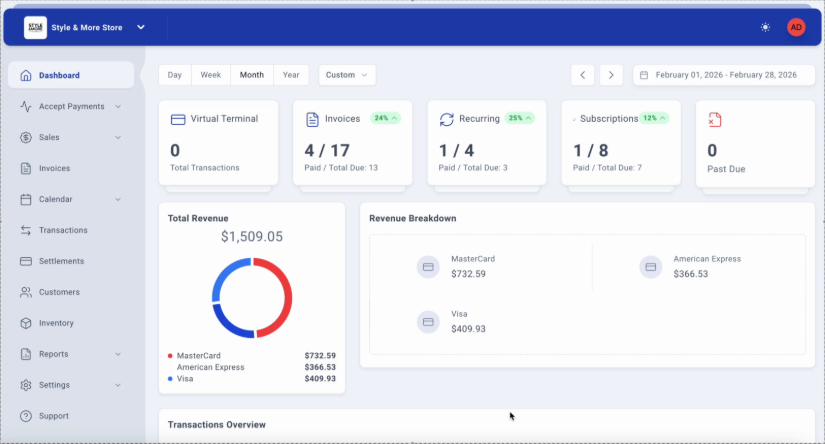
Step 1: Access the Dashboard
Log in to the Style & More Store platform. You will be automatically directed to the main Dashboard, where you can view a summary of your business metrics, including transactions, invoices, recurring payments, and subscriptions.
Step 2: Navigate to the Simpla Links Module
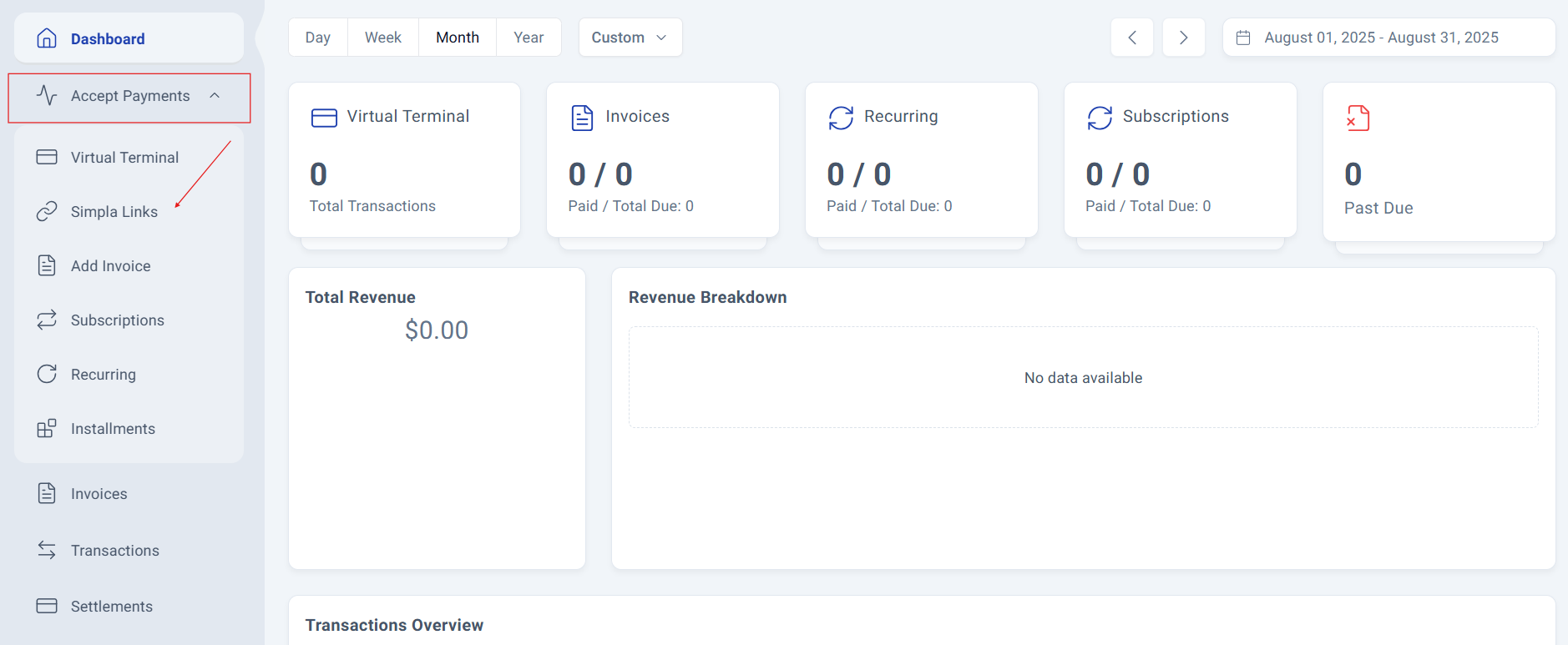
In the left sidebar menu, expand the "Accept Payments" section, then locate and click on the "Simpla Links" option. This will take you to the Simpla Links management view where you can see all your existing payment links.
Step 3: Access the Simpla Links Management Panel.
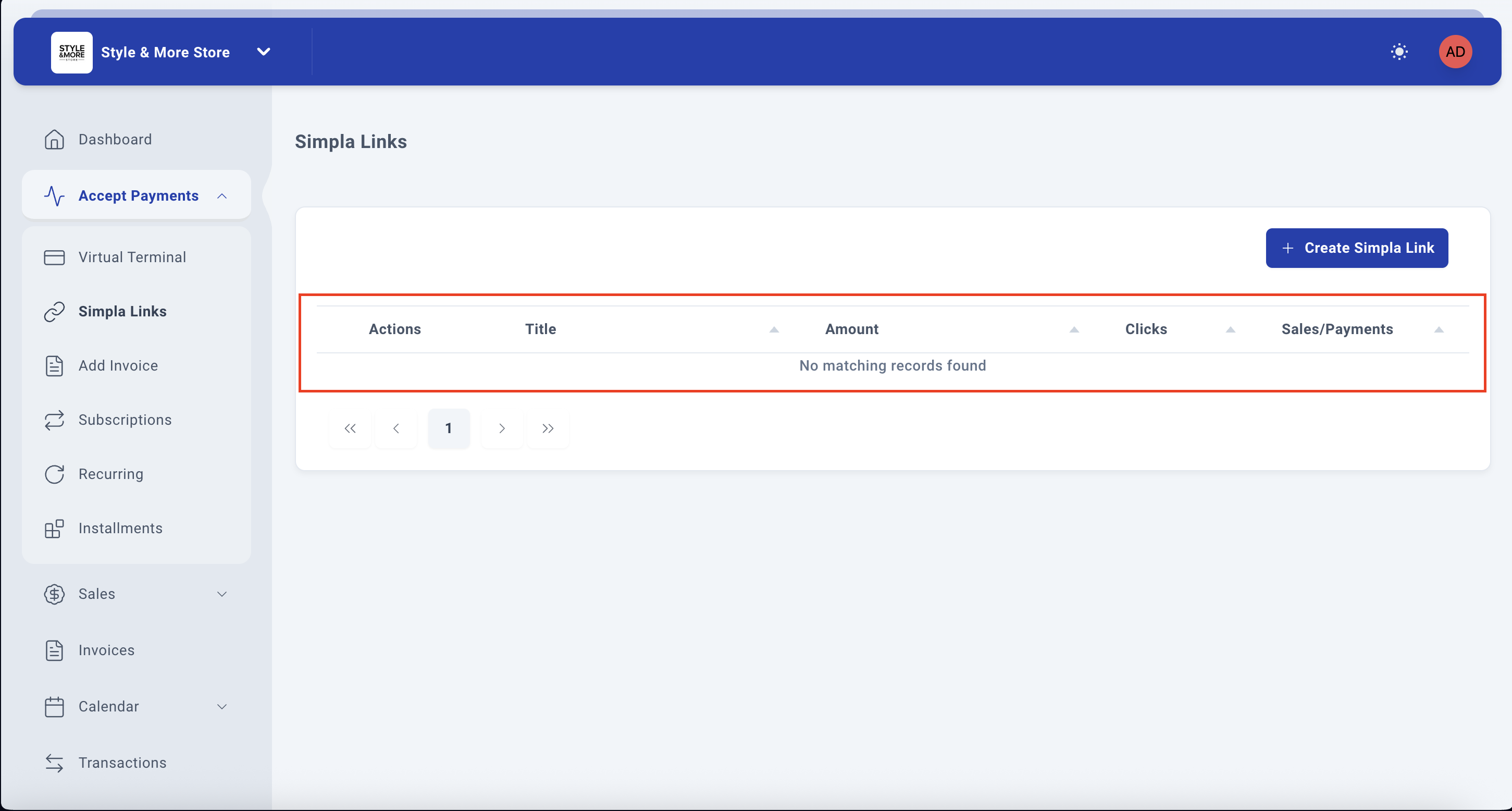
The Simpla Links Management Panel displays a table with all your payment links. You'll see existing links with their Actions, Title, Amount, Clicks, and Sales/Payments statistics. The main action available at this stage is:
+ Create Simpla Link - Located in the top-right corner of the page
Each existing link has options to Share it or access additional settings through the three-dot menu.
Creating an Event Simpla Link
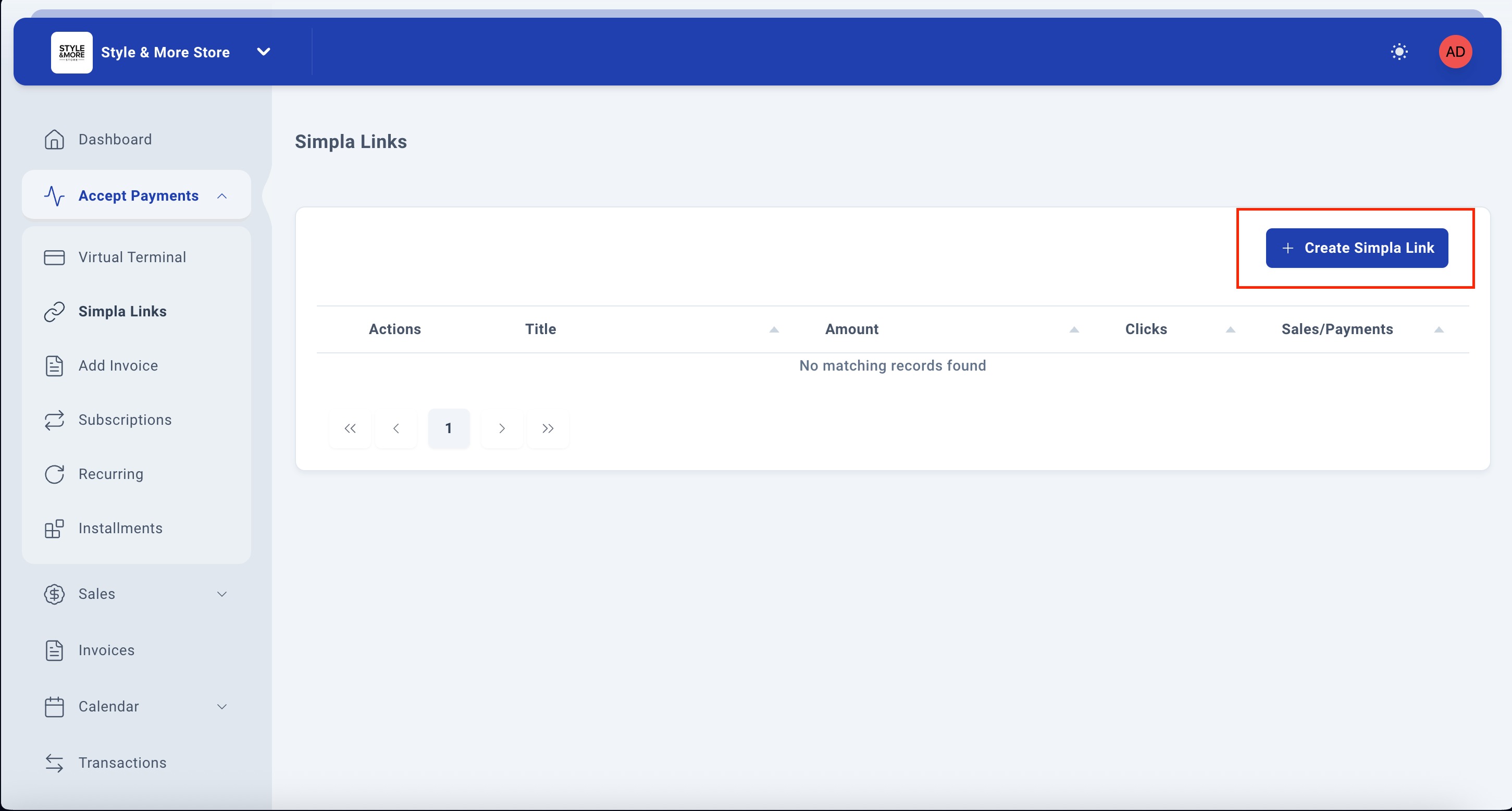
Step 4: Click Create Simpla Link
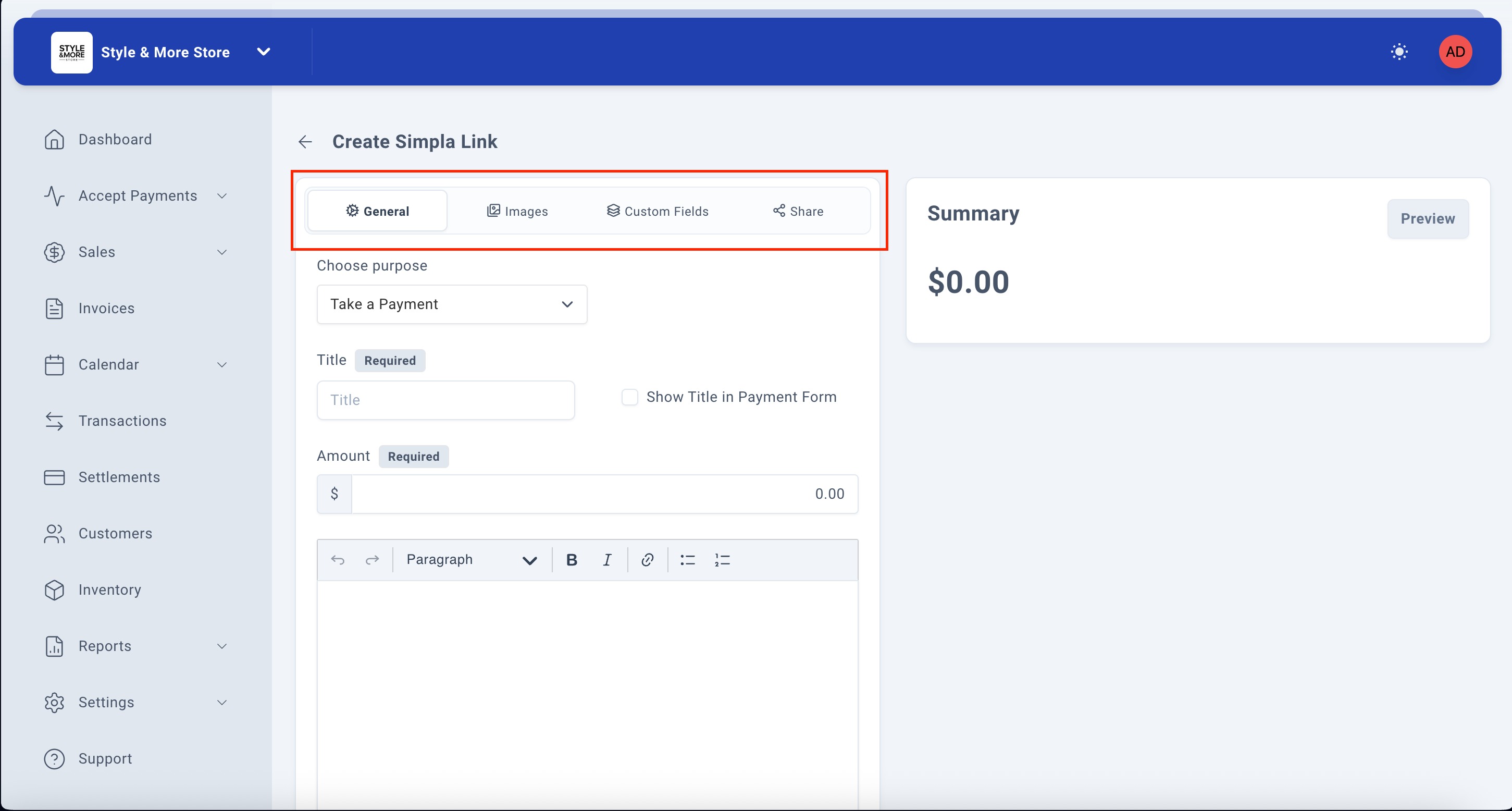
Click the "+ Create Simpla Link" button in the top-right corner. A form titled "Create Simpla Link" will appear with multiple tabs: General, Images, Custom Fields, Ticketing, and Share.
The form includes a live Summary panel on the right side that updates in real-time as you fill in the details, showing a preview of your payment link.
Step 5: Choose "Sell an Event" Purpose
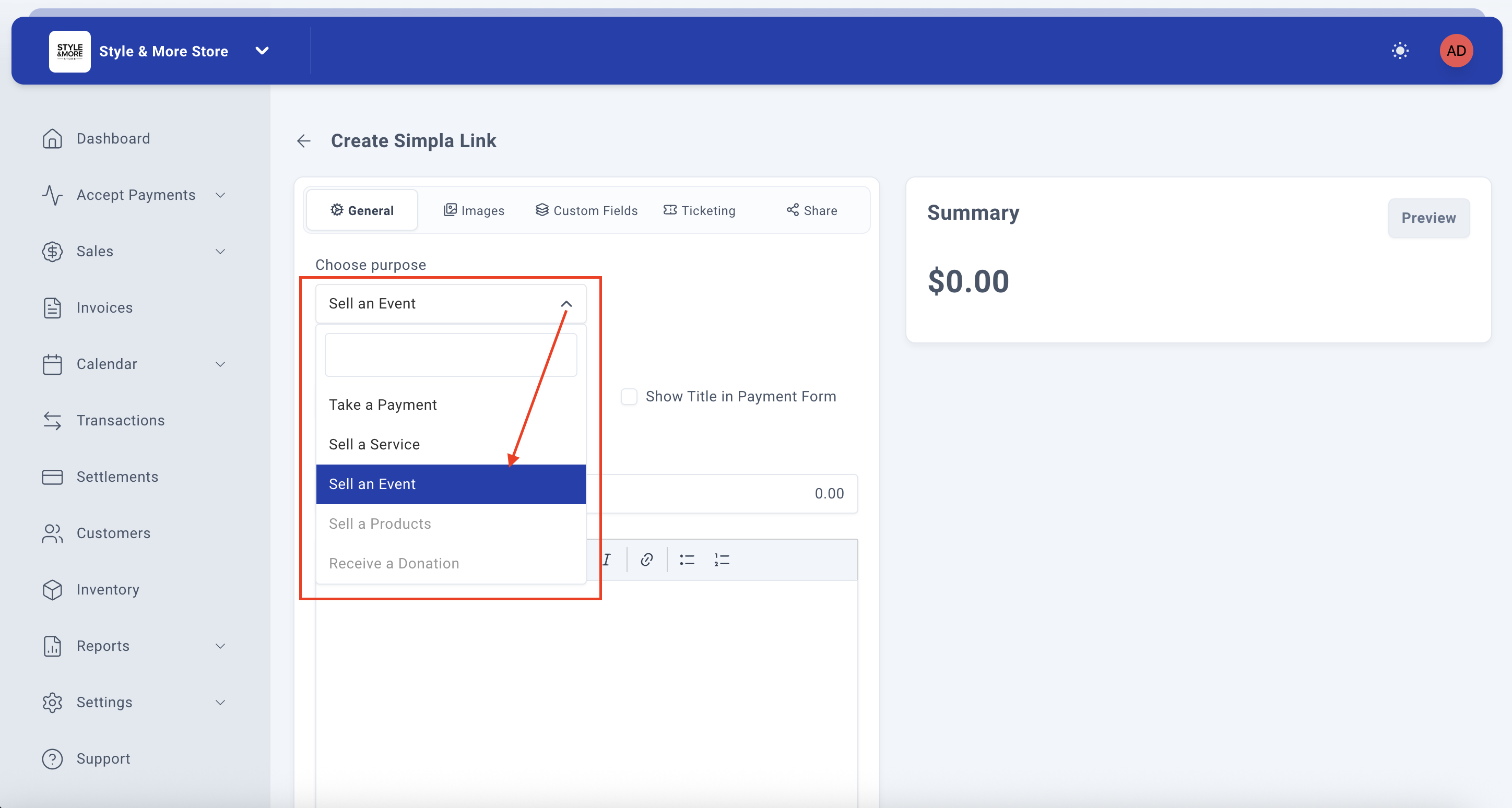
In the "Choose purpose" dropdown, click to expand the options. You'll see the following available choices:
- Take a Payment - For general payment collection
- Sell a Service - For service-based transactions
- Sell an Event - For event tickets or registrations
- Sell a Products - For product sales
- Receive a Donation - For charitable contributions
For this guide, select "Sell an Event". This option will unlock the Ticketing tab, which provides specialized features for event management.
Step 6: Notice the Ticketing Tab
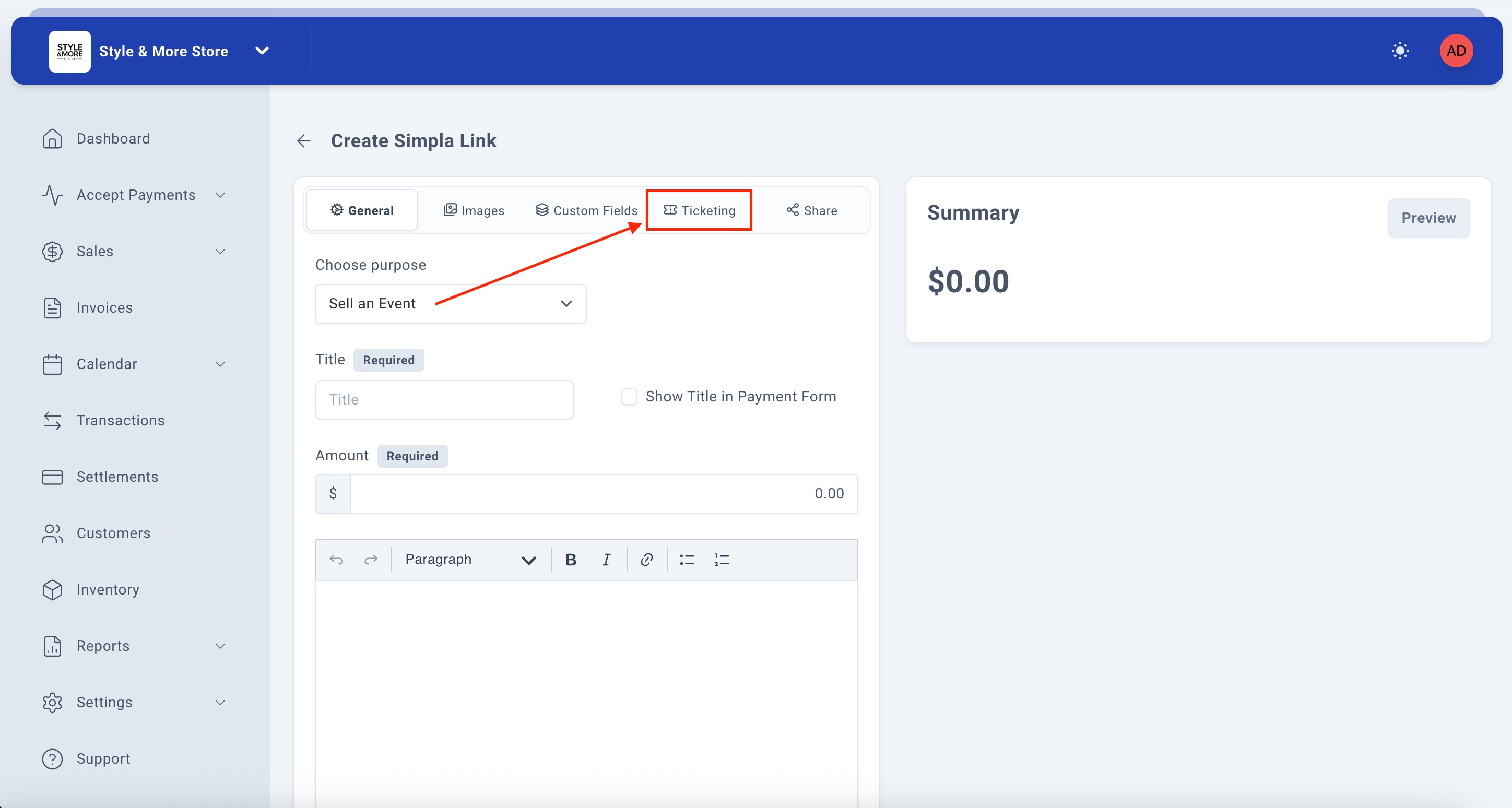
Once you select "Sell an Event" from the purpose dropdown, you'll notice that the tabs at the top of the form now include a new "Ticketing" tab between Custom Fields and Share.
This tab appears specifically when you choose to sell an event and provides additional configuration options for event ticketing management that we'll explore later in this guide.
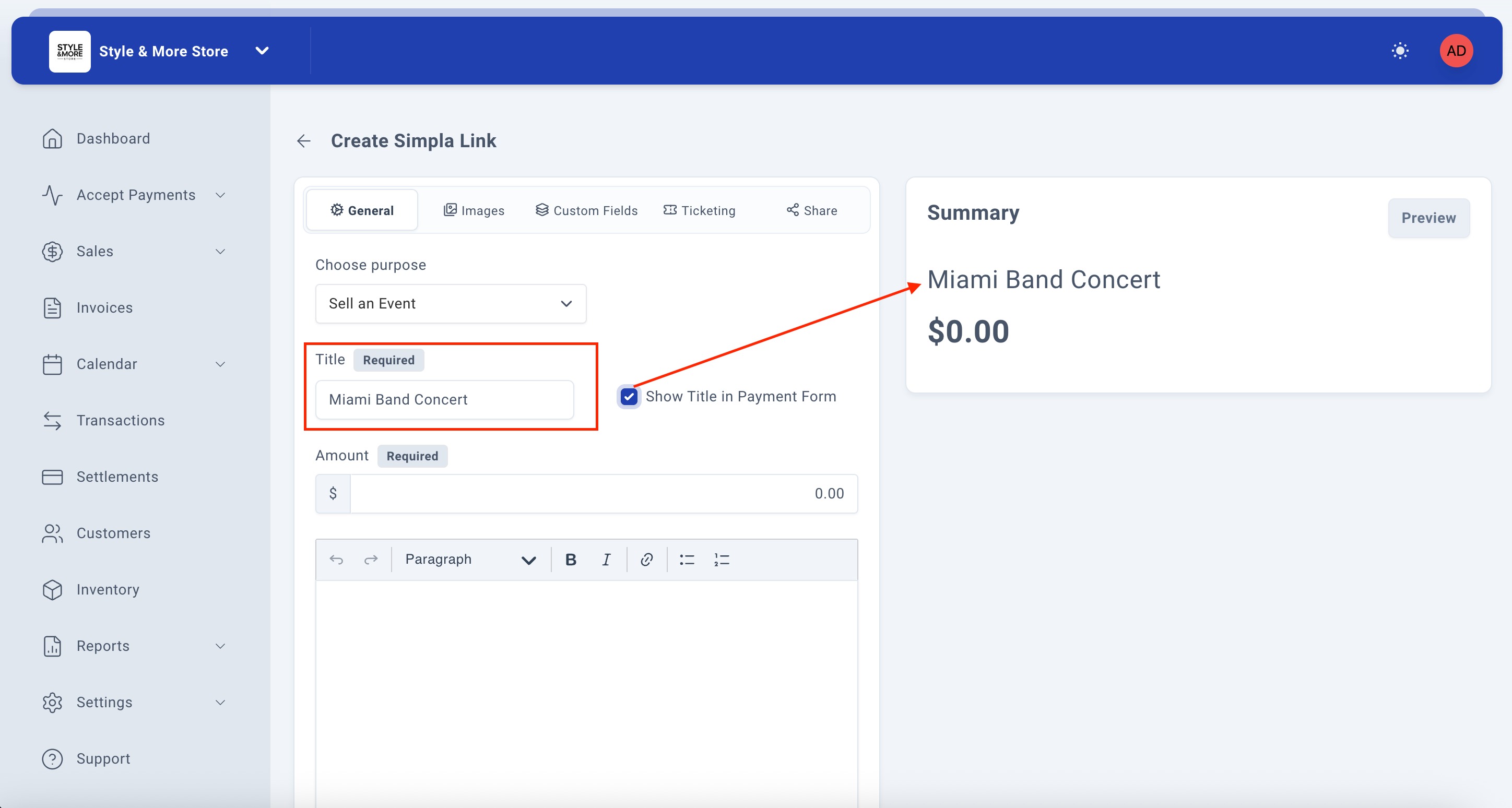
Step 7: Enter the Event Title
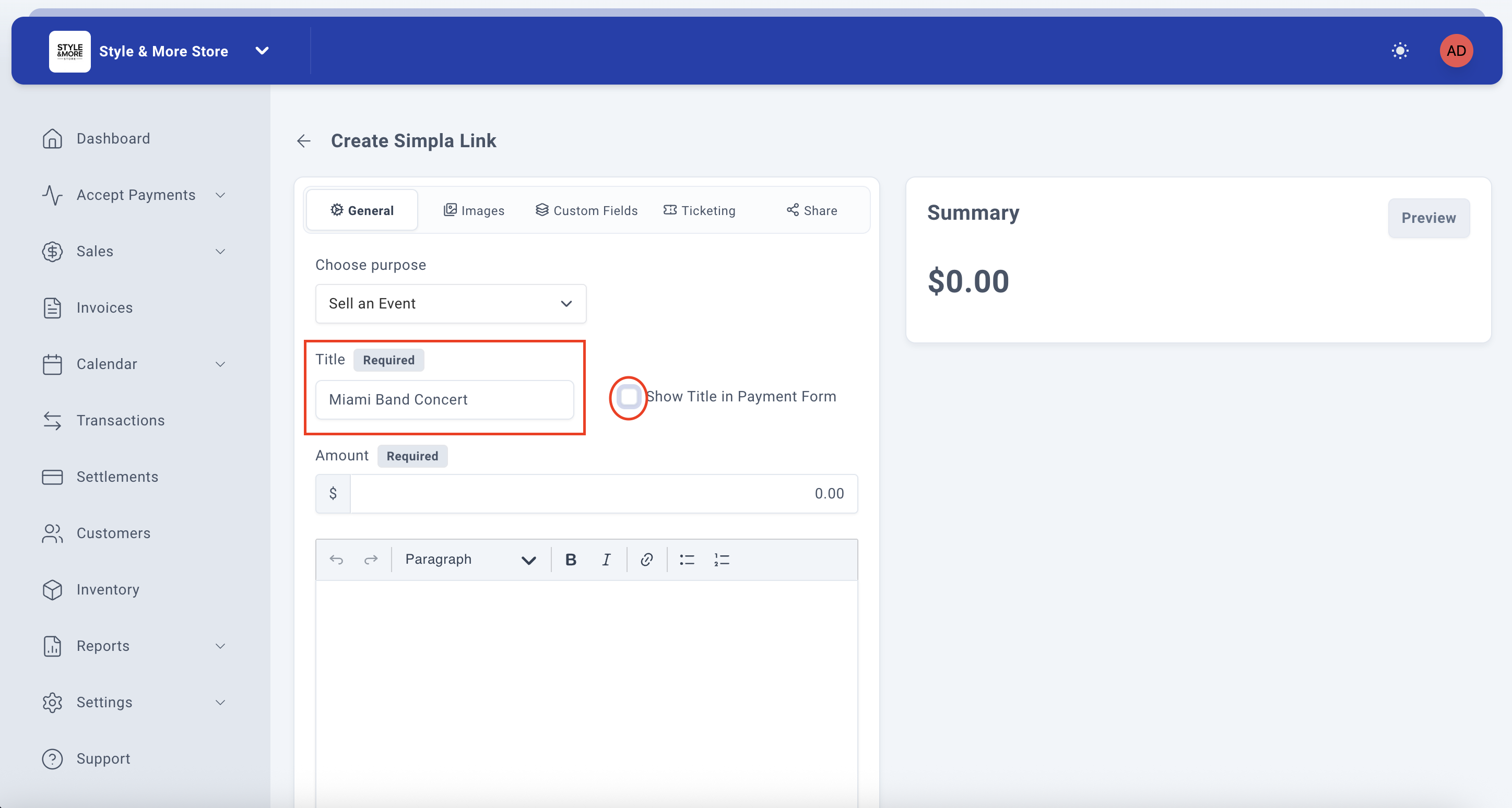
In the "Title" field (marked as Required), enter a descriptive name for your event. This title will be displayed to customers when they access the payment link and should clearly identify your event.
For this example, we'll type "Miami Band Concert".
You can optionally check the "Show Title in Payment Form" checkbox if you want the title to be prominently visible on the actual payment form that customers see.
Step 8: Review Title in Summary
As you type the event title, notice how the Summary panel on the right side automatically updates to display your event name. This gives you an instant preview of how your event link will appear to customers.
In this example, you can see "Miami Band Concert" now appears at the top of the Summary panel, above the price field.
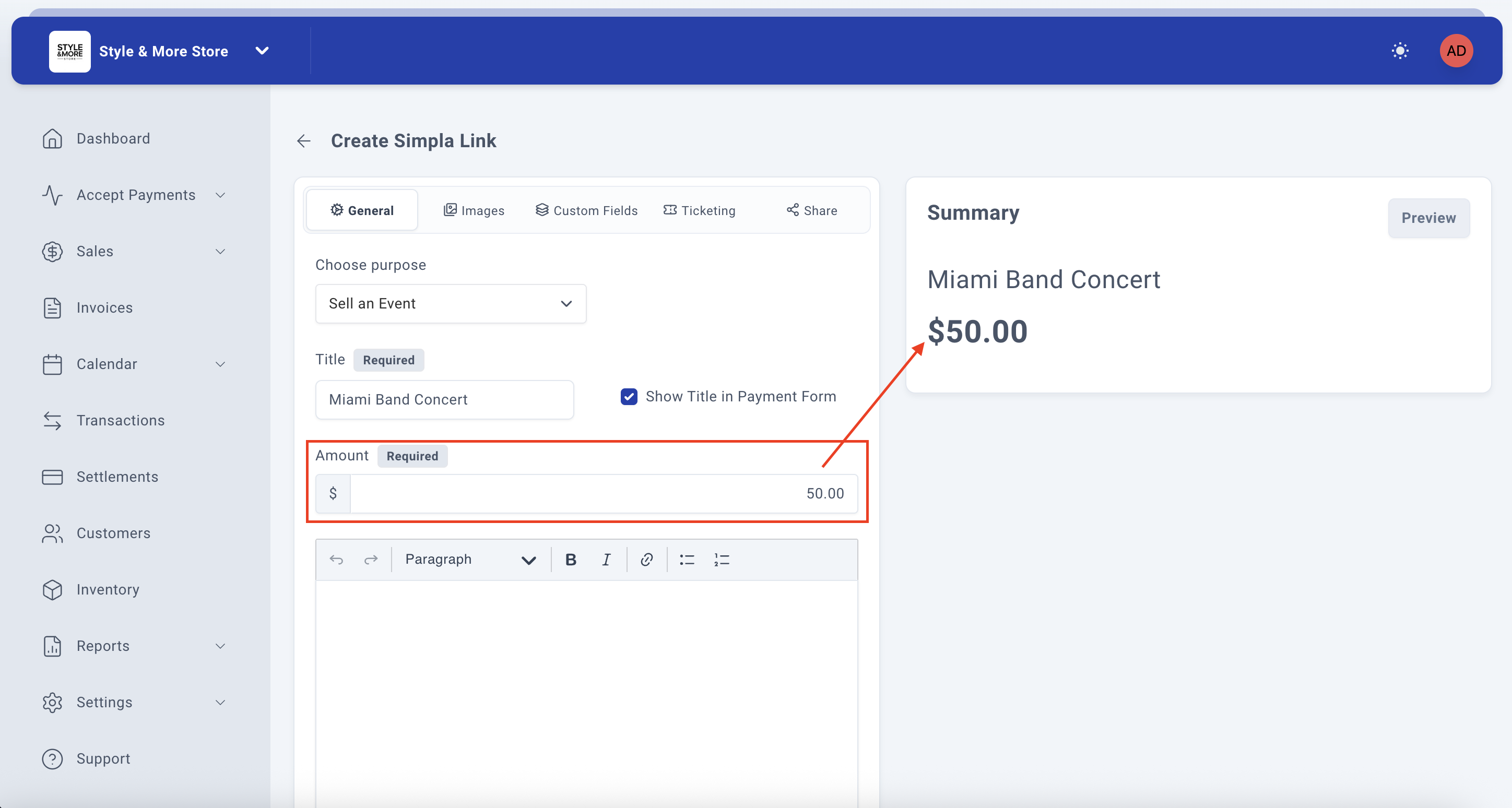
Step 9: Set the Ticket Price and Add Description
In the "Amount" field (marked as Required), enter the ticket price for your event. The field accepts numerical values and automatically formats the currency.
For this example, we'll enter "50.00" for a $50 ticket price.
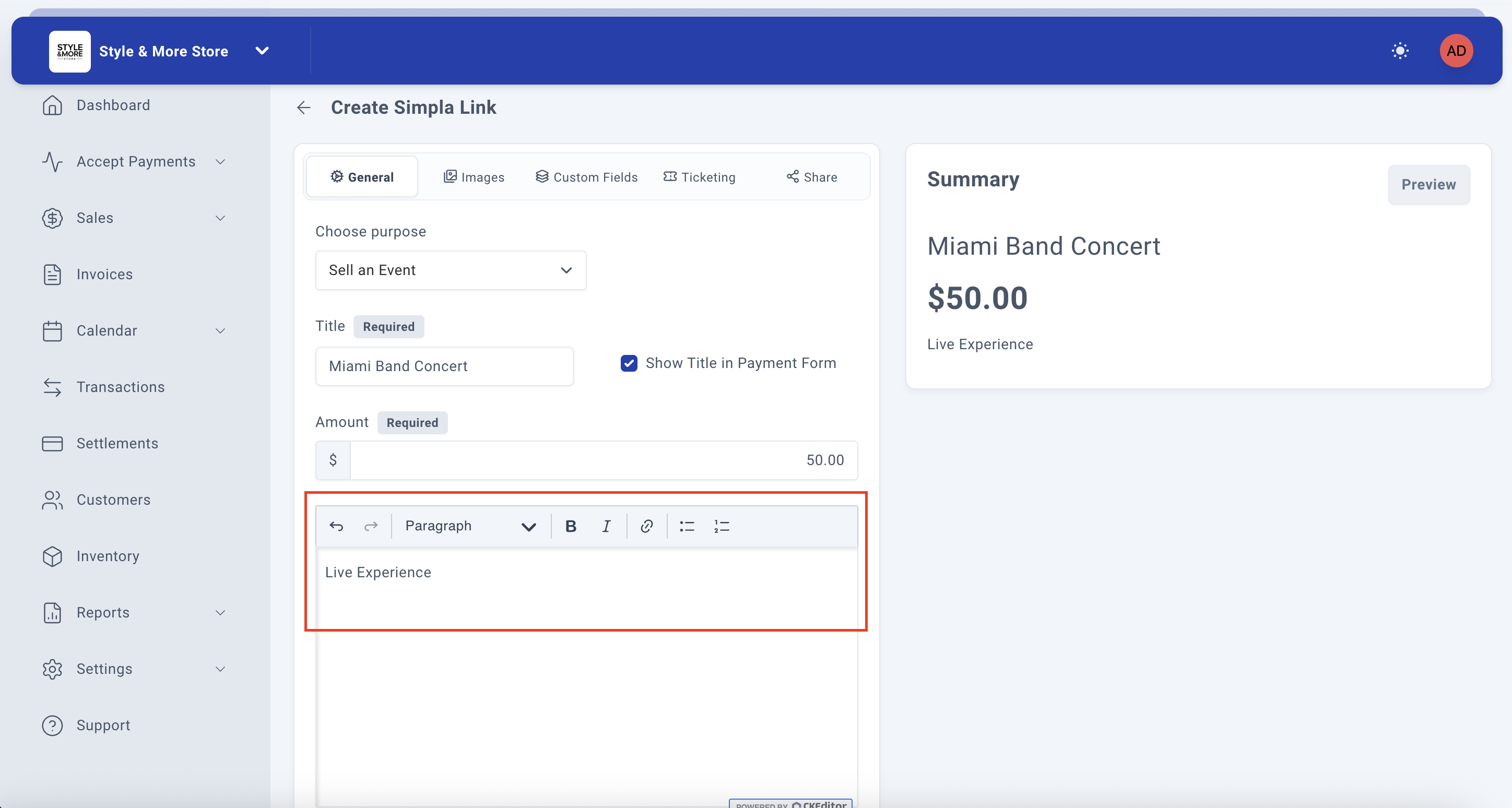
Below the amount field, you'll find a rich text editor where you can add a description of your event. Start typing your event description. For this example, we'll begin with "Live" (which will become "Live Experience").
The Summary panel on the right immediately updates to show "$50.00" and begins displaying your description text as you type.
Step 10: Complete and Format the Description
Continue typing your event description. Complete the phrase to read "Live Experience" or add more details about your event.
Using the formatting toolbar above the text editor, you can enhance your description with:
- Bold or italic text formatting
- Bulleted or numbered lists
- Links to additional information
- Different paragraph styles
In this example, the text "Live Experience" appears both in the description field and in the Summary panel, showing how it will display to customers.
Step 11: Format as Bullet List (Optional)
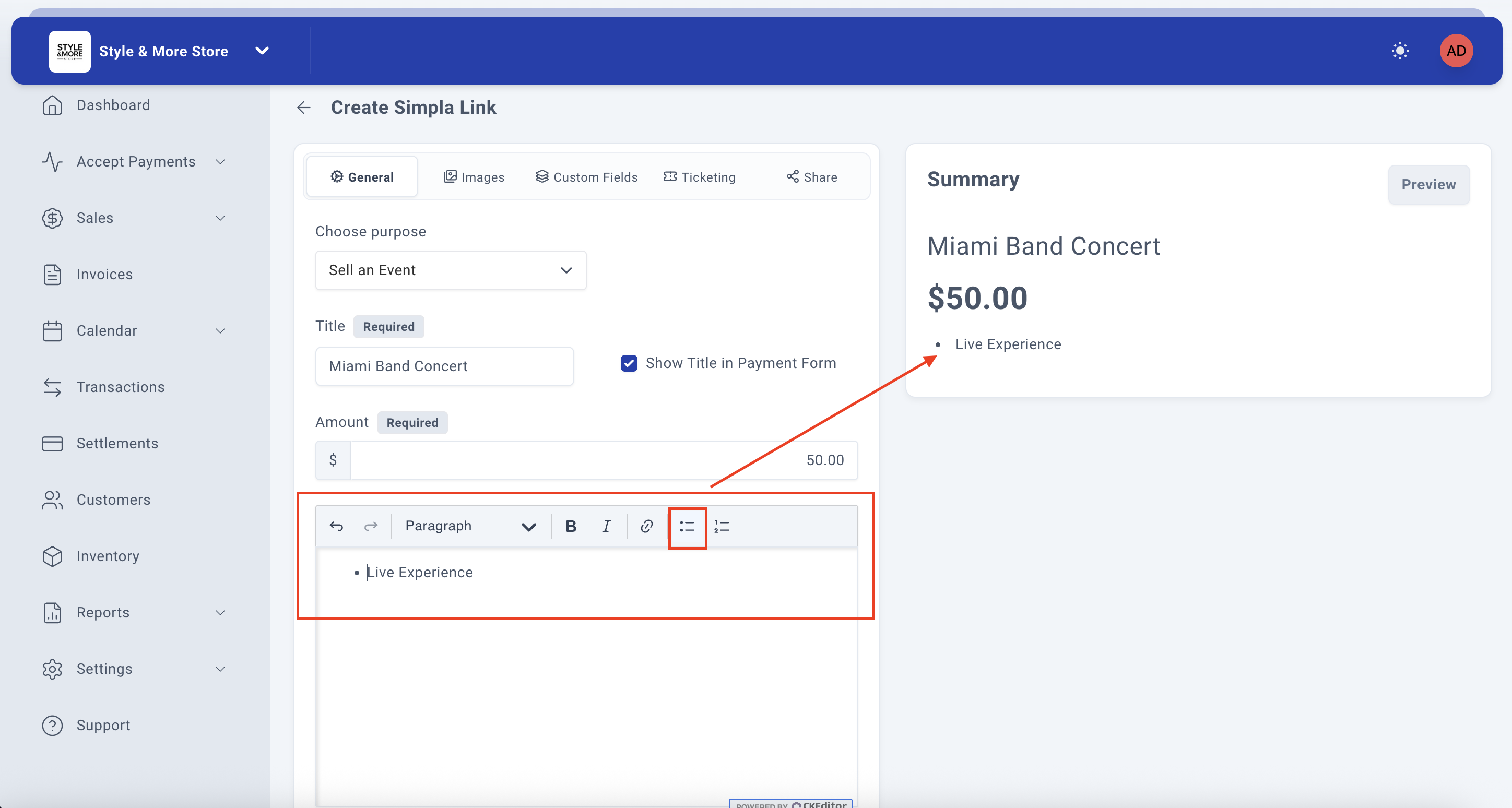
To make your event description more visually appealing, you can format it as a bullet list. To do this:
- Select the text you want to format (in this case, "Live Experience")
- Click the bullet list button in the formatting toolbar
The Summary panel will update in real-time to show your text formatted with a bullet point, displaying exactly how it will appear to customers on the payment page.
You can add multiple bullet points to list event features, included amenities, or important details about the event.
Step 12: Configure Additional General Settings (Optional)
Scroll down in the General tab to configure additional settings for your event link:
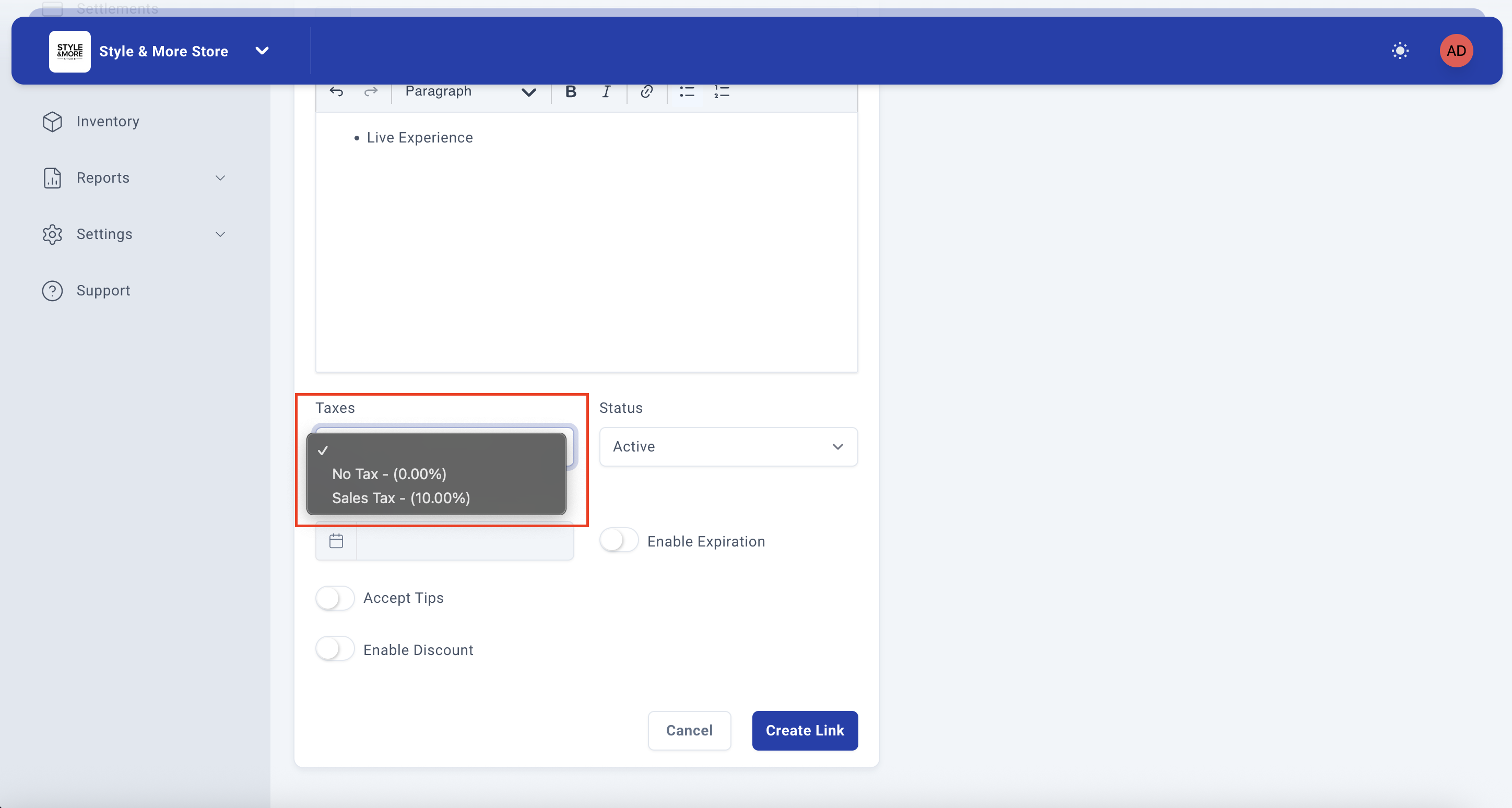
- Taxes - Select your tax configuration (No Tax or Sales Tax percentage)
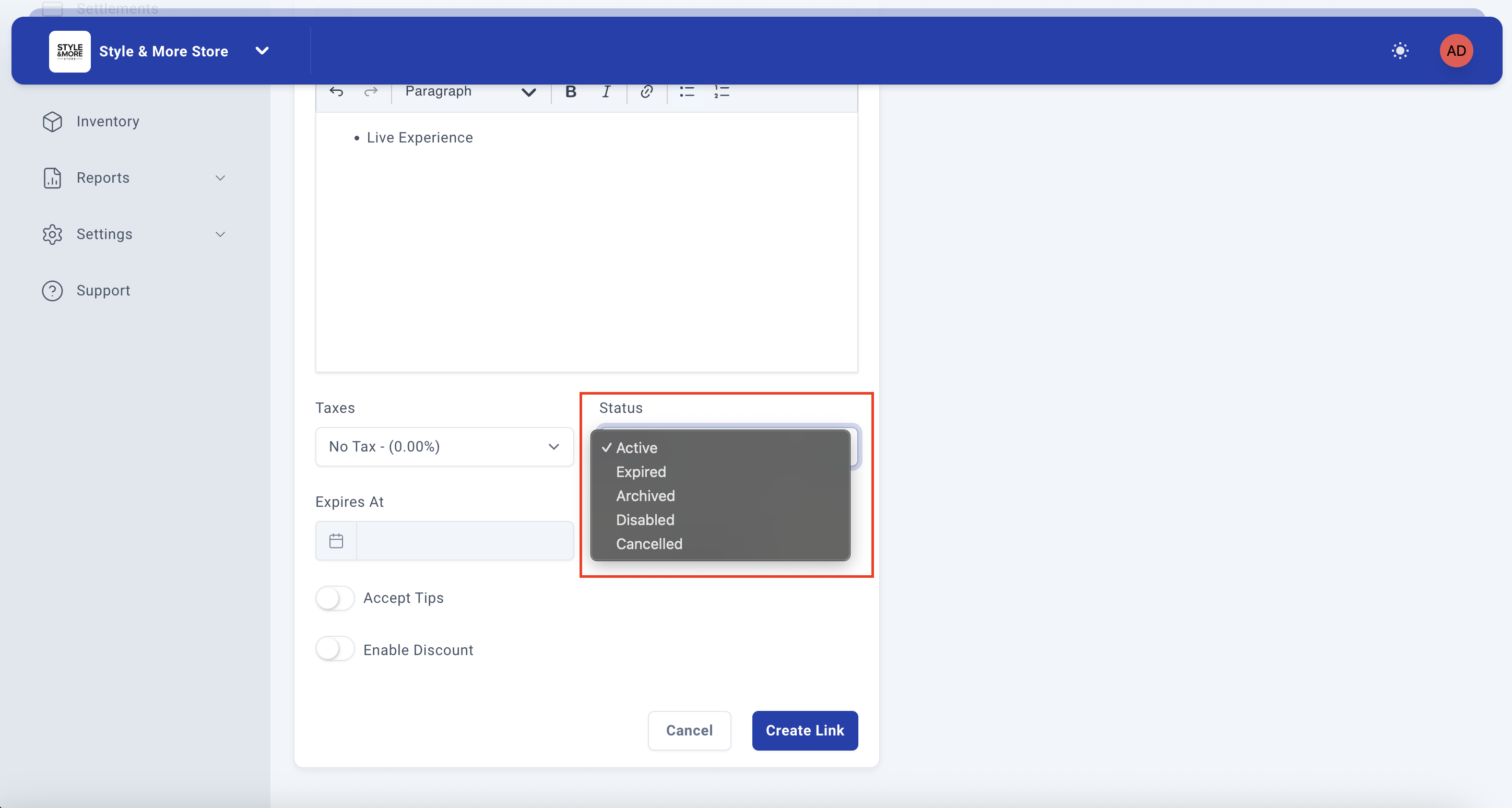
- Status - Set the link status (Active by default)
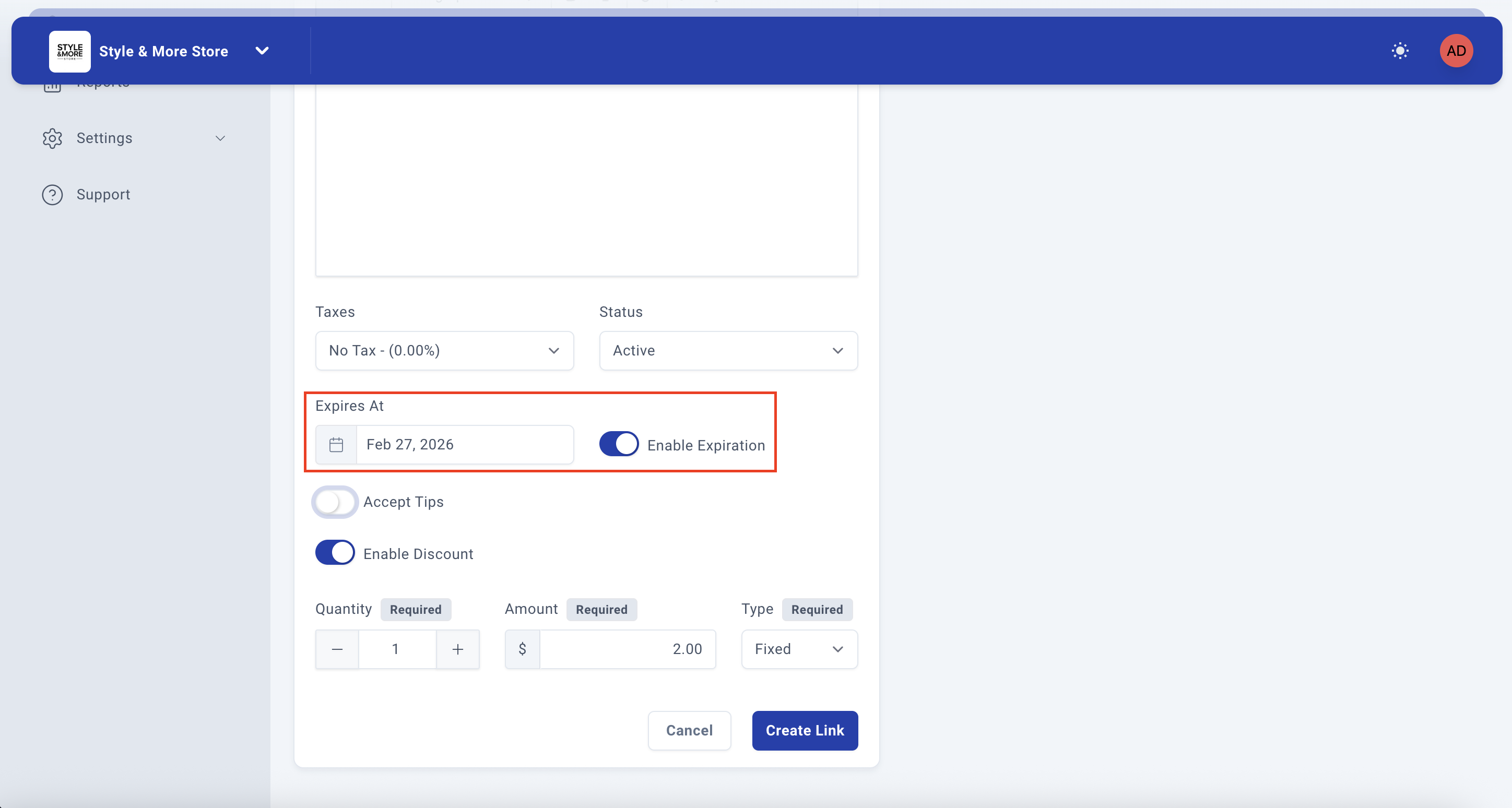
- Enable Expiration - Toggle to set an expiration date (useful for events with registration deadlines)
- Expires At - Select the expiration date if enabled
- Accept Tips - Allow customers to add tips
- Accept Deposit - Allow partial payment options
- Enable Discount - Allow discount codes for early bird pricing
Recommendation: For events, it's highly recommended to enable the expiration feature and set it to your event date or a few days before to prevent ticket sales after the event has passed.
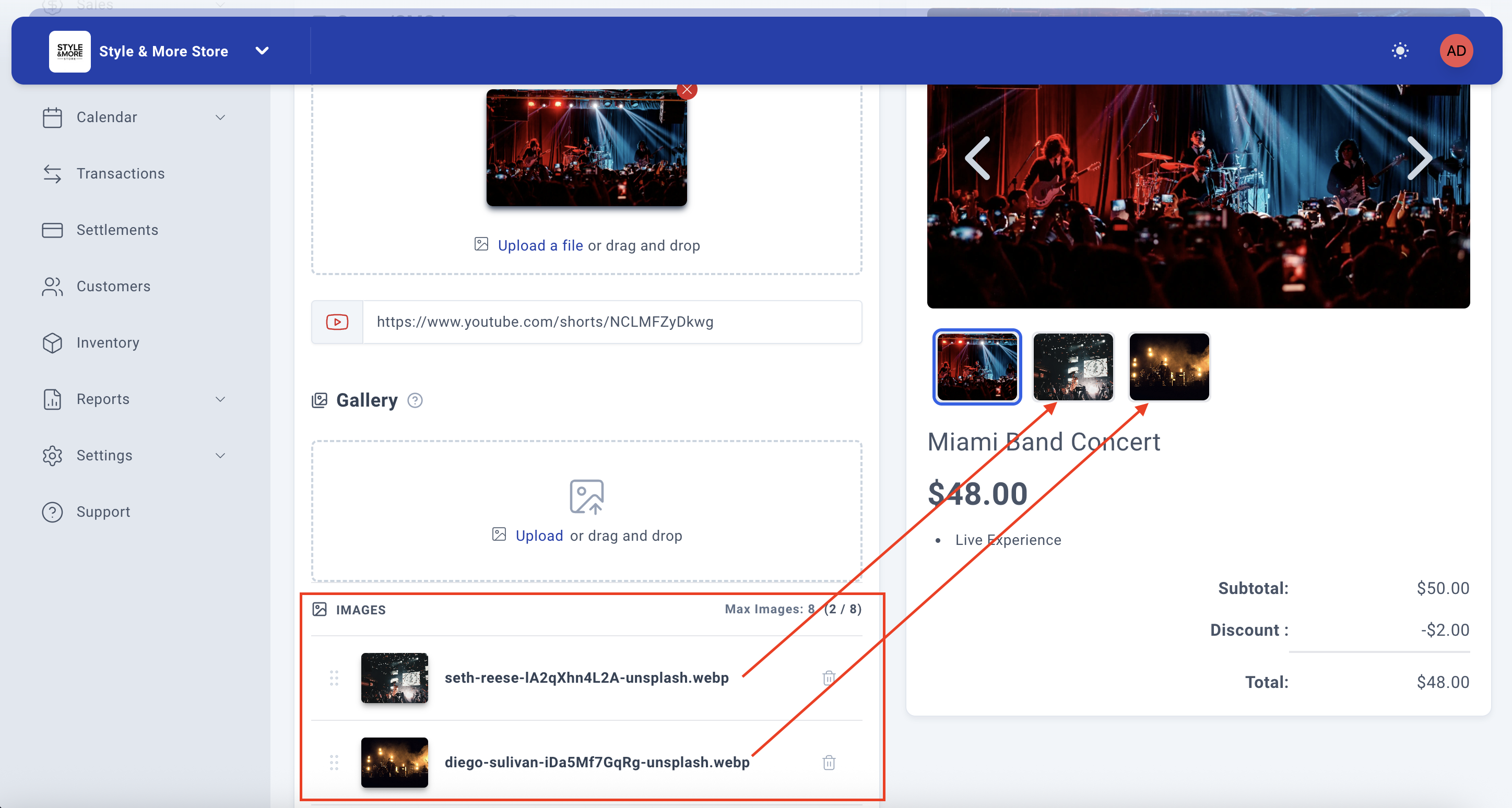
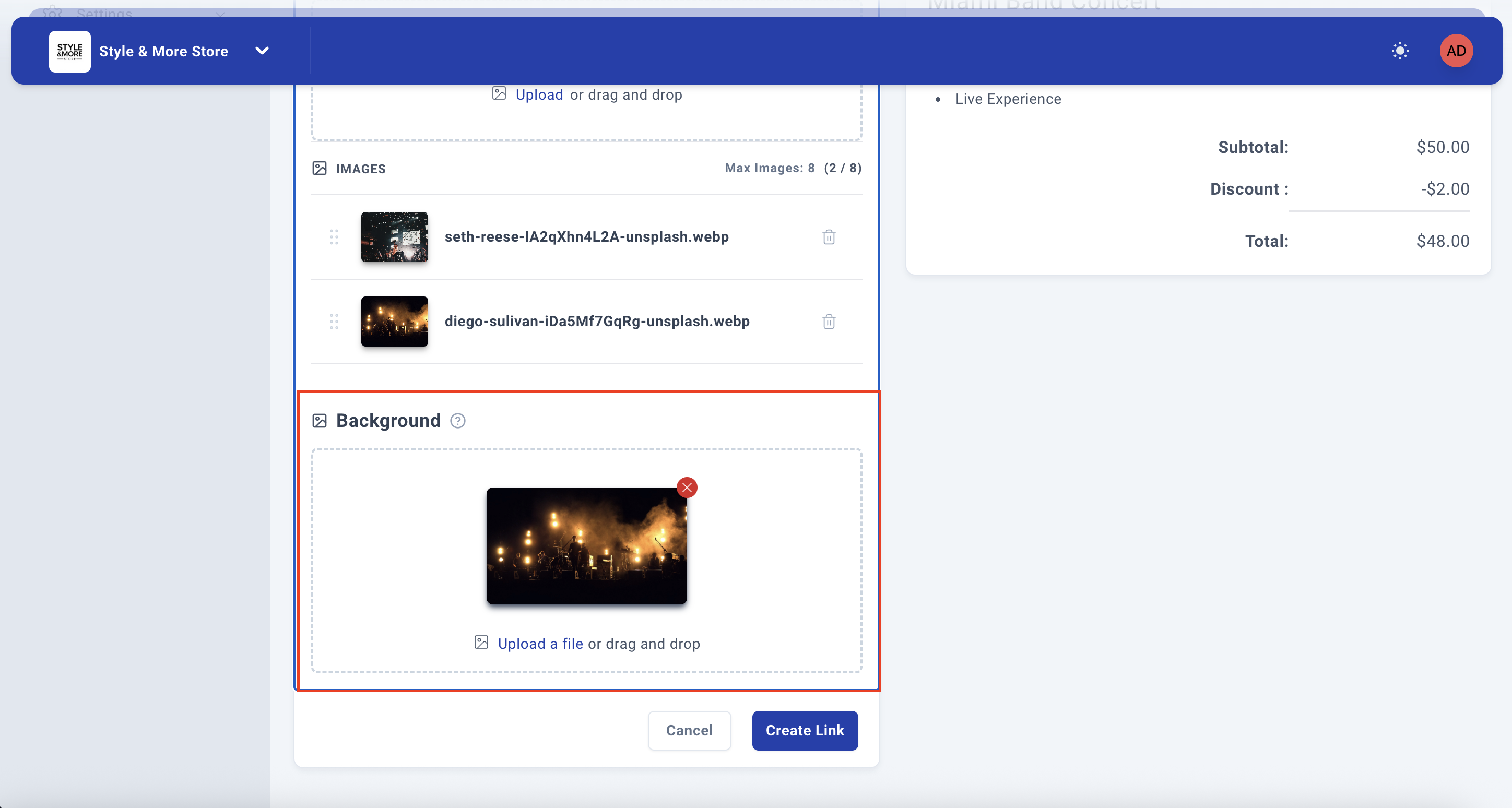
Step 13: Add Event Images (Optional but Recommended)
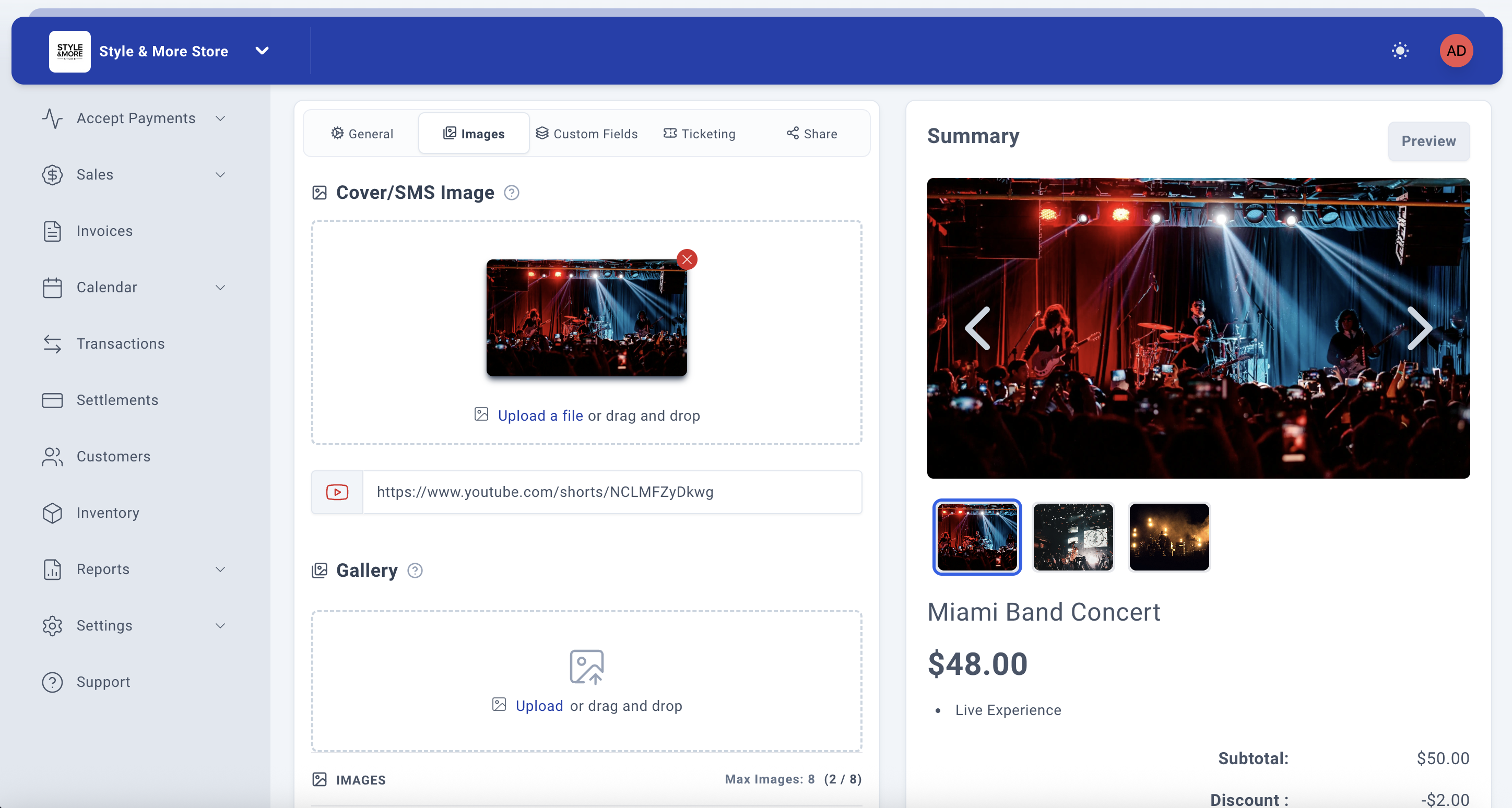
Click on the "Images" tab to enhance your event link with visual content. Adding images is highly recommended for events as it increases engagement and ticket sales.
The Images tab allows you to add:
- Cover/SMS Image - The main event poster or promotional image
- YouTube Video URL - Promotional video or event teaser
- Gallery - Multiple images showing venue, past events, or performers
Upload high-quality images that represent your event well. Images should be between 1280×720 to 1920×1080 pixels for optimal display.
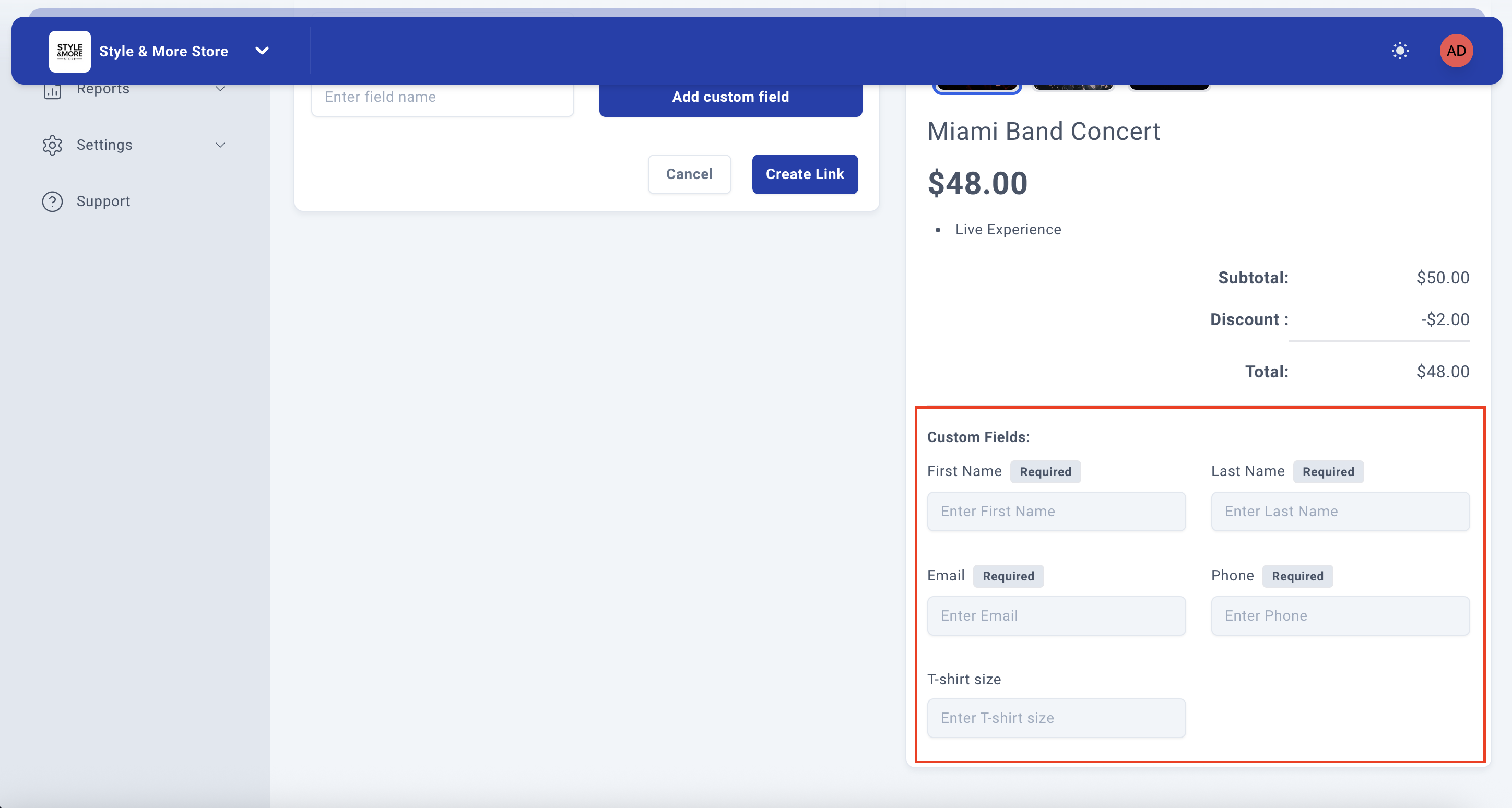
Step 14: Configure Custom Fields (Optional)
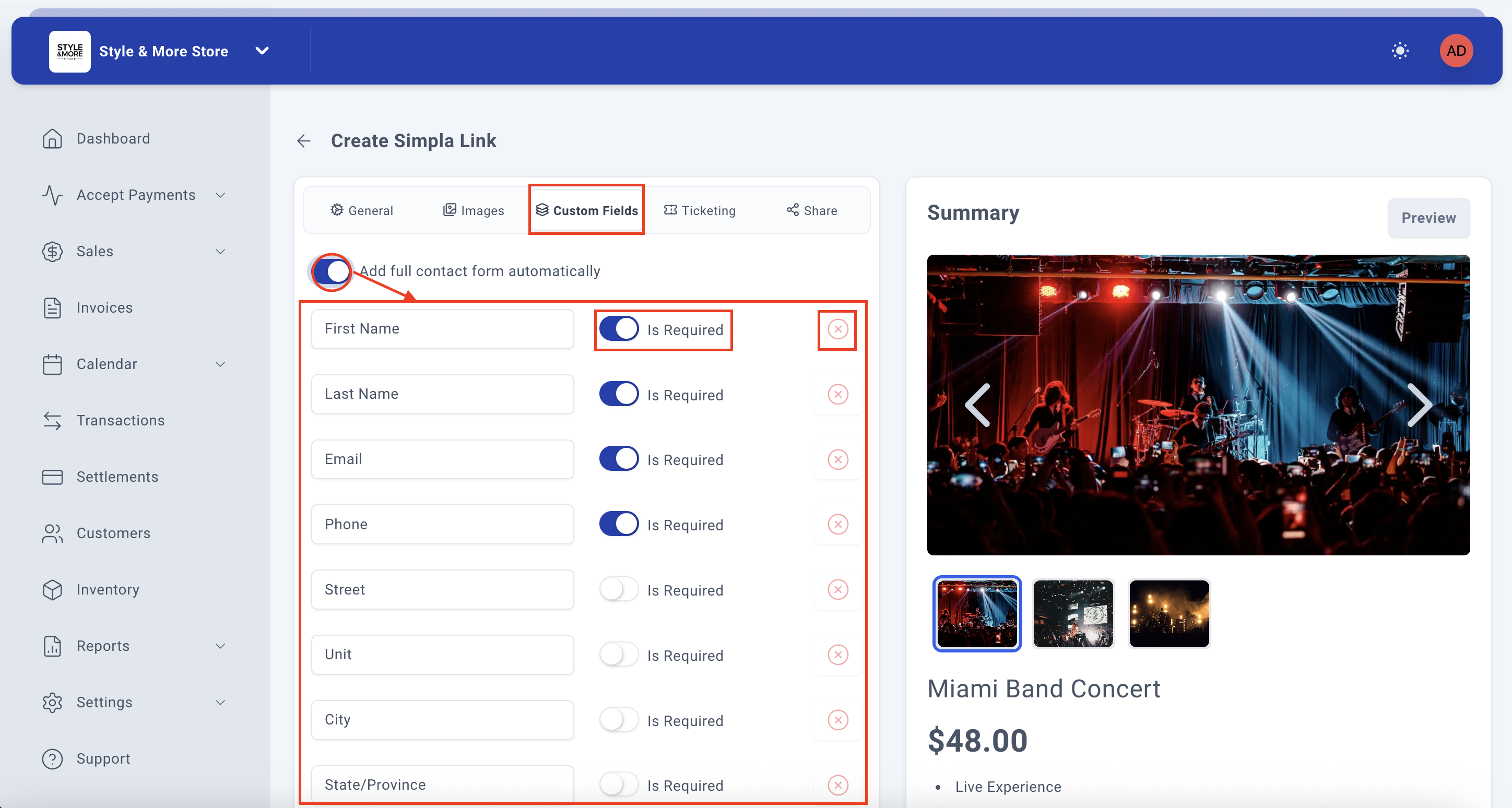
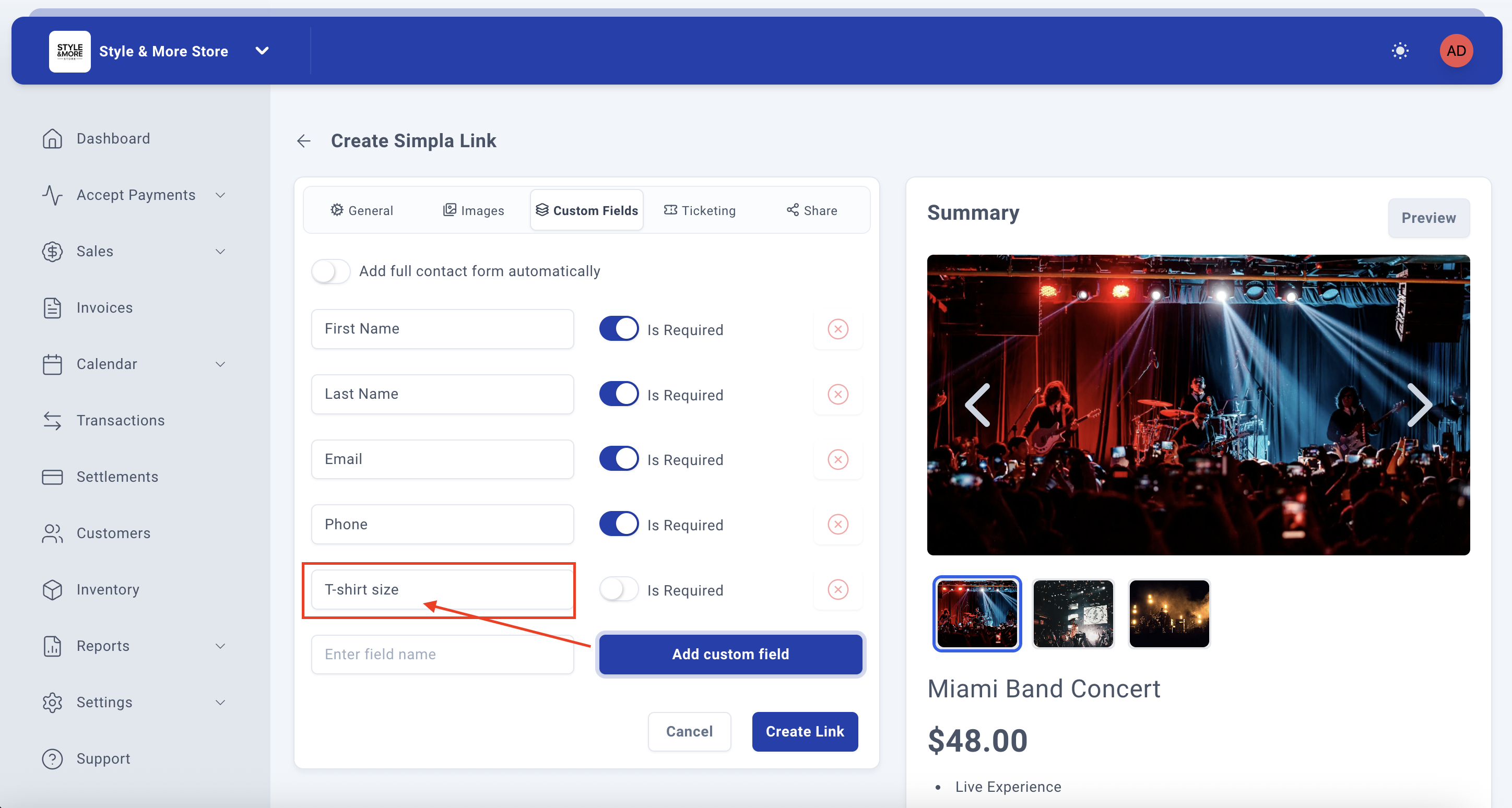
Click on the "Custom Fields" tab if you need to collect additional information from ticket buyers.
For events, you might want to collect:
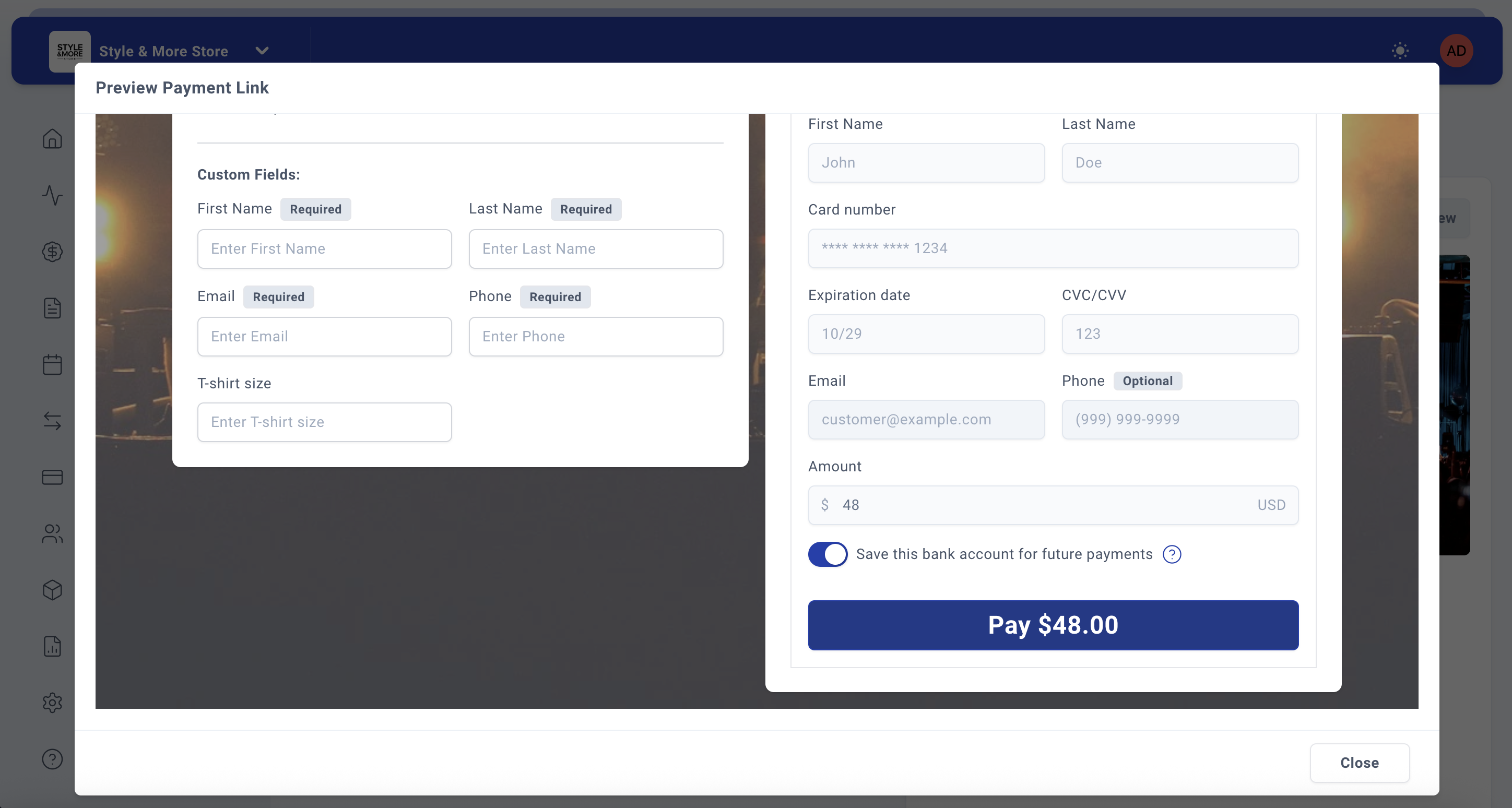
- Attendee name (if different from purchaser)
- Dietary restrictions (for events with food)
- T-shirt size (for events providing merchandise)
- Emergency contact information
- Special seating requests
You can enable the "Add full contact form automatically" toggle to include standard contact fields, then add custom fields specific to your event needs.
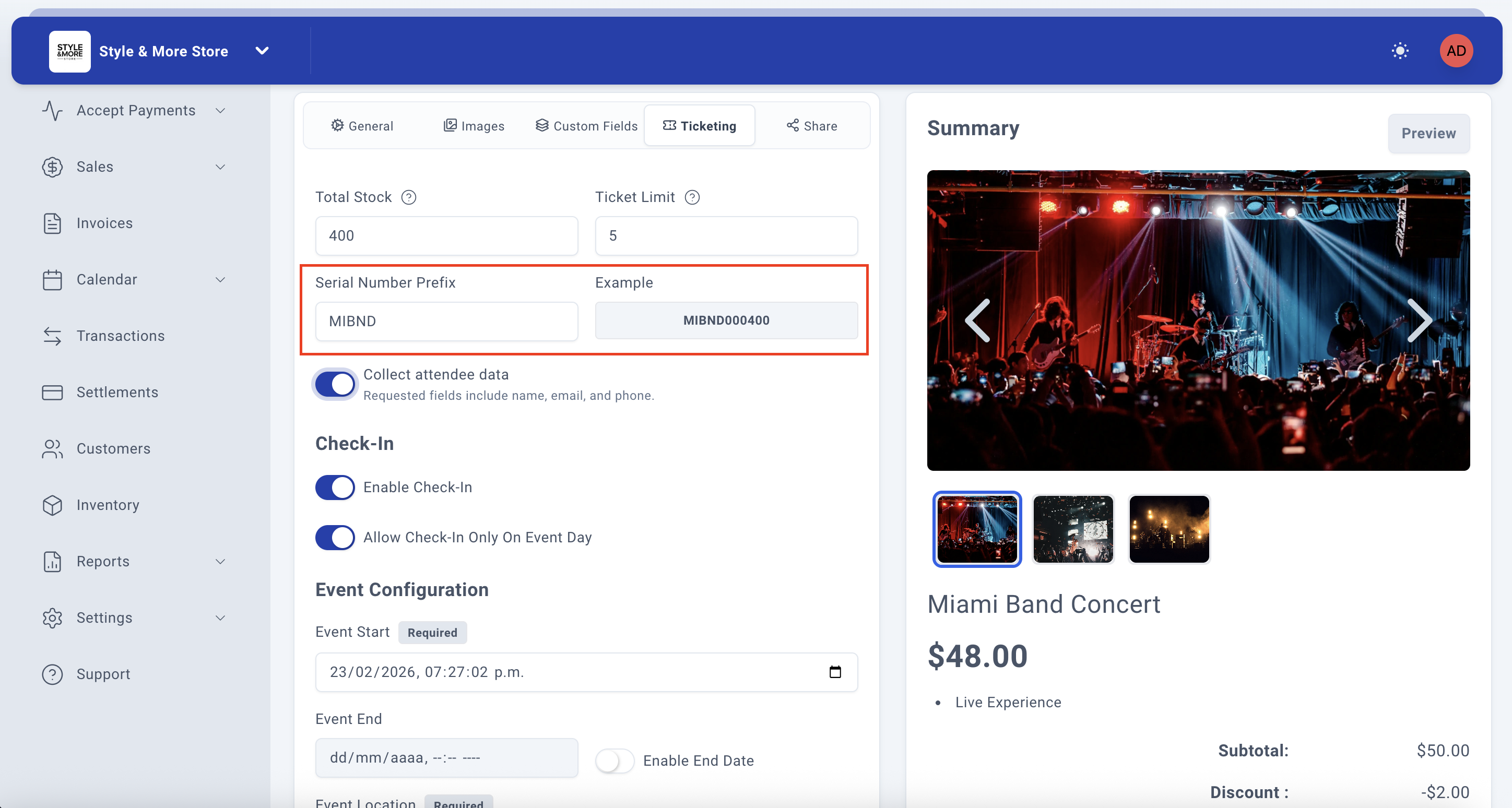
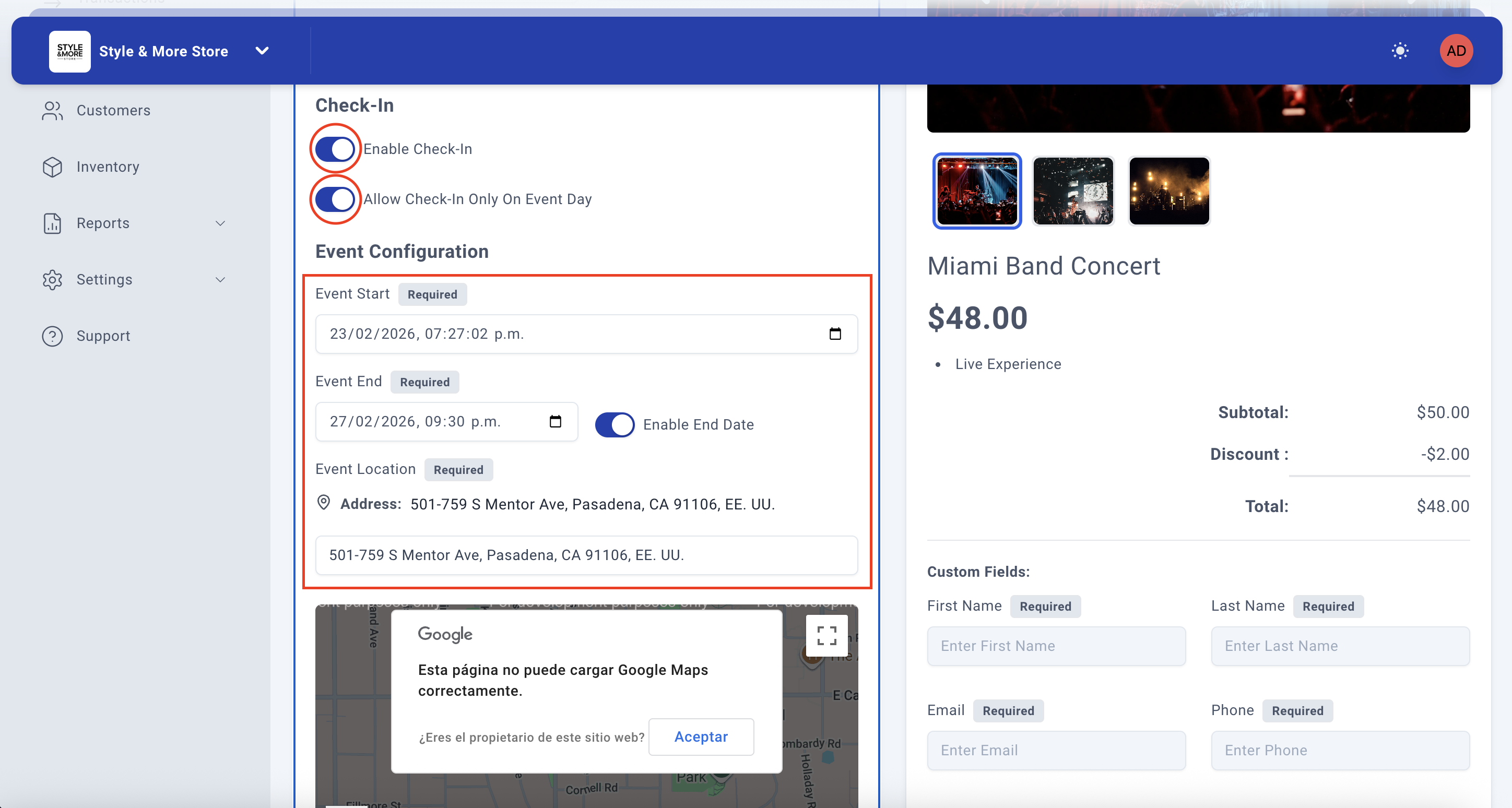
Step 15: Explore the Ticketing Tab (Event-Specific Features)
The "Ticketing" tab is unique to event links and provides specialized features for managing event tickets. Click on the Ticketing tab to access these options.
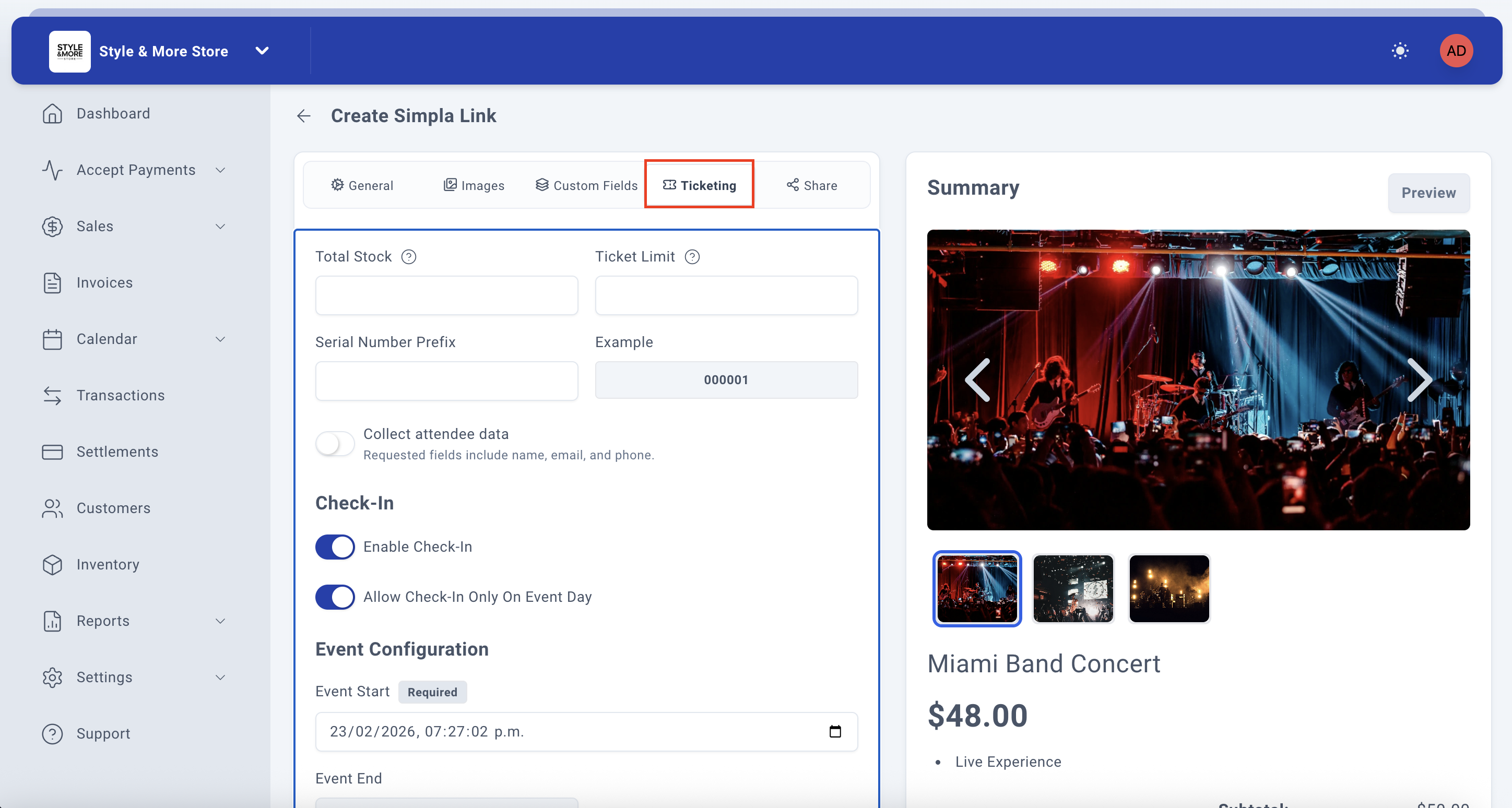
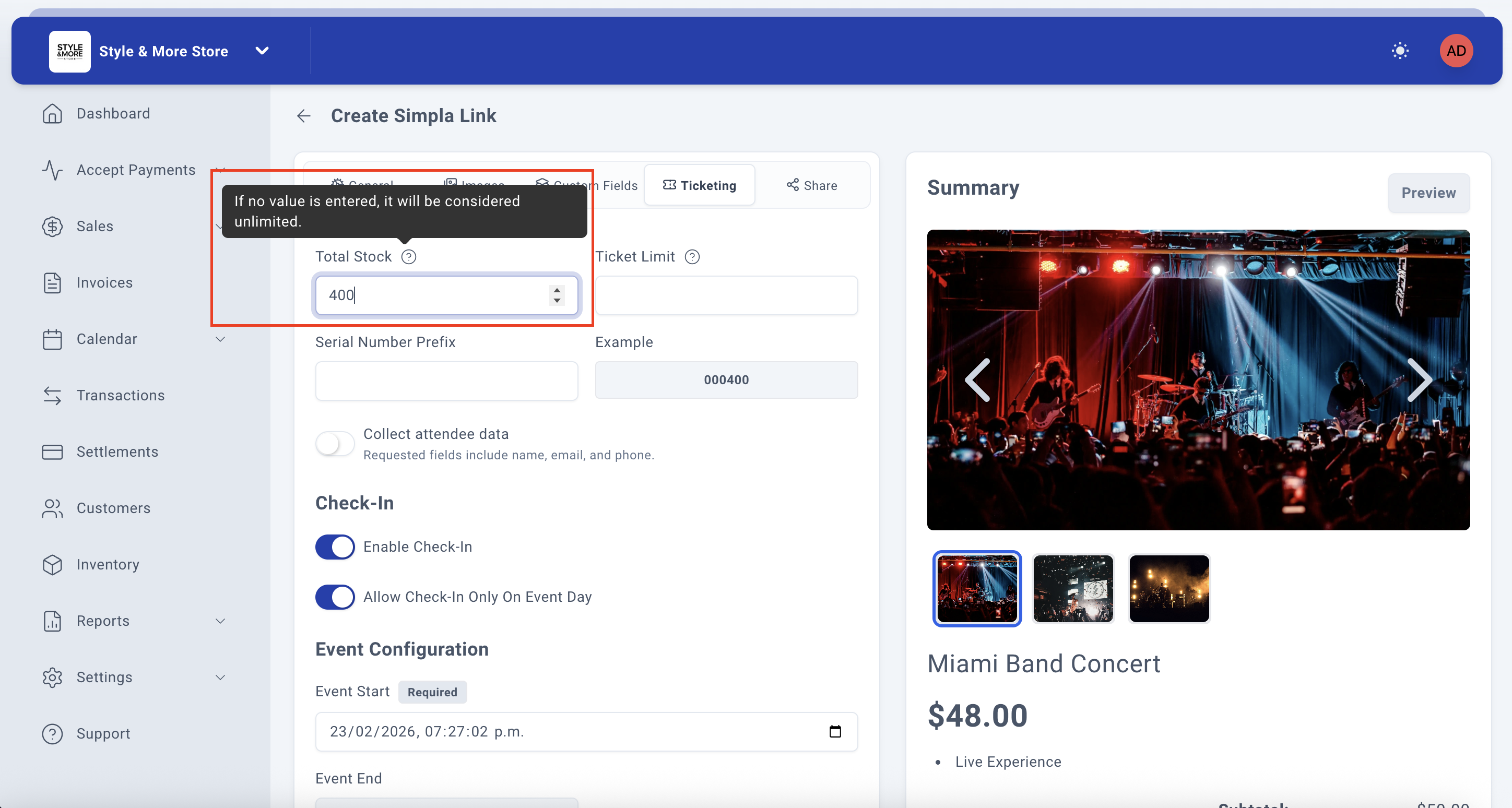
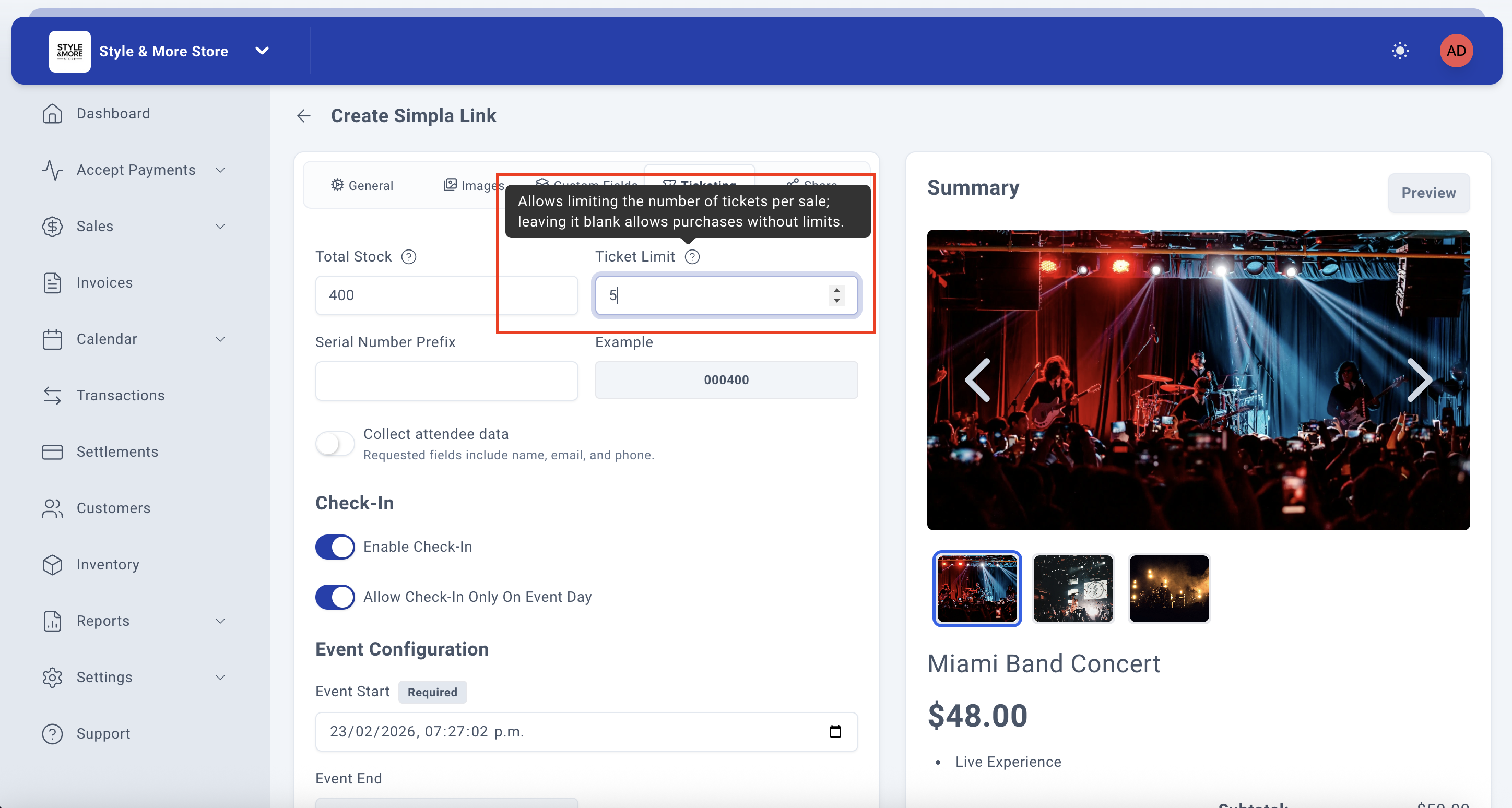
Note: This tab only appears when you've selected "Sell an Event" as your purpose. It contains event-specific settings such as:
- Ticket quantity limits
- Multiple ticket types (VIP, General Admission, etc.)
- Event date and time
- Venue information
- Ticket delivery methods
Configure these settings according to your event requirements. The Ticketing features help you manage your event professionally and provide customers with all the information they need.
Step 16: Configure Share Options
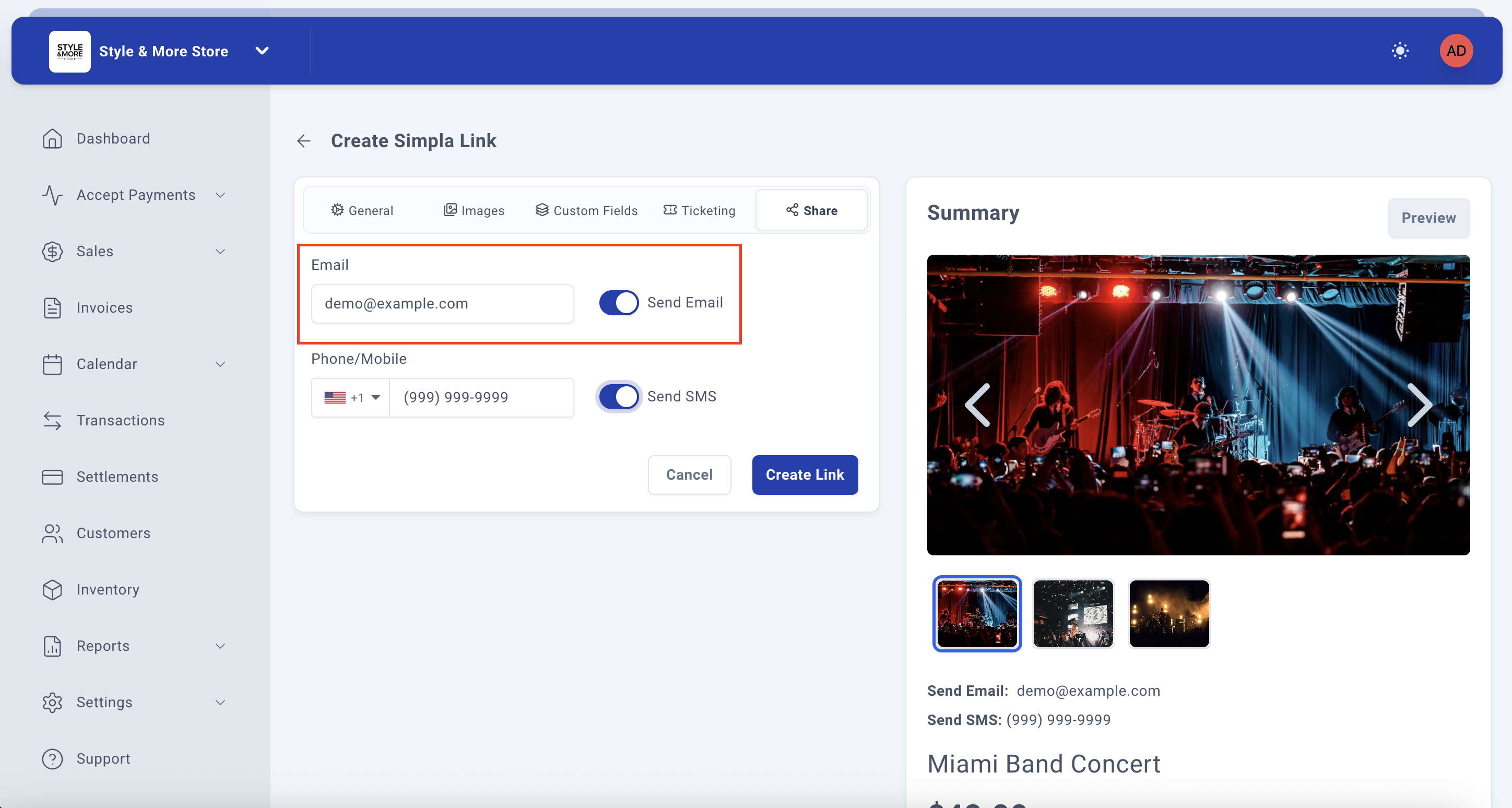
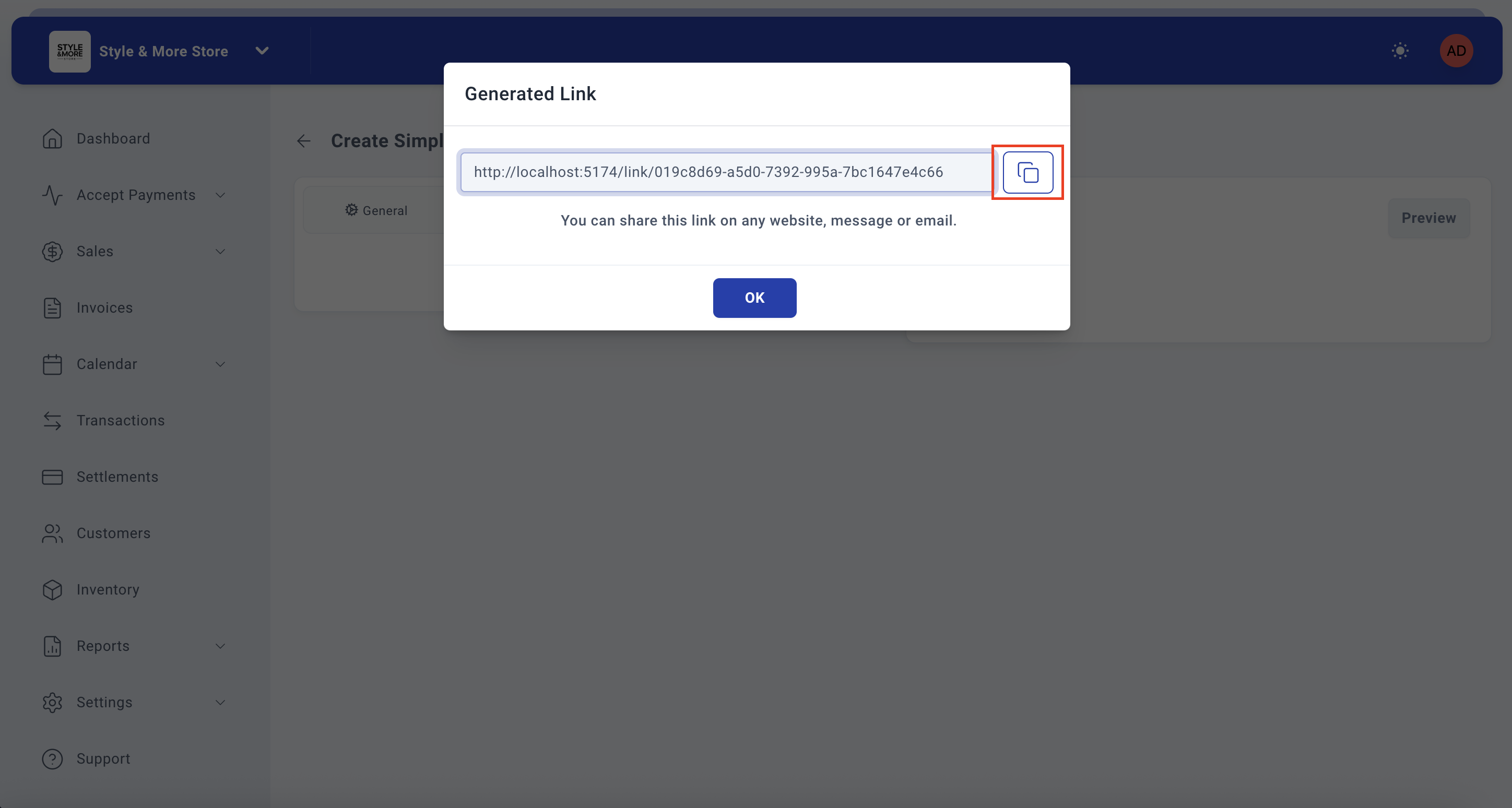
Click on the "Share" tab to configure how you want to distribute your event link. The sharing options provide two main distribution channels:
Email Distribution:
- Enter the recipient's email address
- Enable the option using the toggle switch
- The system will send your event link via email
SMS Distribution:
- Select your coverage area (United States or Mexico)
- Enter the phone number
- Enable the option using the toggle switch
- The system will send your event link via SMS
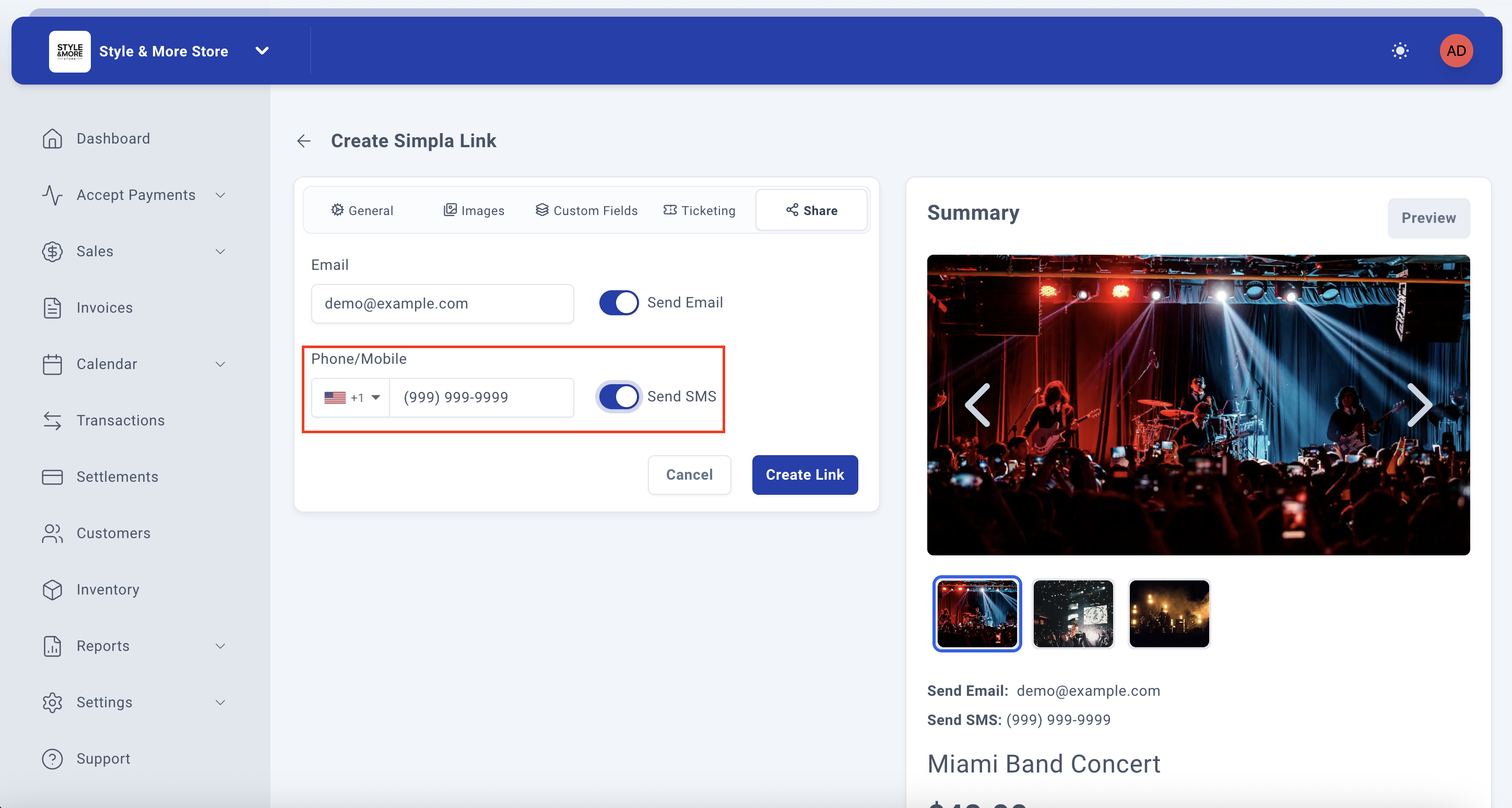
These distribution options give you flexible and efficient ways to reach your potential attendees directly.
Step 17: Review and Create the Event Link
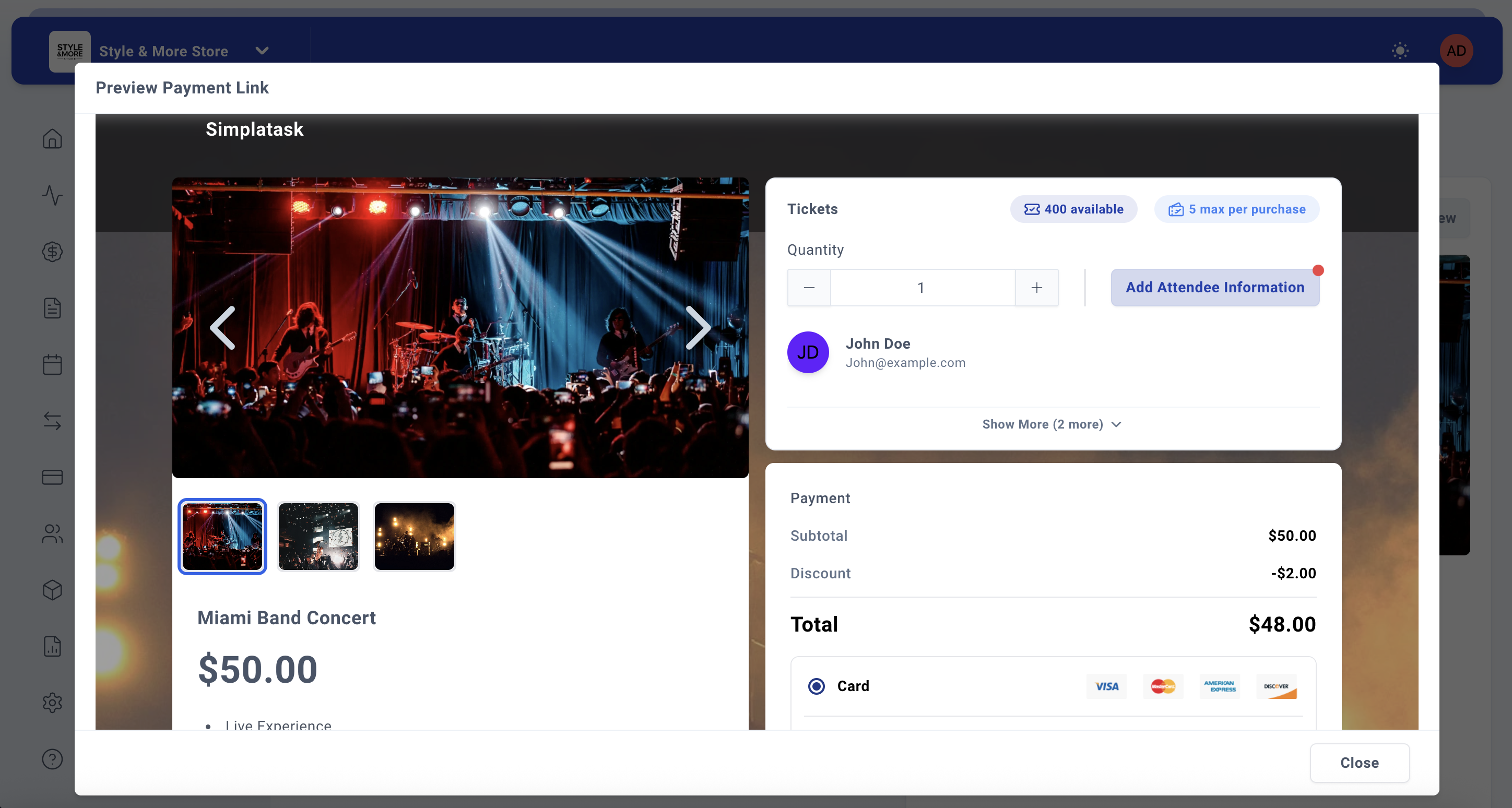
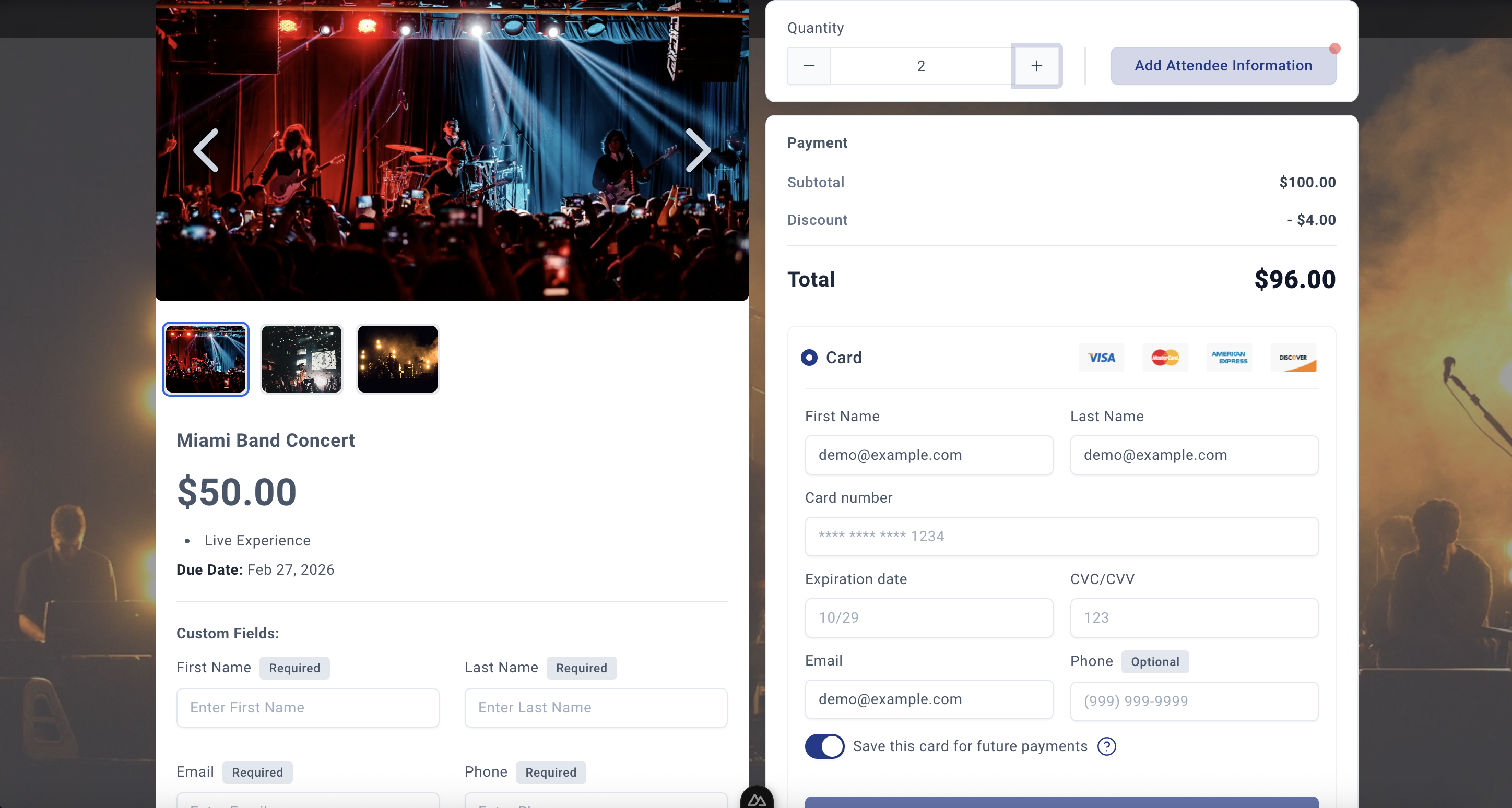
Before creating your event link, review all the information in the Summary panel on the right. This panel shows exactly how your event payment page will appear to customers, including:
- Event title (Miami Band Concert)
- Ticket price ($50.00)
- Event description (Live Experience)
- Any images or videos you've added
Once you've confirmed everything is correct, click the "Create Link" button at the bottom right of the form.
If you want to cancel the process, click the "Cancel" button.
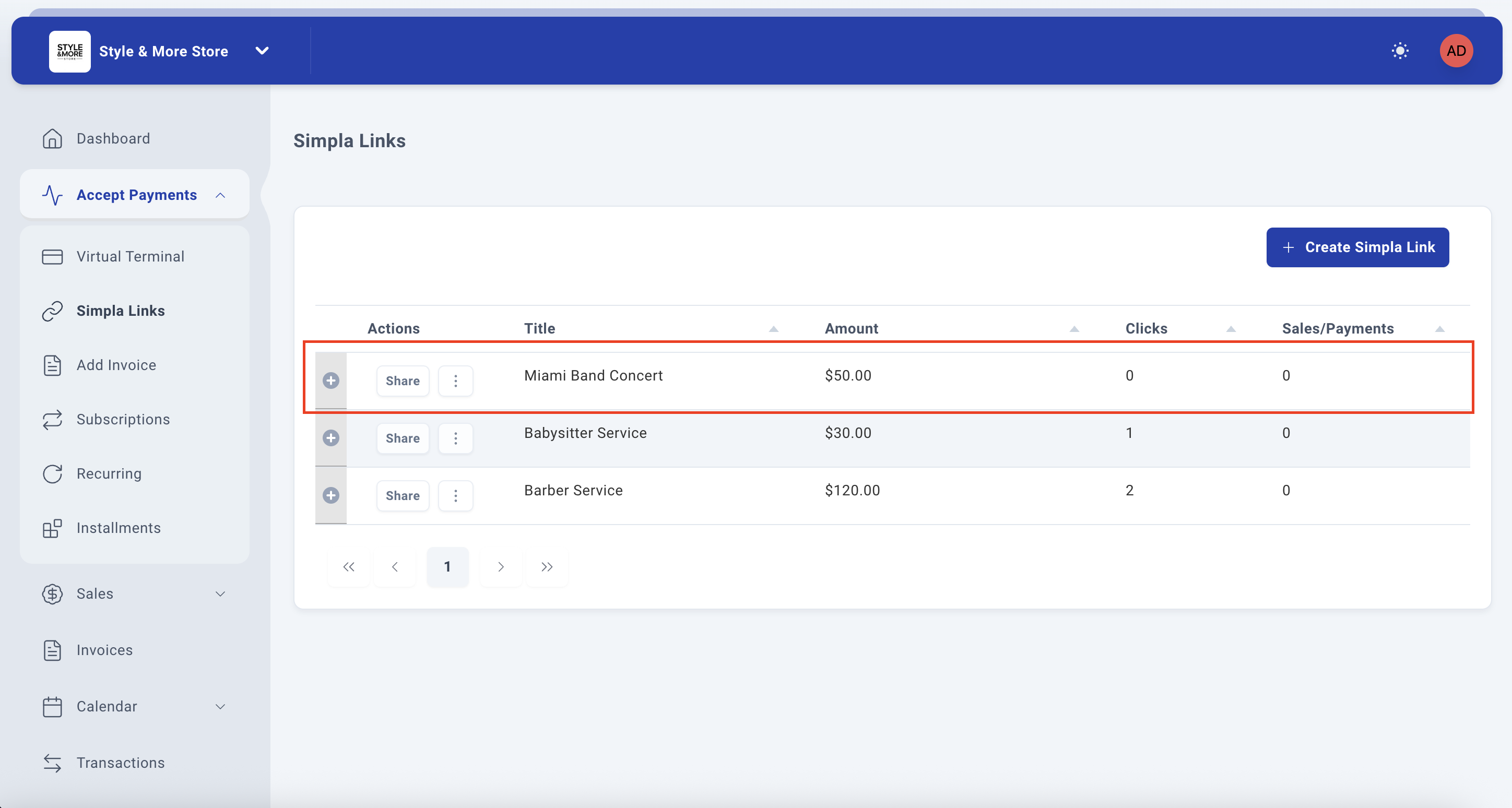
After clicking "Create Link", the system will generate your event payment link and redirect you back to the Simpla Links management page where you'll see your newly created event link listed in the table.
Troubleshooting
Ticketing Tab Not Visible
If you don't see the Ticketing tab, verify that you've selected "Sell an Event" from the Choose purpose dropdown. The Ticketing tab only appears when this option is selected.
Event Link Not Expiring
If your event link doesn't expire as expected, check that you've enabled the "Enable Expiration" toggle and set a valid expiration date. The link will remain active until this date is reached.
Images Not Displaying in Summary
If images don't appear in the Summary panel, ensure they've been fully uploaded and cropped. Return to the Images tab and verify each image shows a thumbnail preview.
Best Practices for Event Links
- Use Descriptive Event Titles: Include key information like the event type, artist/speaker name, and location if relevant (e.g., "Miami Band Concert - Downtown Arena").
- Add High-Quality Event Images: Use professional photos of the venue, performers, or past events. Visual content significantly increases ticket sales.
- Include Promotional Videos: If you have a YouTube teaser or trailer for your event, add the URL. Videos help potential attendees understand what to expect.
- Provide Detailed Descriptions: Include event date, time, location, what's included, parking information, and any other relevant details that help customers make informed decisions.
- Always Set Expiration Dates: Configure the link to expire on or shortly after your event date to prevent confusion and ticket sales for past events.
- Use the Ticketing Tab: Take advantage of event-specific features in the Ticketing tab to manage capacity, ticket types, and event details professionally.
- Consider Early Bird Discounts: Enable the discount feature to offer promotional pricing for early registrations and increase initial ticket sales.
- Collect Essential Information Only: In Custom Fields, only request information you truly need. Too many required fields can reduce conversion rates.
- Test Your Link: Before sharing widely, complete a test purchase yourself to ensure the entire customer experience works smoothly.
- Share Through Multiple Channels: Use both email and SMS distribution, and share the link on social media and your website for maximum reach.
Process Complete!
The Simplatask event SimplaLink functionality allows you to create professional event ticket sales links quickly and efficiently. By following these steps, you can generate compelling payment links for concerts, conferences, workshops, or any ticketed event in minutes. These links can be shared with potential attendees through email, SMS, social media, or embedded on your website, providing a seamless ticketing experience that increases sales and simplifies event management.
Was this article helpful?
That’s Great!
Thank you for your feedback
Sorry! We couldn't be helpful
Thank you for your feedback
Feedback sent
We appreciate your effort and will try to fix the article