Table of Contents
How to Create a SimplaLink to Sell a Service
Simplatask simplifies the way you create and manage payment links, ensuring a fast and efficient process. This guide describes the step-by-step process for creating a SimplaLink in the Simplatask platform. The process is simple and intuitive, allowing you to generate payment links for services, products, events, or donations in just a few steps.
If you need help updating a payment link, click here!
If you need help creating a payment link, click here!
If you need help sharing a payment link, click here!
If you need help creating a simpla link to take a payment, click here!
If you need help creating a simpla link to sell an event, click here!
Before You Start:
Before starting the SimplaLink creation process, ensure you have:
• Access to the Accept Payments module in the platform.
• Administrator or payment management permissions.
• Clear details about the service, product, or purpose for the payment link.
How to Access Simpla Links
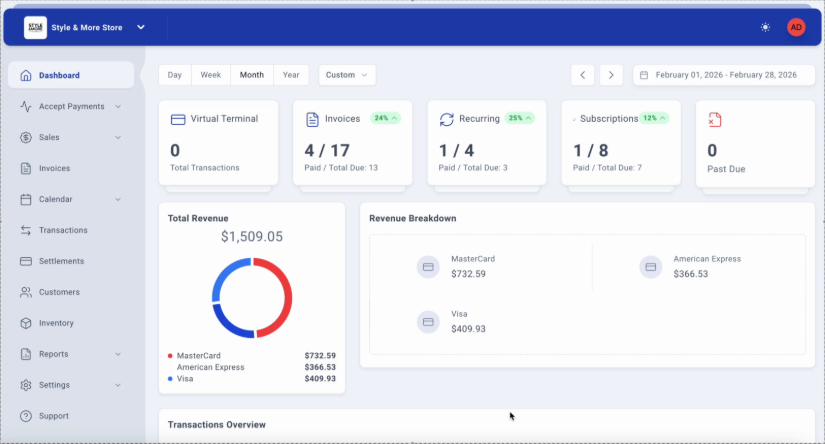
Step 1: Access the Dashboard
Log in to the Simplatask platform. You will be automatically directed to the main Dashboard, where you can view a summary of your business metrics, including transactions, invoices, recurring payments, and subscriptions.
Step 2: Navigate to the Simpla Links Module
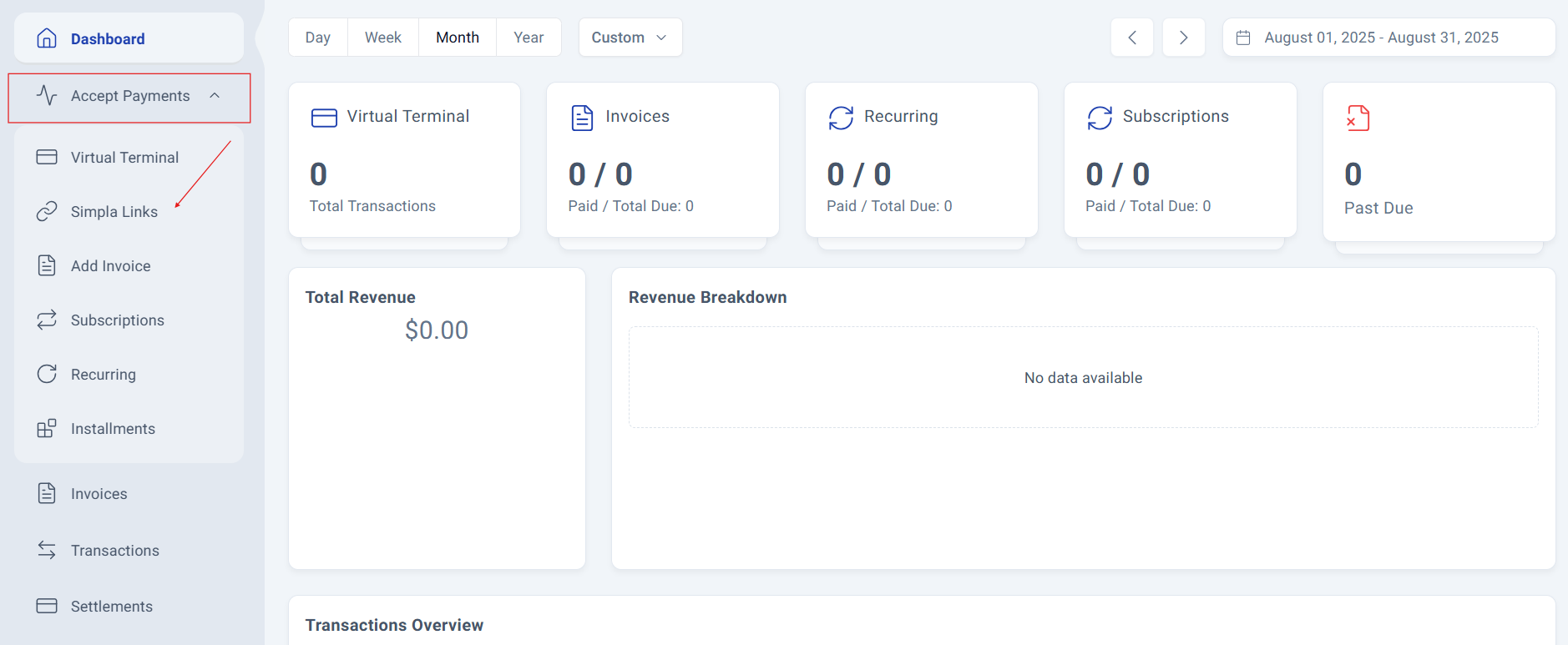
In the left sidebar menu, expand the "Accept Payments" section, then locate and click on the "SimplaLinks" option. This will take you to the Simpla Links management view.
Step 3: Access the SimplaLinks Management Panel.
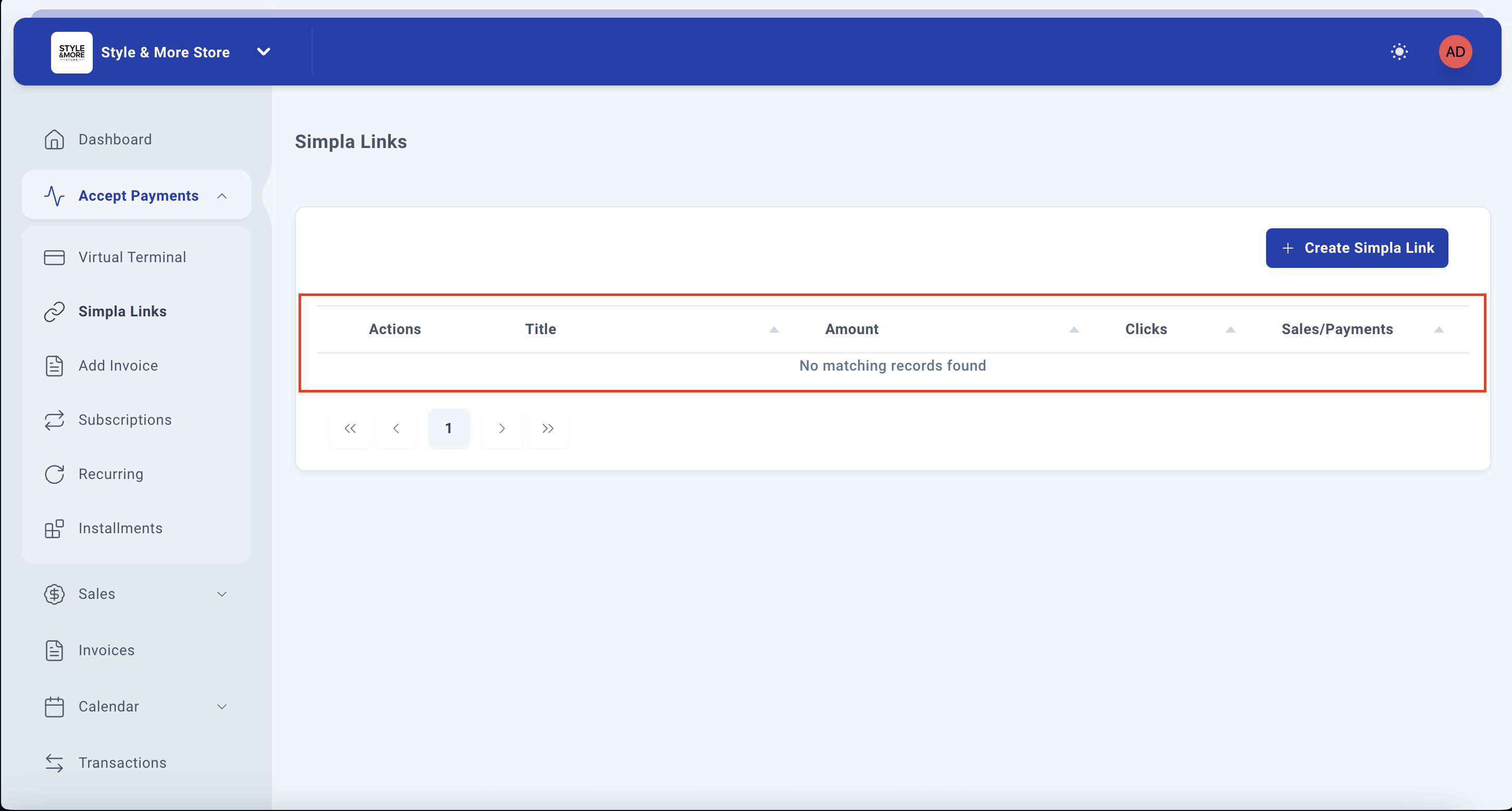
The SimplaLinks Management Panel will be displayed. If no links have been created yet, you'll see a message indicating "No matching records found". The main action available at this stage is:
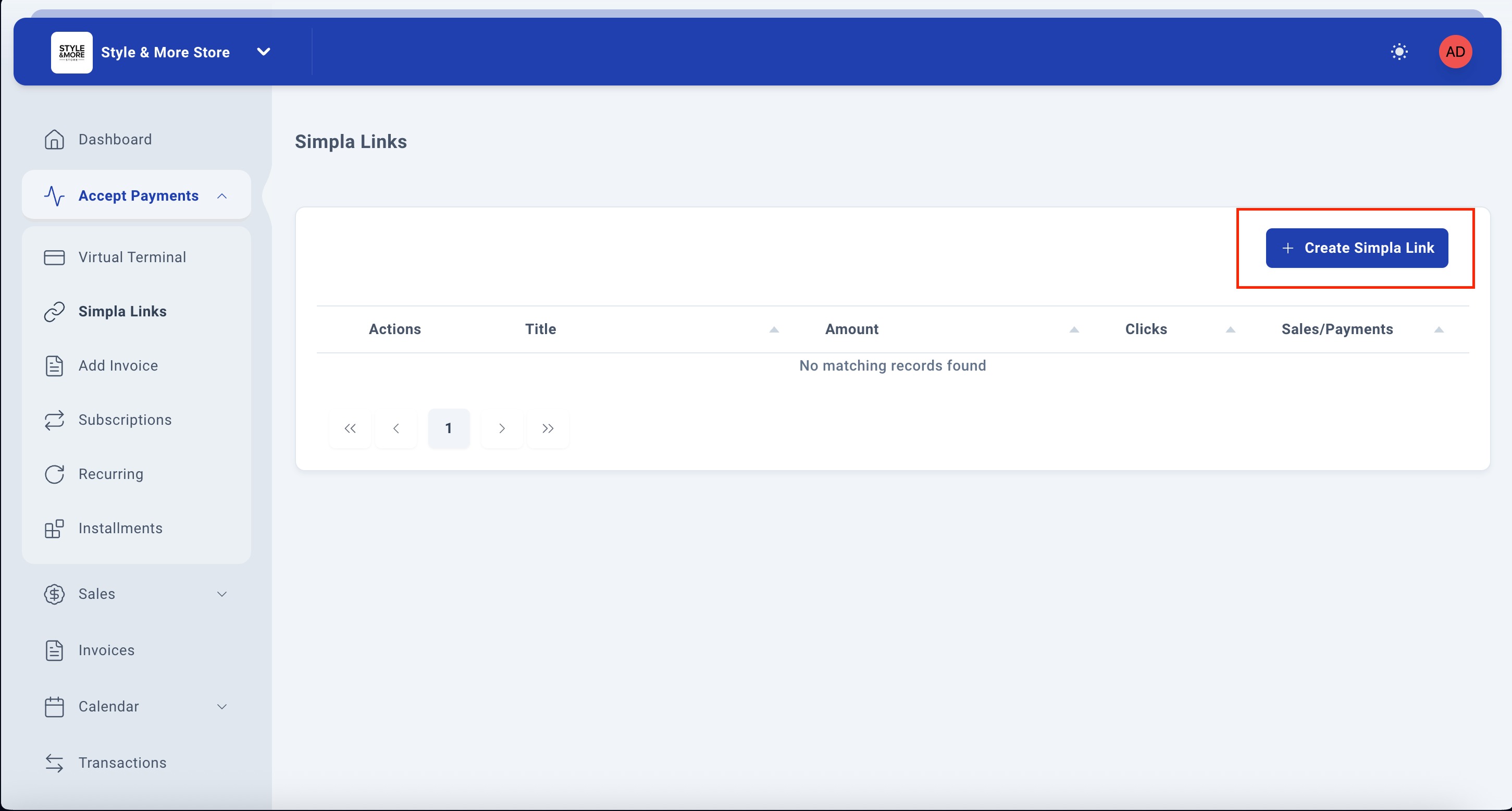
Create SimplaLink - Located in the top-right corner of the page
The table displays columns for Actions, Title, Amount, Clicks, and Sales/Payments once payment links are created.
Creating a Simpla Link
Step 4: Click Create SimplaLink
Click the "+ Create SimplaLink" button in the top-right corner. A form titled "Create Simpla Link" will appear with multiple tabs: General, Images, Custom Fields, and Share.
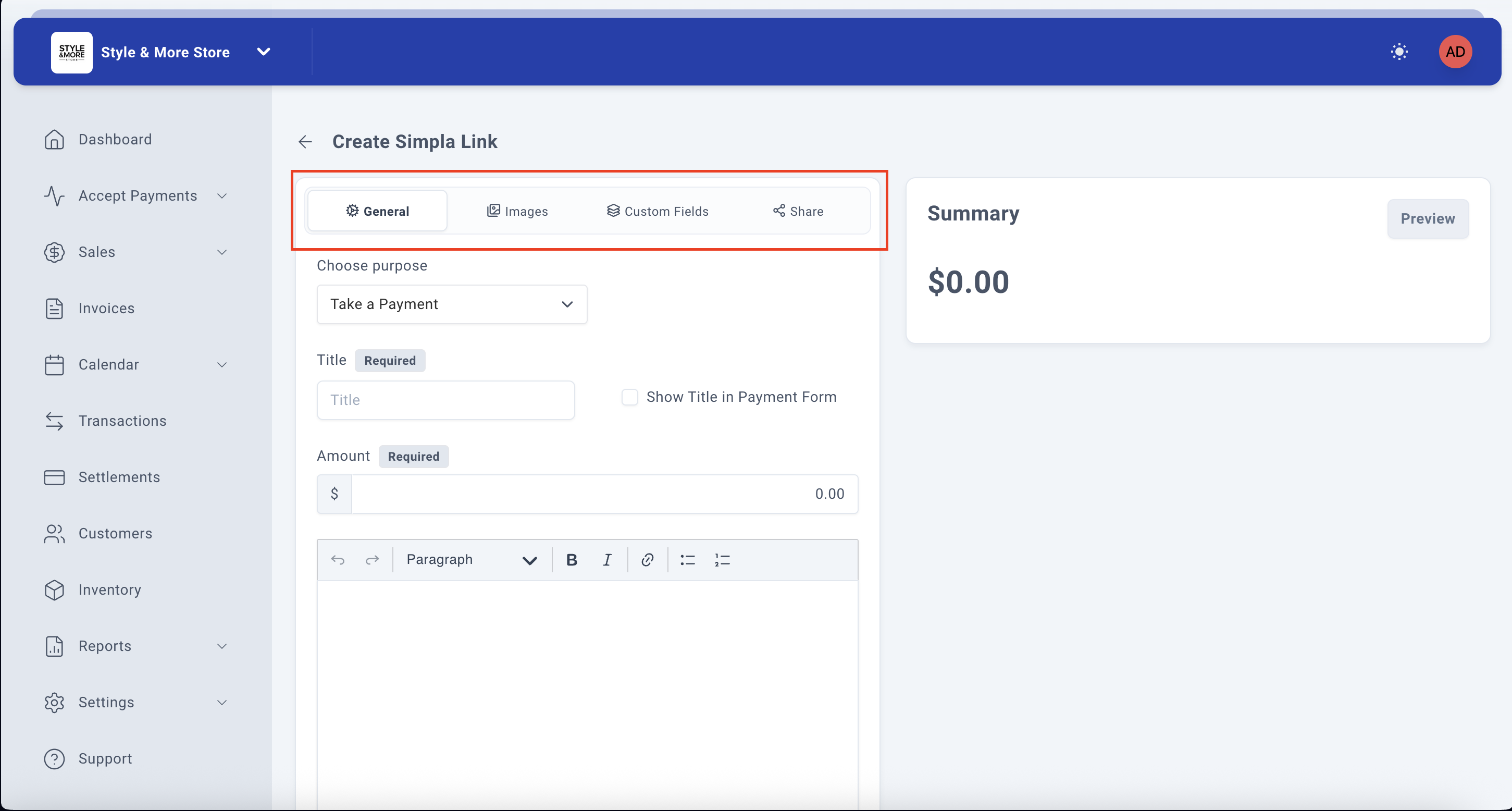
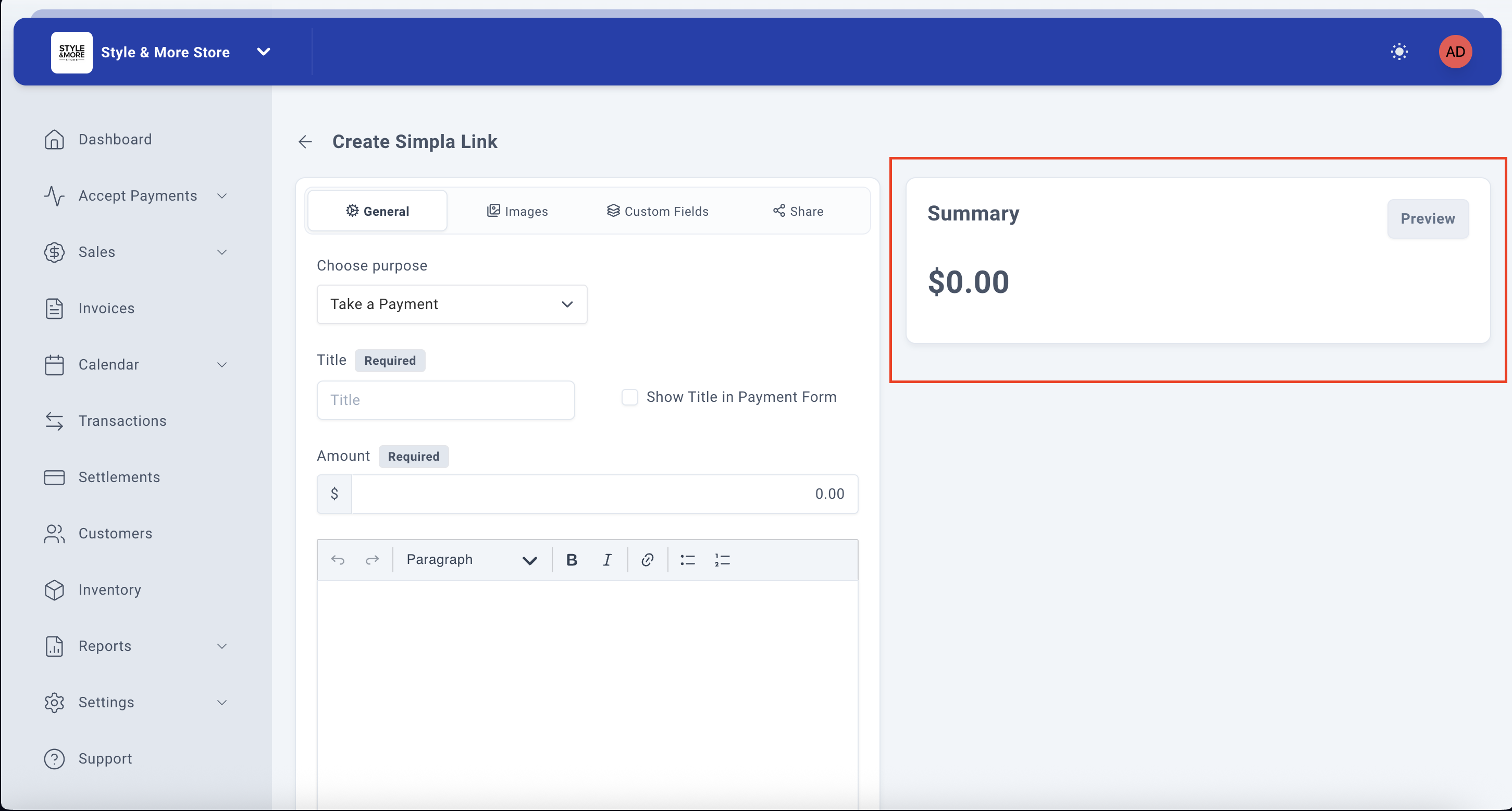
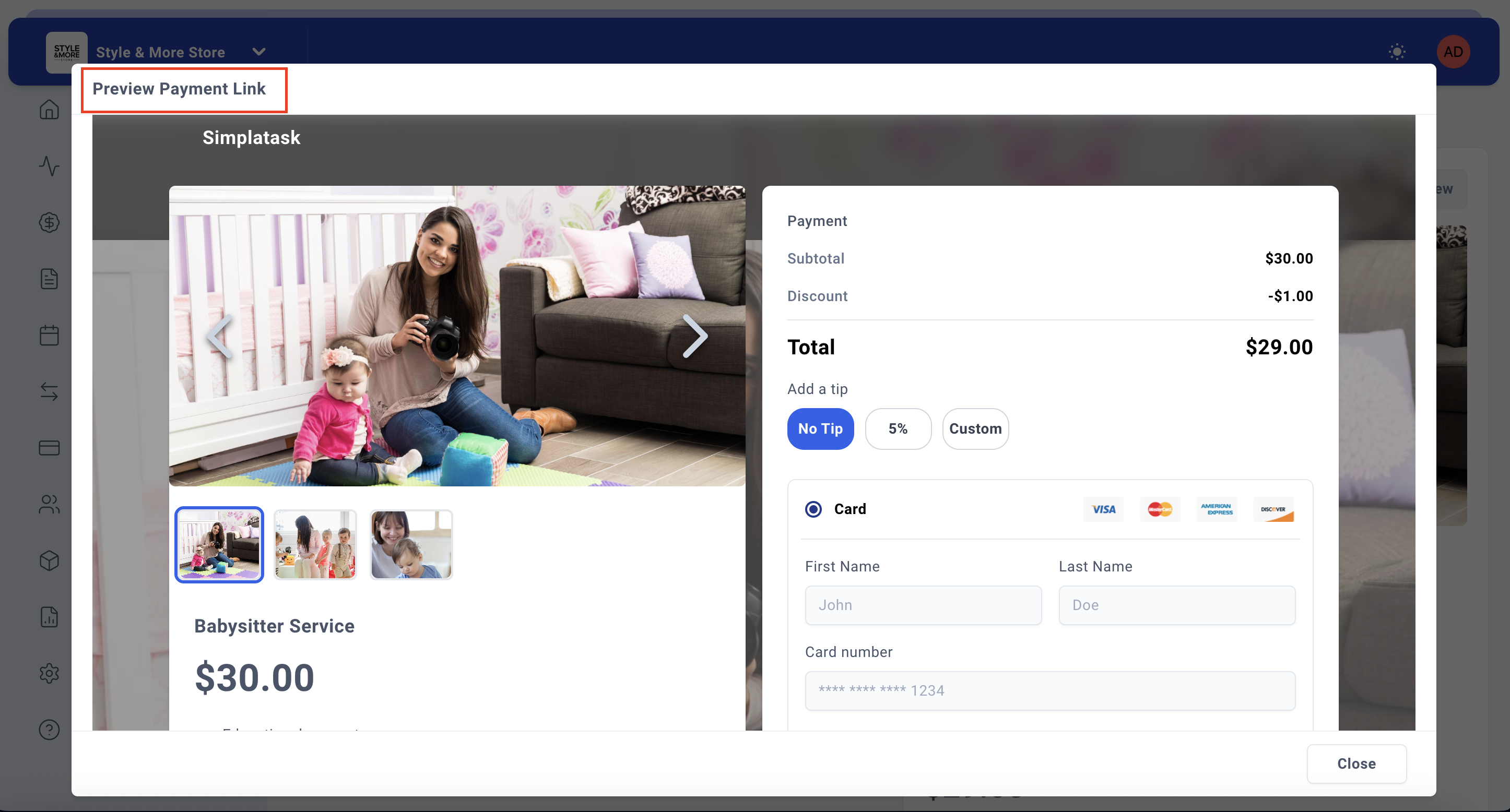
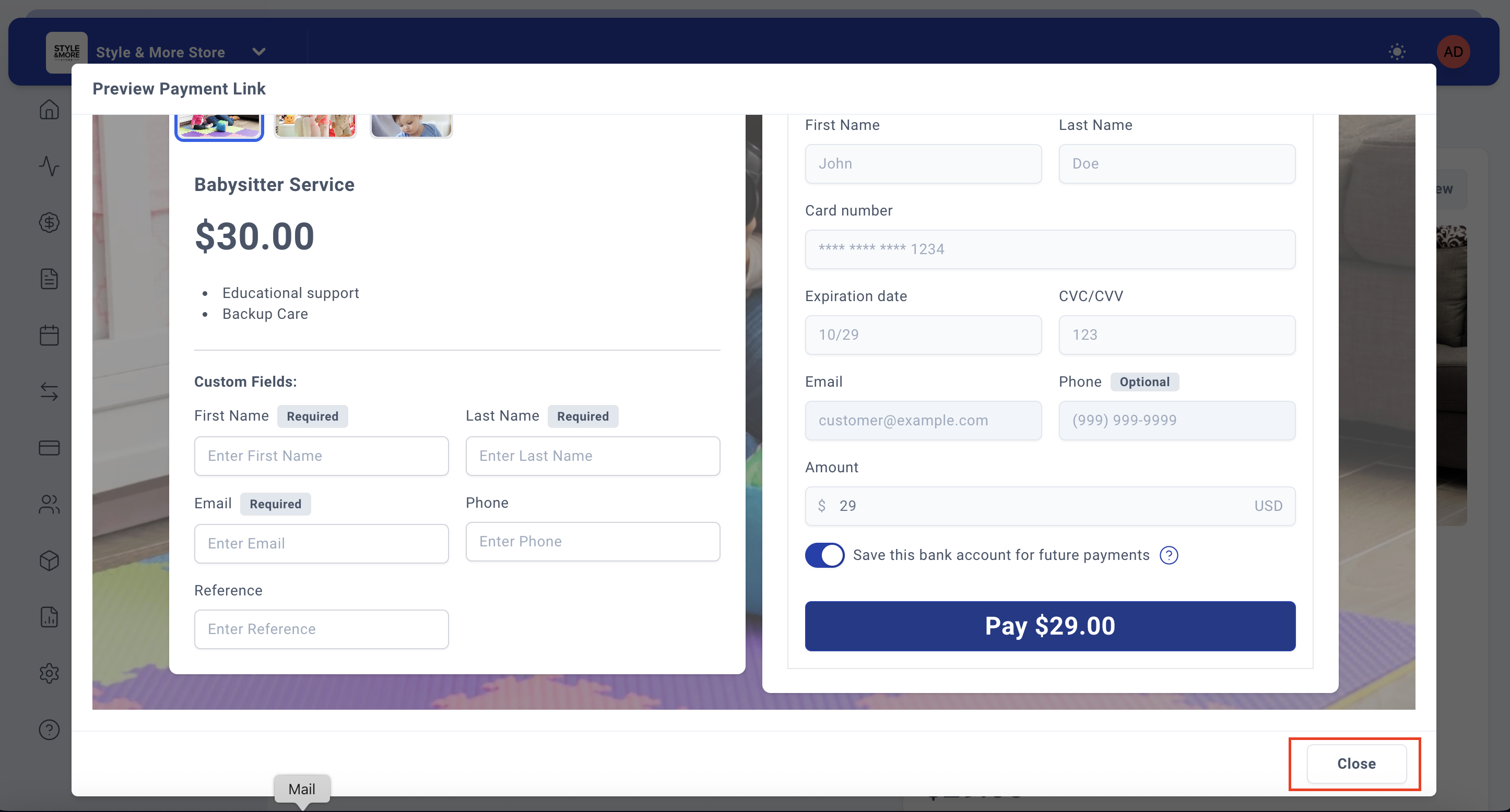
The form includes a live Summary panel on the right side that updates in real-time as you fill in the details, showing a preview of your payment link.
Step 5: Choose the Payment Purpose
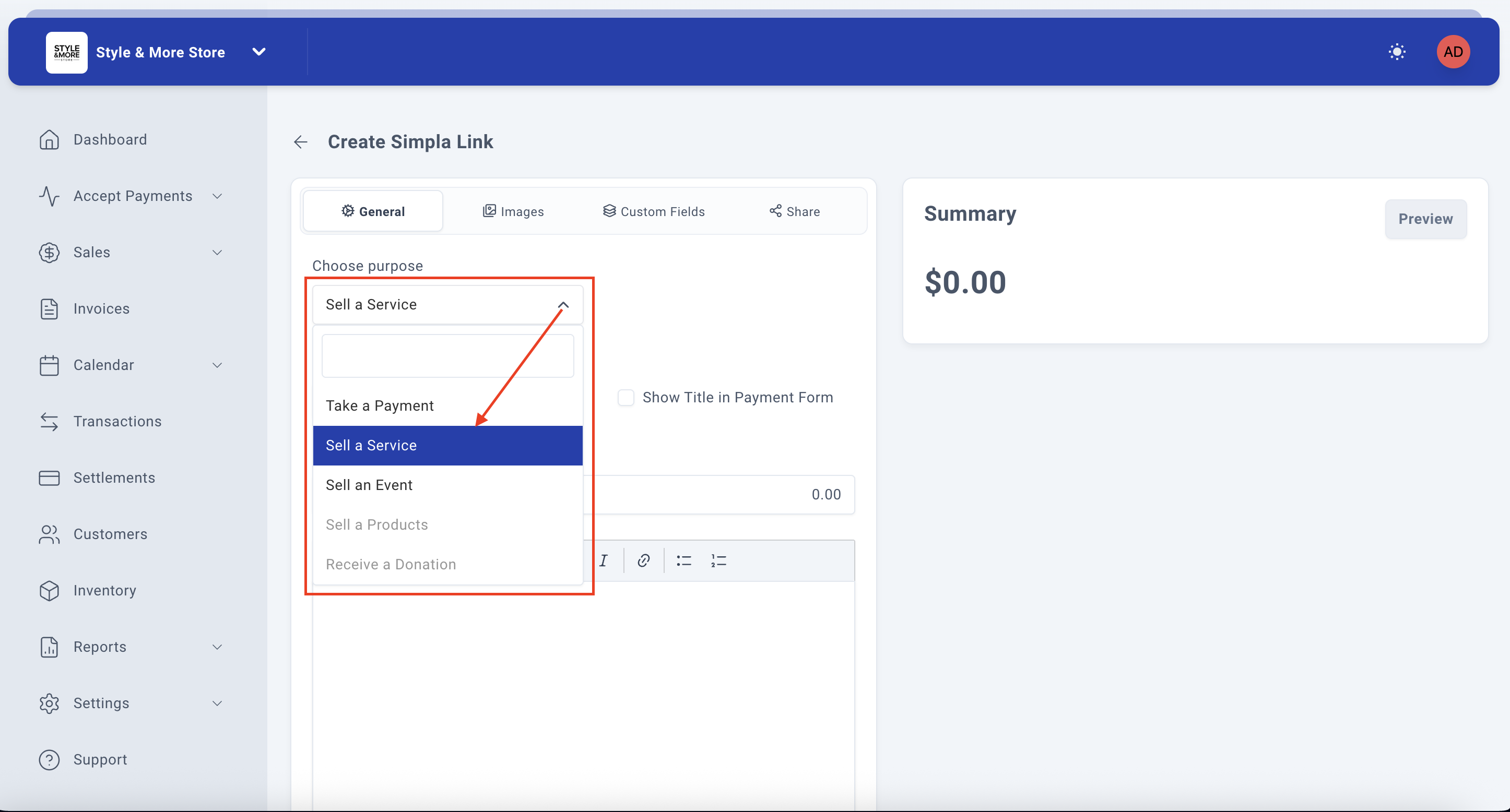
In the "Choose purpose" dropdown, select the type of payment link you want to create. The available options are:
- Take a Payment - For general payment collection
- Sell a Service - For service-based transactions
- Sell an Event - For event tickets or registrations
- Sell a Products - For product sales
- Receive a Donation - For charitable contributions
For this example, we'll select "Sell a Service".
Step 6: Enter the Payment Title
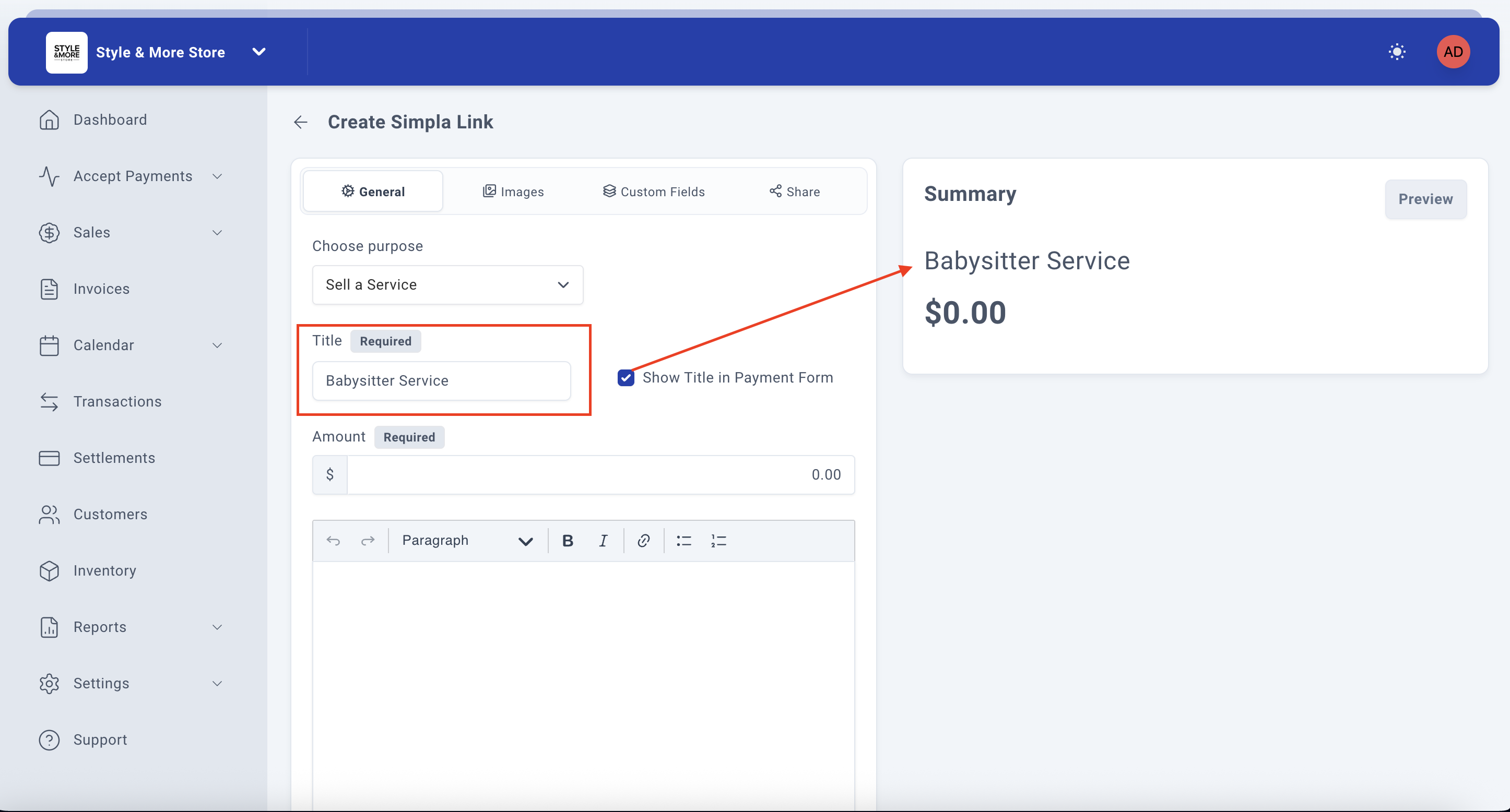
In the "Title" field (marked as Required), enter a descriptive name for your payment link. This title will be displayed to customers when they access the payment link.
For this example, we'll enter "Babysitter Service".
You can optionally check the "Show Title in Payment Form" checkbox if you want the title to be visible on the actual payment form.
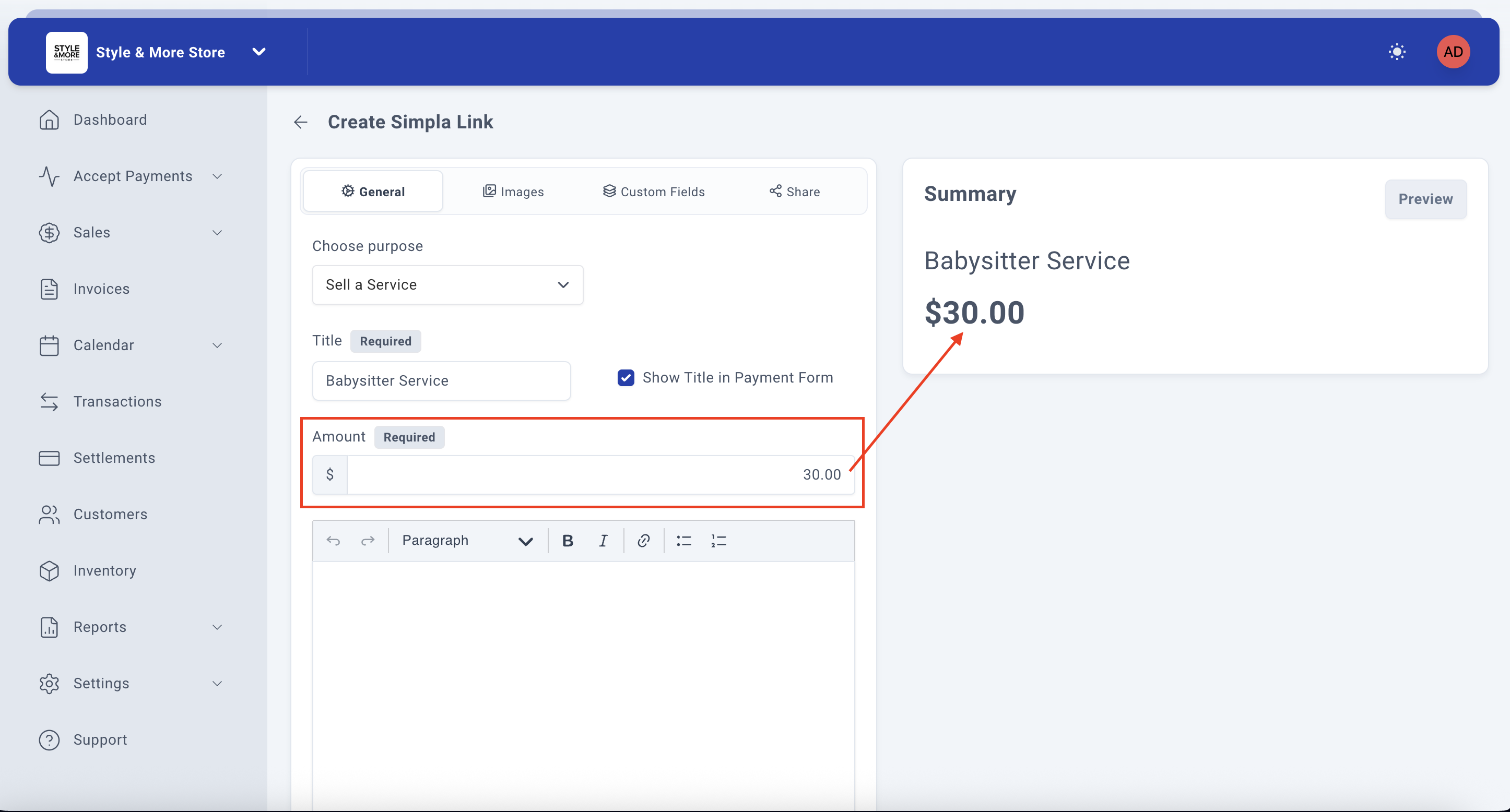
Step 7: Set the Payment Amount
In the "Amount" field (marked as Required), enter the price for your service or product. The field accepts numerical values and automatically formats the currency.
For this example, we'll enter "30.00".
Notice that the Summary panel on the right immediately updates to show "$30.00", reflecting the amount you entered.
Step 8: Add a Description (Optional)
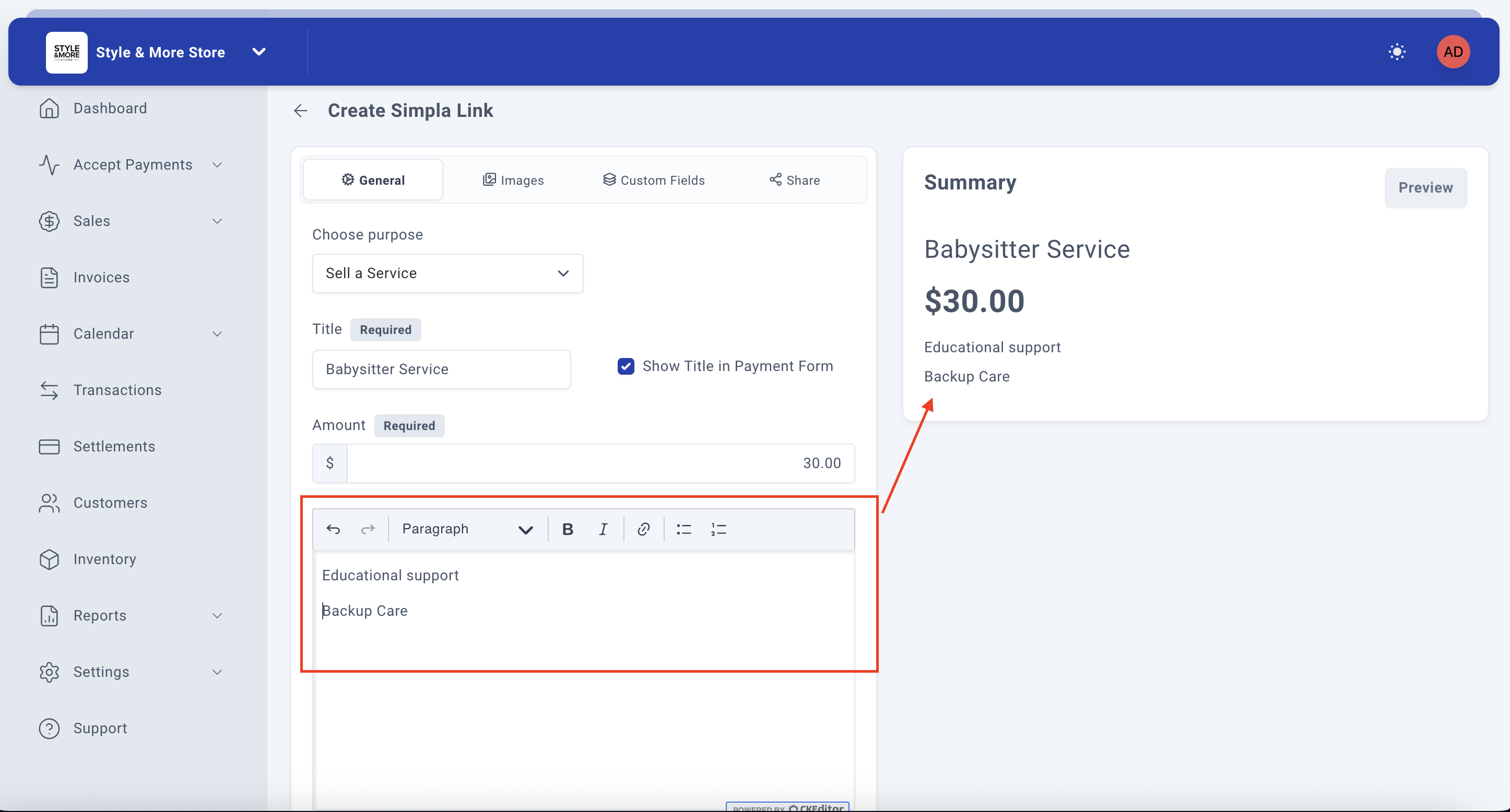
Below the amount field, you'll find a rich text editor with a formatting toolbar that includes options for undo/redo, paragraph styles, bold, italic, links, and lists.
You can add a detailed description of your service or product. This description will be shown to customers when they view the payment link.
For this example, we'll add the following services:
- Educational support
- Backup Care
Step 9: Format the Description
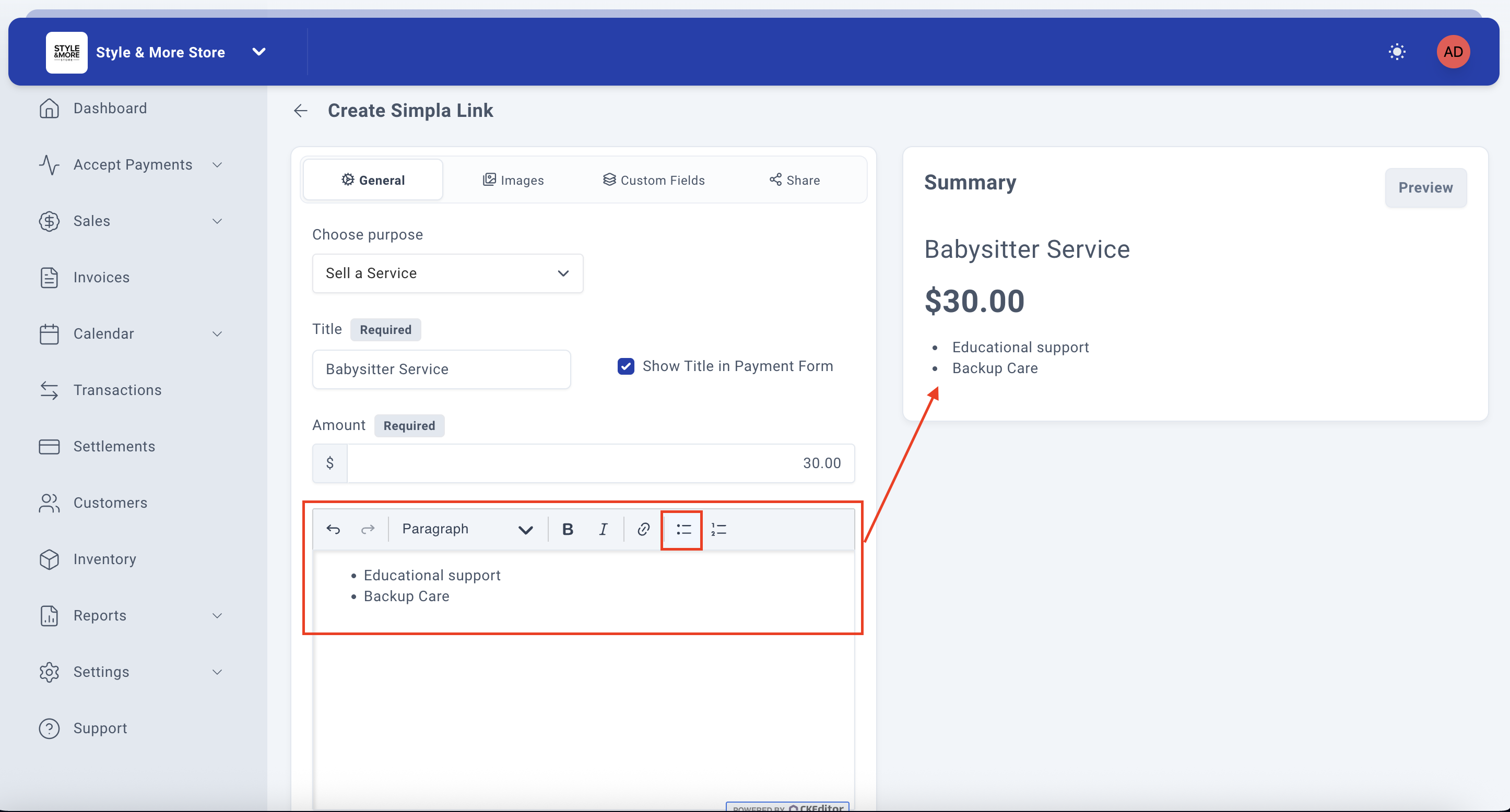
Using the formatting toolbar, you can enhance your description. In this example, we'll format the services as a bulleted list by:
- Selecting the text
- Clicking the bullet list button in the toolbar
The Summary panel on the right will update in real-time to show your formatted description as it will appear to customers.
Step 10: Configure Tax Settings
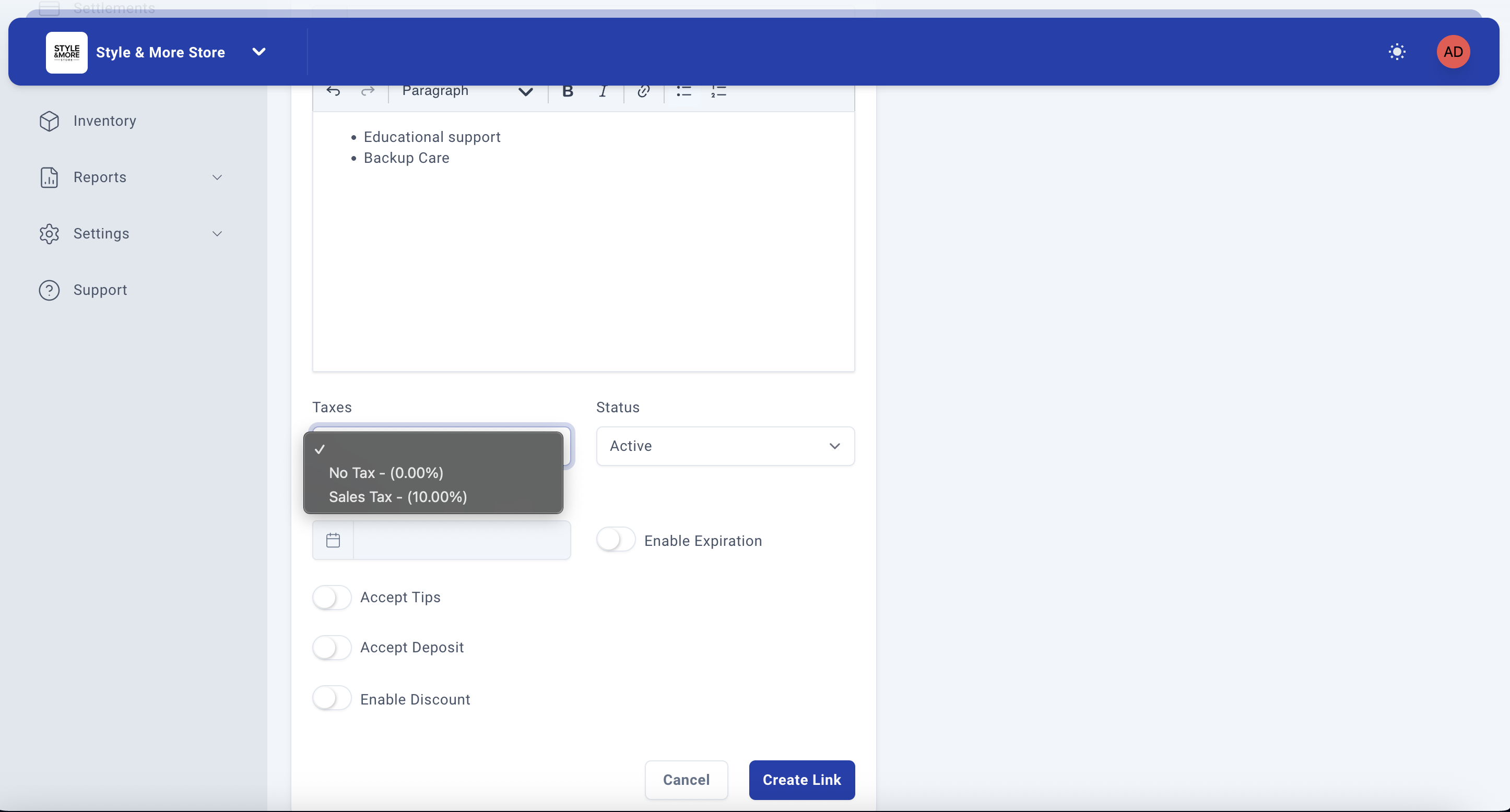
Scroll down to the "Taxes" dropdown field. Click on it to select your tax configuration. The available options are:
- No Tax - (0.00%) - No tax will be applied
- Sales Tax - (10.00%) - Applies a 10% sales tax
For this example, we'll select "No Tax - (0.00%)".
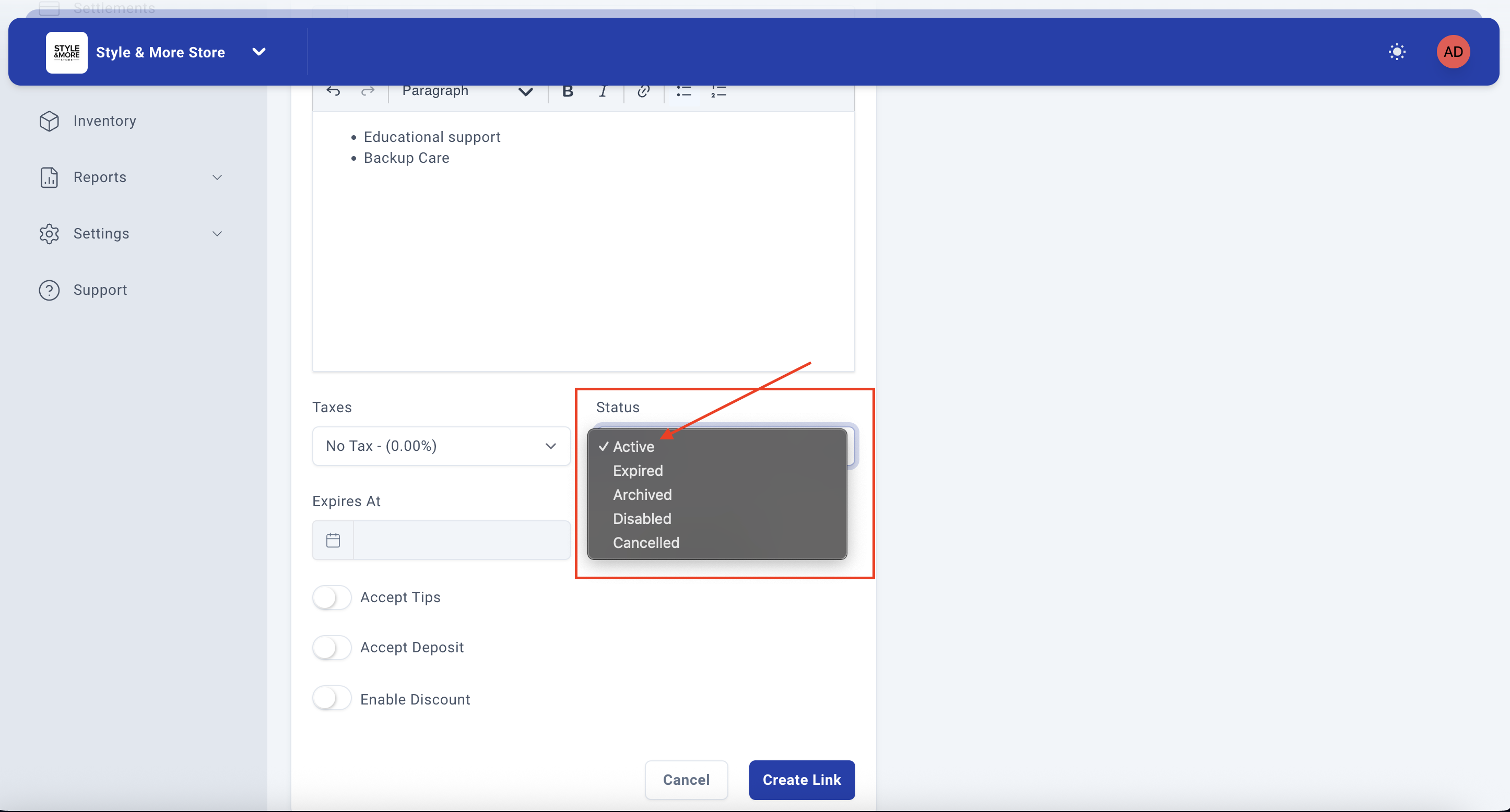
Step 11: Configure Additional Options
Below the tax settings, you'll find several optional configuration options:
- Status - Set the payment link status (Active by default)
- Enable Expiration - Toggle to set an expiration date for the payment link
- Expires At - Select the expiration date (if expiration is enabled)
- Accept Tips - Allow customers to add tips to their payment
- Accept Deposit - Allow partial payments or deposits
- Enable Discount - Allow discount codes to be applied
Configure these options according to your business needs. For this example, we'll leave them at their default settings.
Step 12: Configure Images (Optional)
To enhance your payment link with visual content, click on the "Images" tab at the top of the form. This section allows you to add multiple types of images to make your payment link more attractive and professional.
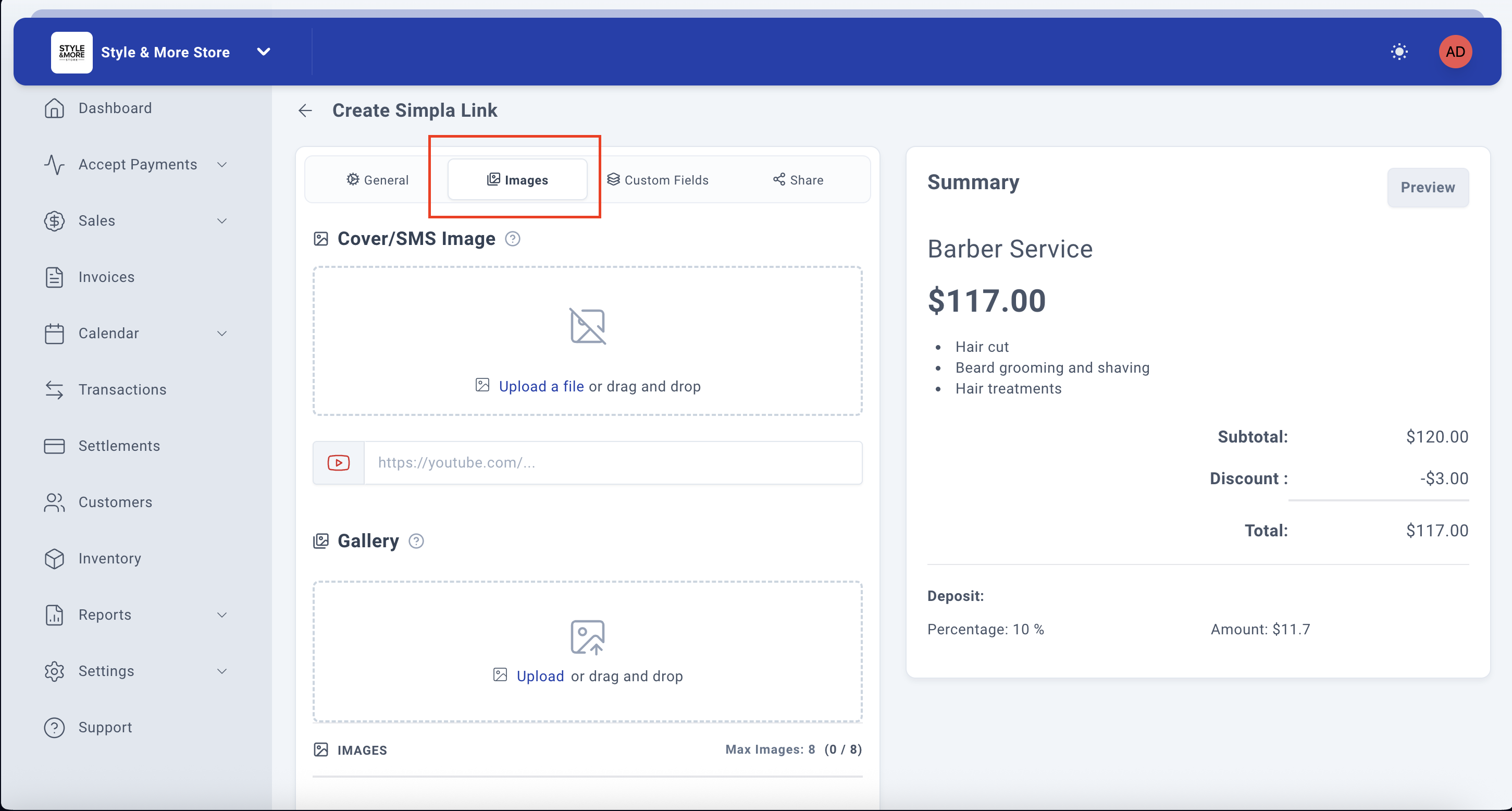
The Images tab contains the following sections:
- Cover/SMS Image - The main image displayed on the payment link and in SMS messages
- YouTube Video URL - Optional field to embed a YouTube video
- Gallery - Additional images (up to 8) to showcase your service or product
Step 12a: Upload Cover/SMS Image
In the "Cover/SMS Image" section, you'll see an upload area with the text "Upload a file or drag and drop". You can either:
- Click on the upload area to browse and select an image from your computer
- Drag and drop an image directly into the upload area
When you click to upload, a file browser window will open showing available images. Select the image you want to use as the cover image for your payment link.
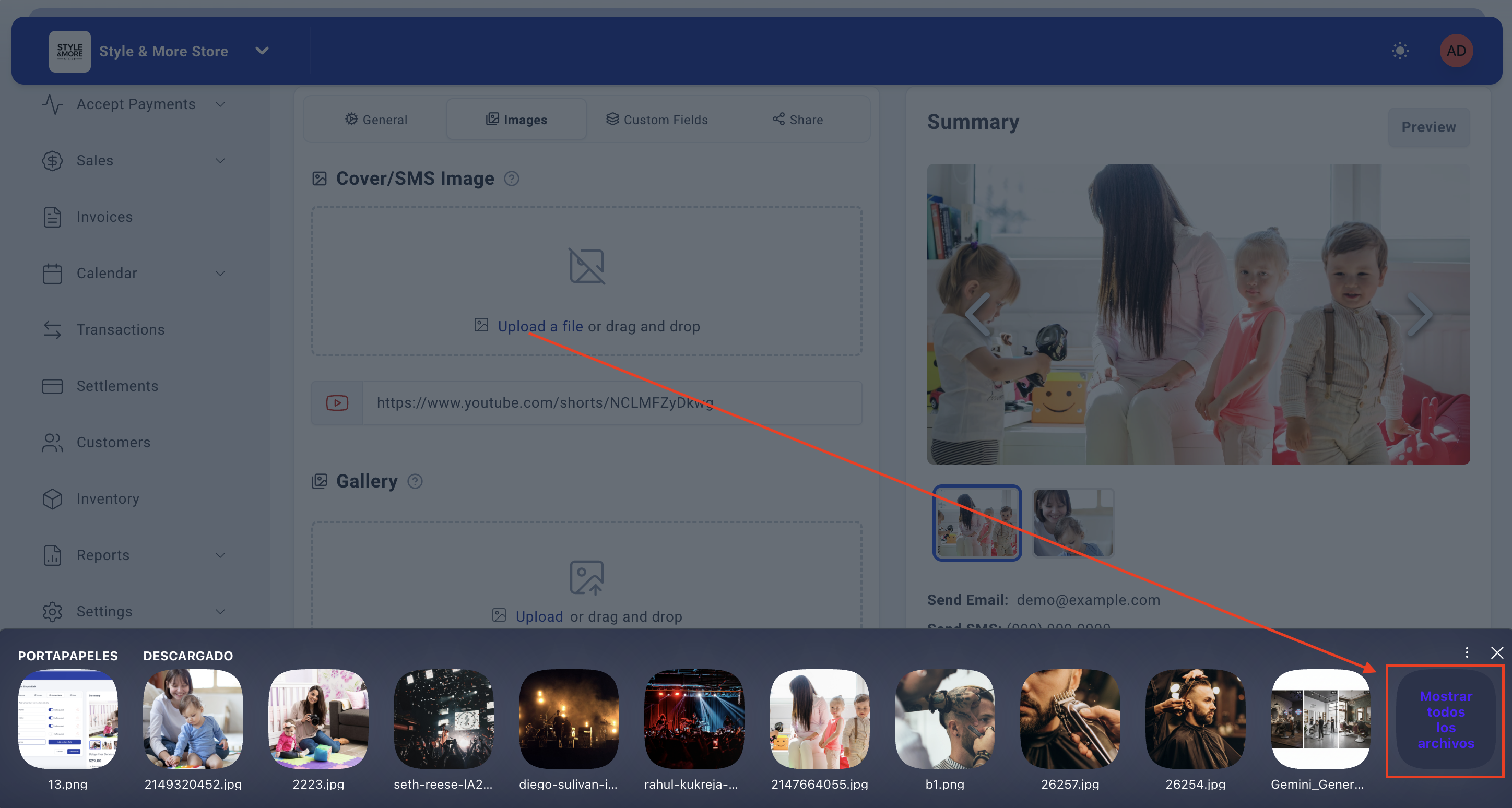
Step 12b: Crop the Cover Image
After selecting your image, a "Crop Image" dialog will appear. This tool allows you to adjust the image to fit the recommended resolution of 1280×720 to 1920×1080 pixels.
The crop tool provides:
- A blue rectangular selection area that you can resize and reposition
- Zoom controls (magnifying glass icons) to zoom in or out
- Rotation controls to rotate the image
- Reset controls to undo changes
Step 12c: Finalize the Crop
Adjust the crop area to frame the most important part of your image. Make sure the selected area clearly represents your service or product.
The message below the image reminds you to: "Adjust the crop area to fit the recommended resolution (1280×720 to 1920×1080)."
Once you're satisfied with the crop, click the "Crop" button to apply your changes. If you want to start over, click "Cancel".
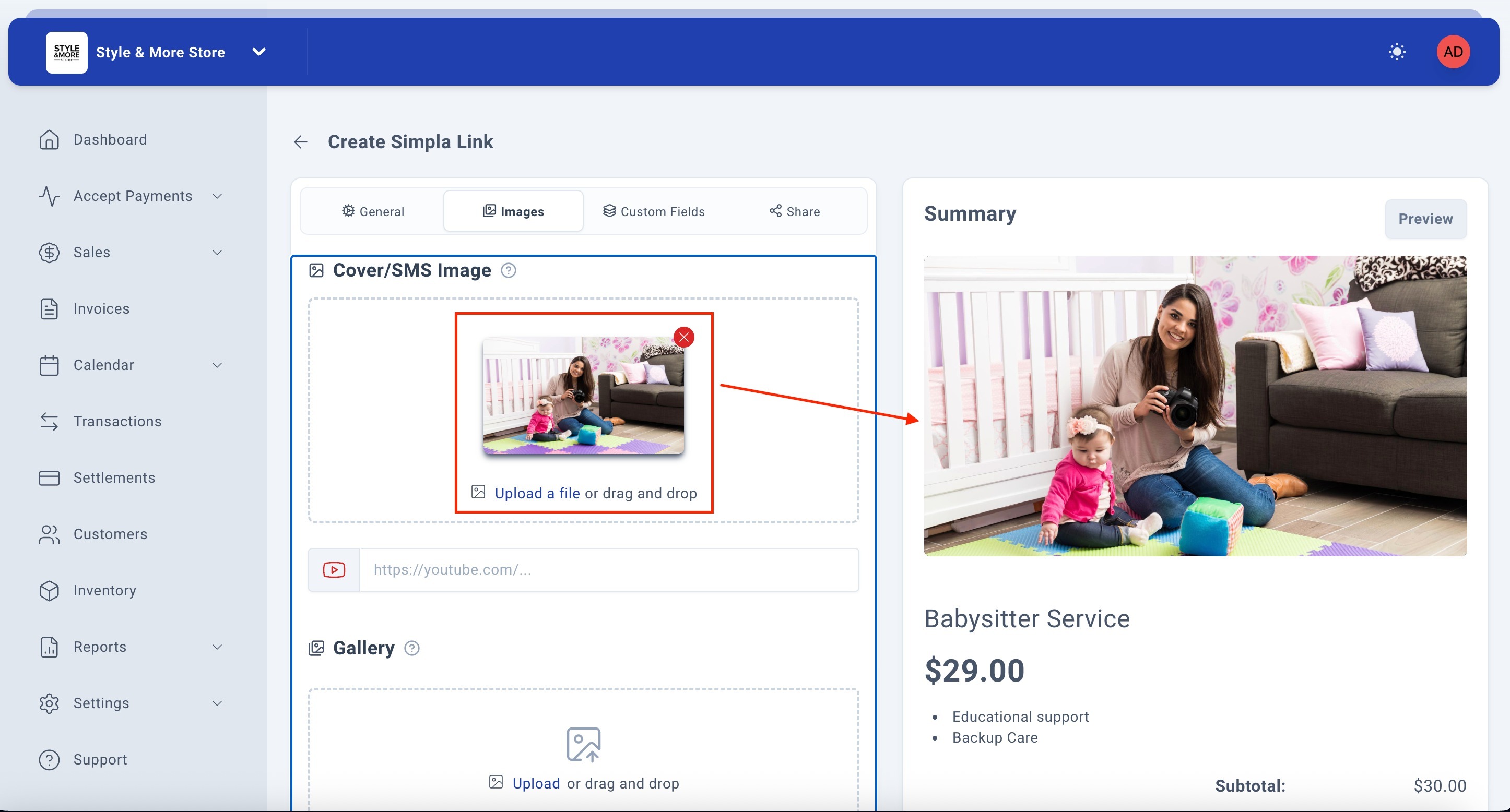
Step 12d: View Uploaded Cover Image
After cropping, your image will appear in the Cover/SMS Image section. You'll see:
- A thumbnail preview of your cropped image
- A red 'X' button in the top-right corner to remove the image if needed
- The option to upload a different image by clicking the upload area again
The Summary panel on the right will now display your cover image at the top, showing exactly how it will appear to customers when they view your payment link.
Step 12e: Add YouTube Video URL (Optional)
Below the Cover/SMS Image section, you'll find a text field with a YouTube icon where you can paste a YouTube video URL. This is optional but can be very effective for showcasing your service or product in action.
To add a video:
- Copy the URL of your YouTube video (e.g., https://www.youtube.com/shorts/NCLMFZyDkwg)
- Paste it into the text field
- The video will be embedded in your payment link, allowing customers to watch it before making a payment
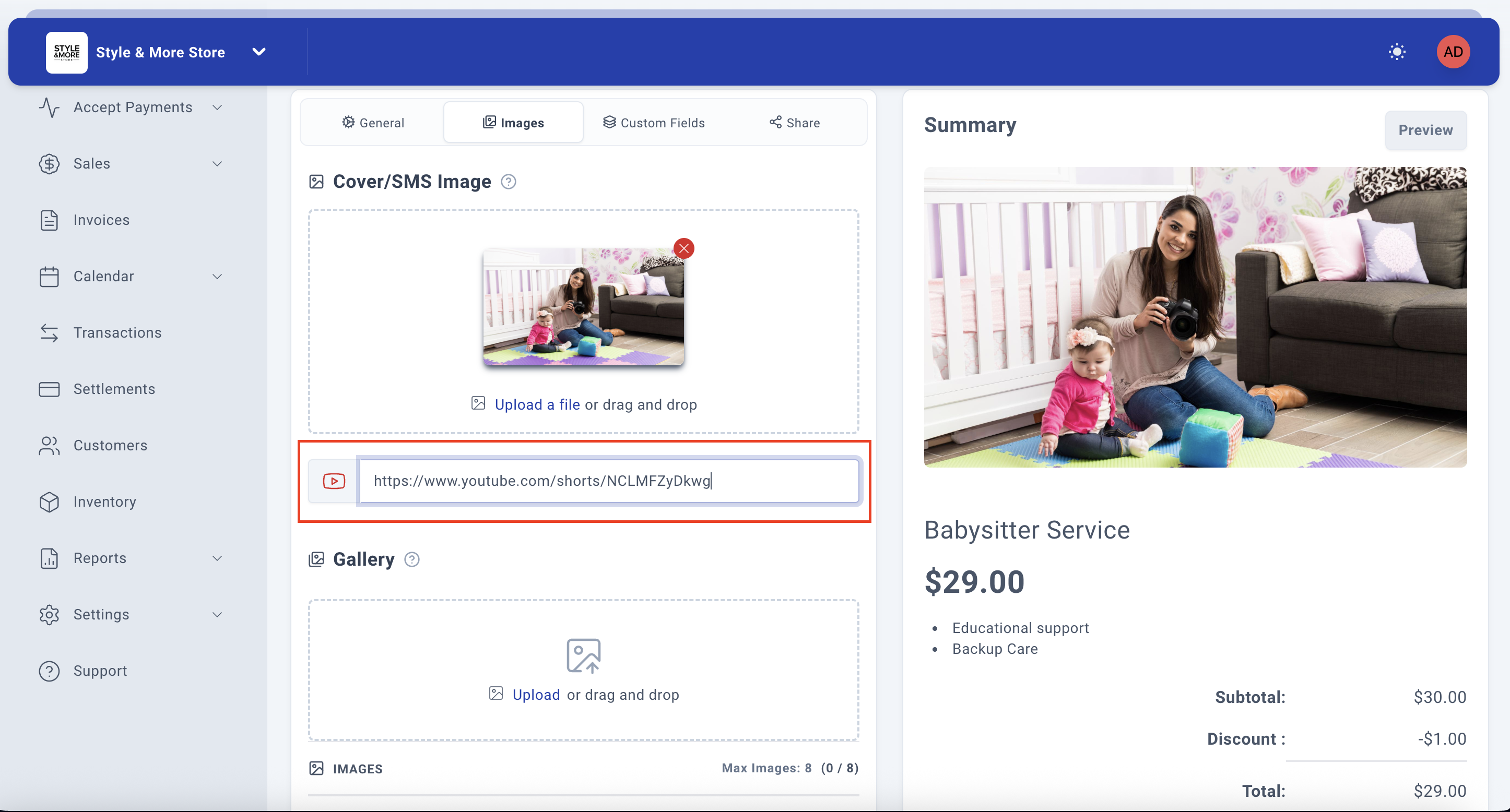
Step 12f: Add Gallery Images (Optional)
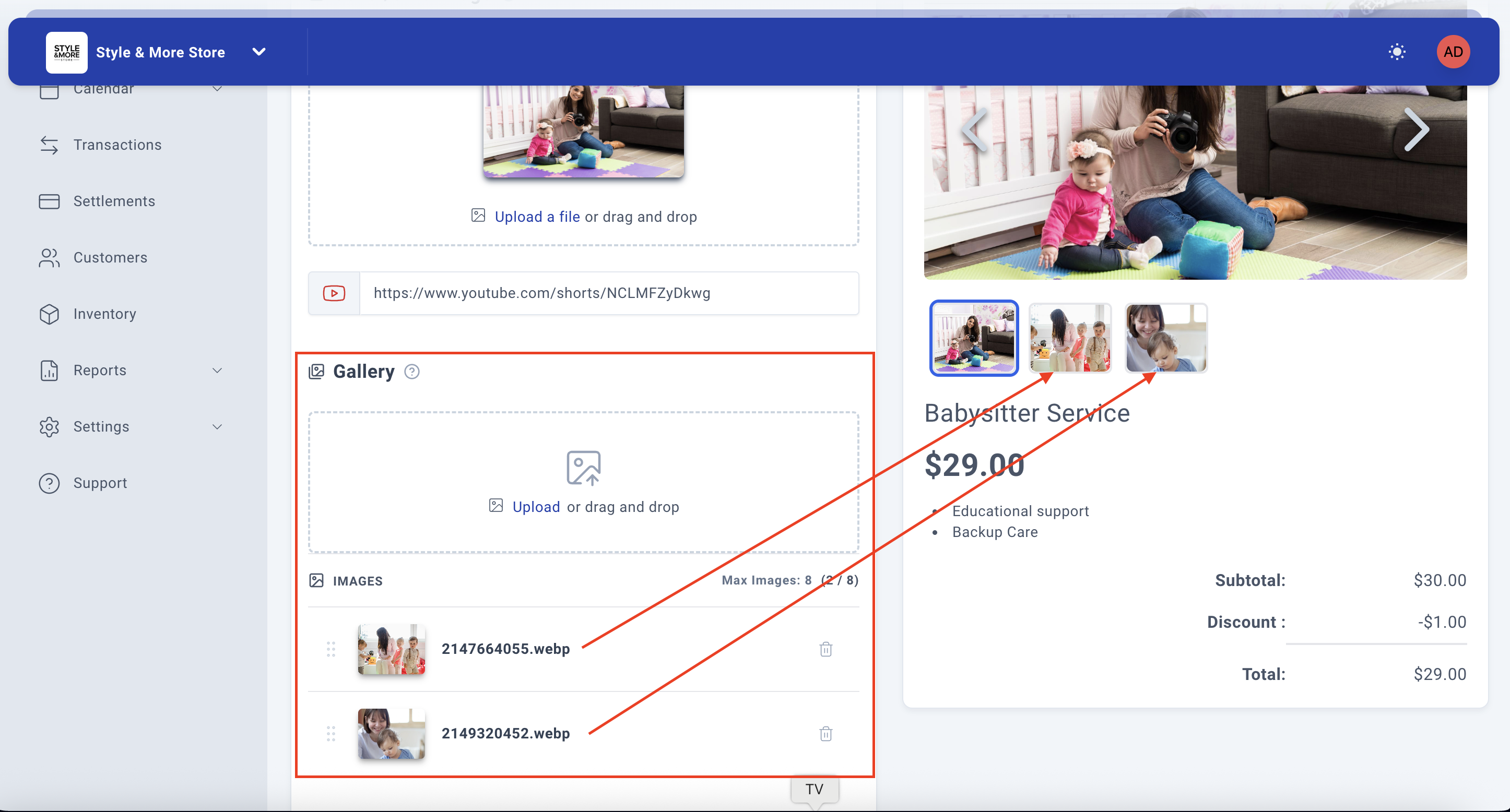
The "Gallery" section allows you to upload additional images to create a visual showcase of your service or product. You can upload up to 8 images.
At the bottom of the gallery section, you'll see "Max Images: 8 (0 / 8)", indicating how many images you've uploaded out of the maximum allowed.
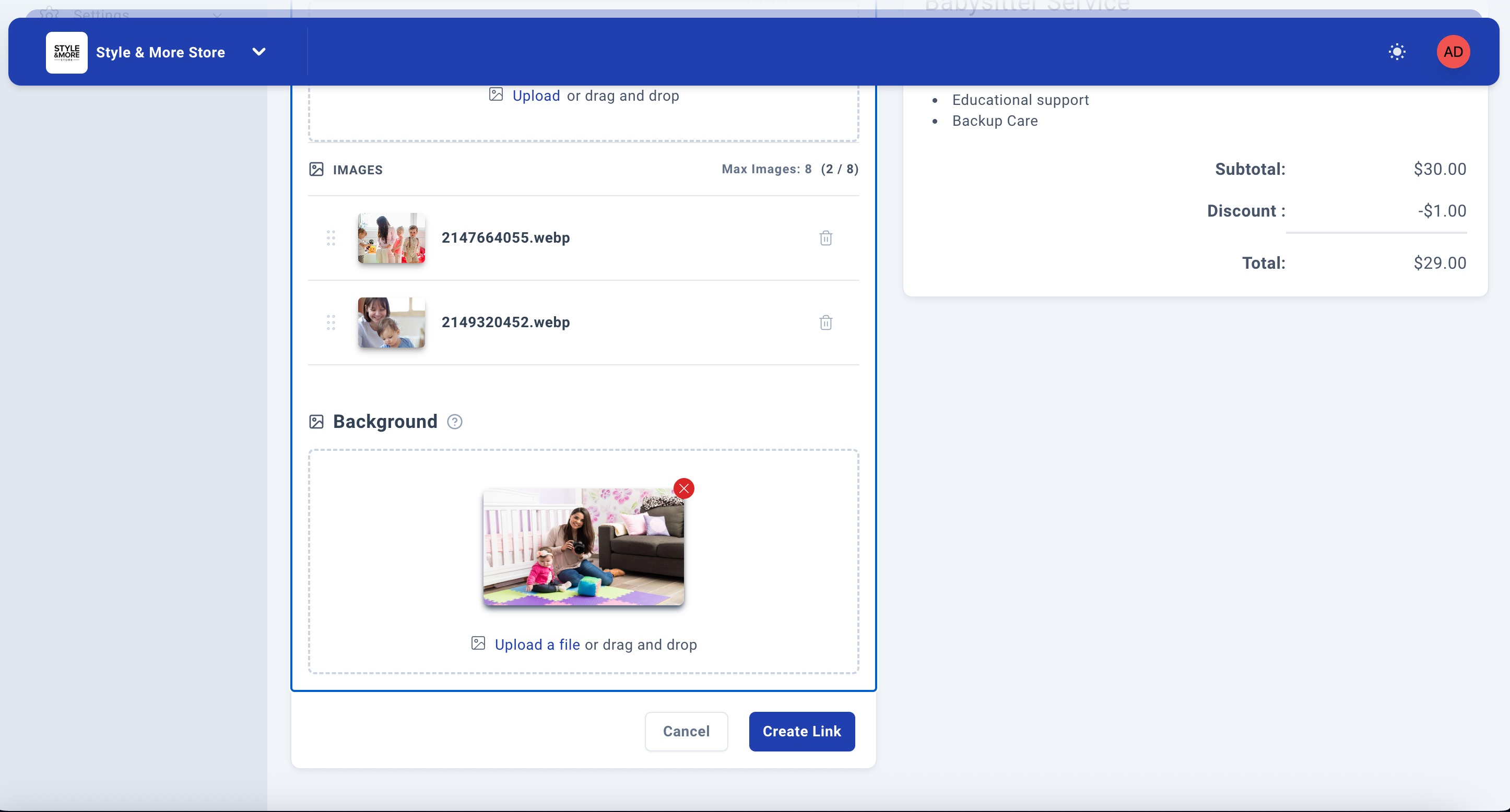
To add gallery images, click on the upload area that says "Upload or drag and drop" and select multiple images from your computer. Each image will go through the same cropping process as the cover image.
Note: Gallery images are displayed below the main cover image on your payment link, allowing customers to view multiple angles or examples of your service or product.
Step 13: Return to General Tab
After configuring your images, click back on the "General" tab to continue with the remaining settings for your payment link.
Step 13a: Configure Custom Fields (Optional)
After completing the Images tab, click on the "Custom Fields" tab to add custom information fields that customers will need to complete when making a payment. This feature is useful for collecting specific information like reference numbers, special requests, or any other data relevant to your service.
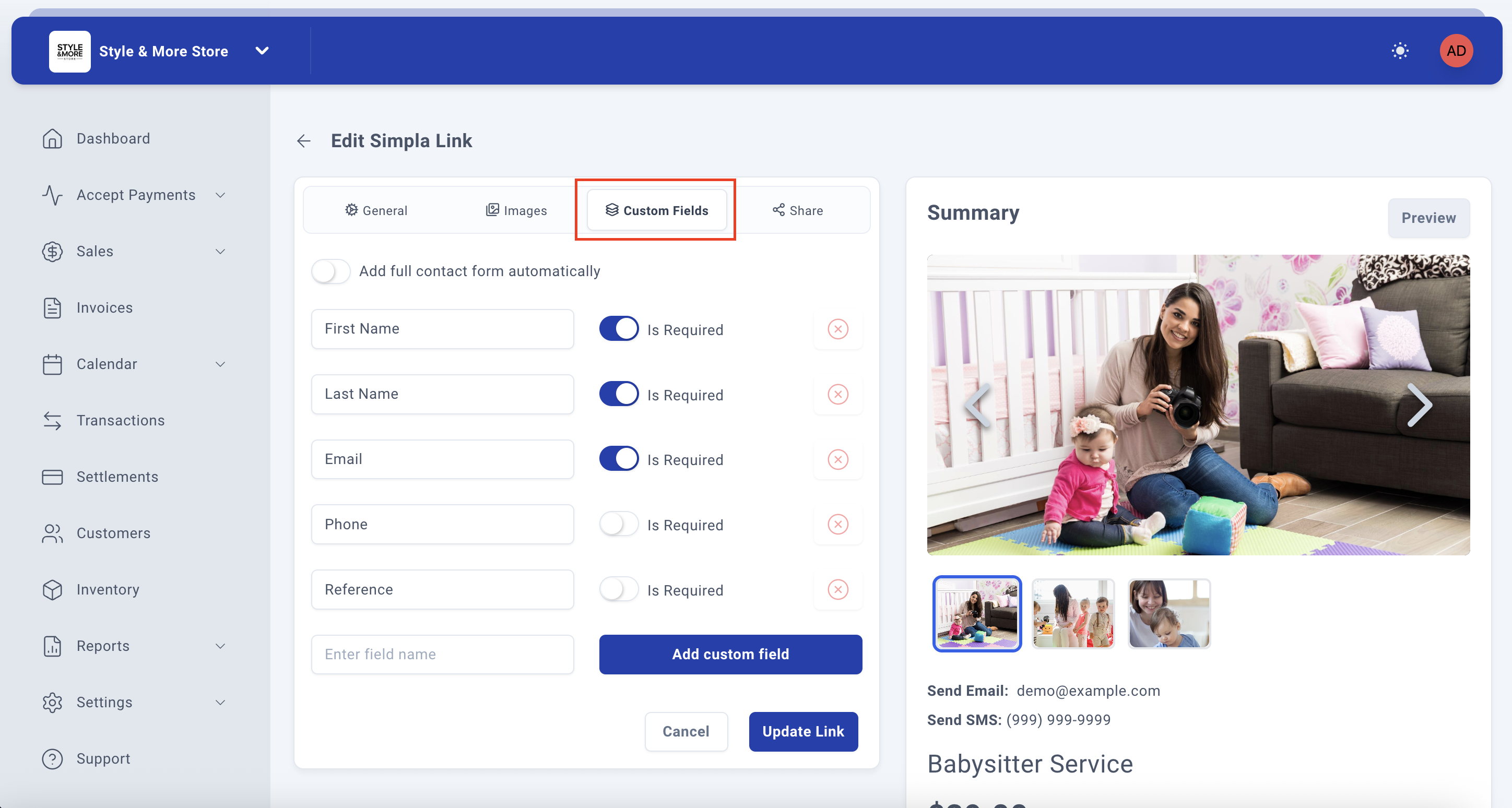
Step 13b: Enable Automatic Contact Form
At the top of the Custom Fields tab, you'll see a toggle switch labeled "Add full contact form automatically". When you enable this option (by clicking the toggle), the system automatically adds a comprehensive set of standard contact fields:
- First Name - Marked as Required by default
- Last Name - Marked as Required by default
- Email - Marked as Required by default
- Phone - Marked as Required by default
- Street - Not required by default
- Unit - Not required by default
- City - Not required by default
- State/Province - Not required by default
- Zip/Postal Code - Not required by default
This is a convenient option if you need comprehensive customer contact and address information for your service.
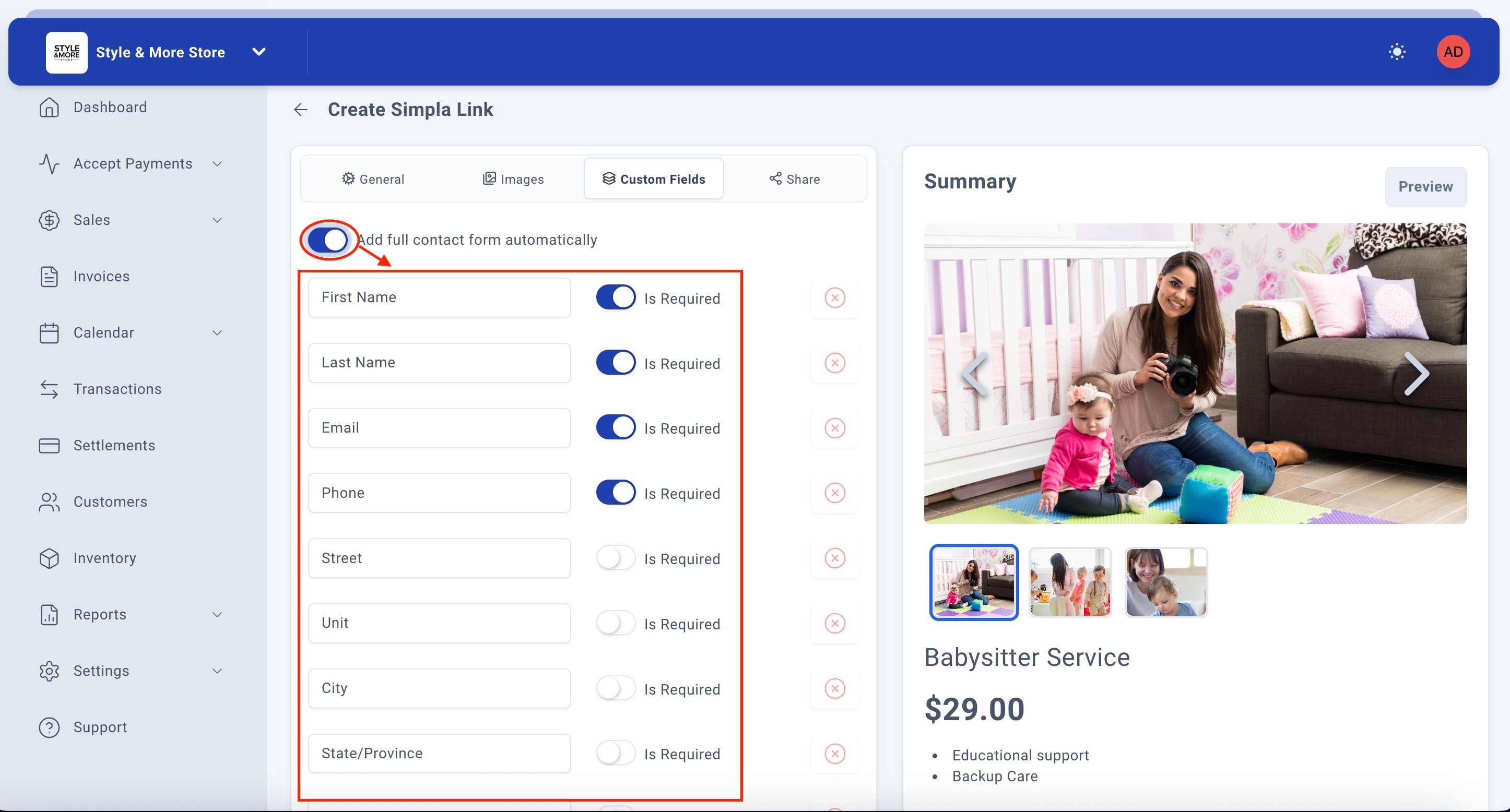
Step 13c: Customize Required Fields
Each field in the contact form has an "Is Required" toggle switch next to it. You can:
- Enable the toggle (blue) to make a field required - customers must complete it before payment
- Disable the toggle (gray) to make a field optional - customers can skip it
By default, the basic contact fields (First Name, Last Name, Email, Phone) are set as required, while address fields are optional.

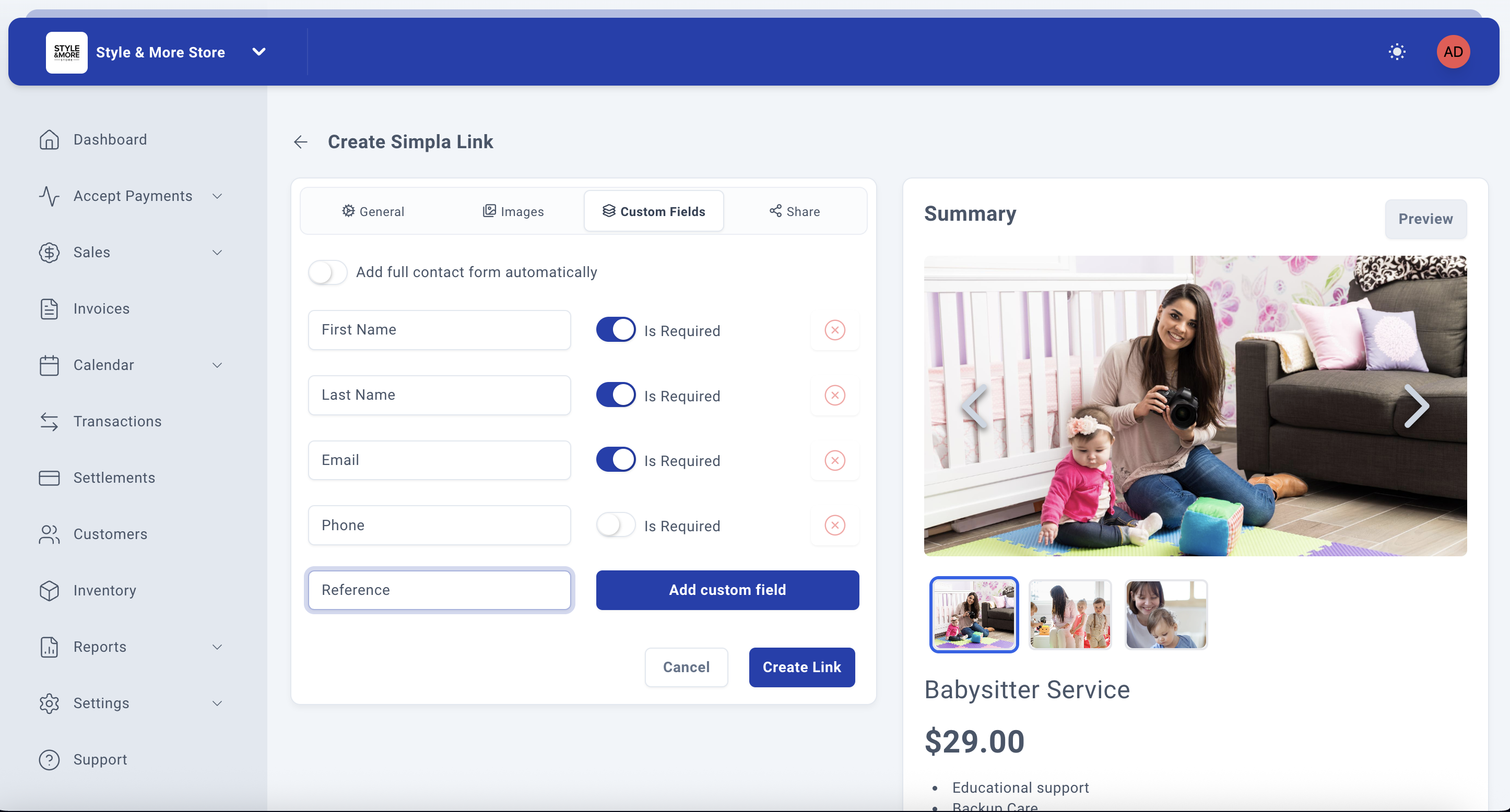
Step 13d: Remove Unwanted Fields
If you don't need all the automatically added fields, you can remove individual fields by clicking the red X button on the right side of each field.
For example, if you don't need address information, you can remove the Street, Unit, City, State/Province, and Zip/Postal Code fields, keeping only the essential contact fields (First Name, Last Name, Email, Phone).
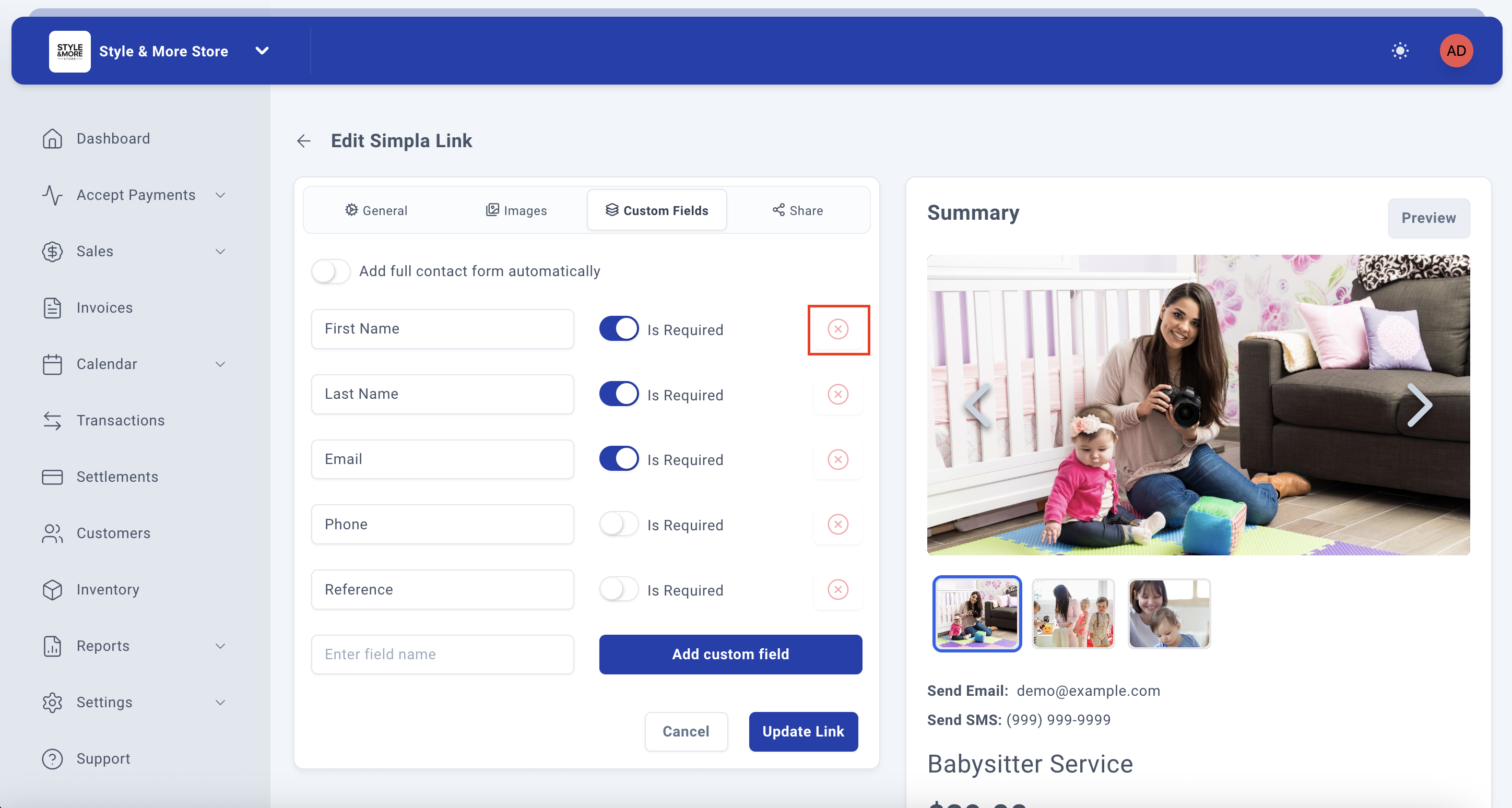
Step 13e: Review Simplified Form
After removing unwanted fields, your custom fields section will show only the fields you want to collect. In this example, we've kept only the basic contact fields: First Name, Last Name, and Email - all marked as required.
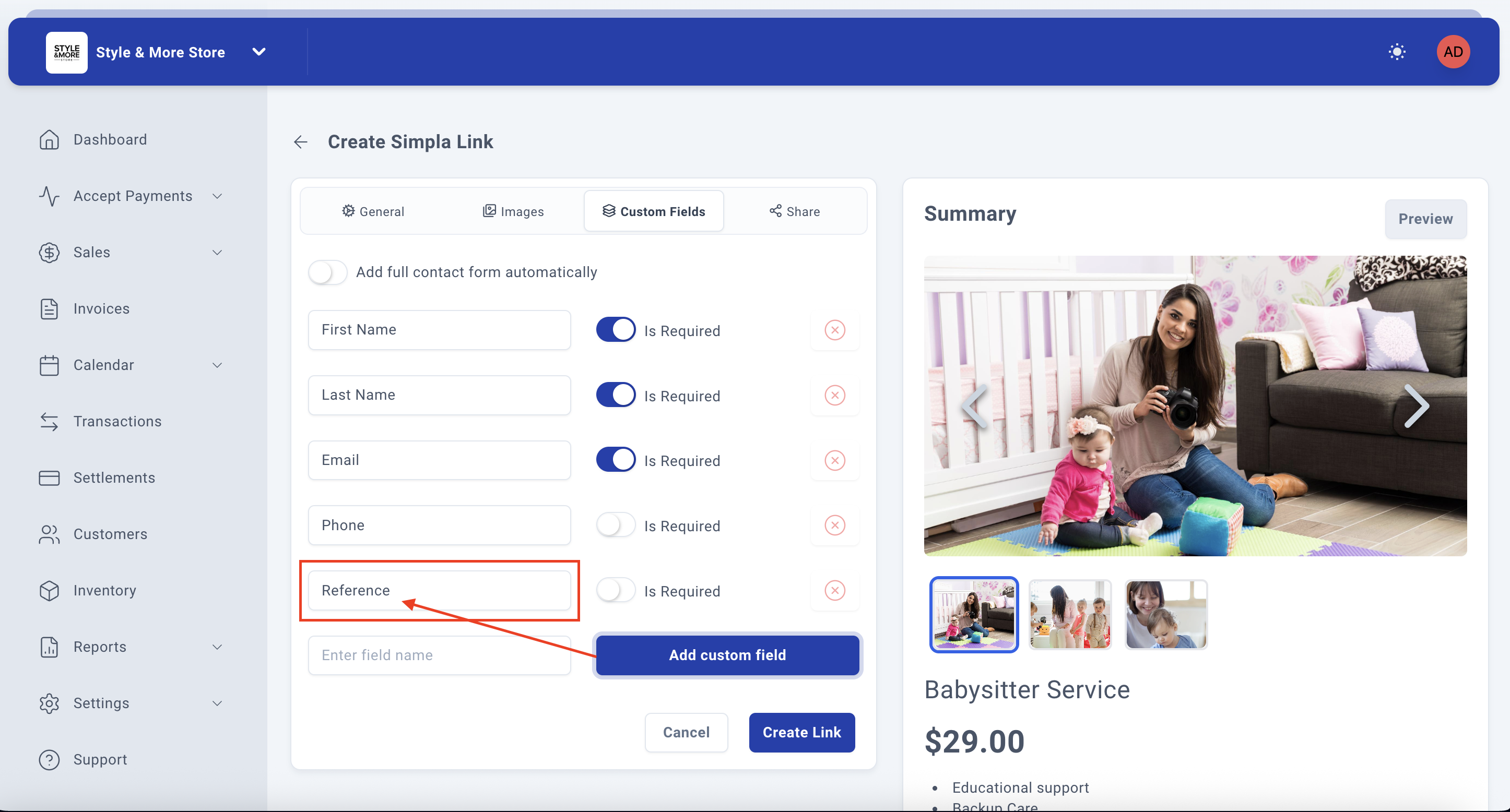
Below the fields, you'll see the "Enter field name" input box and "Add custom field" button, which you can use to add additional custom fields specific to your needs.
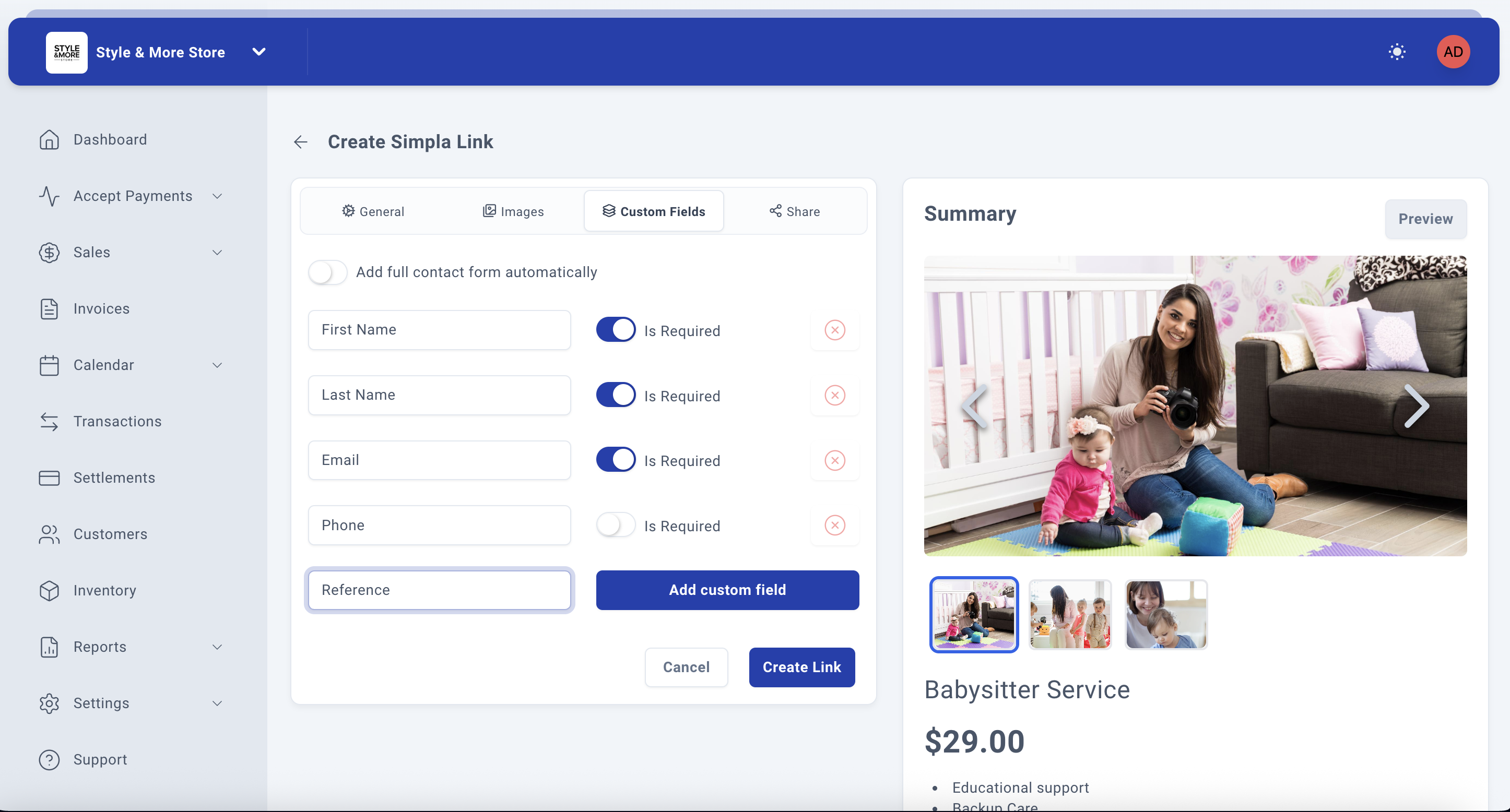
Step 13f: Add a Custom Field
To add a custom field specific to your business needs, type the field name in the "Enter field name" input box. For example, you might want to collect a reference number, appointment preference, or special instructions.
In this example, we'll add a field called "Reference" where customers can enter their reference number or booking code.
Step 13g: Configure Custom Field Settings
After typing the field name and clicking "Add custom field", your new custom field will appear in the list above. The new field will have:
- The field name you entered (e.g., "Reference")
- An "Is Required" toggle switch (off by default) - enable it if customers must complete this field
- A red X button to remove the field if needed
You can add multiple custom fields by repeating this process. Each custom field can be independently configured as required or optional.
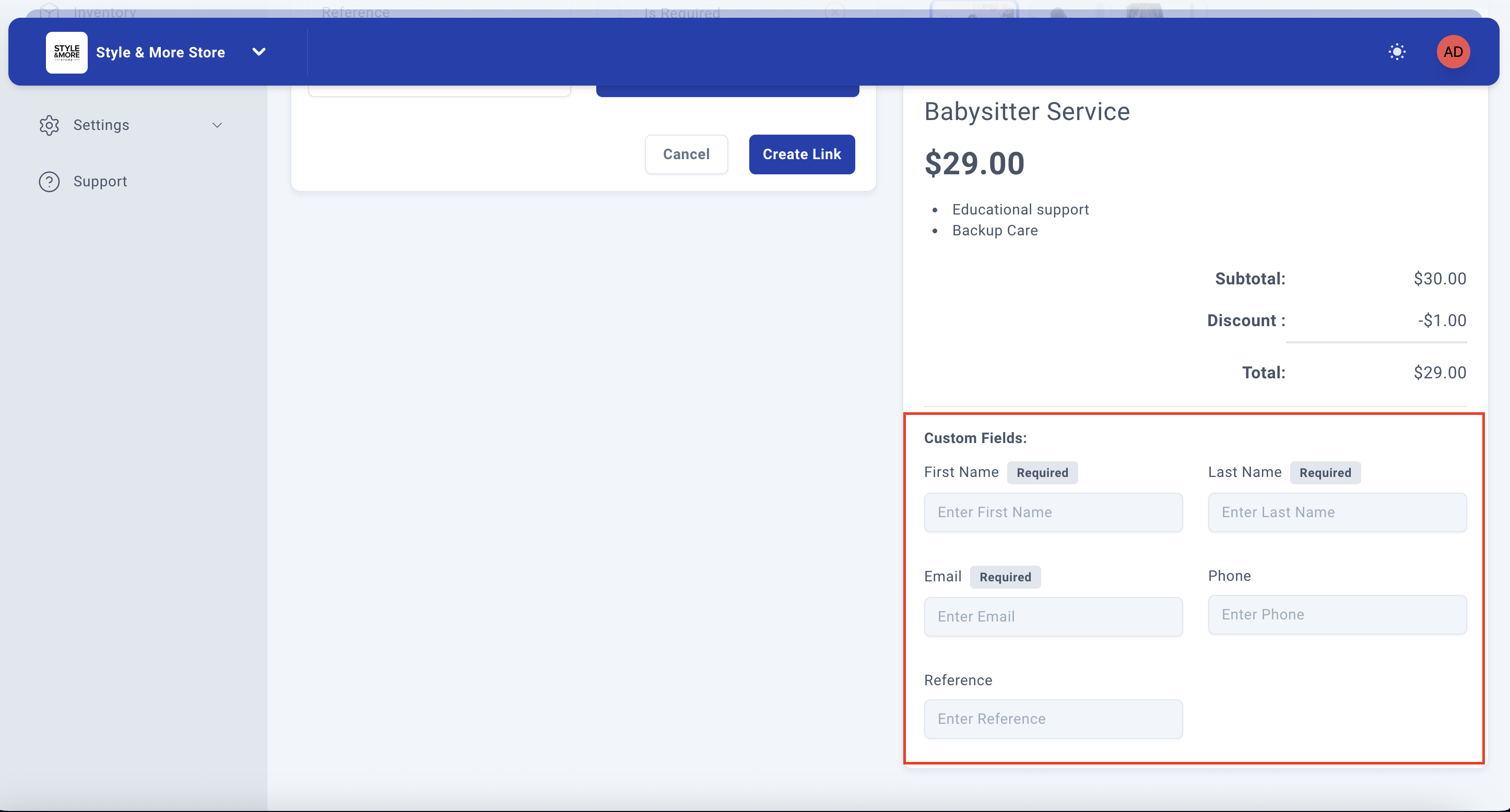
Note: The Summary panel on the right will show the "Send Email" field, which displays the email address where payment confirmations will be sent (based on the Email field in your form).
Step 14: Configure Share Options
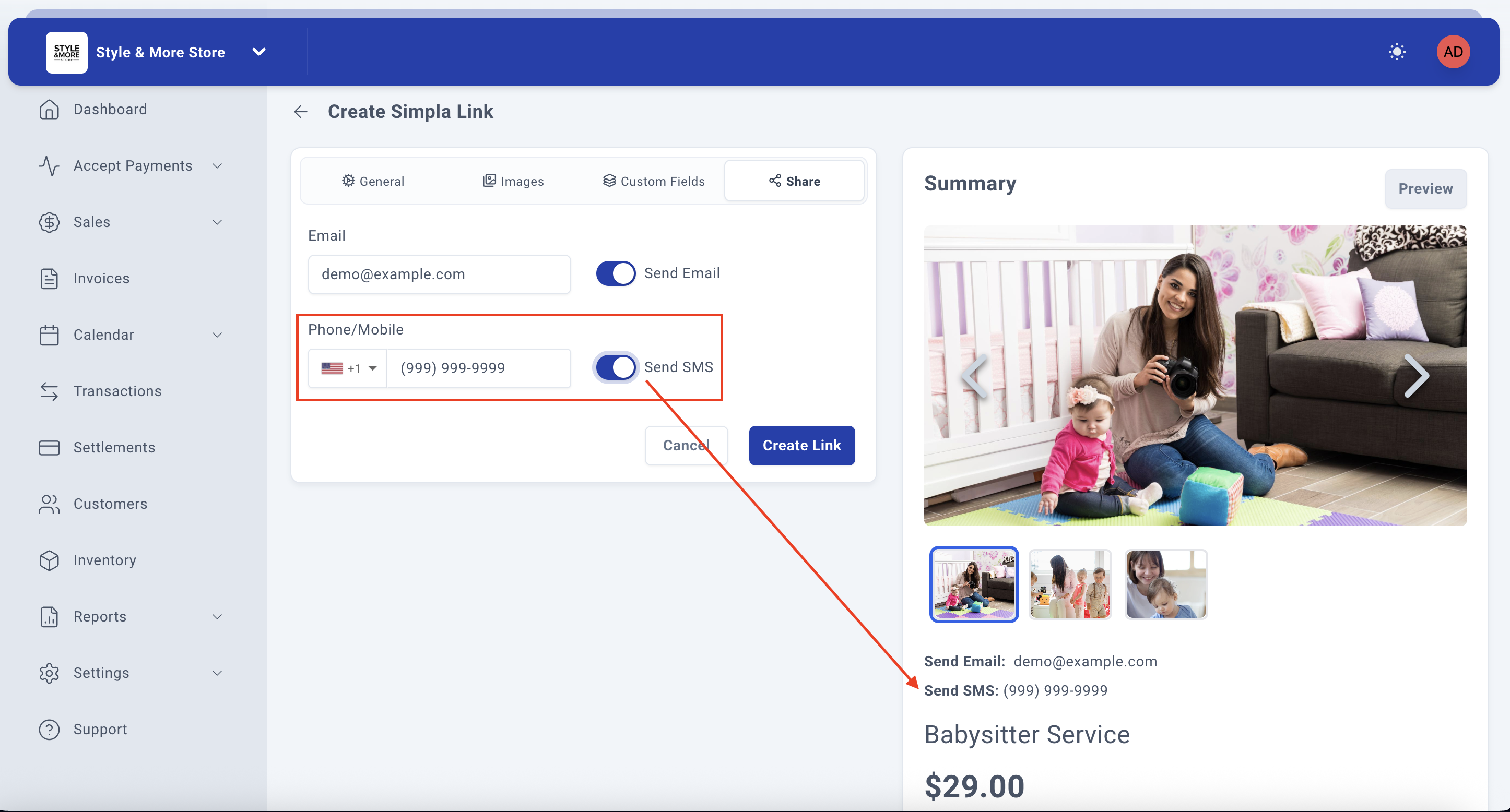
The sharing option displays two distribution channels for your SimplaLinks, providing efficient and flexible delivery management that puts you in complete control of how you reach your customers:
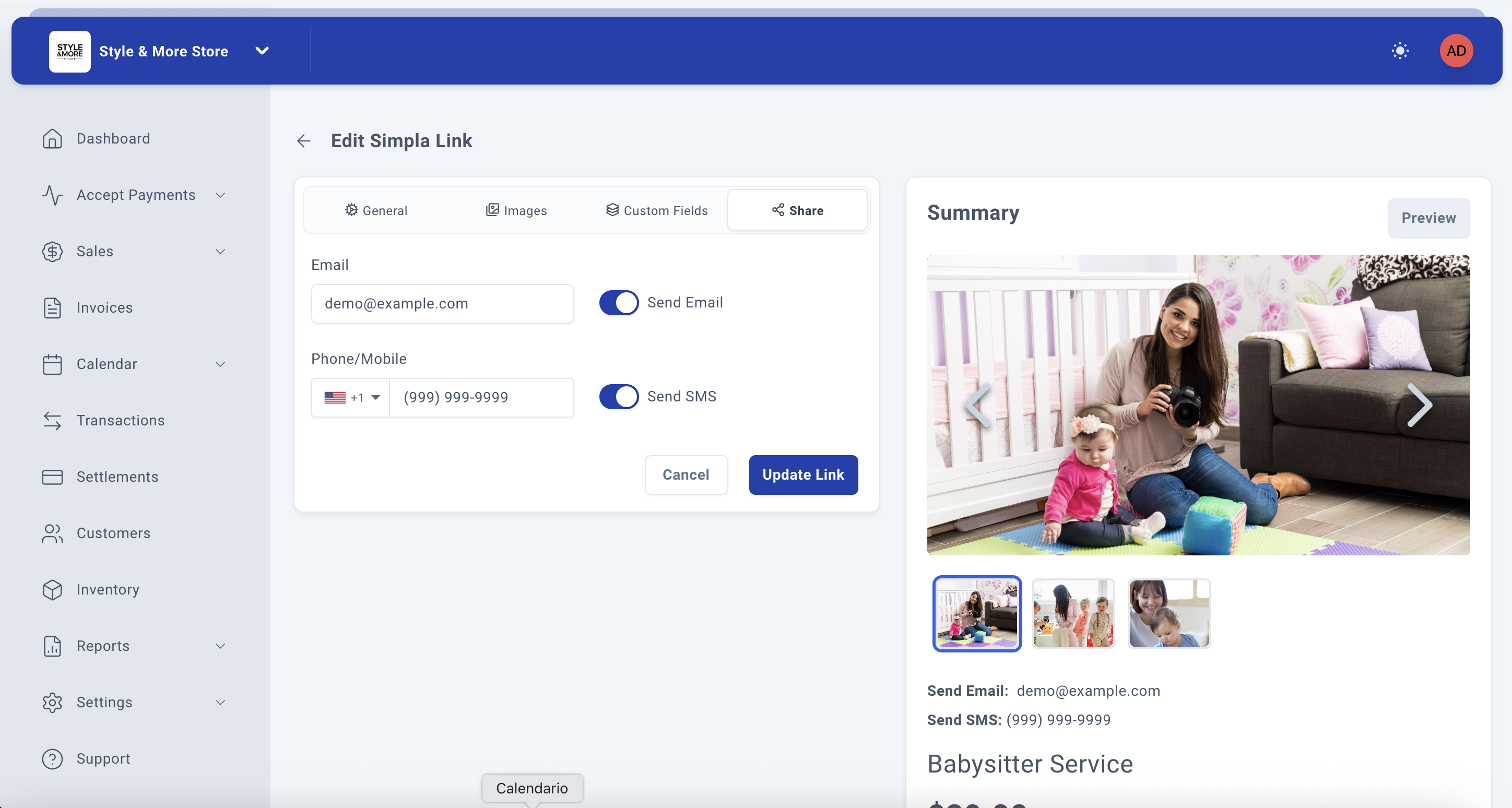
For email delivery, simply enter the recipient's email address and ensure the option is enabled using the toggle switch beside it.
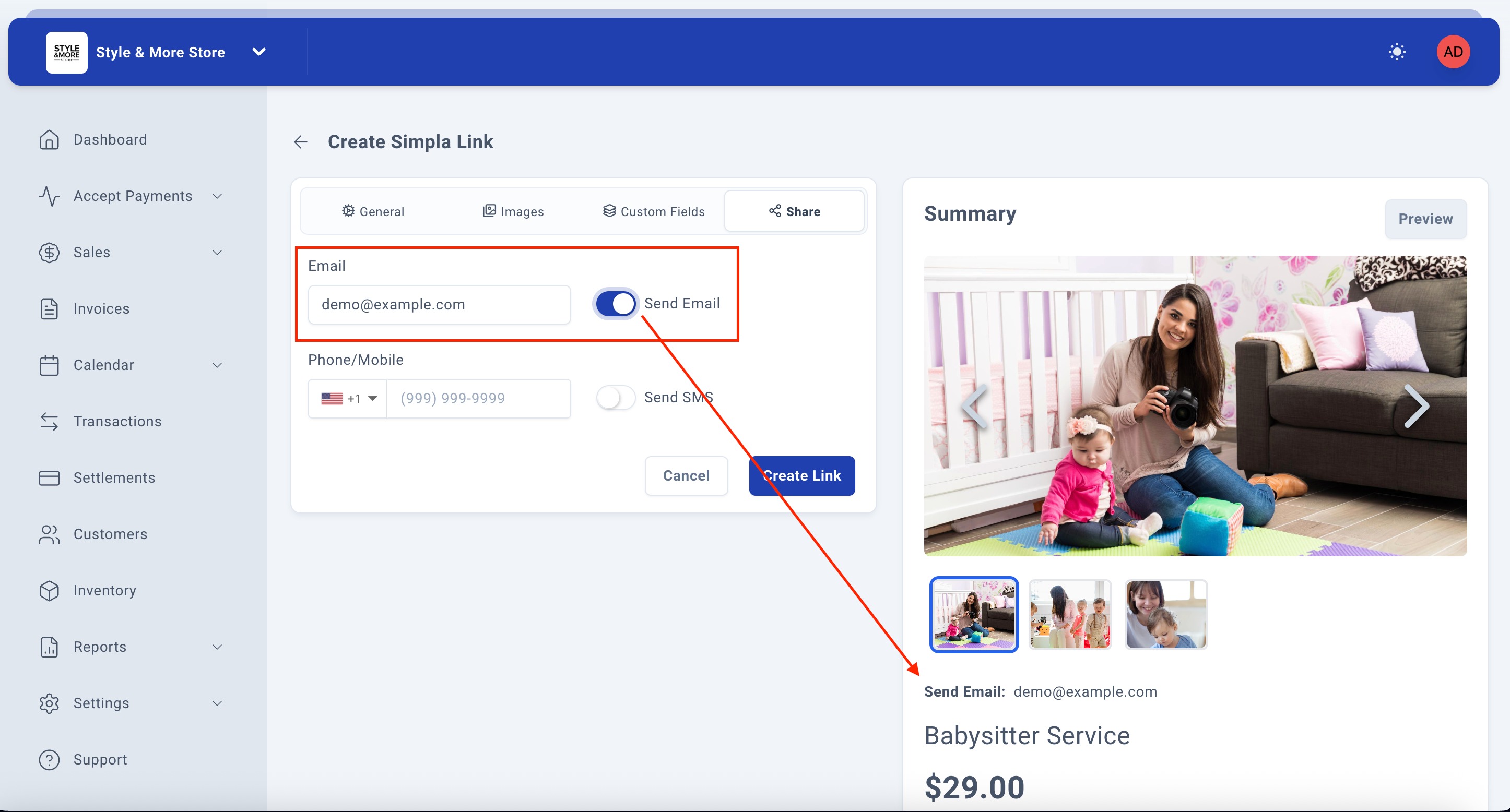
SMS delivery follows the same streamlined process, with the added flexibility of selecting your coverage area (United States or Mexico) before entering the phone number.
Step 15: Create the Link
Once you've reviewed all the information in the Summary panel and confirmed everything is correct, click the "Create Link" button at the bottom right of the form.
Alternatively, if you want to cancel the process, click the "Cancel" button.
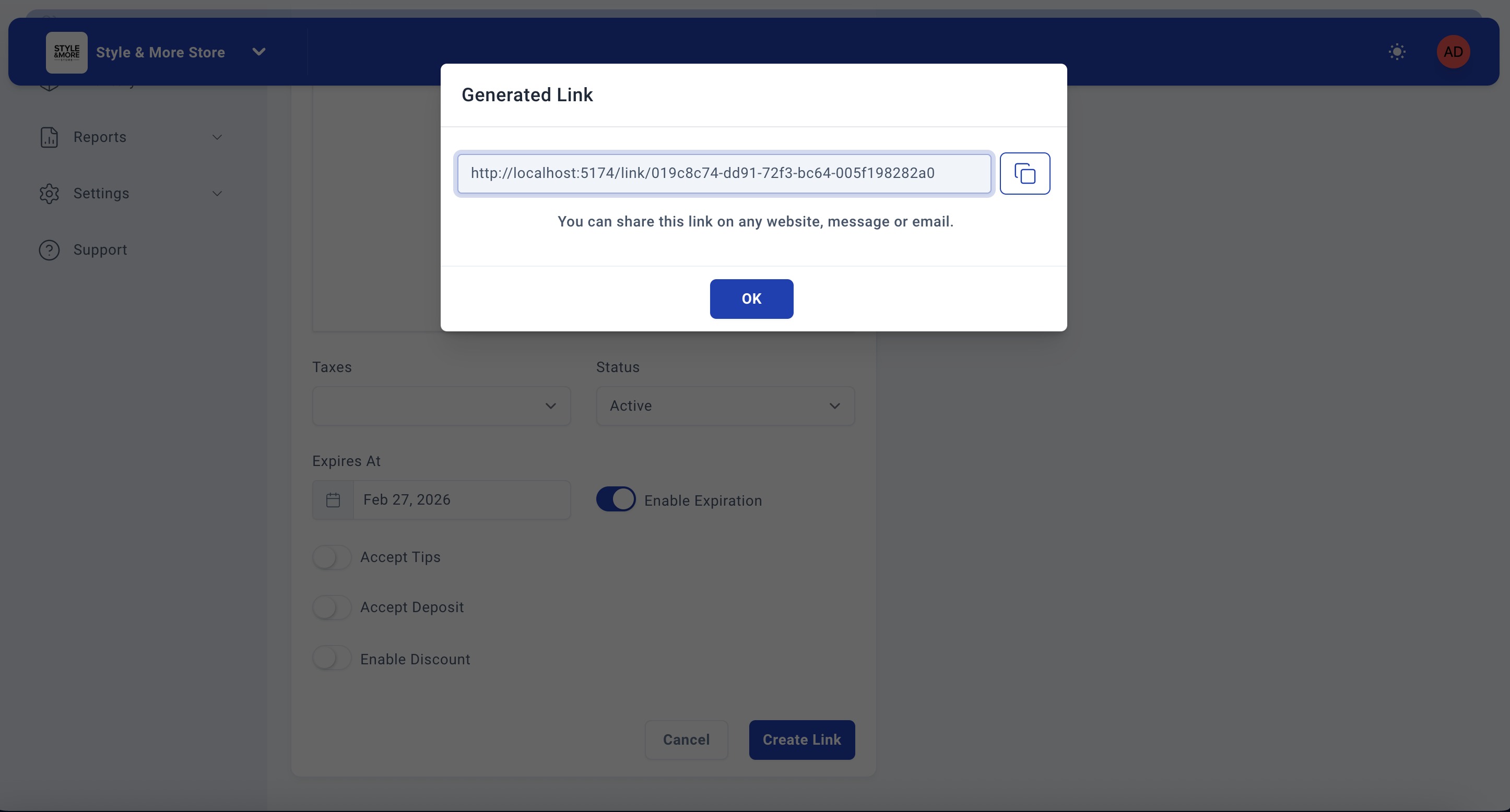
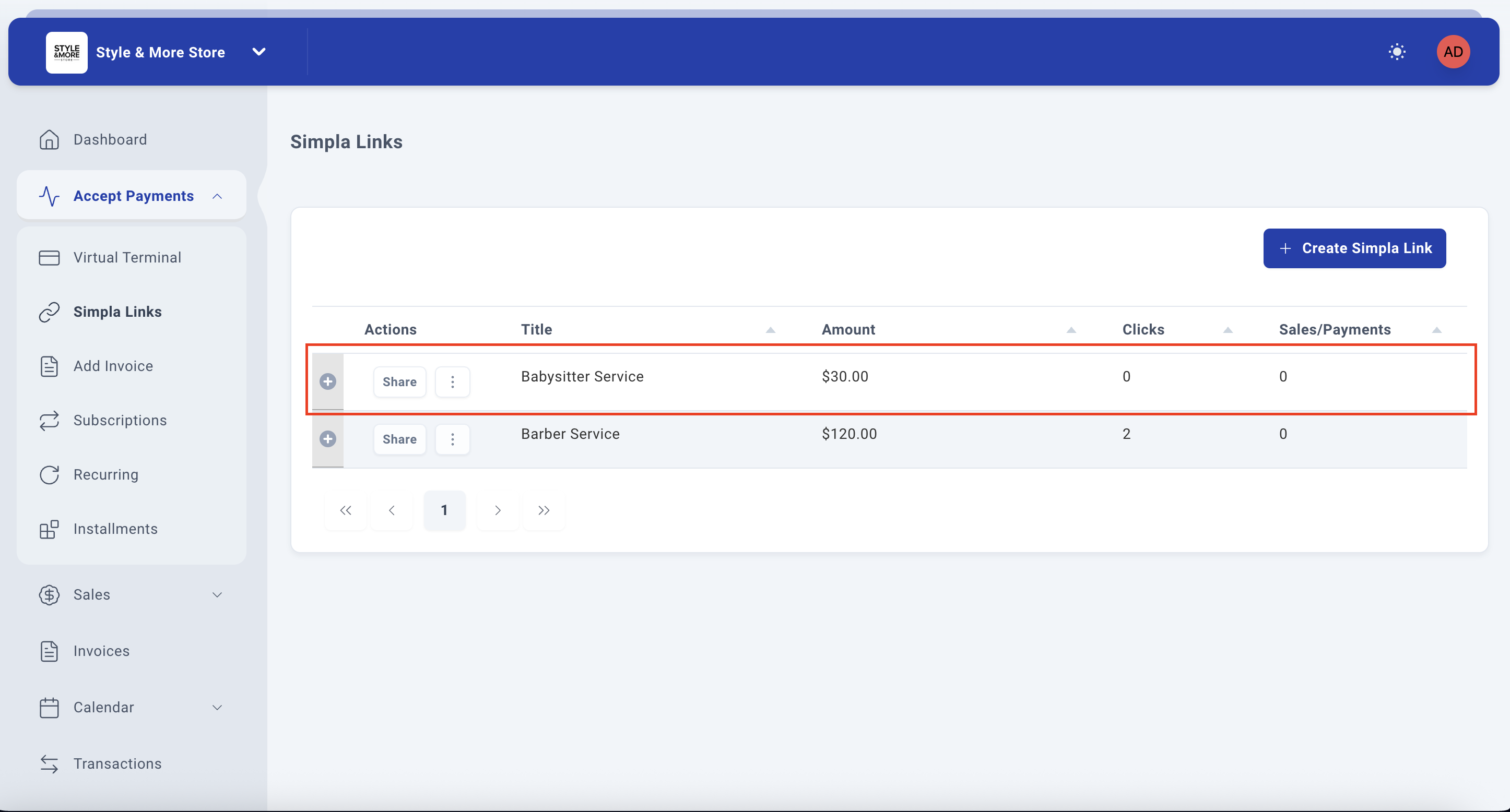
After clicking "Create Link", the system will generate your payment link and redirect you back to the Simpla Links management page where you'll see your newly created link listed in the table.
Troubleshooting
Required Fields Not Filled
If you try to create a link without filling in the required fields (Title and Amount), the system will prevent you from proceeding. Make sure both fields are completed before clicking "Create Link".
Invalid Amount Format
The amount field only accepts numerical values. If you enter non-numeric characters, the system may not accept the input. Enter amounts in decimal format (e.g., 120.00).
Summary Panel Not Updating
If the Summary panel on the right doesn't update as you fill in the form, try refreshing the page. The preview should update in real-time as you make changes to the form fields.
Best Practices
- Use Clear Titles: Choose descriptive titles that clearly indicate what the payment is for. This helps customers understand what they're paying for before completing the transaction.
- Provide Detailed Descriptions: Include all relevant details about your service or product in the description field. This can help reduce customer inquiries and increase conversion rates.
- Use High-Quality Images: Upload clear, professional images for your Cover/SMS Image and Gallery. High-resolution images (1280×720 to 1920×1080) create a better first impression and increase customer confidence.
- Add Multiple Gallery Images: Showcase your service or product from different angles. Multiple images help customers better understand what they're paying for.
- Include Video When Possible: If you have a YouTube video demonstrating your service or product, add the URL. Videos can significantly increase conversion rates.
- Only Request Necessary Information: When configuring custom fields, only make fields required if the information is truly essential. Too many required fields can reduce conversion rates.
- Use Custom Fields Wisely: Add custom fields that are specific to your business needs (like reference numbers, appointment times, or special requests) to collect important information without making phone calls or sending follow-up emails.
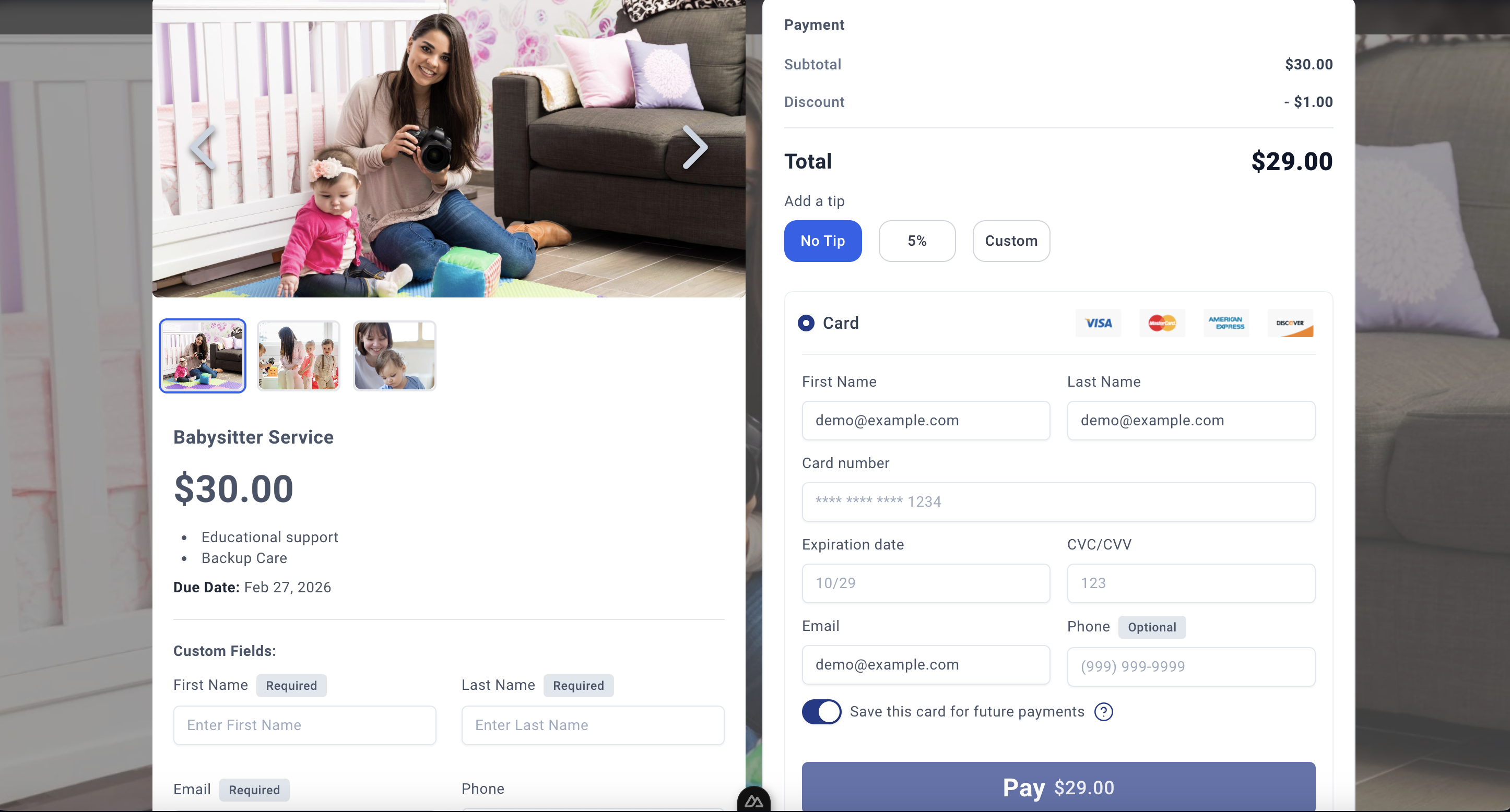
- Review Before Creating: Always check the Summary panel on the right to see how your payment link will appear to customers before clicking "Create Link".
- Configure Tax Settings Correctly: Make sure you select the appropriate tax rate for your jurisdiction to ensure compliance with local regulations.
- Use Expiration Dates When Appropriate: For limited-time offers or event registrations, enable the expiration feature to automatically deactivate the link after a certain date.
Process Complete!
The Simplatask SimplaLink functionality allows you to create payment links quickly and efficiently. By following these steps, you can generate professional payment links for your services, products, events, or donations in minutes. These links can be shared with customers through email, social media, or embedded on your website, providing a seamless payment experience.
Was this article helpful?
That’s Great!
Thank you for your feedback
Sorry! We couldn't be helpful
Thank you for your feedback
Feedback sent
We appreciate your effort and will try to fix the article