Table of Contents
How To Share a Simpla Link
SimplaTask streamlines the payment links process, allowing you to create payment links efficiently. This comprehensive guide will walk you through sharing a Simpla Link from start to finish.
If you need help creating a simpla link, click here!
If you need help updating a simpla link, click here!
If you need help getting payment link details in transaction resouce, click here!
Before You Start:
Before you begin, ensure the following requirements are met:
- Permissions: You need Manager, Admin, or Owner-level access to create payment links.
Starting Simpla Link Sharing Process:
Step 1: Initiate Simpla Link Sharing.
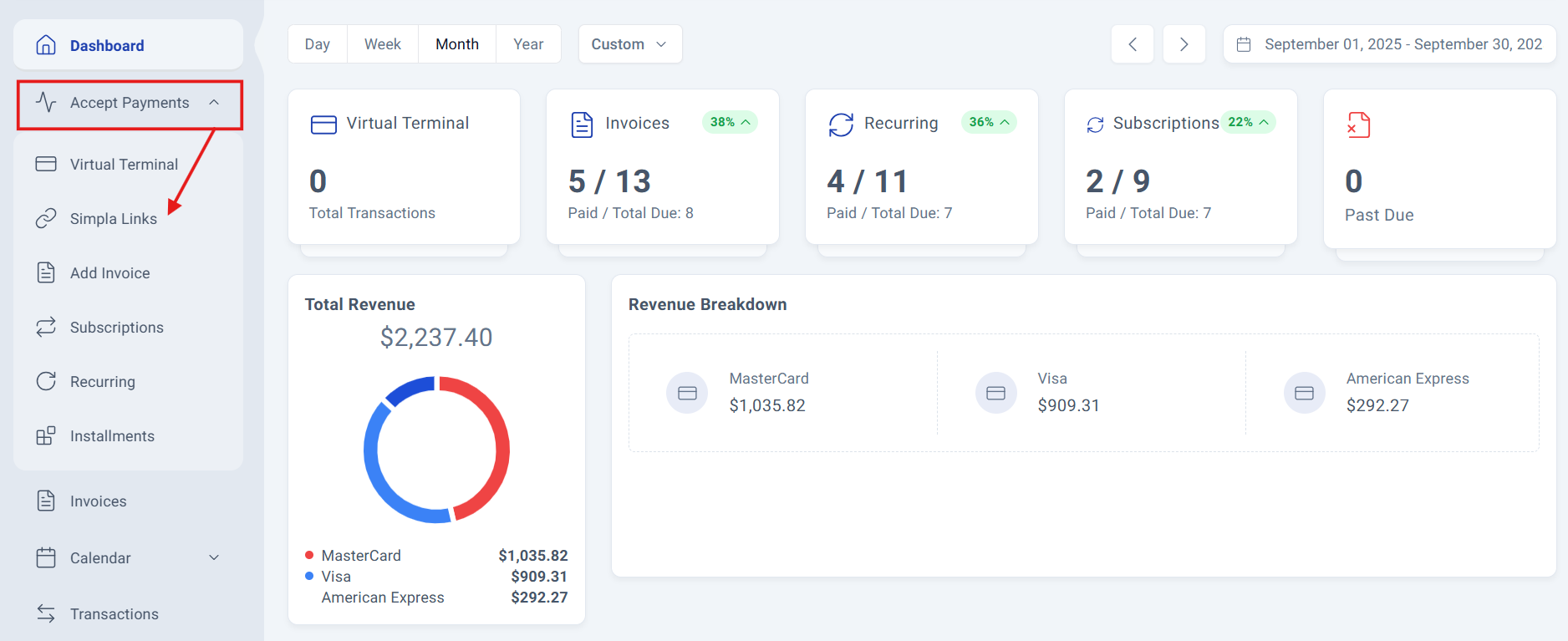
Navigate to your accept payments section located on the left side of the main screen, display the menu and click the "simpla links" option located in the second position of the menu, below "Virtual Terminal".
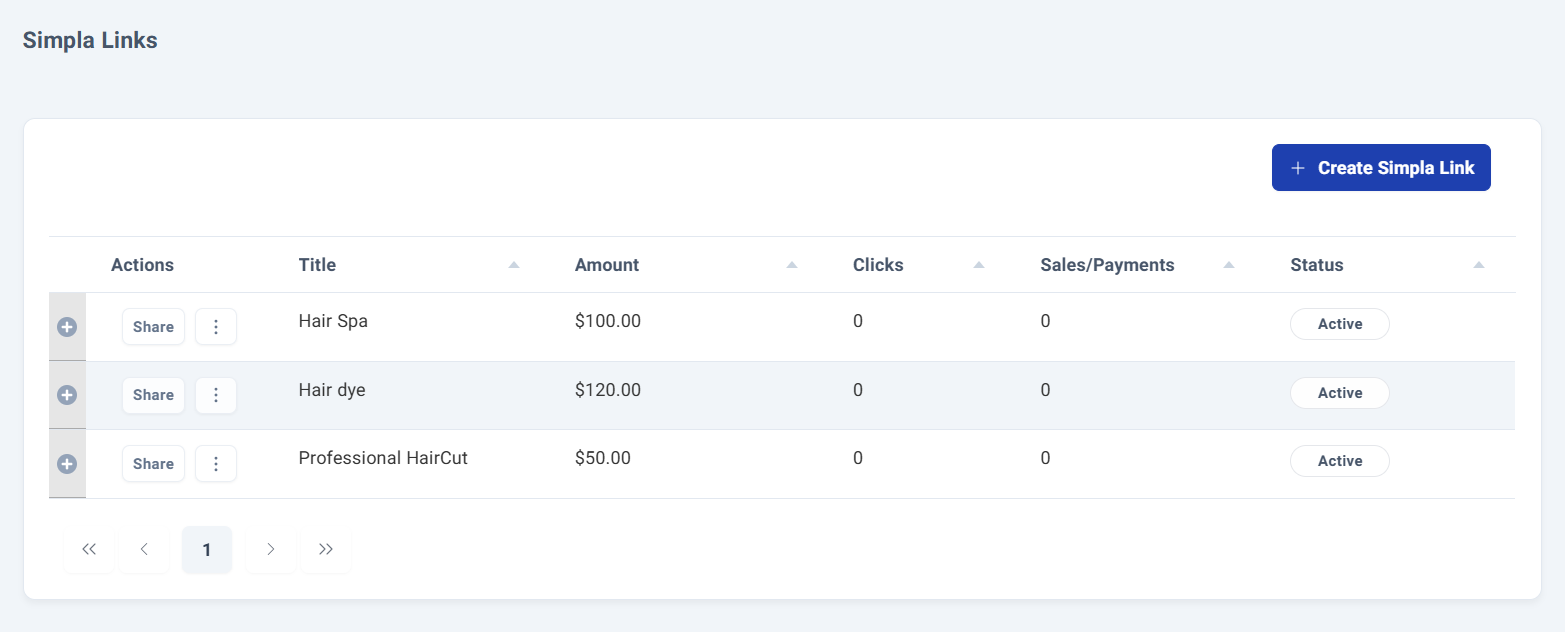
Step 2: The Simpla Links Dashboard.
The dashboard displays all your created payment links along with essential information for each one.
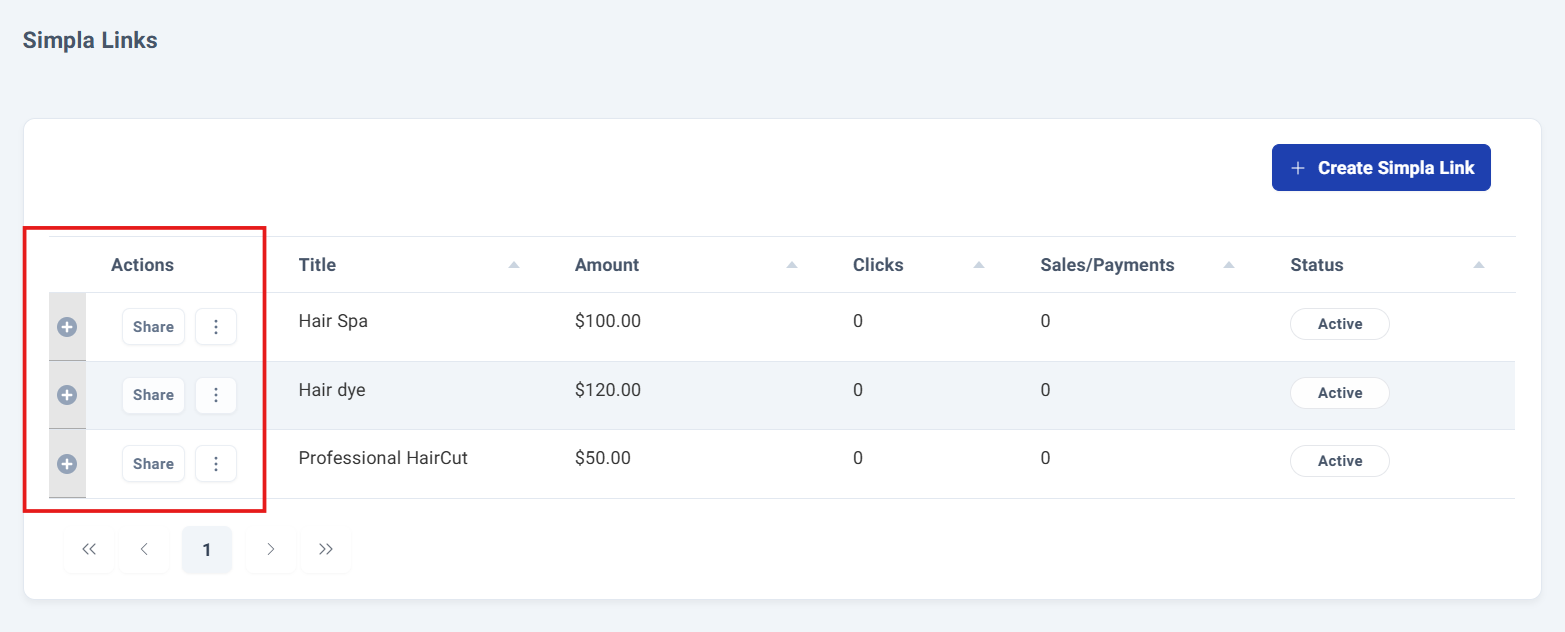
The first three columns provide quick-access options to perform various actions on your payment links.
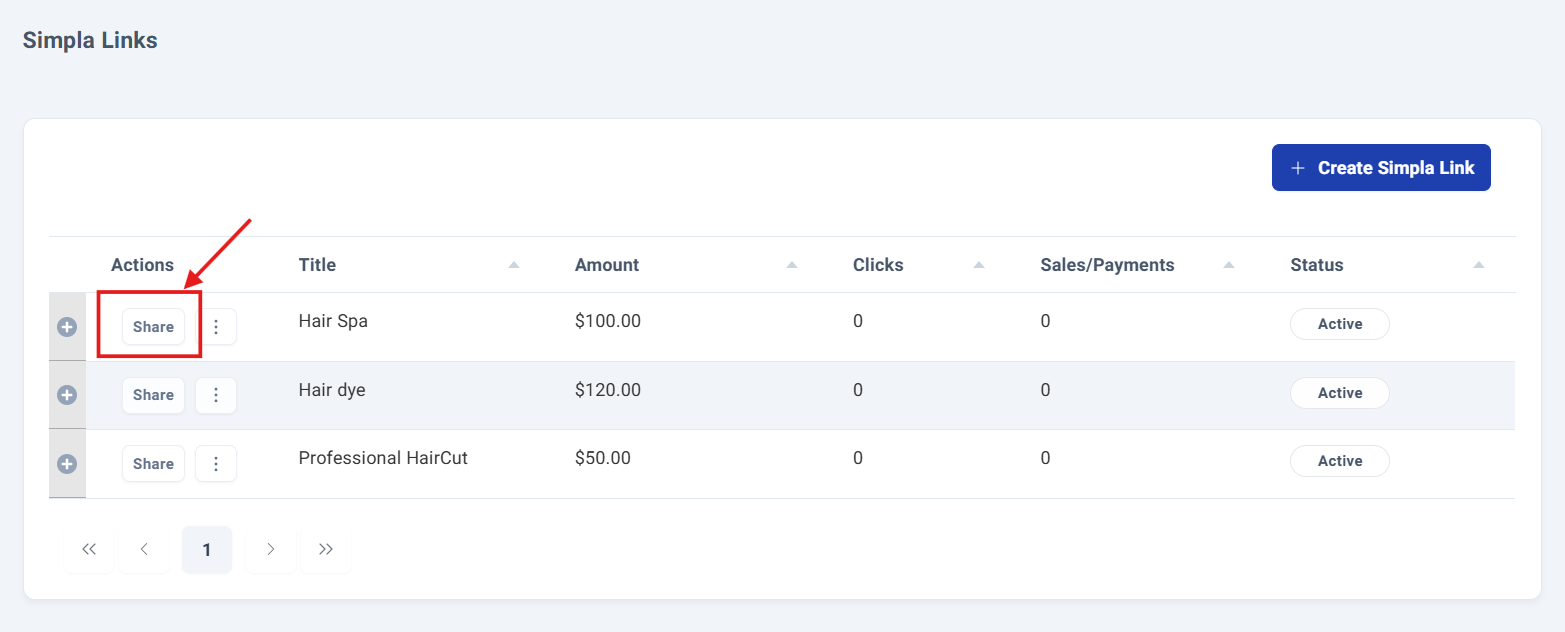
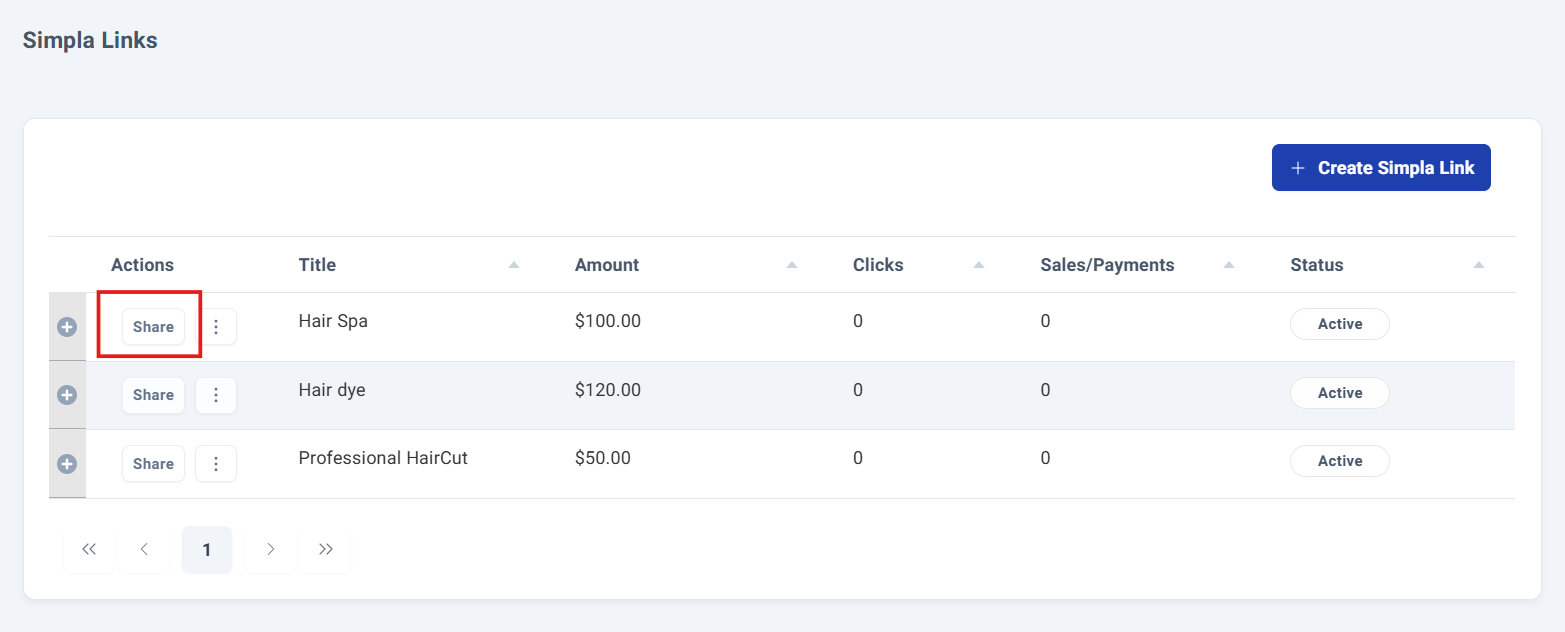
You'll find the Share button, which enables you to distribute your payment link across multiple supported channels.
Sharing Simpla Link.
Step 4: Sharing the Simpla Link.
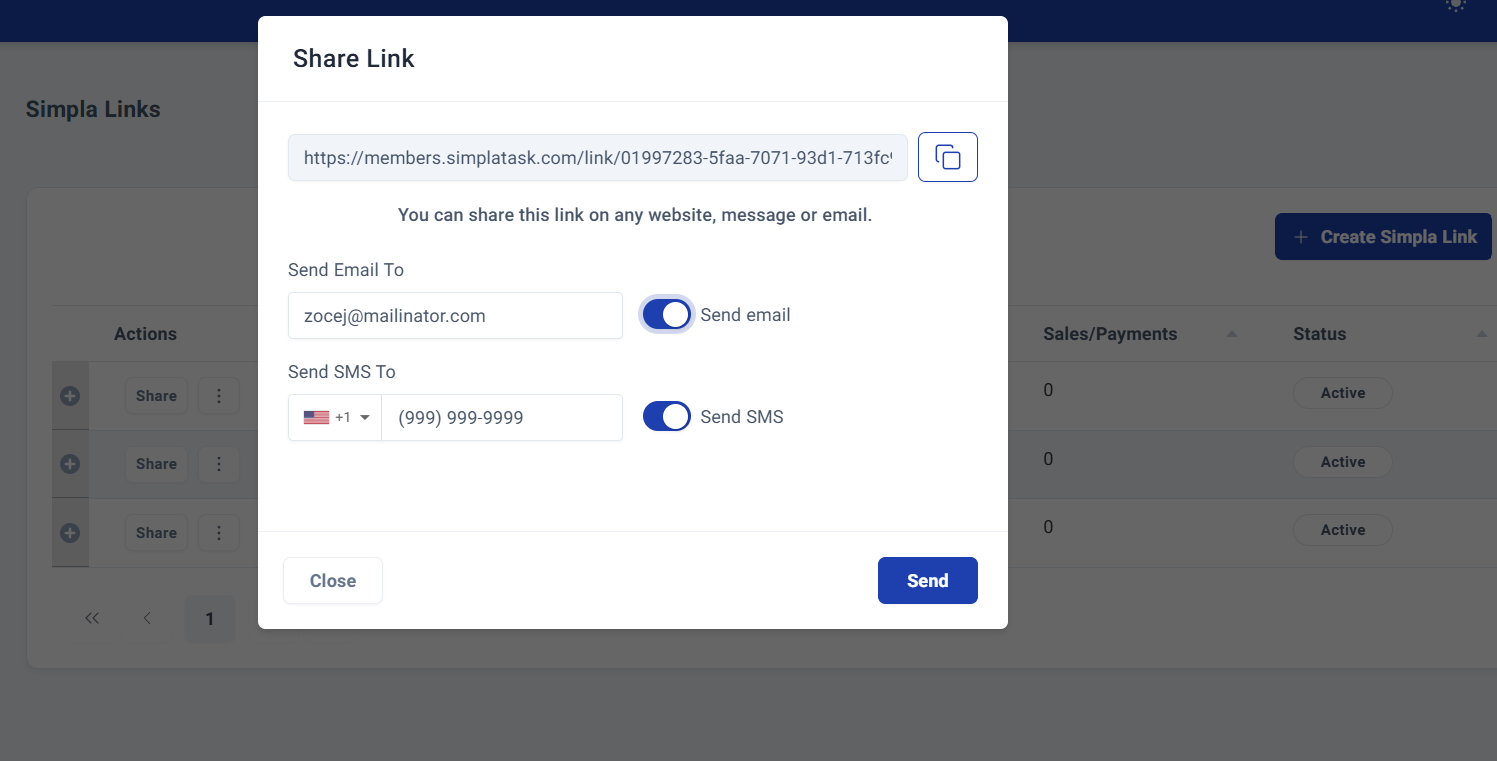
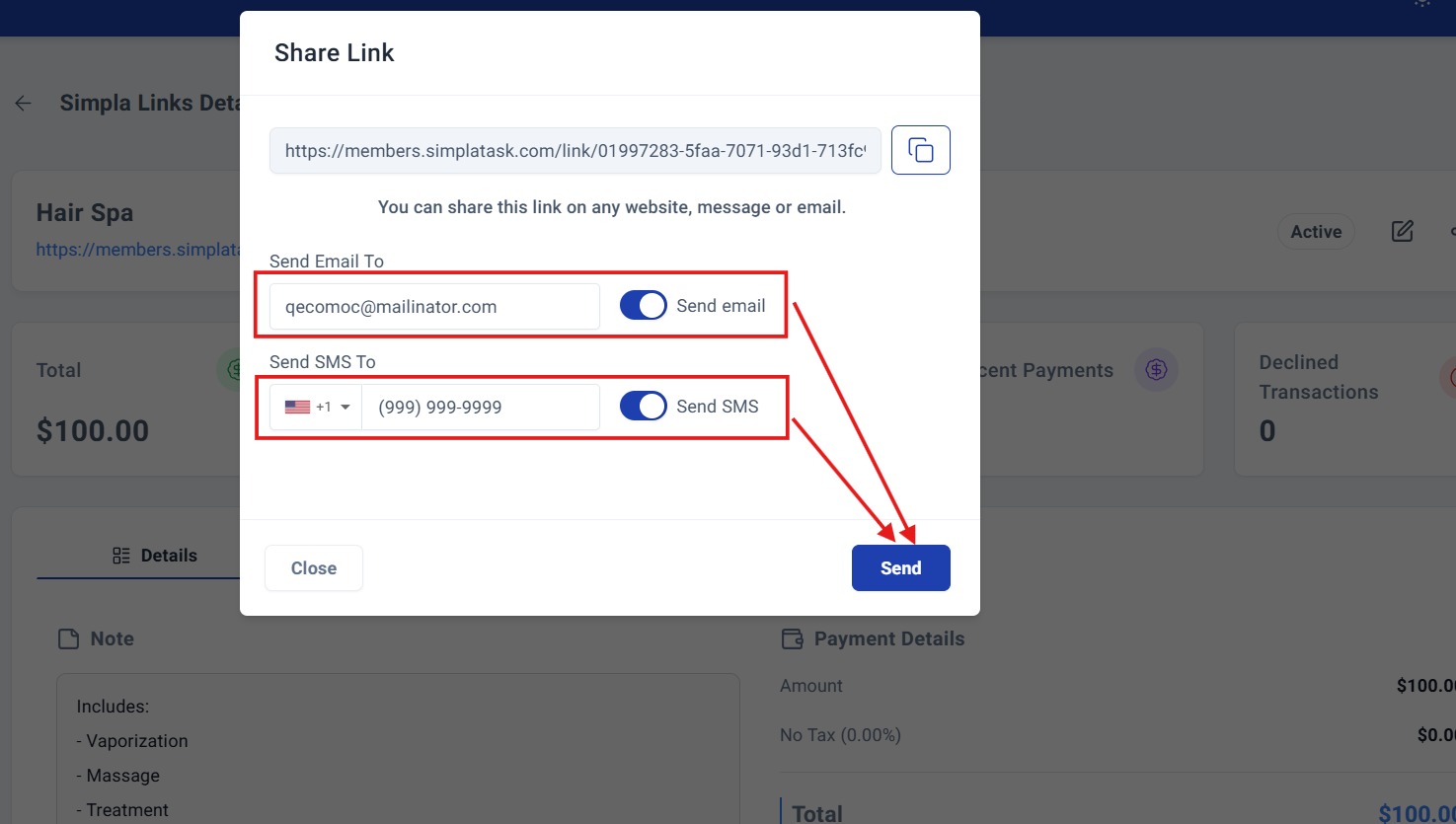
Clicking the "Share" button will open a window where you can choose how you want to share this payment link: copy it, send it by email, and/or SMS.
The sharing window displays multiple distribution channels for your payment links, providing efficient and flexible delivery management that puts you in complete control of how you reach your customers.
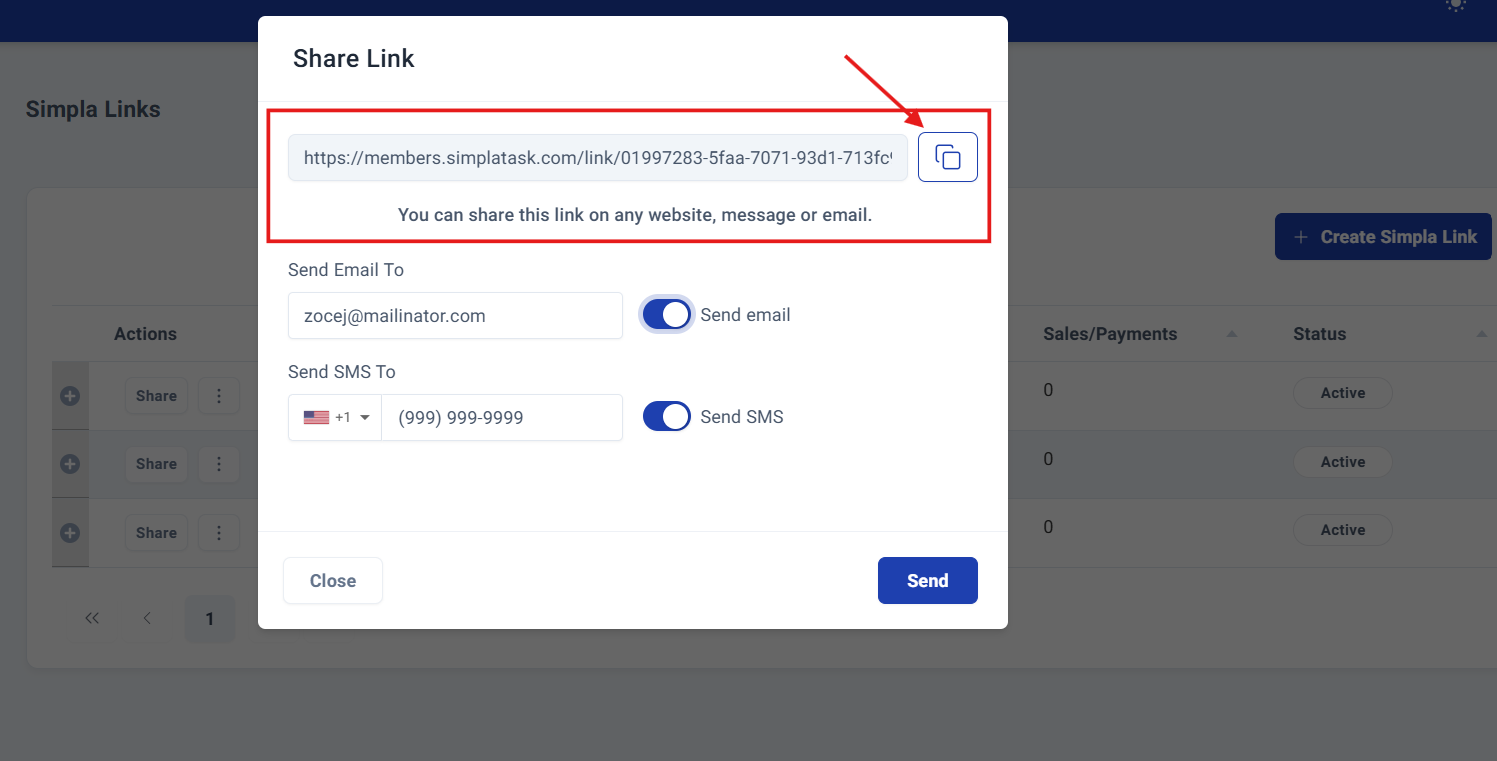
At the top, you'll find the payment link with a convenient copy button, simply click to copy the link to your clipboard for instant sharing wherever you need it.
Choose from two professional delivery methods: email and SMS.
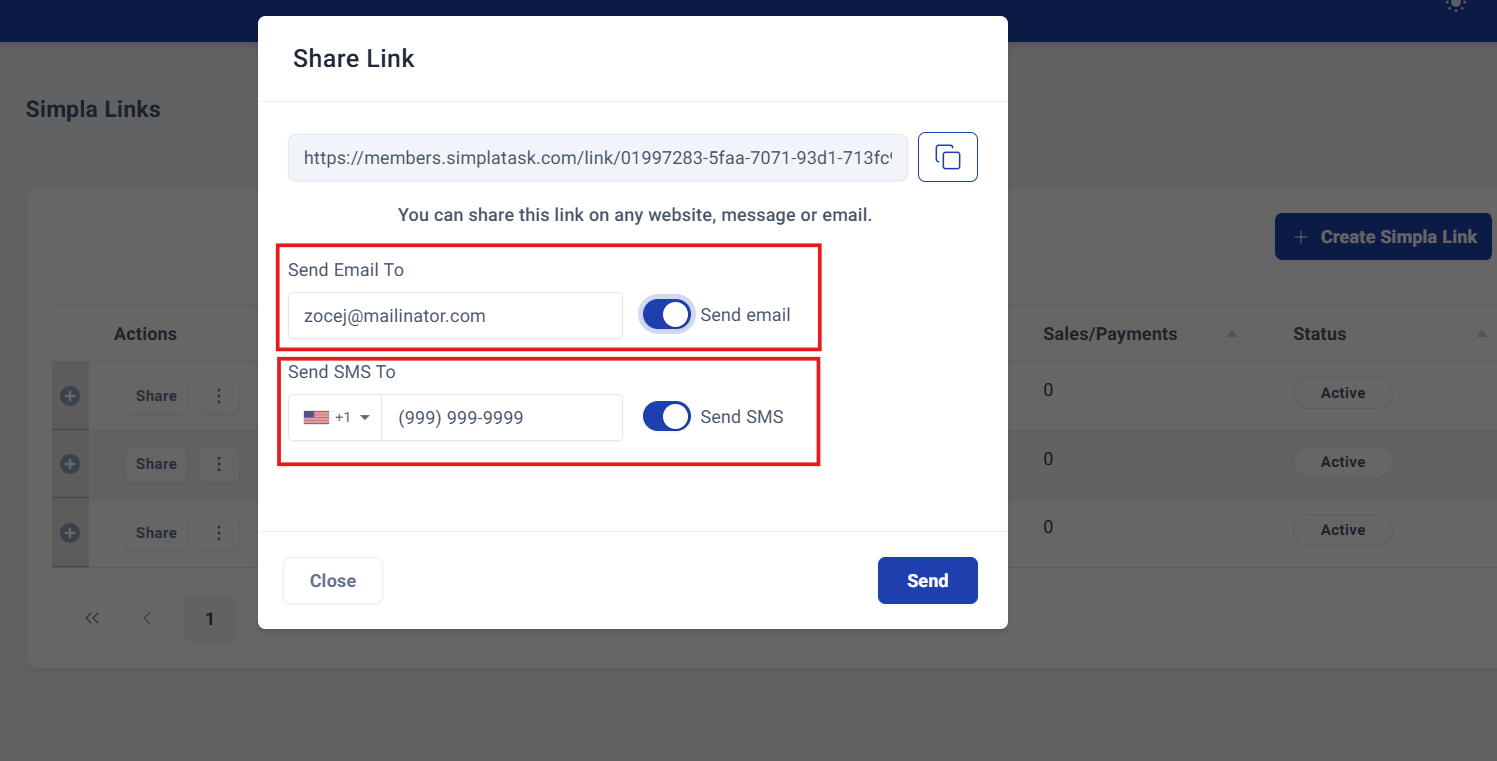
For email delivery, simply enter the recipient's email address and ensure the option is enabled using the toggle switch beside it.
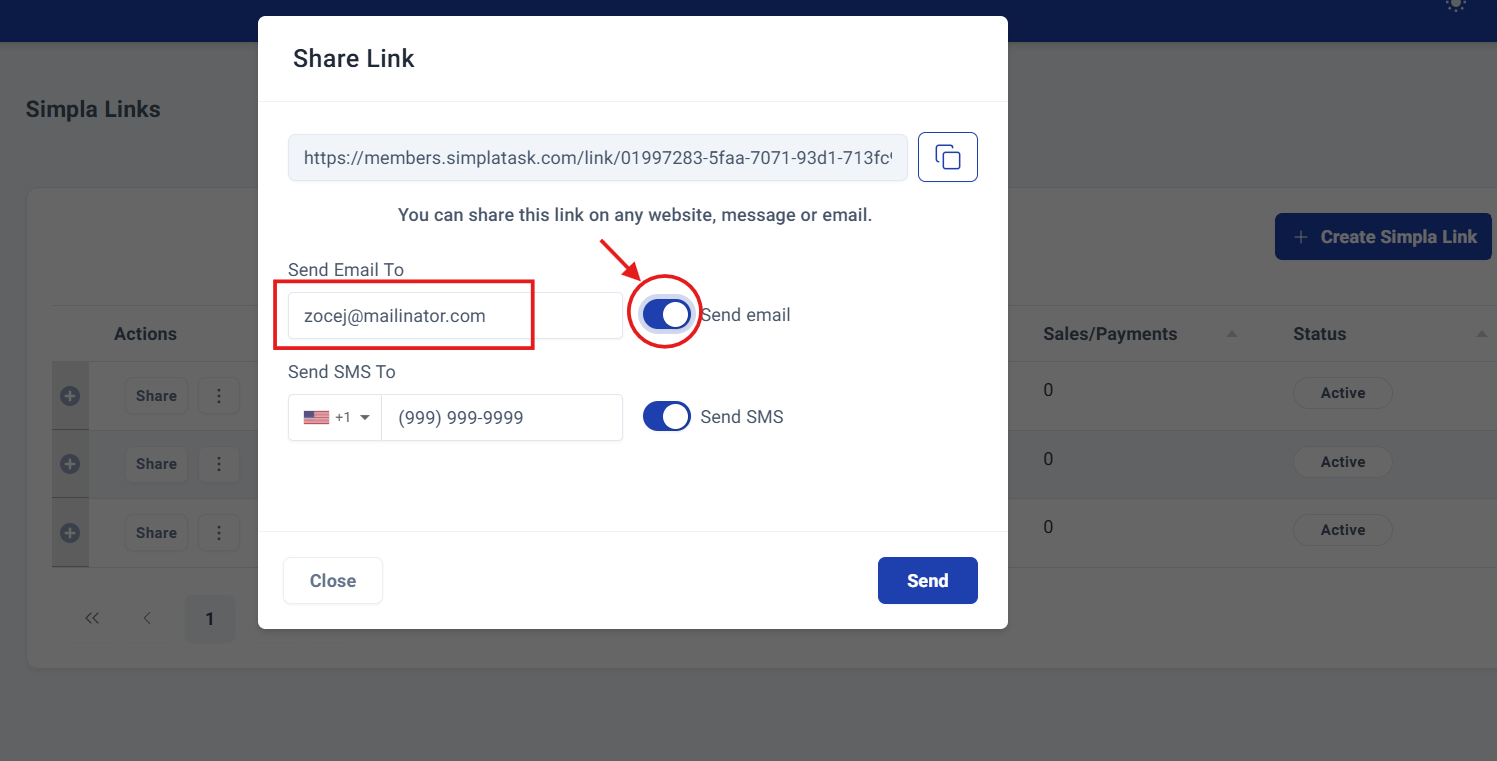
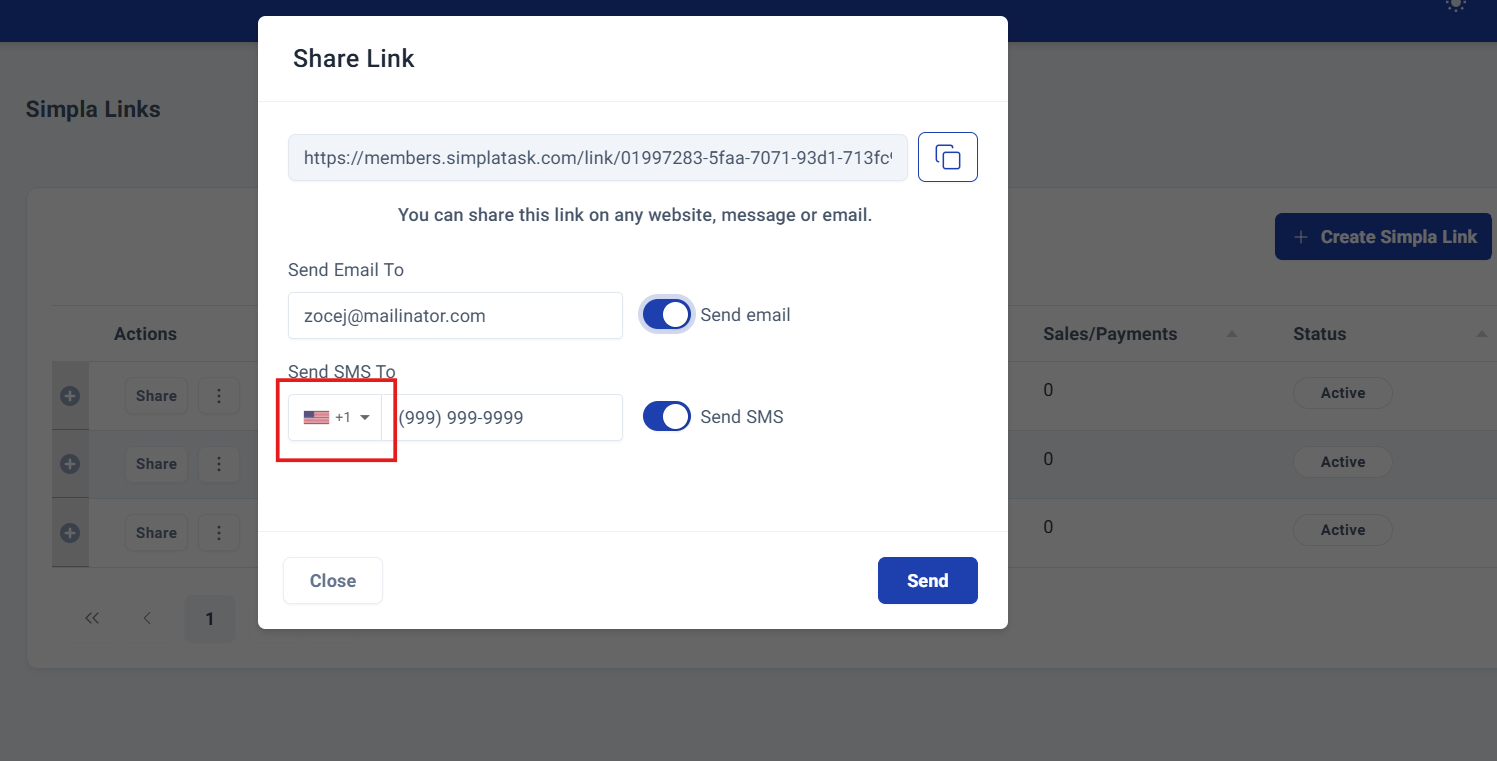
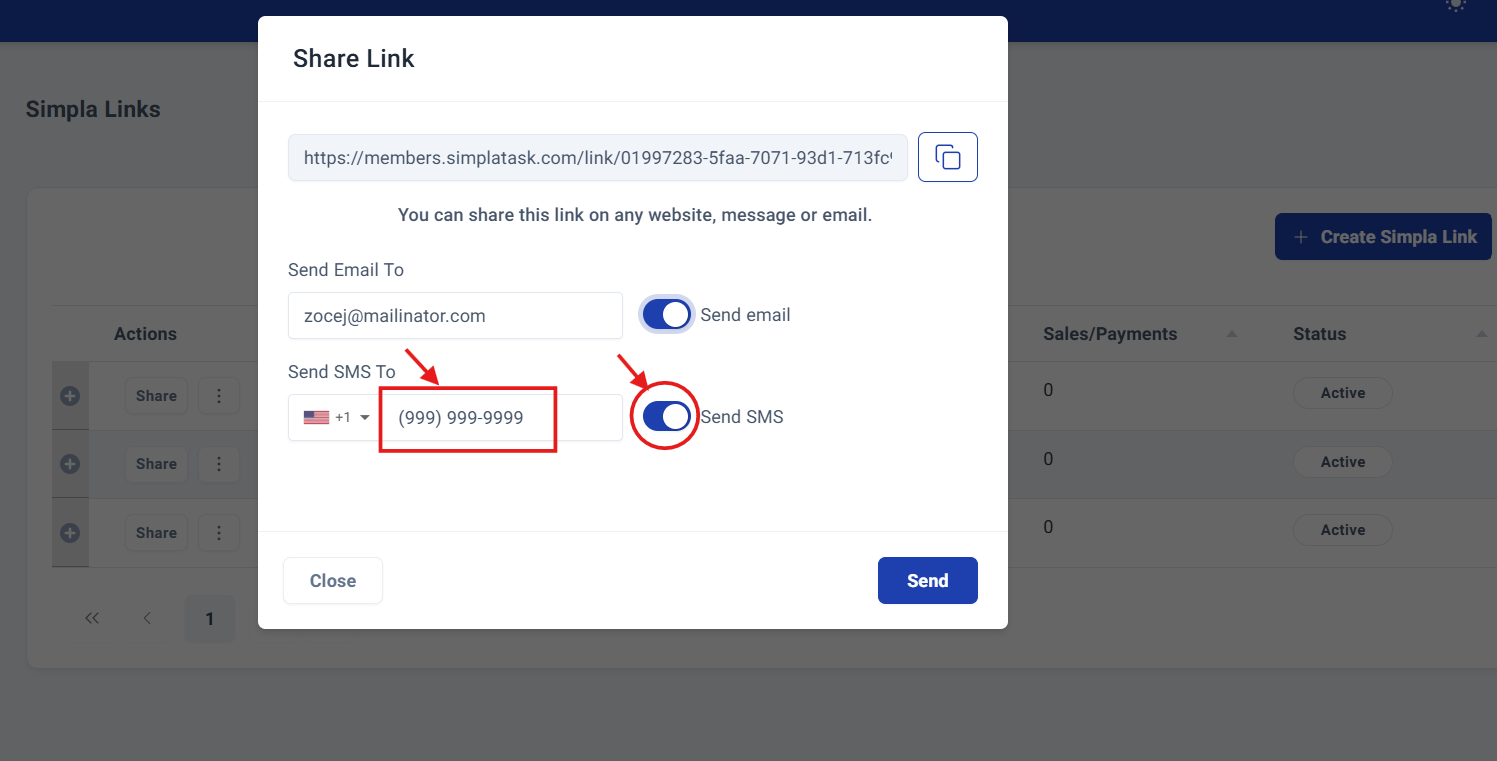
SMS delivery follows the same streamlined process, with the added flexibility of selecting your coverage area (United States or Mexico) before entering the phone number.
Make sure the SMS option is activated via its toggle switch.
Once you've configured your sharing preferences, click Send to complete the process.
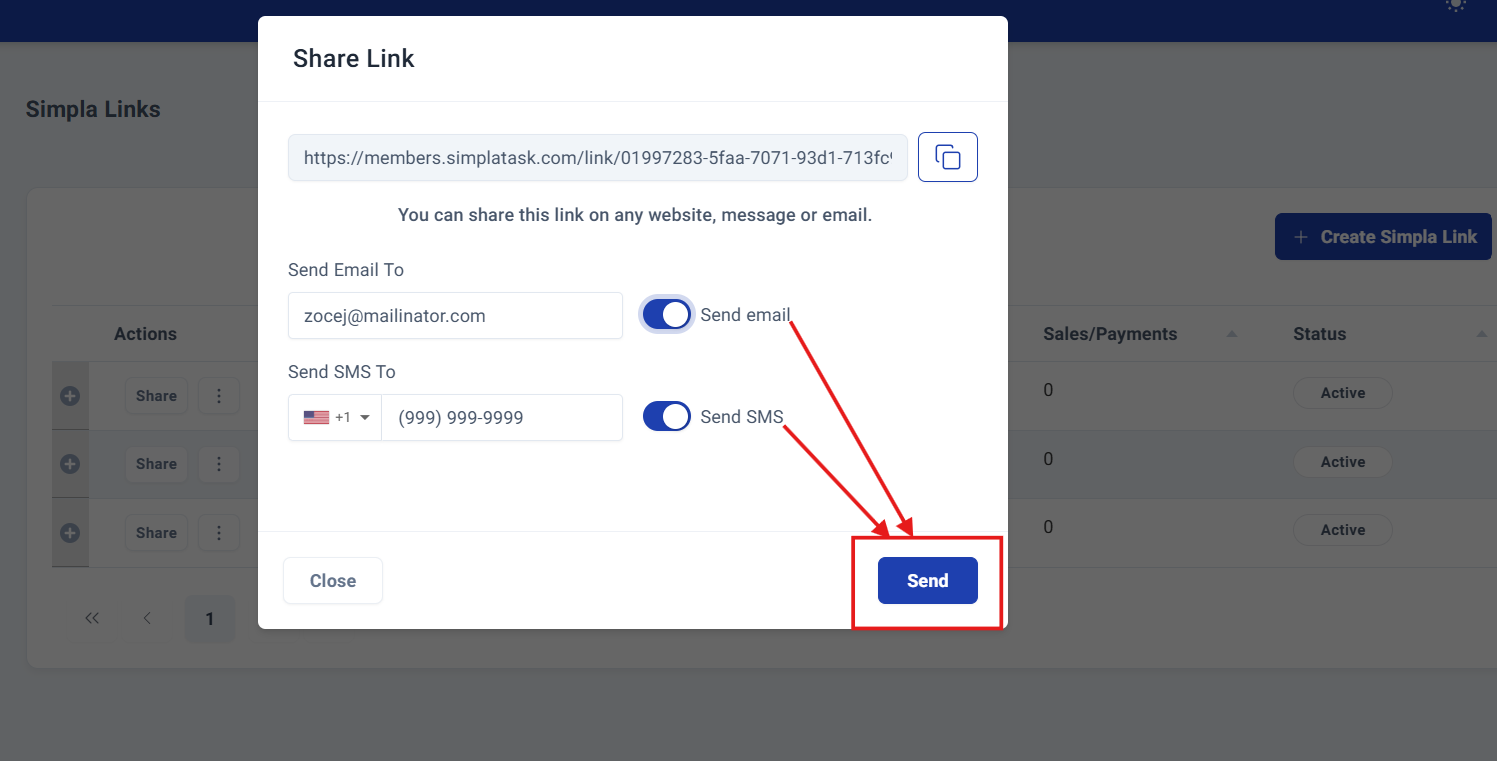
A success confirmation will appear, confirming your payment link has been delivered.
Alternative Sharing Method.
Step 5: Alternative Sharing Path.
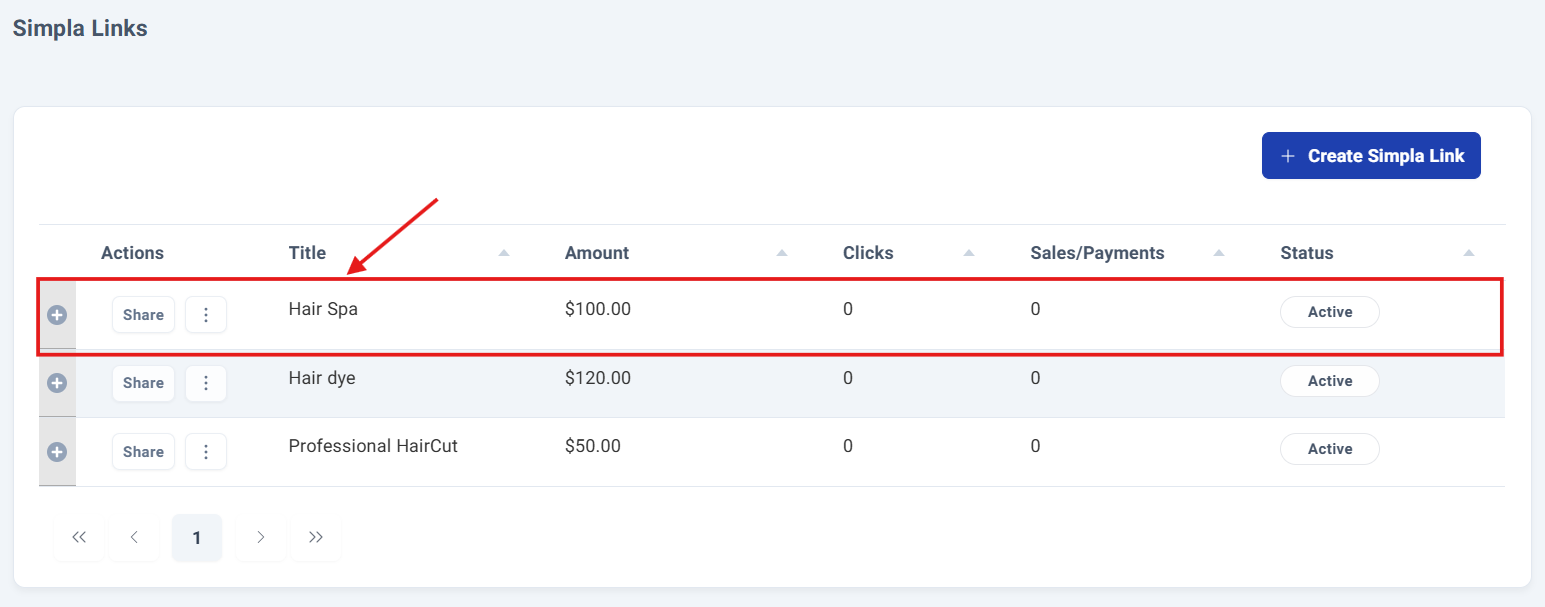
Access an alternative sharing path by navigating to your specific payment link details.
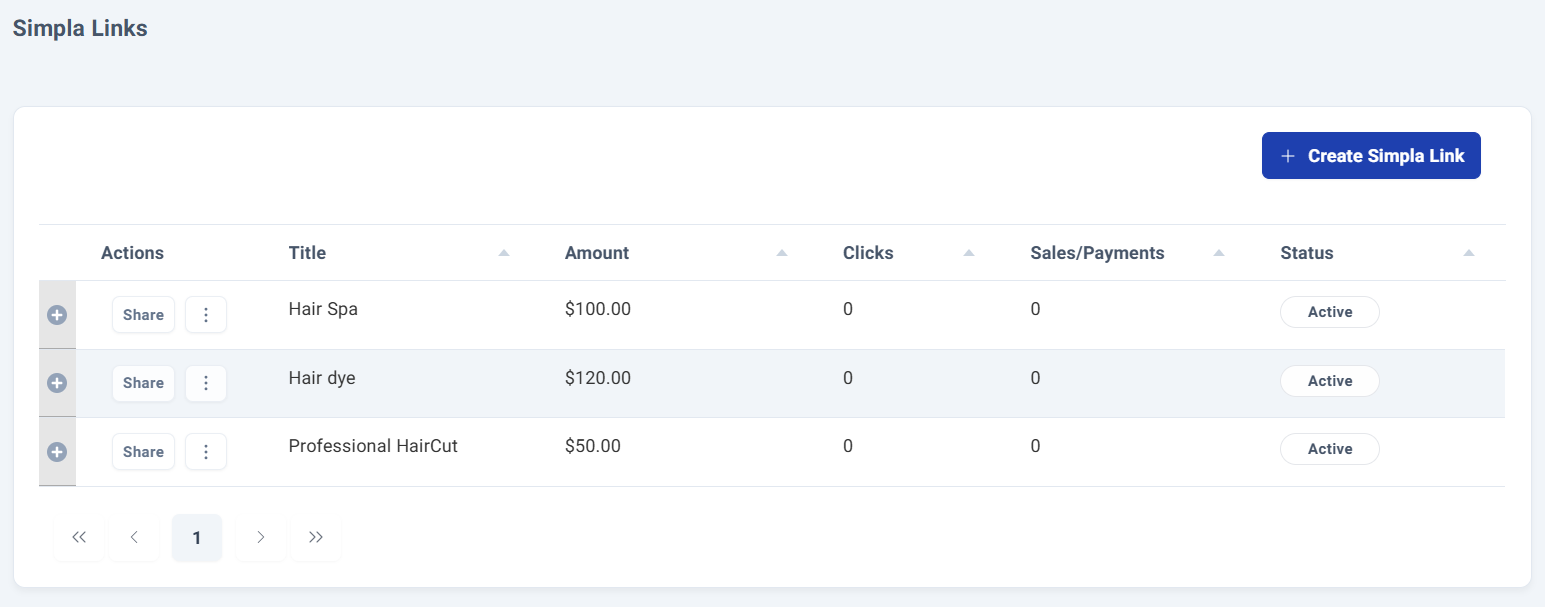
Click the title of the payment link you want to share to view the detail screen:
By entering the SimplaLink details, **copying the link** shown in the view below the title is one way to share it.
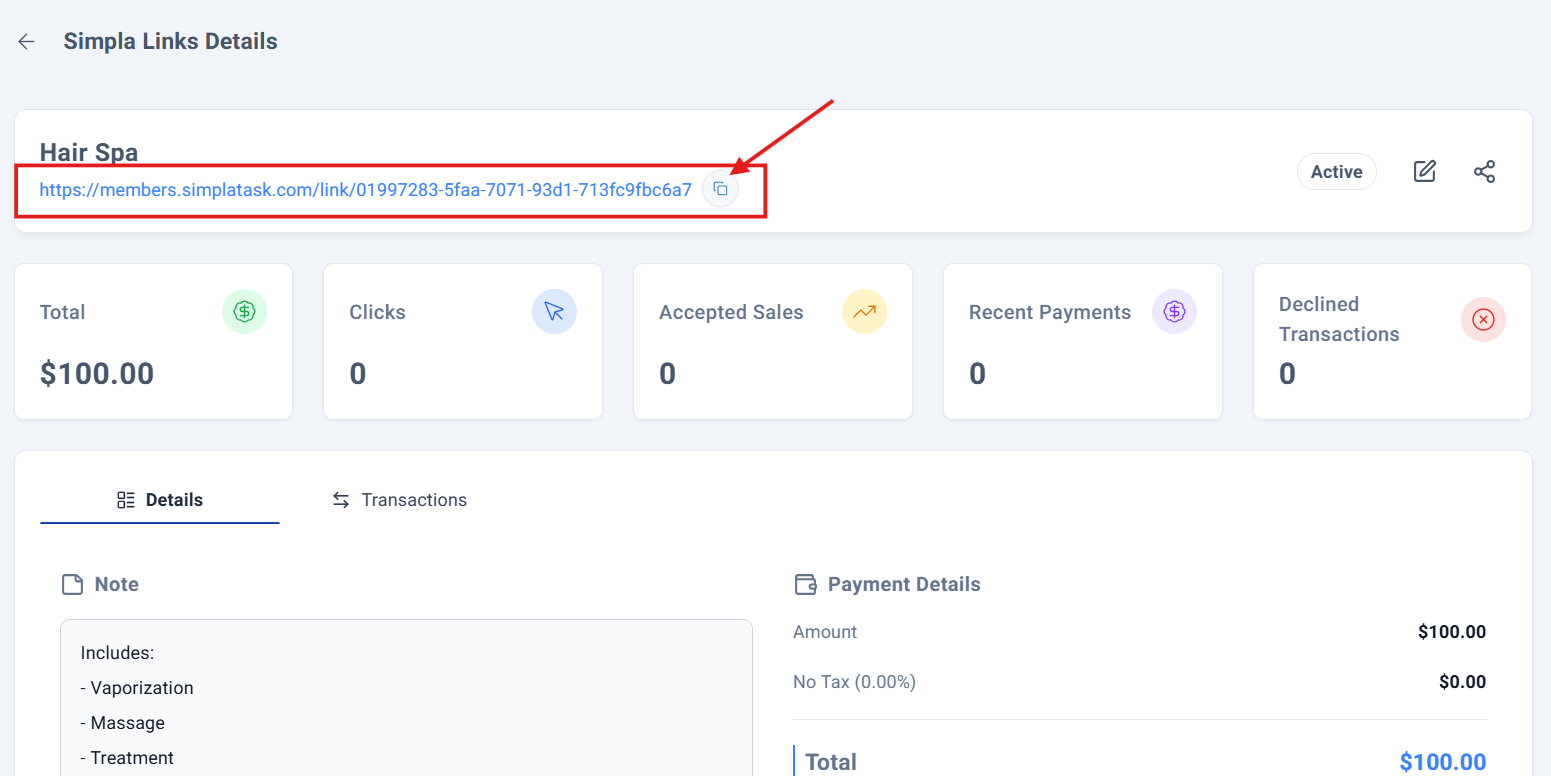
Another way to share is in the upper right corner of the payment link details, you'll find the Share Icon.

Clicking this opens the same comprehensive sharing interface described above. Follow the identical process and click Send to complete delivery with the same success confirmation.
Process Complete!
You have successfully sharing your Simpla Link. The payment link will be sent to the options you have selected and will be tracked in your SimplaTask dashboard.
Was this article helpful?
That’s Great!
Thank you for your feedback
Sorry! We couldn't be helpful
Thank you for your feedback
Feedback sent
We appreciate your effort and will try to fix the article