Table of Contents
How To View a Simpla Link Details
SimplaTask streamlines the payment links process, allowing you to update payment links efficiently. This comprehensive guide will walk you through updating a Simpla Link from start to finish.
If you need help creating a simpla link, click here!
If you need help sharing a simpla link, click here!
If you need help getting payment link details in transaction resouce, click here!
Before You Start:
Before you begin, ensure the following requirements are met:
- Permissions: You need Manager, Admin, or Owner-level access to create payment links.
Accesing Your Simpla Link Dashboard:
Step 1: Navigate to Simpla Link Dashboard.
Navigate to your accept payments section located on the left side of the main screen, display the menu and click the "simpla links" option located in the second position of the menu, below "Virtual Terminal".
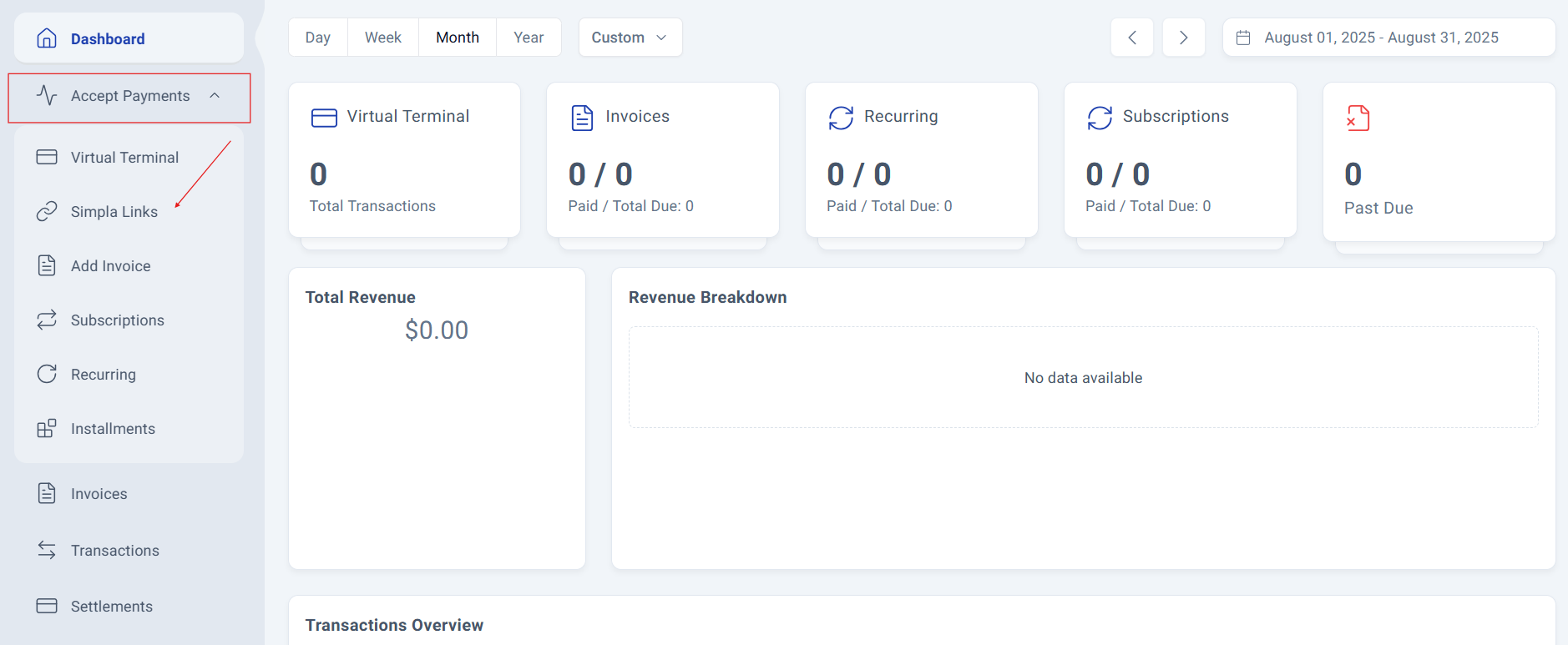
Step 2: The Simpla Links Dashboard.
The dashboard displays all your created payment links along with essential information for each one.
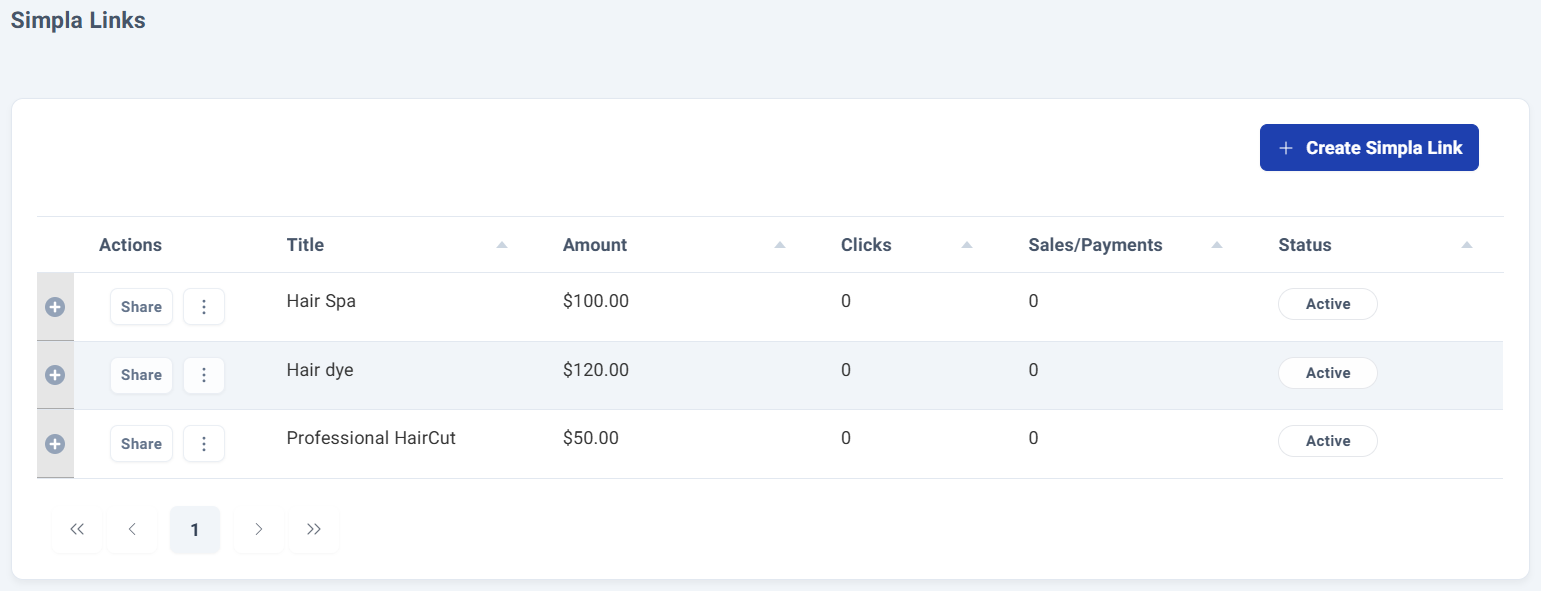
The first three columns provide quick-access options to perform various actions on your payment links.
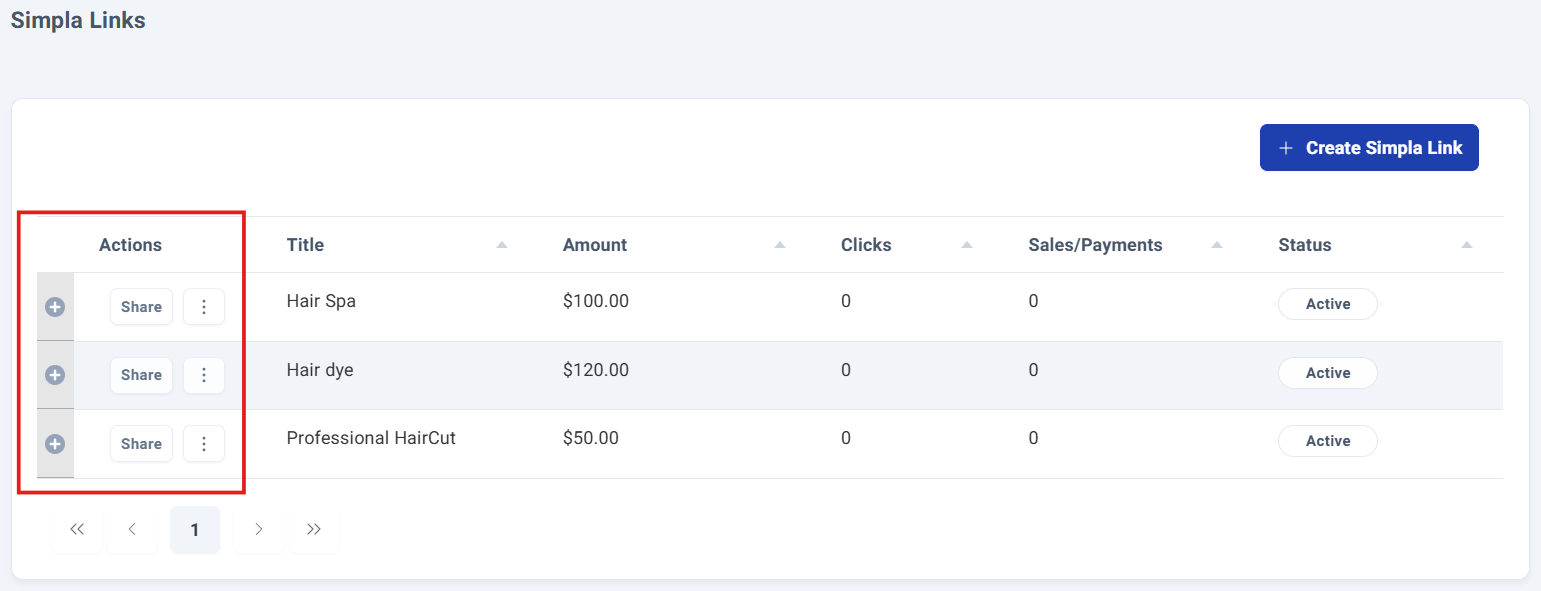
If you want to learn more about simpla links, click here!
Simpla Link Details.
Step 3: Accesing to Your Simpla Link Details.
To access the details of the payment links, click directly on the Title of the payment link you want to view.
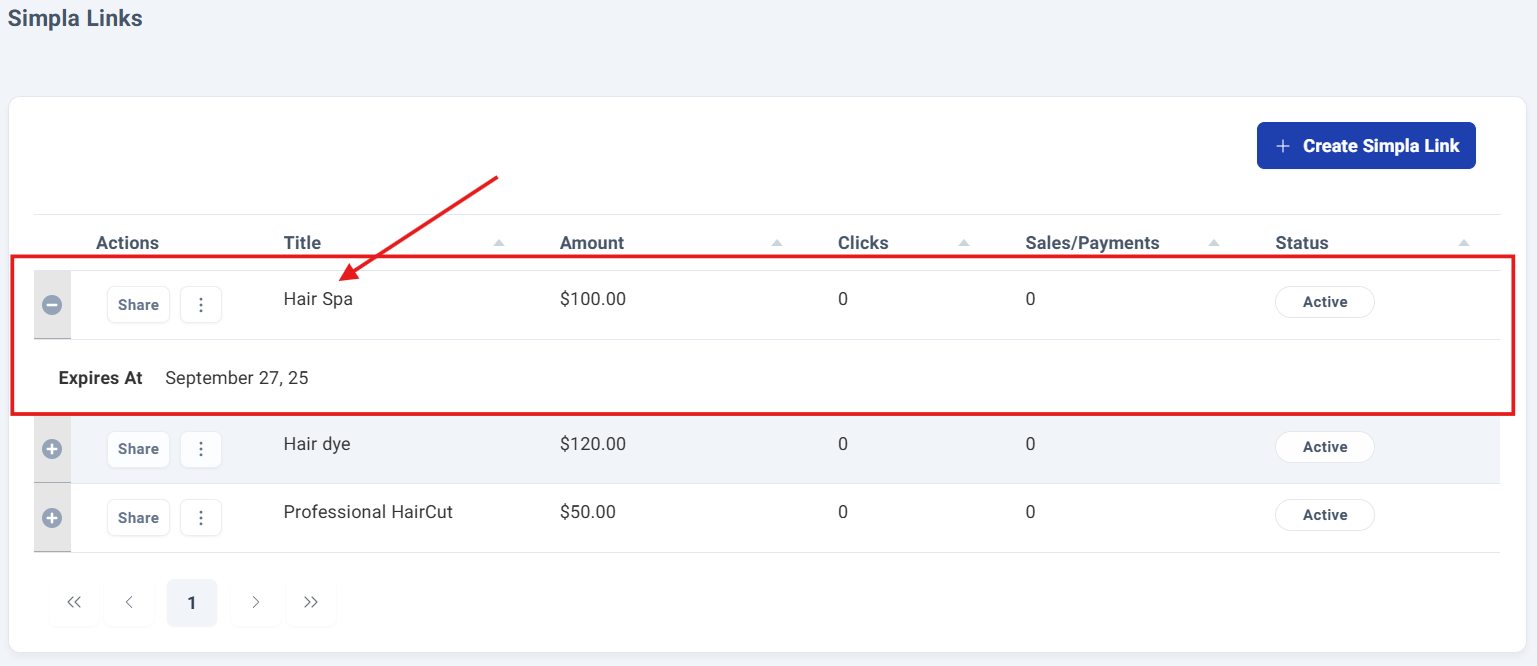
This will navigate you to a comprehensive detail panel where you can view all relevant information about that payment link.
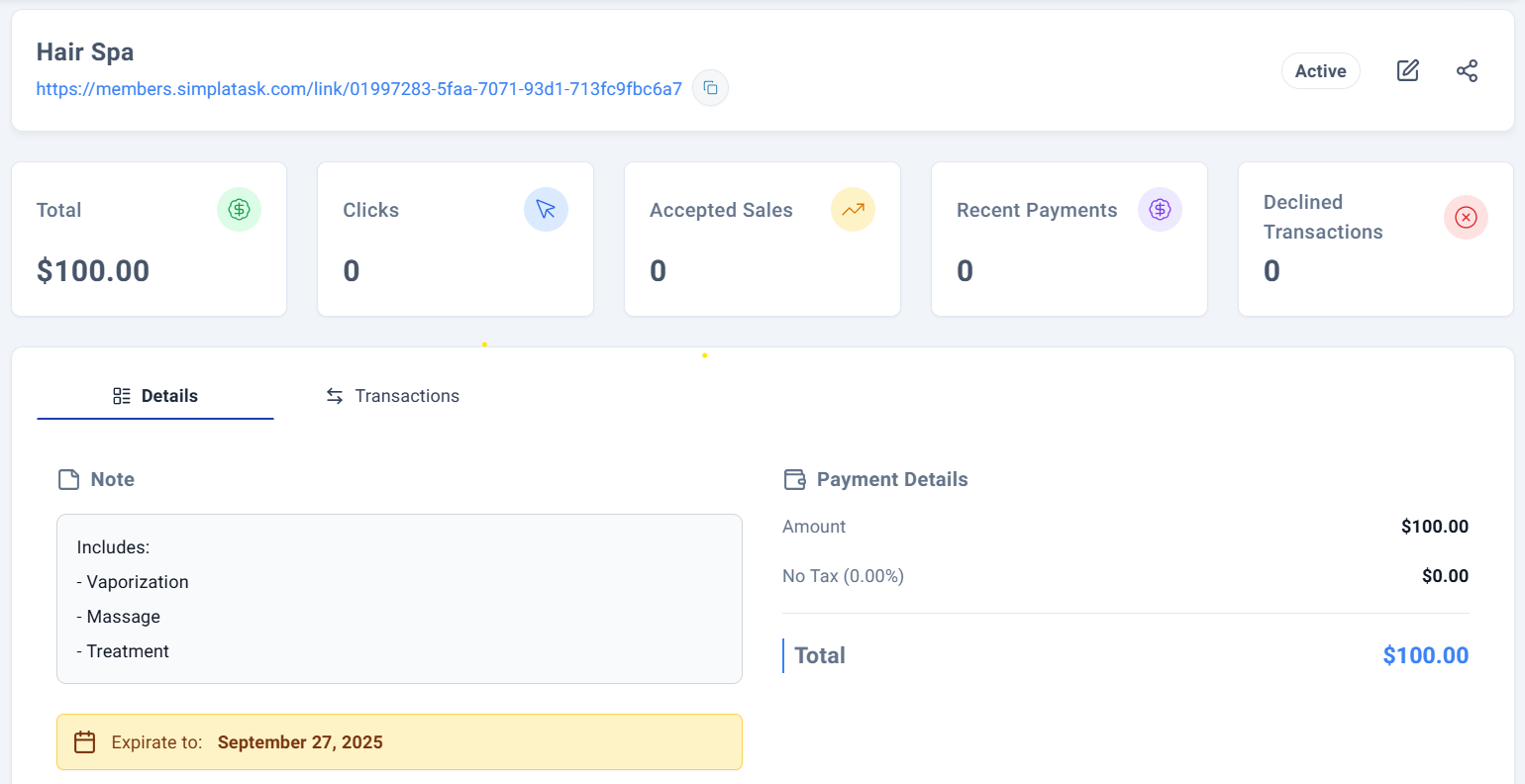
The first section of your payment link details panel features the direct link with a convenient Copy option for instant sharing.
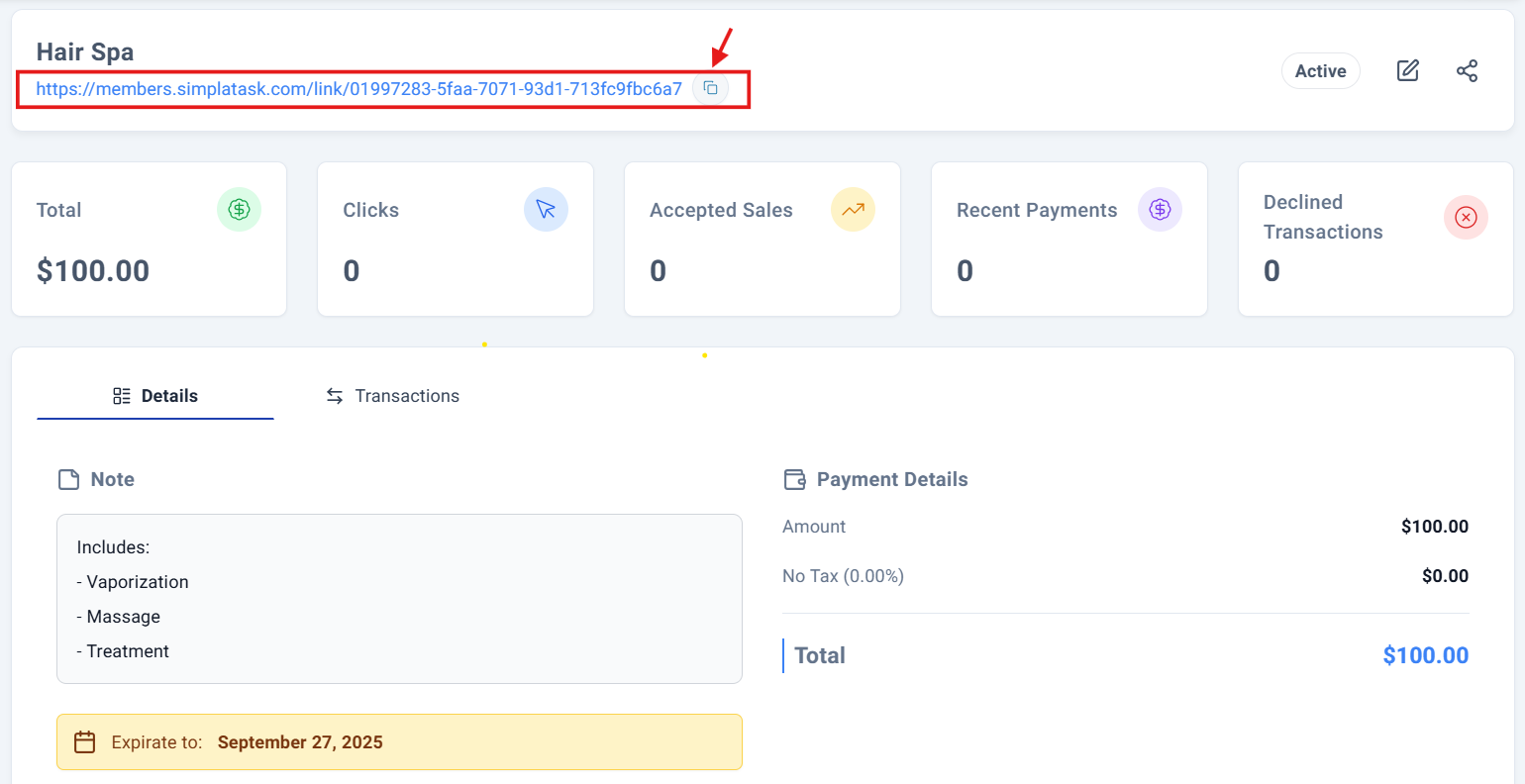
On the right side of this same section, you'll find essential controls: the payment link Status (Active or Inactive), followed by the Edit Icon and Sharing Options for multiple distribution channels.
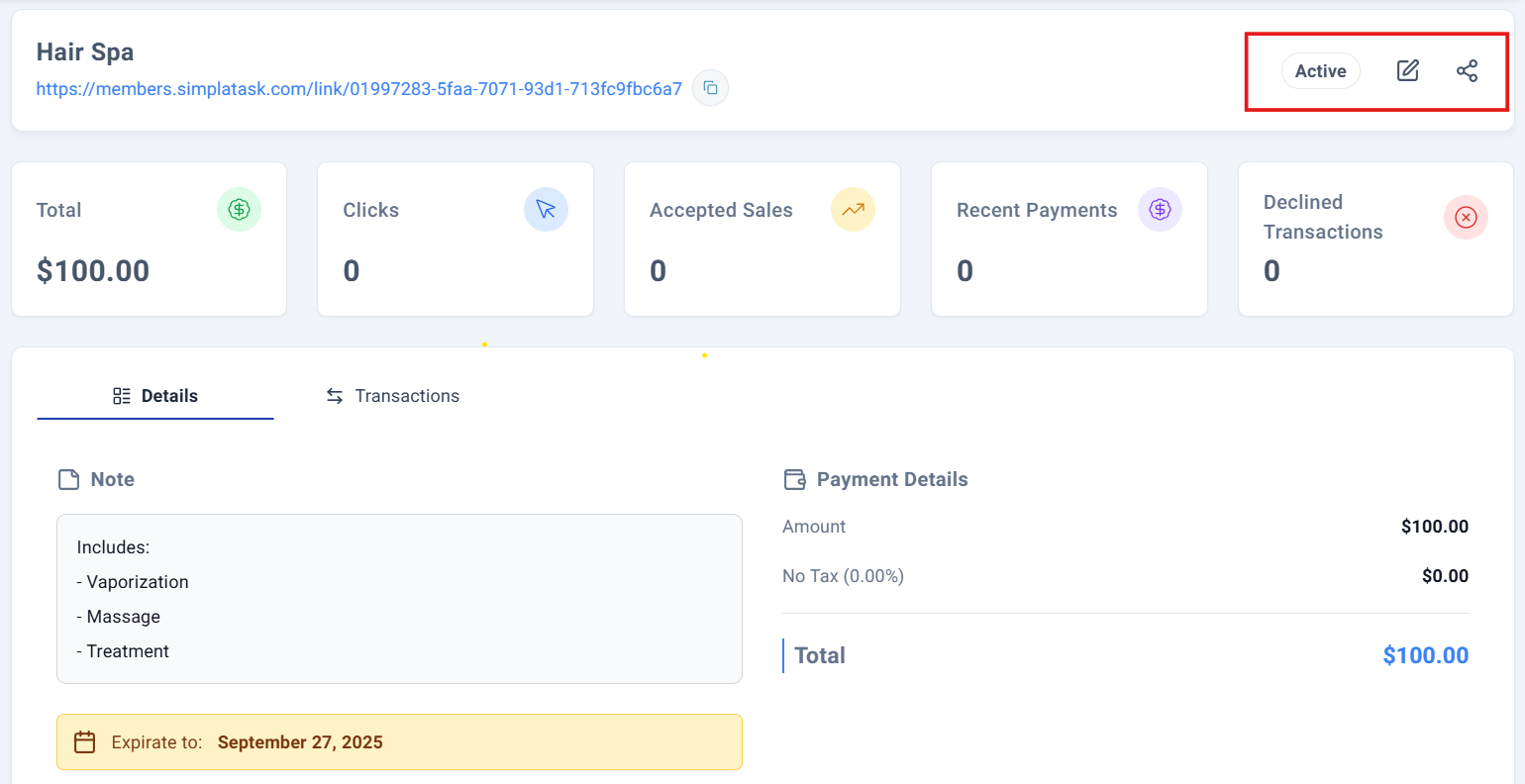
By clicking the pencil icon button (located between "Active" and the share icon) takes you directly to the Edit Screen, where all current fields and information are pre-populated and ready for modification.
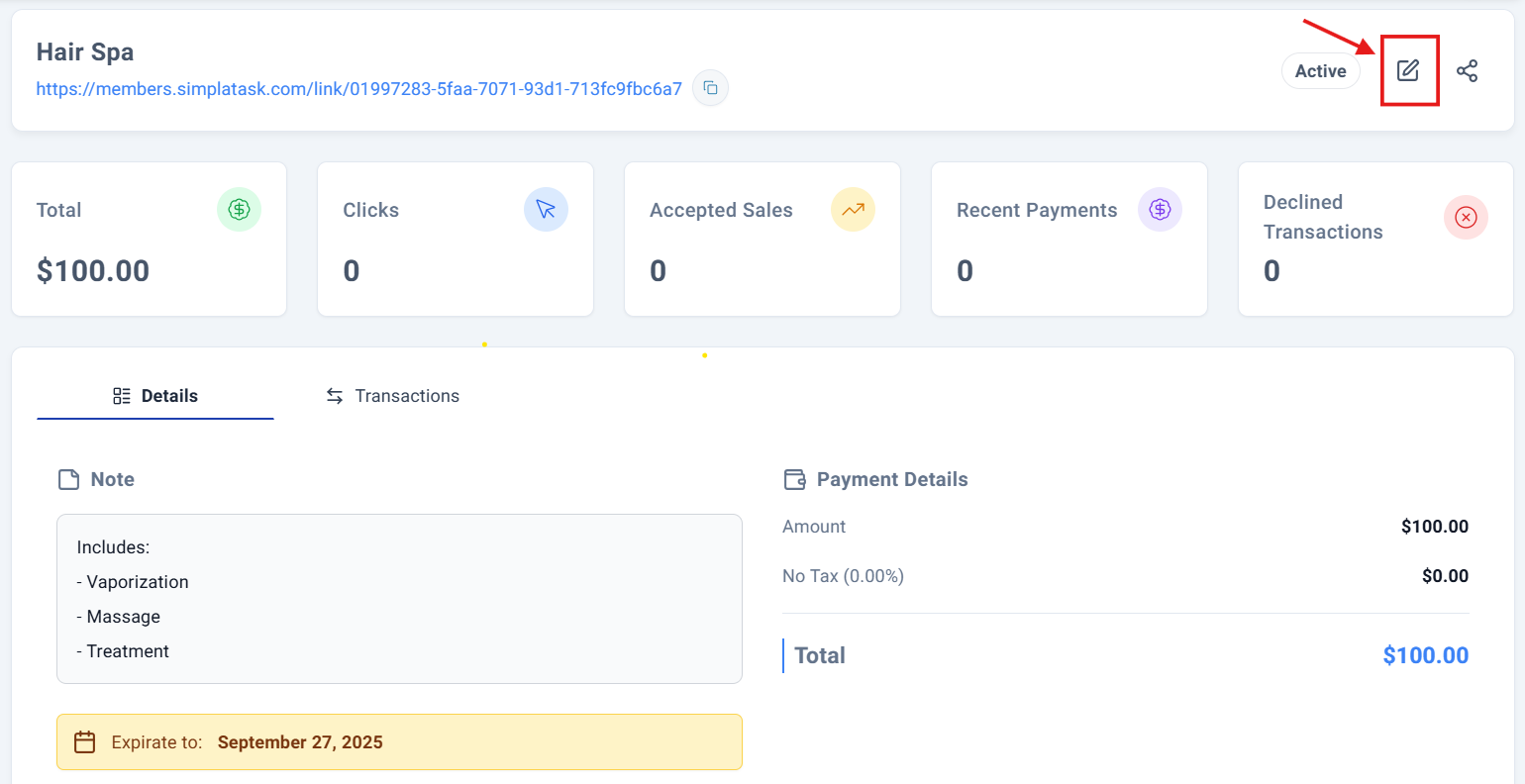
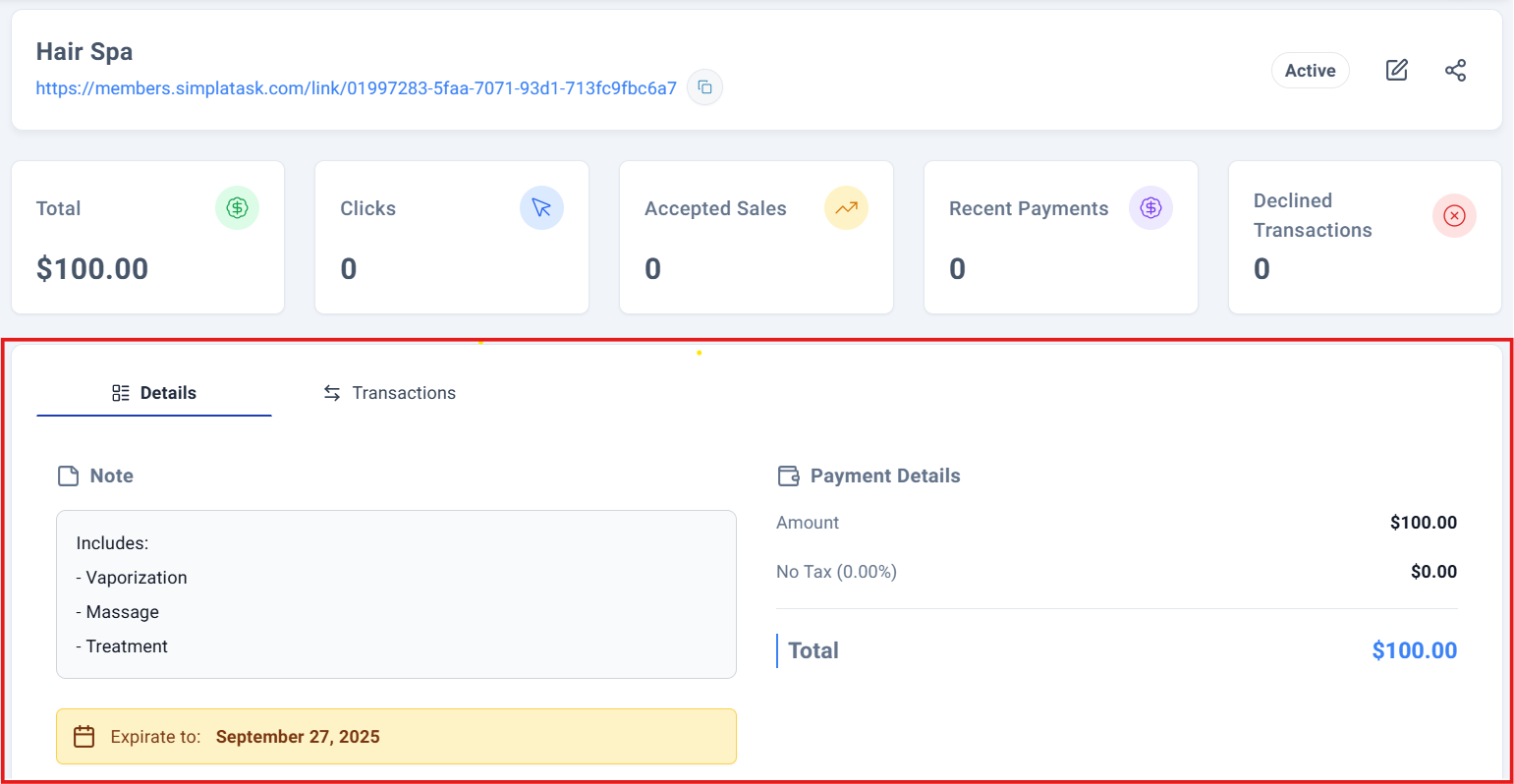
You'll access detailed payment link specifications including notes, expiration date, amount, tax breakdown (when applicable), and total amount.
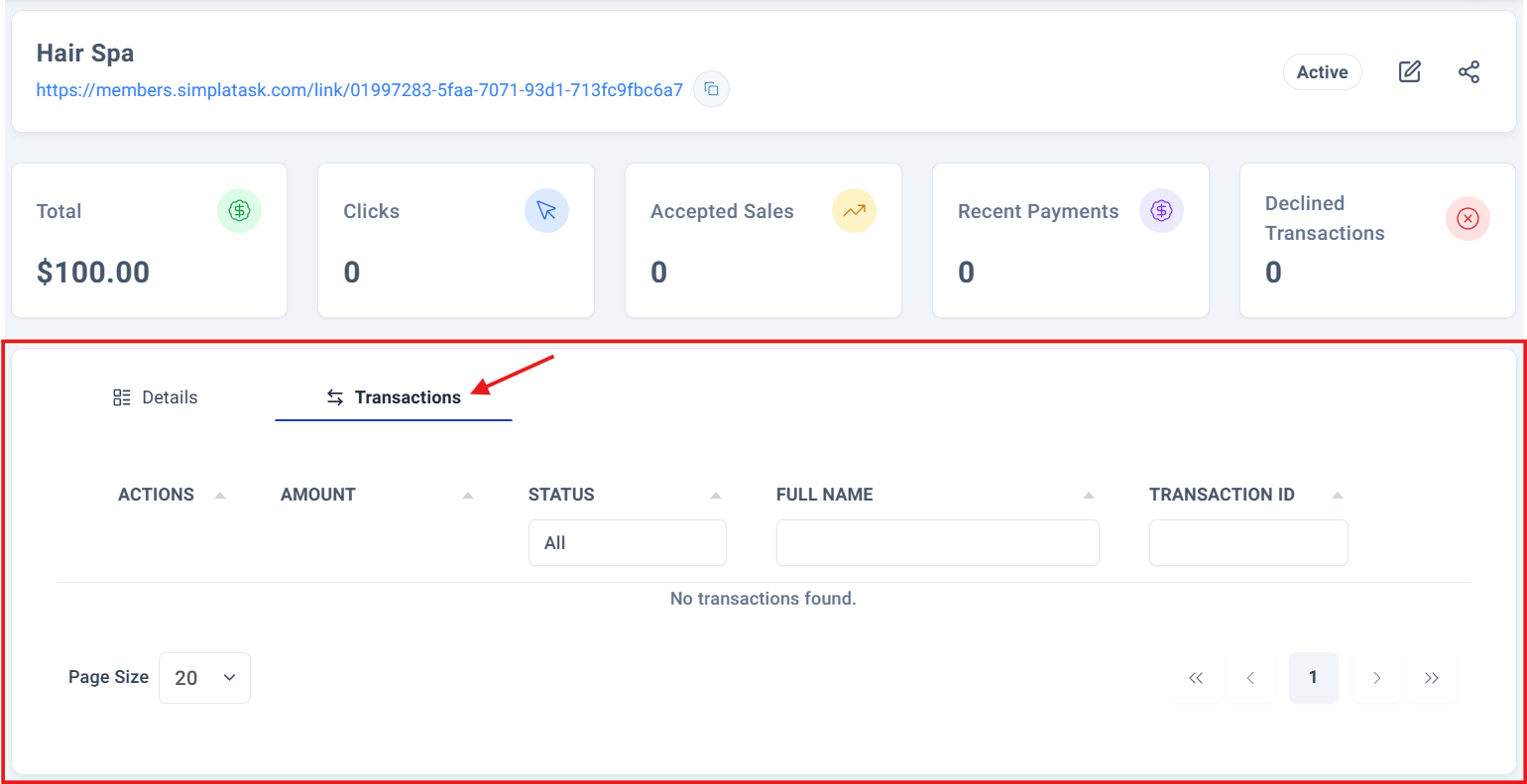
Below this, a Complete transaction history displays the first 20 entries with full transaction details for comprehensive tracking and analysis.
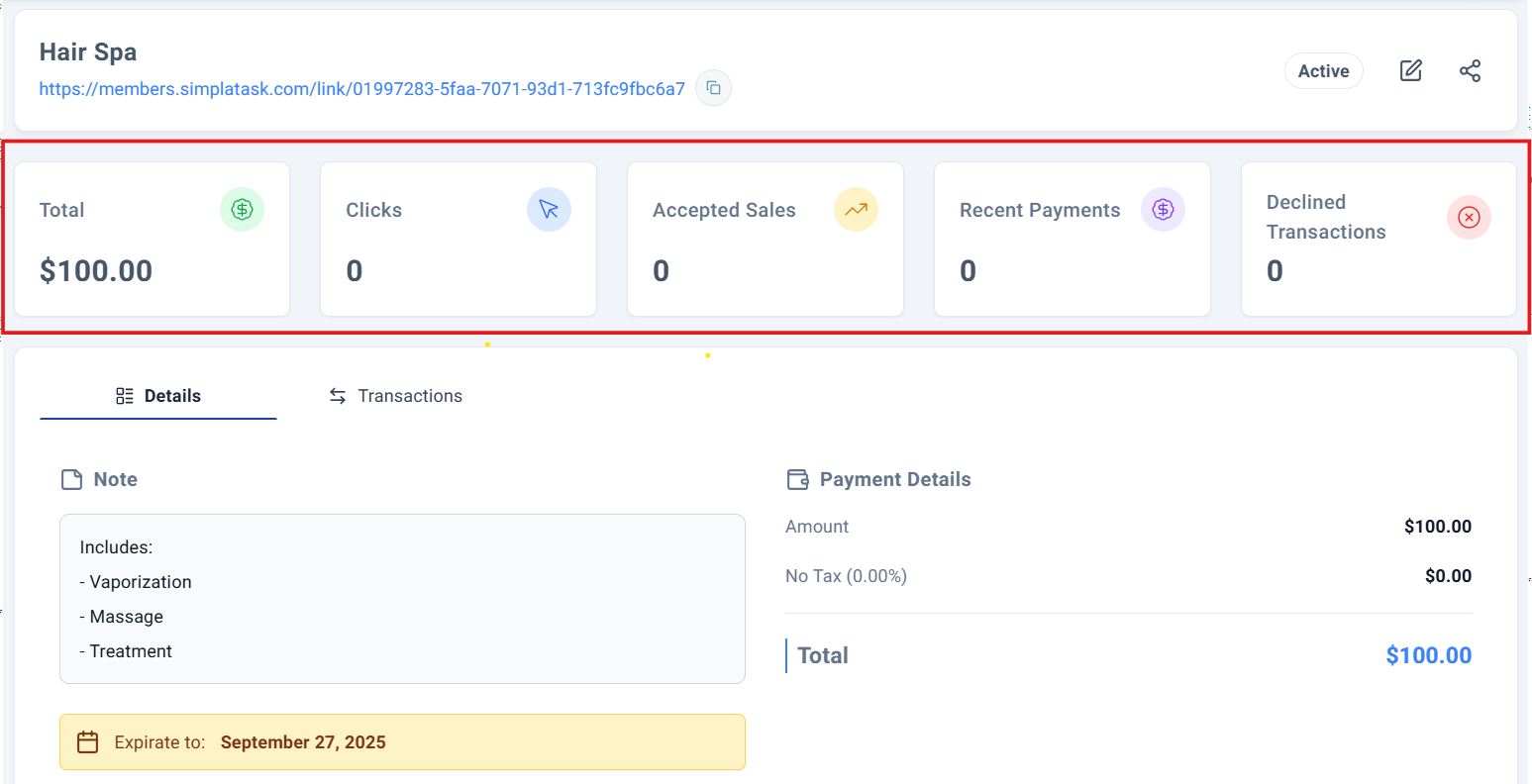
The section indicated provides a comprehensive Performance dashboard displaying key metrics: total revenue, link clicks, accepted sales, recent payments, and declined transactions, giving you complete visibility into your payment link's performance.
Below is a detailed breakdown of each key metric displayed in your control panel:
| CARD | DESCRIPTION |
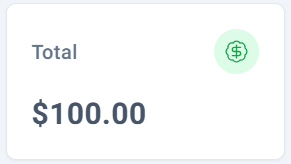 | The complete monetary value of all payments processed through this payment link. |
 | The total number of times users have accessed your payment link, providing valuable traffic insights beyond actual purchases. |
 | Successfully completed transactions that have been deposited to your account. |
 | Current payments in processing status that have just been initiated. |
 | Payment attempts that were rejected before processing or deposit completion. |
Process Complete!
You have successfully accesing your Simpla Link details. The payment link will be tracked in your SimplaTask dashboard.
Was this article helpful?
That’s Great!
Thank you for your feedback
Sorry! We couldn't be helpful
Thank you for your feedback
Feedback sent
We appreciate your effort and will try to fix the article