Table of Contents
How to Create a Simpla Link
SimplaTask streamlines the payment links process, allowing you to create payment links efficiently. This comprehensive guide will walk you through creating a Simpla Link from start to finish.
If you need help sharing a simpla link, click here!
If you need help updating a simpla link, click here!
If you need help getting payment link details in transaction resouce, click here!
Before You Start:
Before you begin, ensure the following requirements are met:
- Permissions: You need Manager, Admin, or Owner-level access to create payment links.
Simpla Link Creation Process:
Step 1: Initiate Simpla Link Creation.
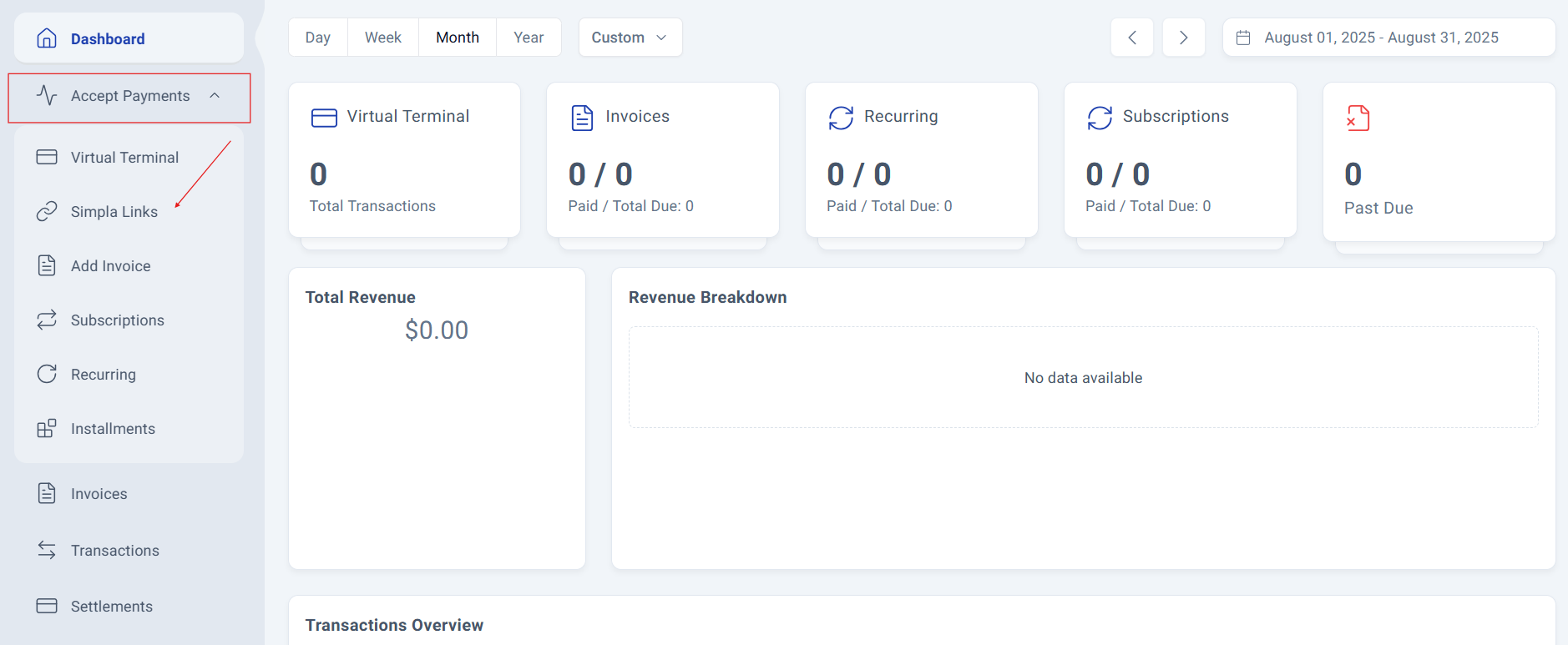
Navigate to your accept payments section located on the left side of the main screen, display the menu and click the "simpla links" option located in the second position of the menu, below "Virtual Terminal".
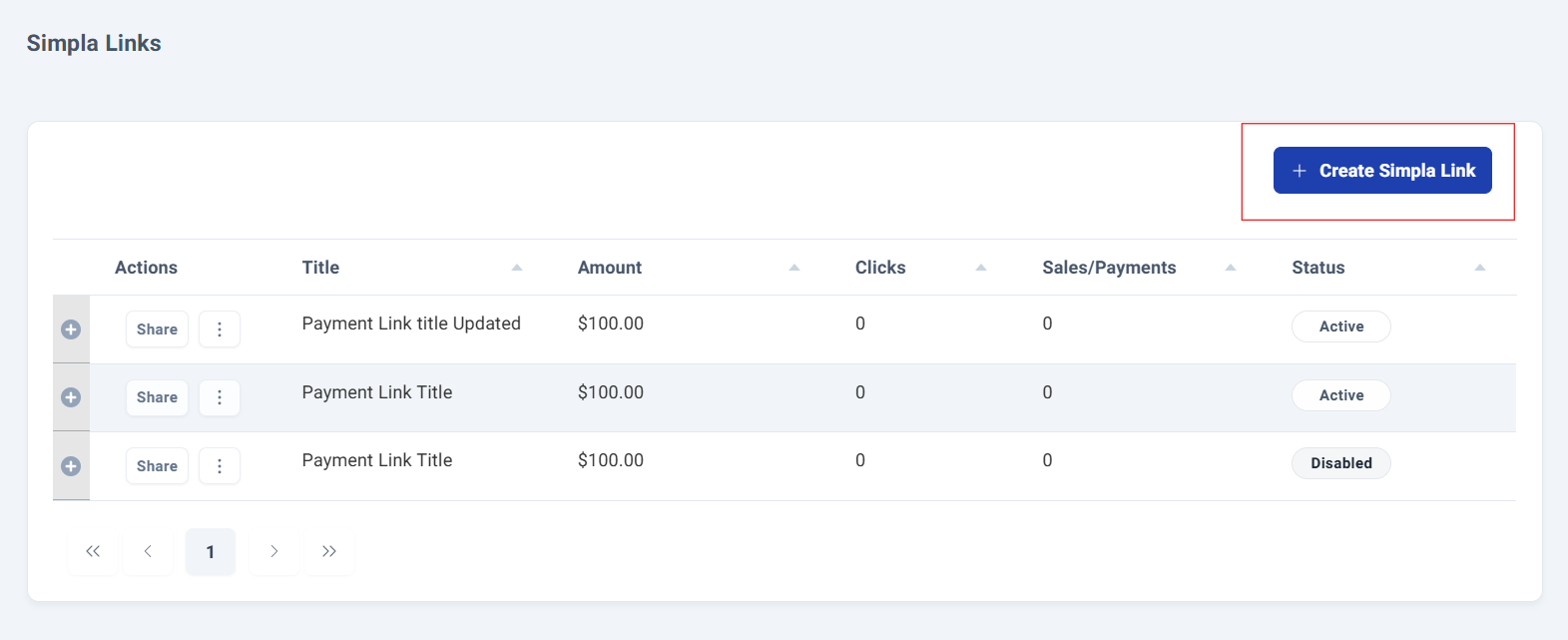
Navigate to your simpla links management section and click the "+Create Simpla Link" button located in the upper-right corner of the existing simpla link list.
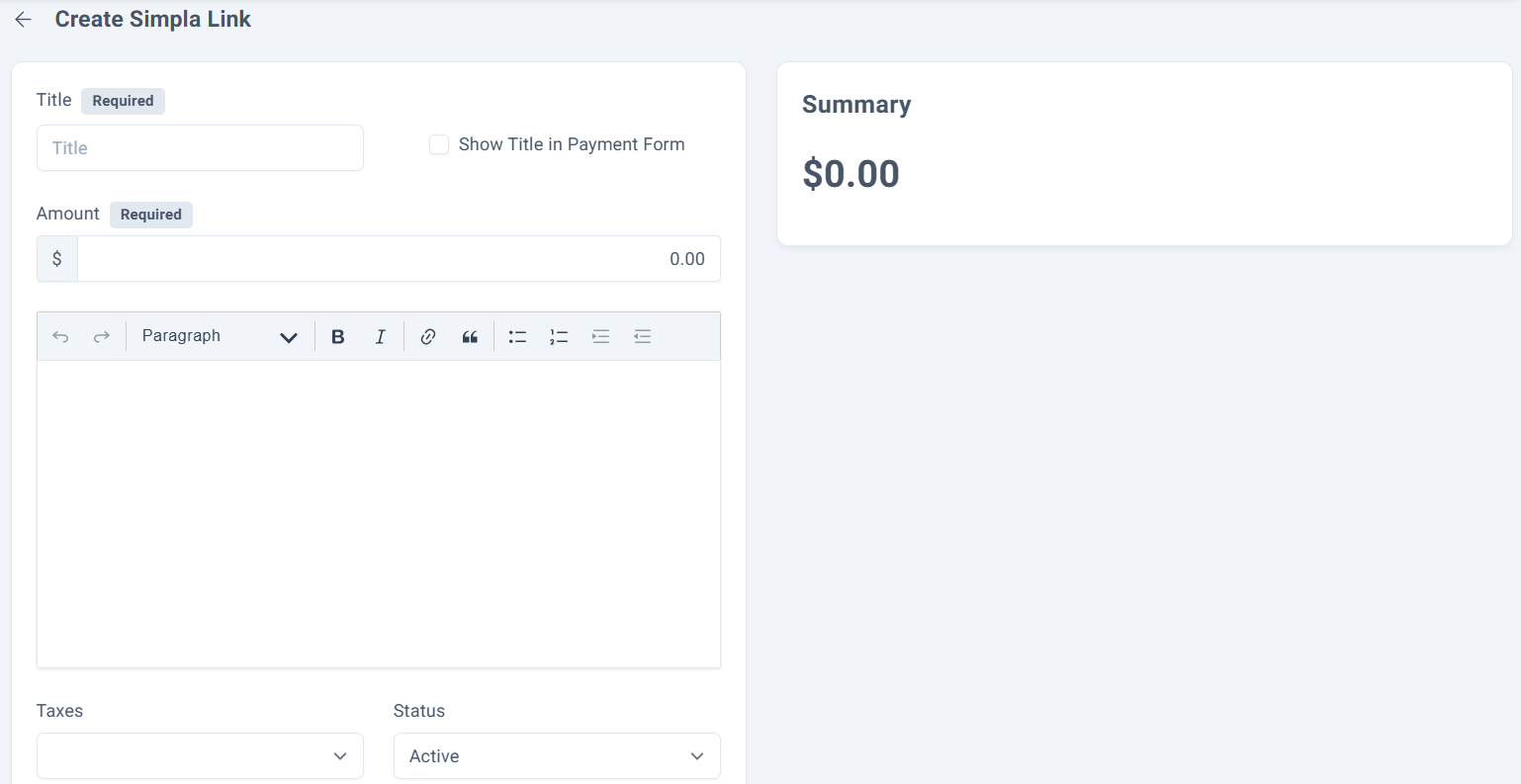
Step 2: Access the Simpla Link Builder.
The simpla link creation interface opens, displaying the section to add the data for the simple link on the left side and a summary on the right side.
Adding Data to Your Simpla Link:
Step 3: Filling the fields.
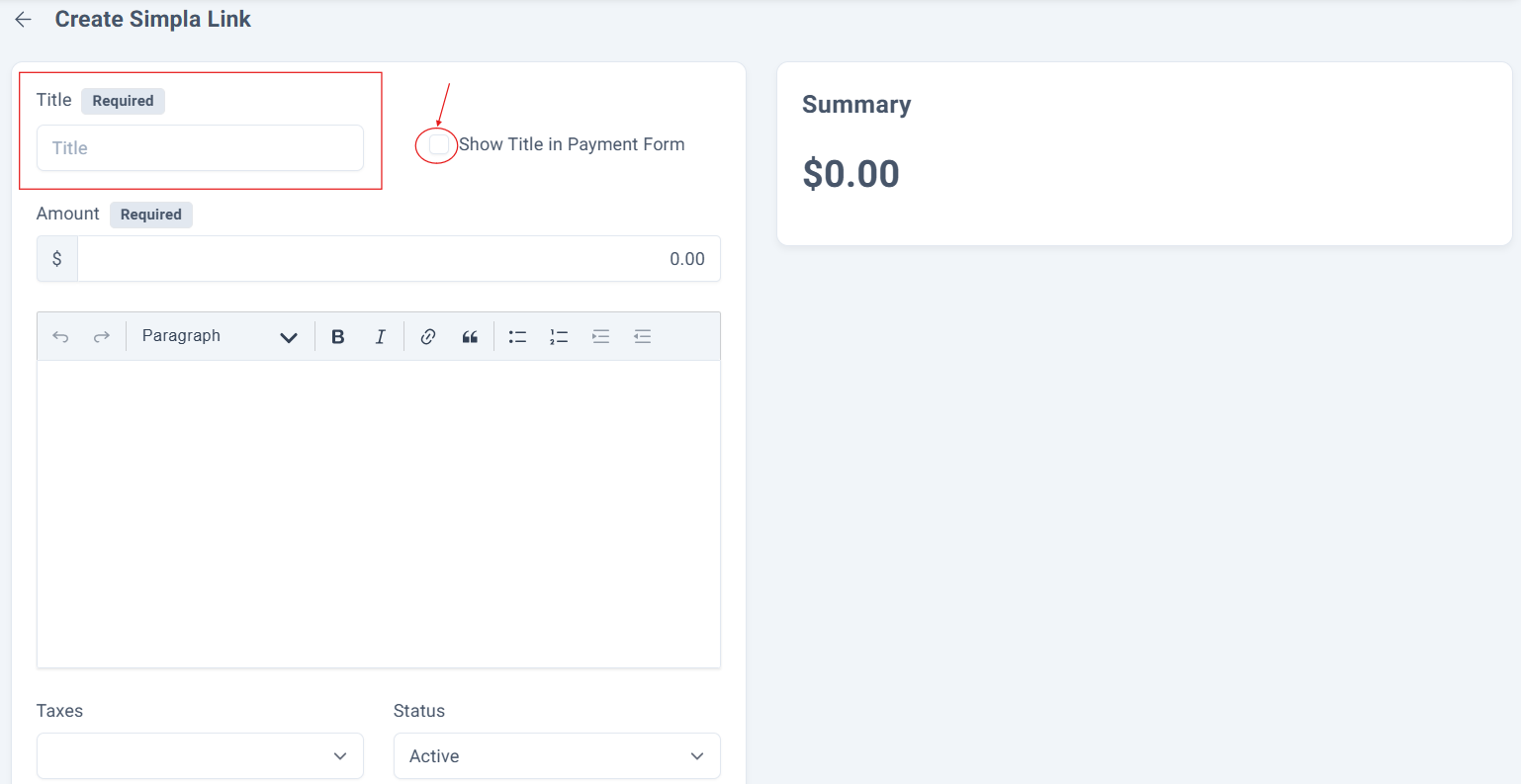
Enter a title for your Simpla Link, it is a required field. You can enable the option to display this title in the payment format.
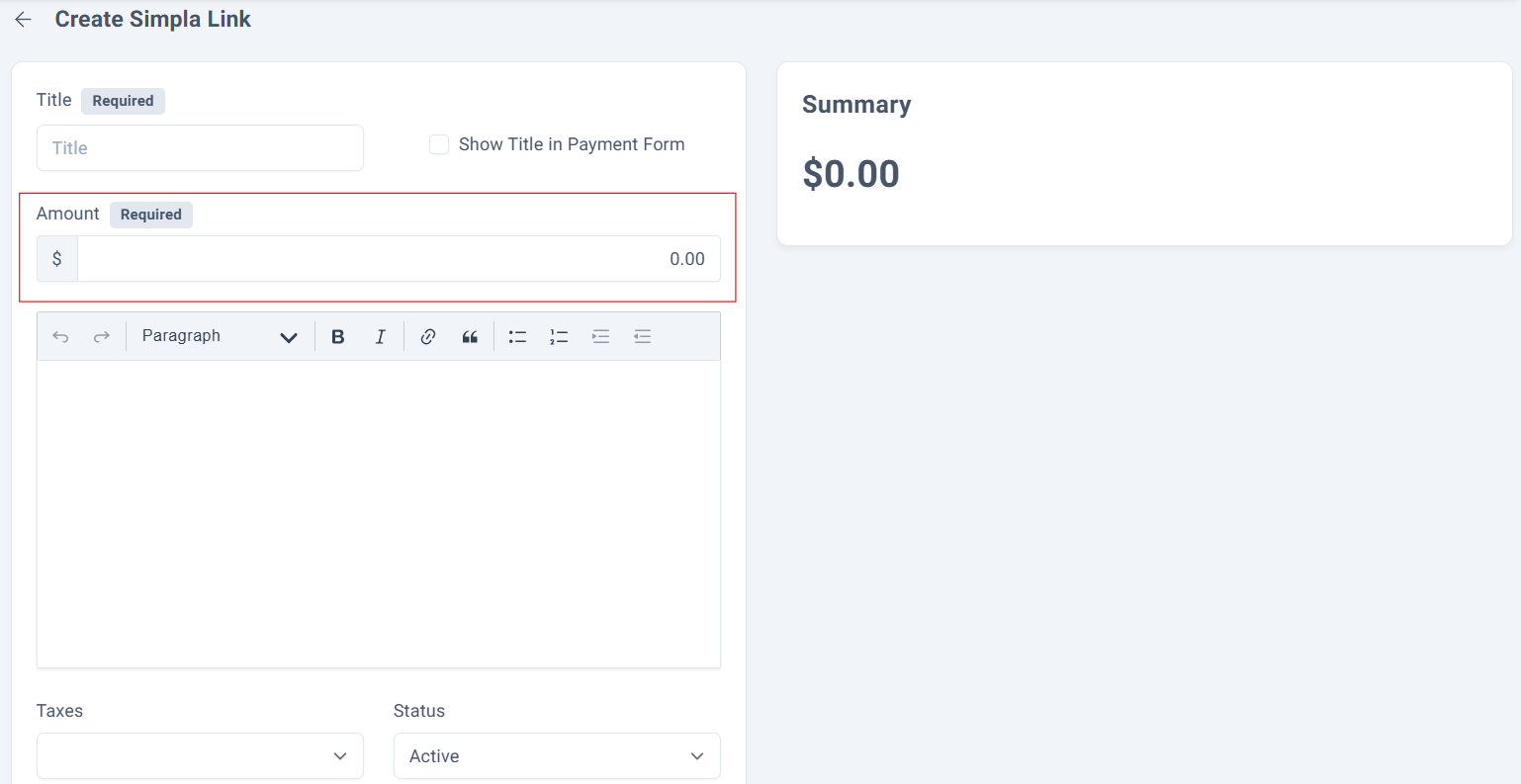
Step 4: The amount.
Enter the amount for the payment link. This is a required field.
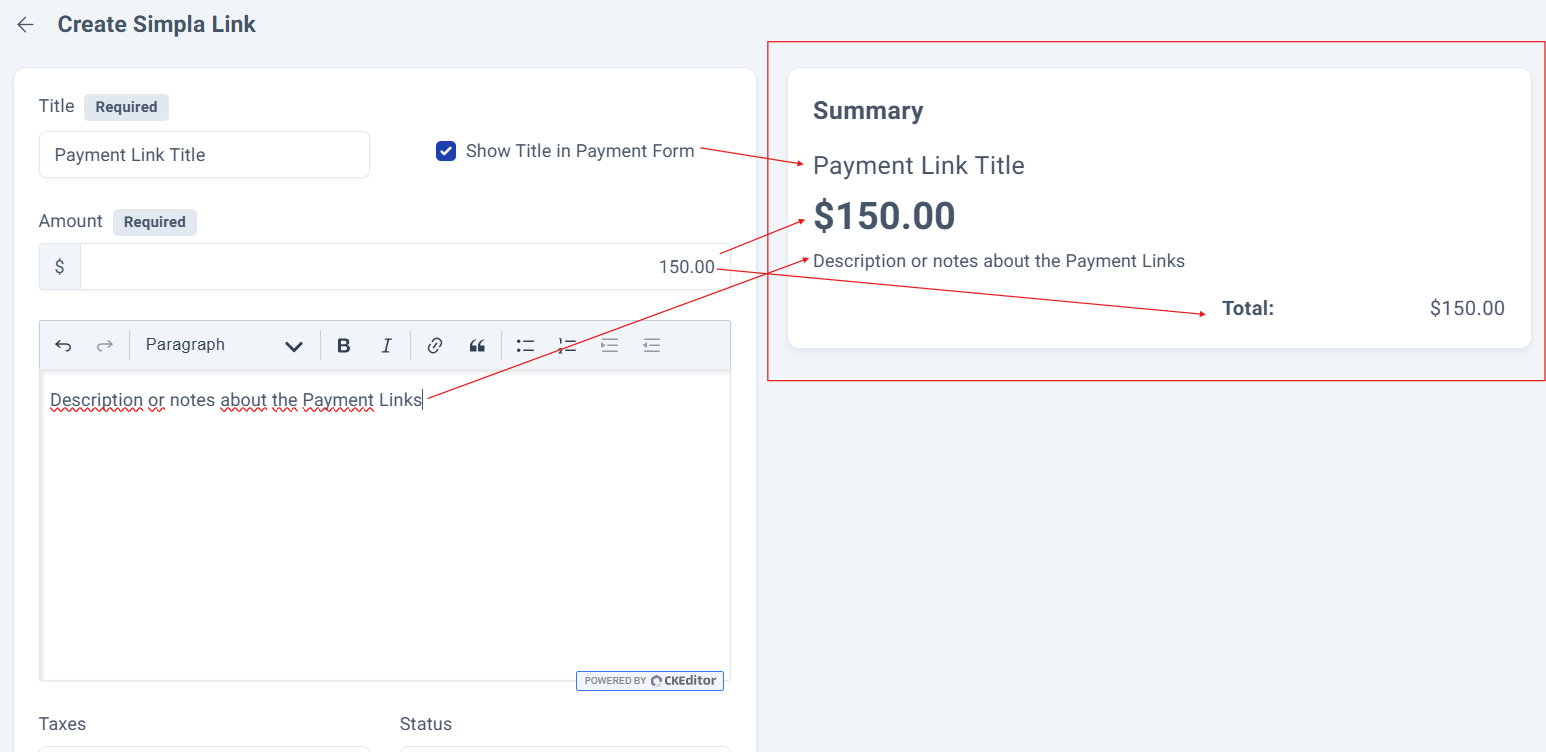
Step 5: Summary.
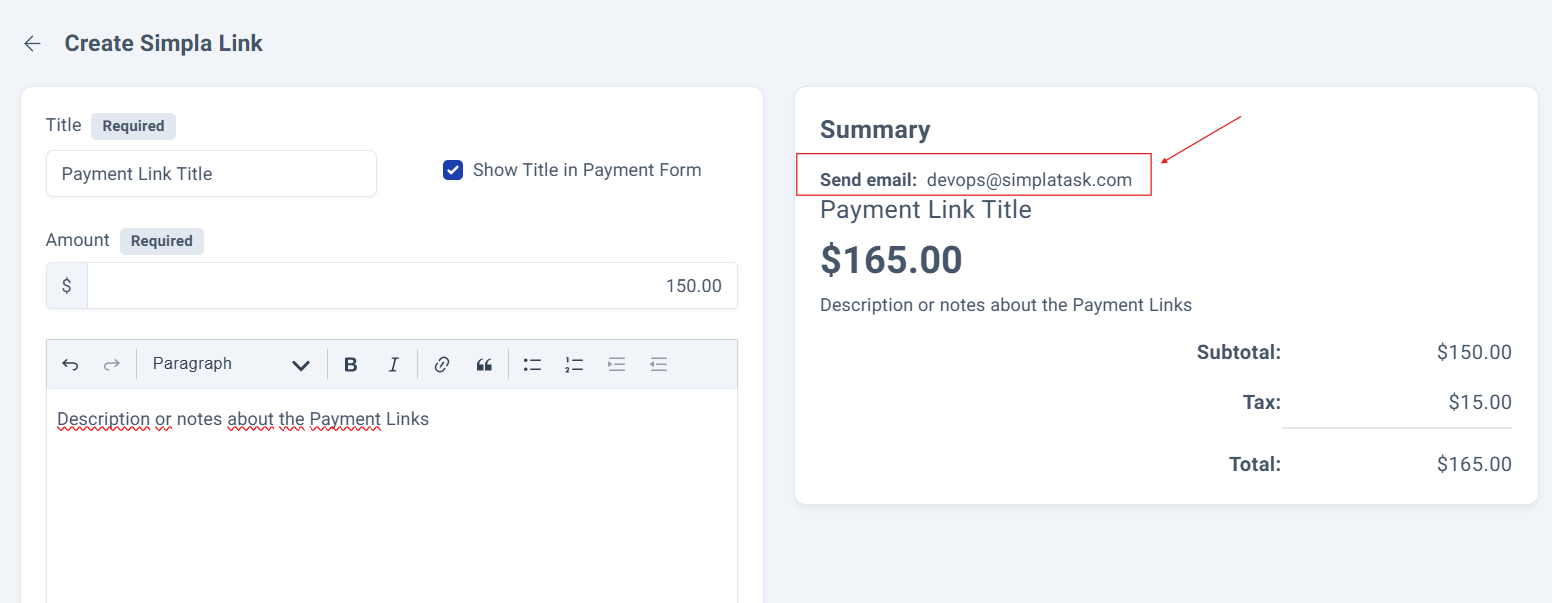
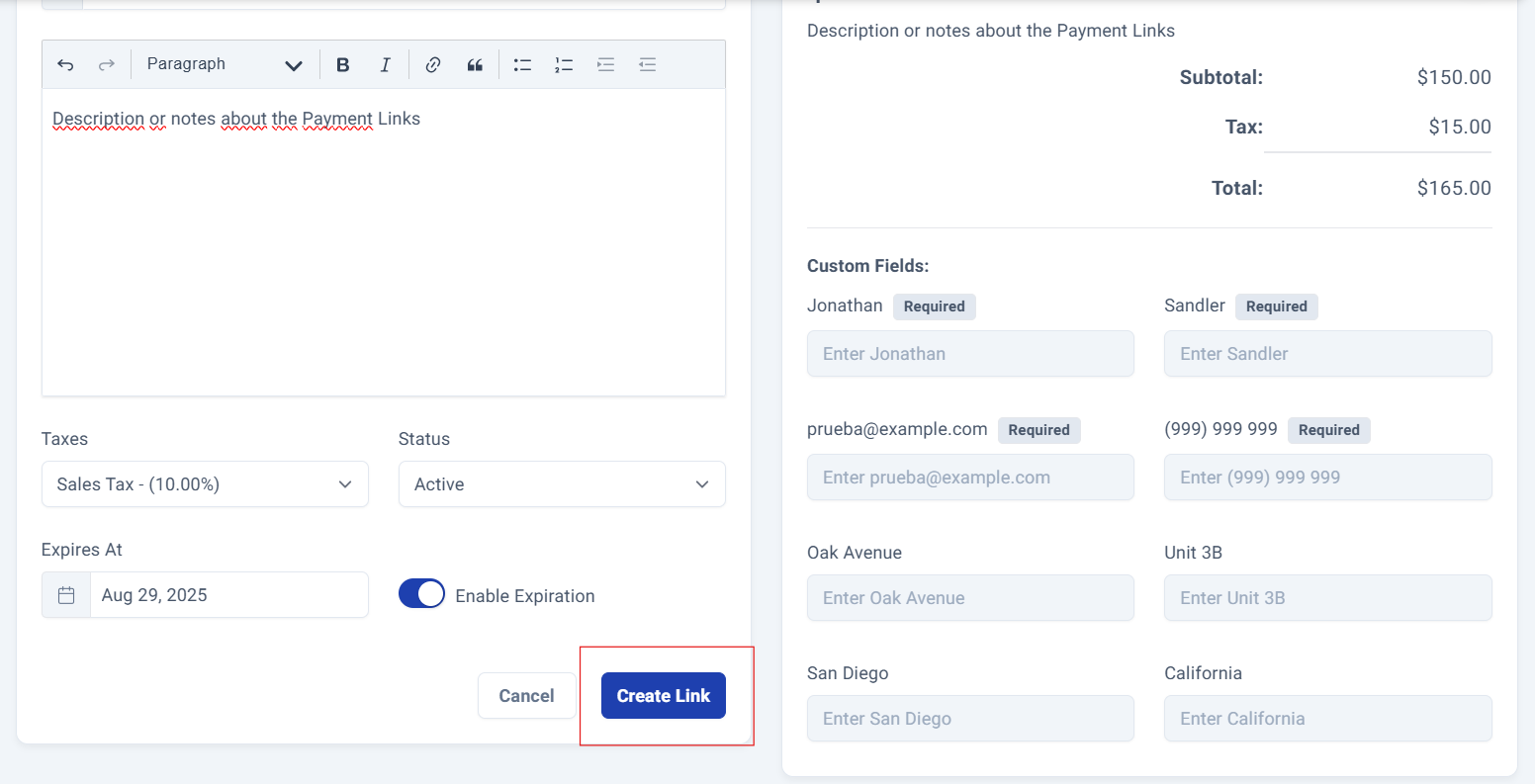
As the fields are filled in, the system automatically displays a summary of the captured data.
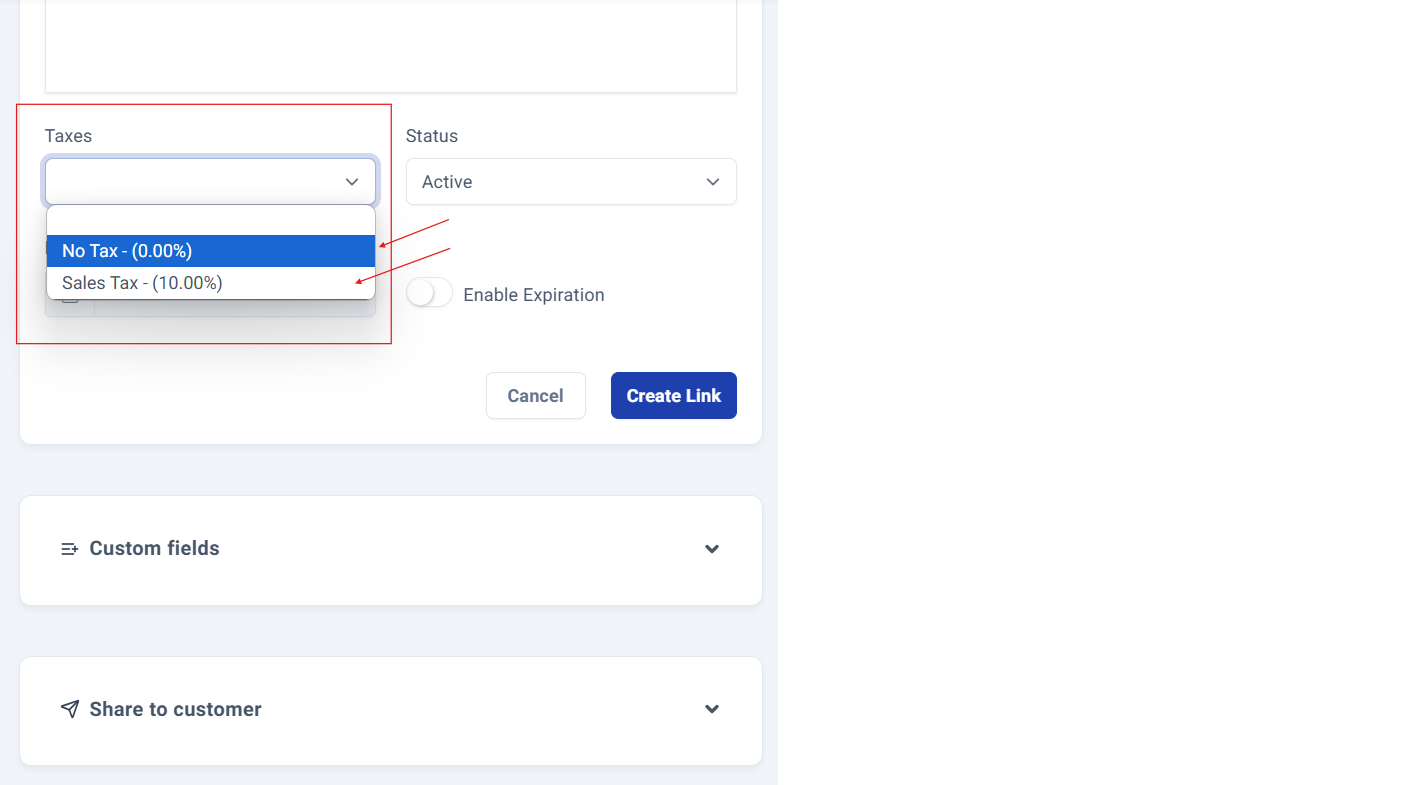
Step 6: Taxes.
Choose whether the payment order will be without tax or with sales tax:
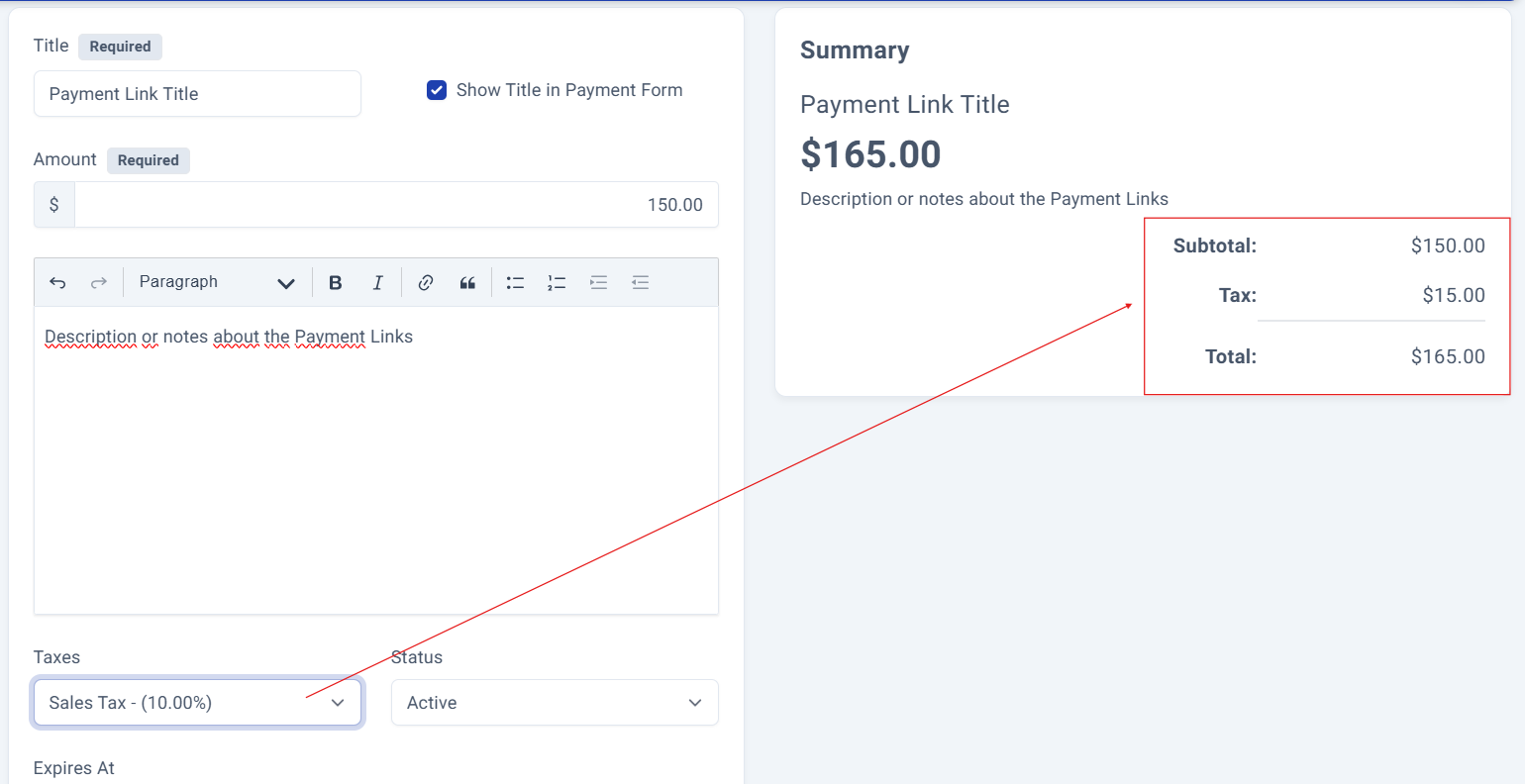
The system automatically calculates subtotals and the grand total.
Step 7: Status.
You can select the status of the payment link.
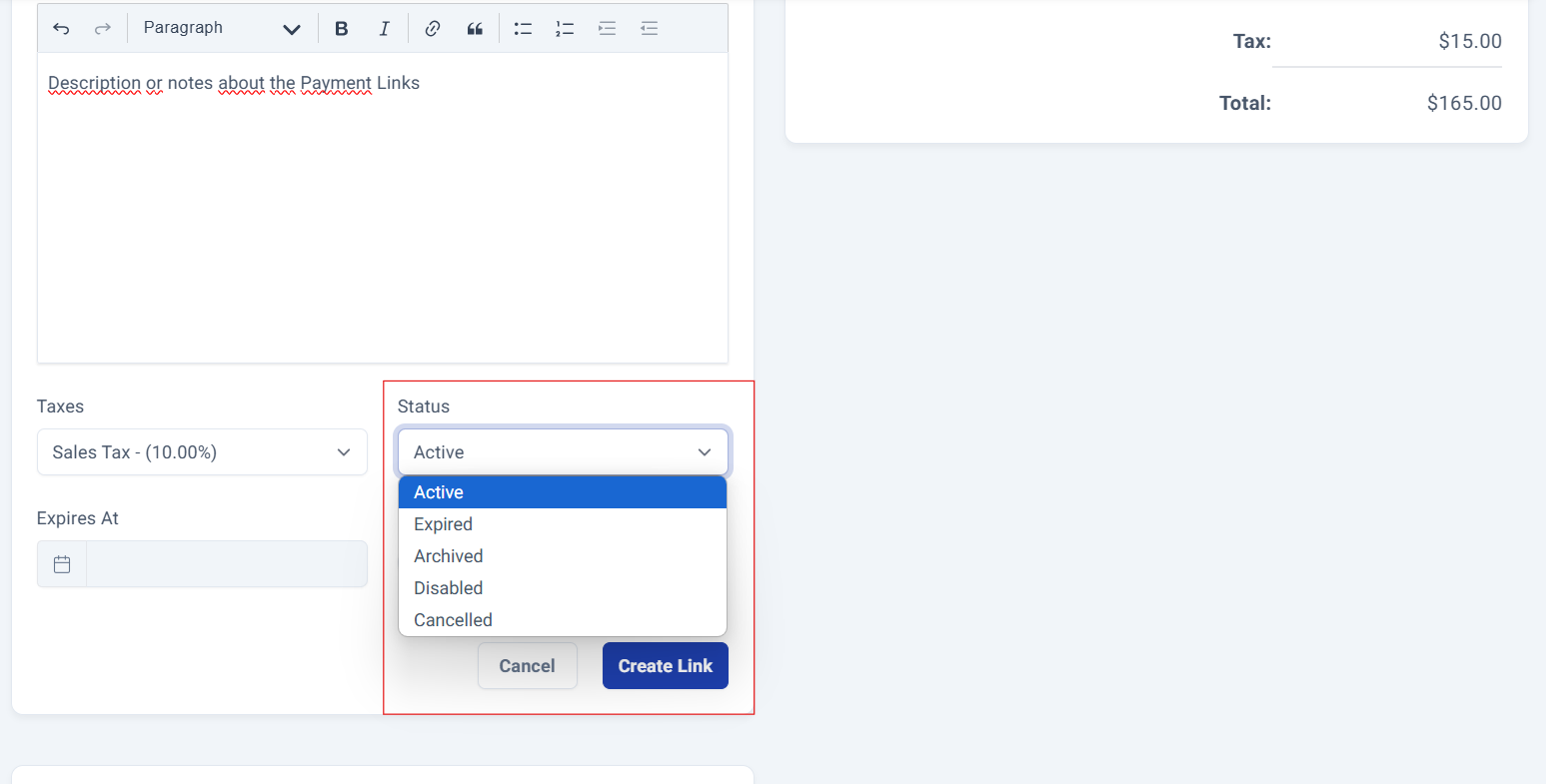
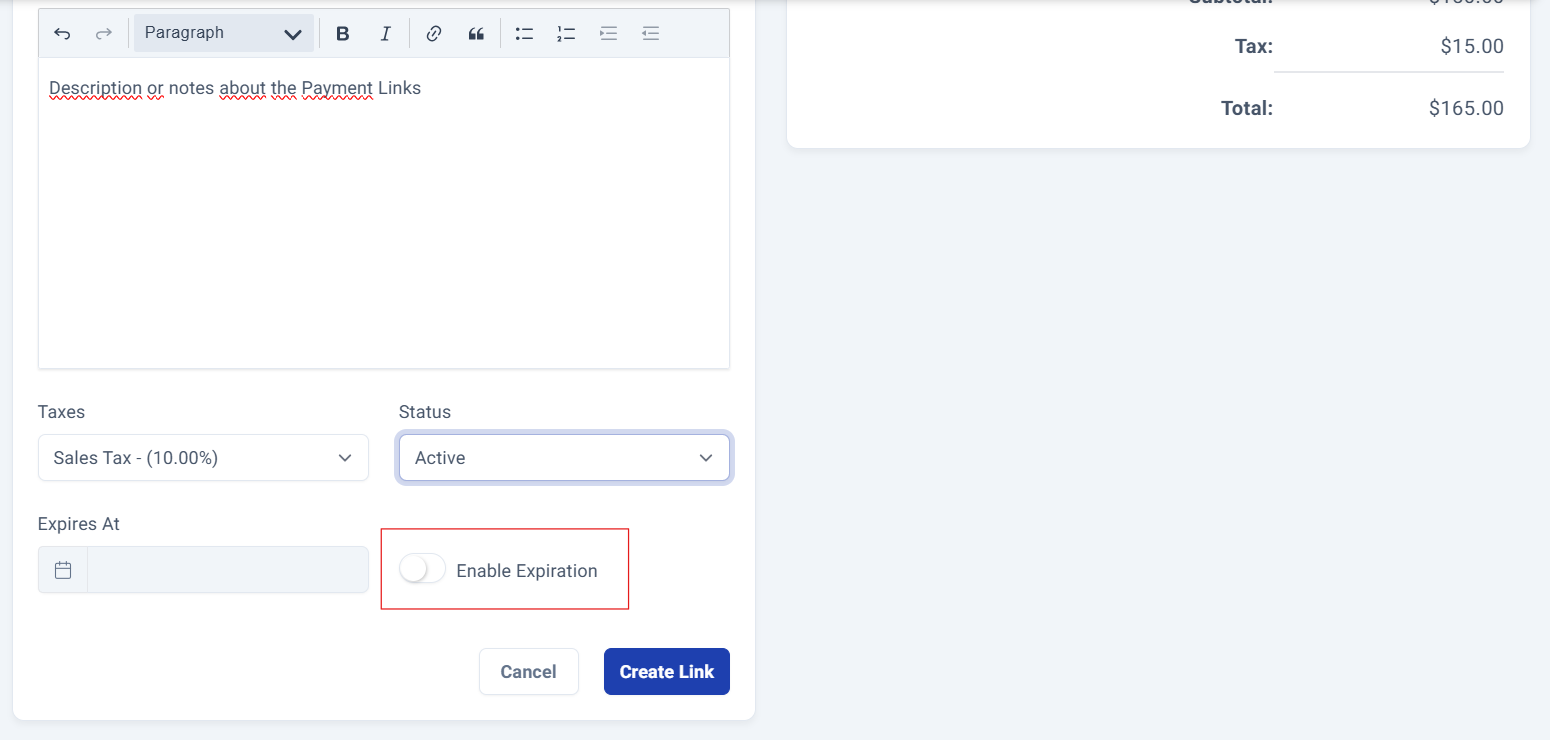
Step 8: Expiration date.
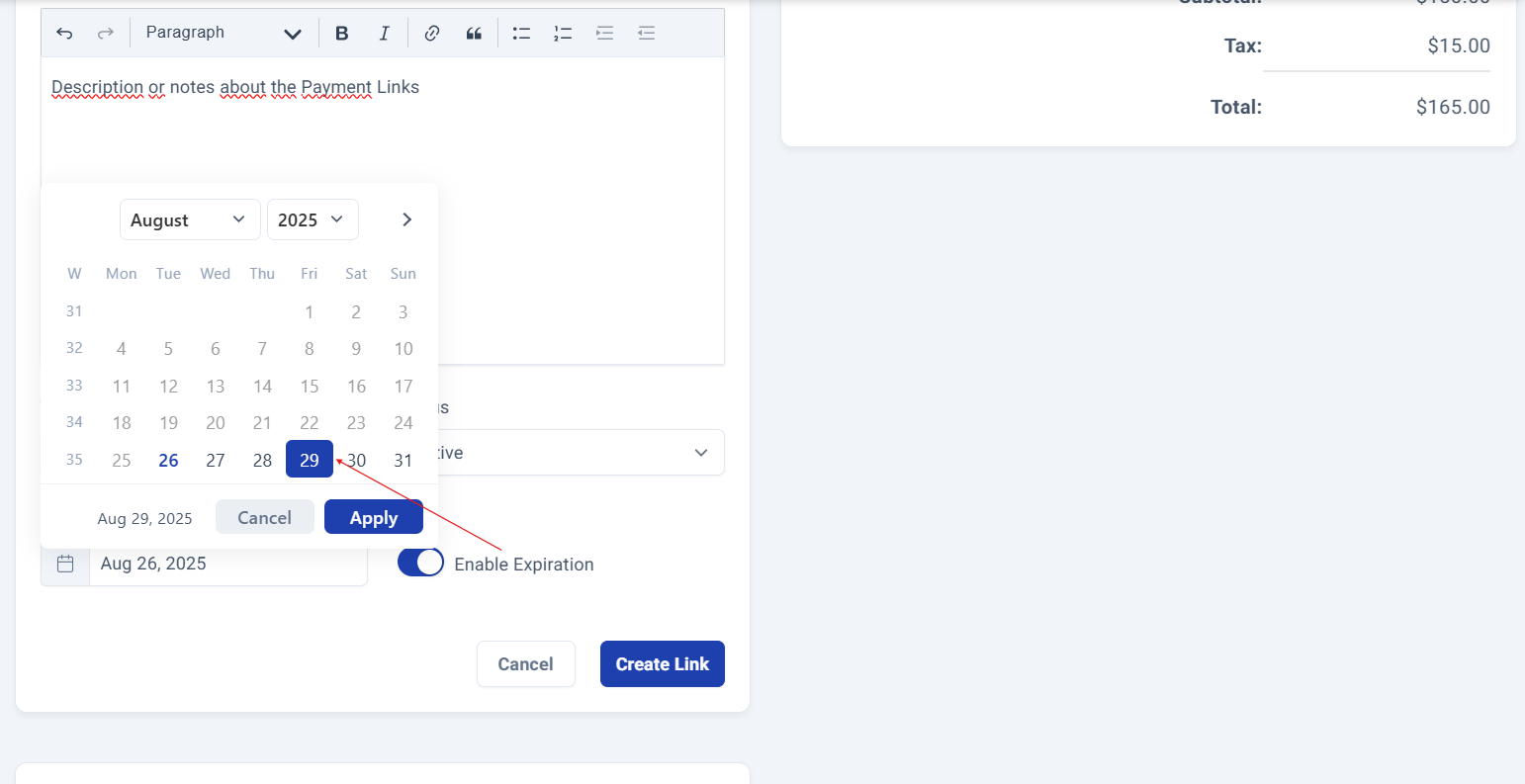
If you want your payment link to have an expiration date, you can enable the option.
A calendar will be displayed where you can select the date. This information will not appear in the summary.
Simpla Link Customization Options: Custom fields and Share to Customer.
Custom Fields.
Step 9: Enabling full contact form.
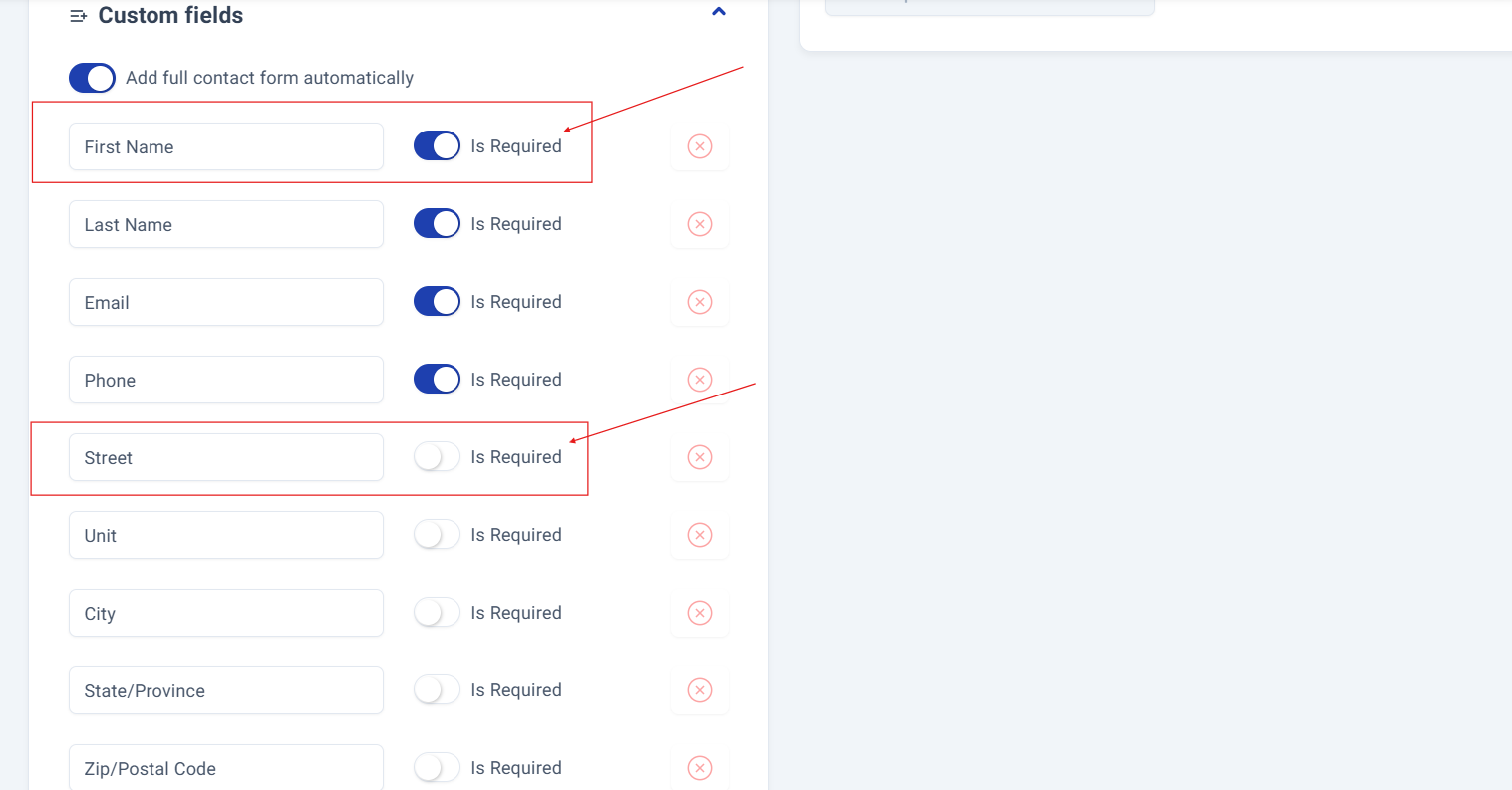
If you want to add full contact form to the payment link you can activate the option.
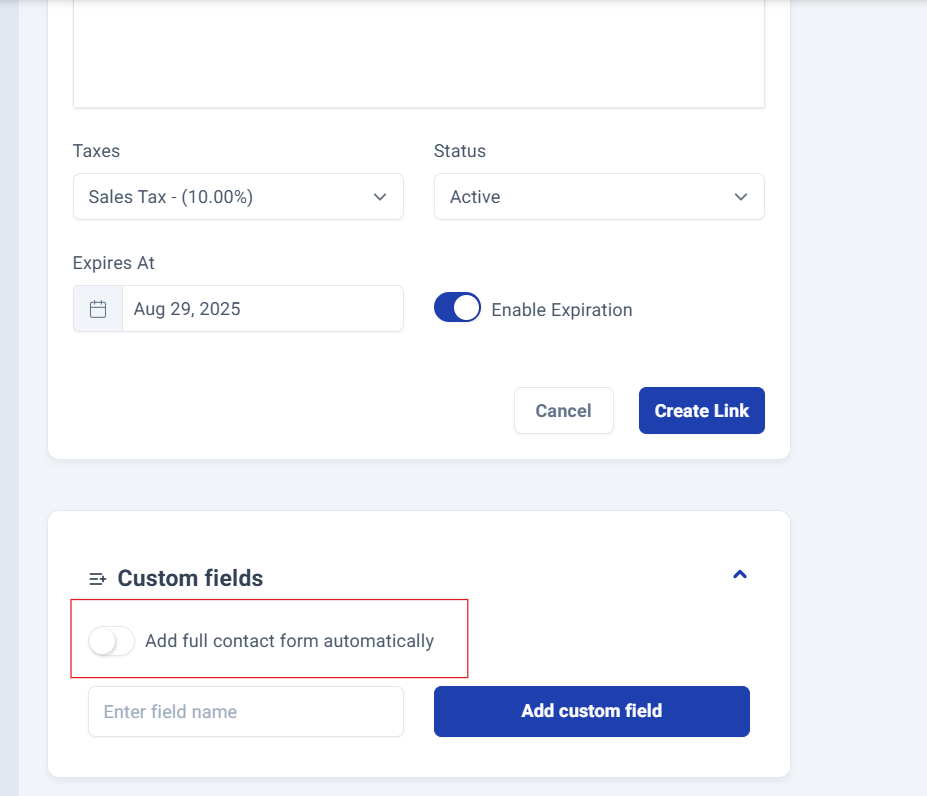
Once you enable this feature, a comprehensive form will appear with multiple fields, some required and others optional. You have complete control over which fields are mandatory by simply toggling the option located on the right side of each field.
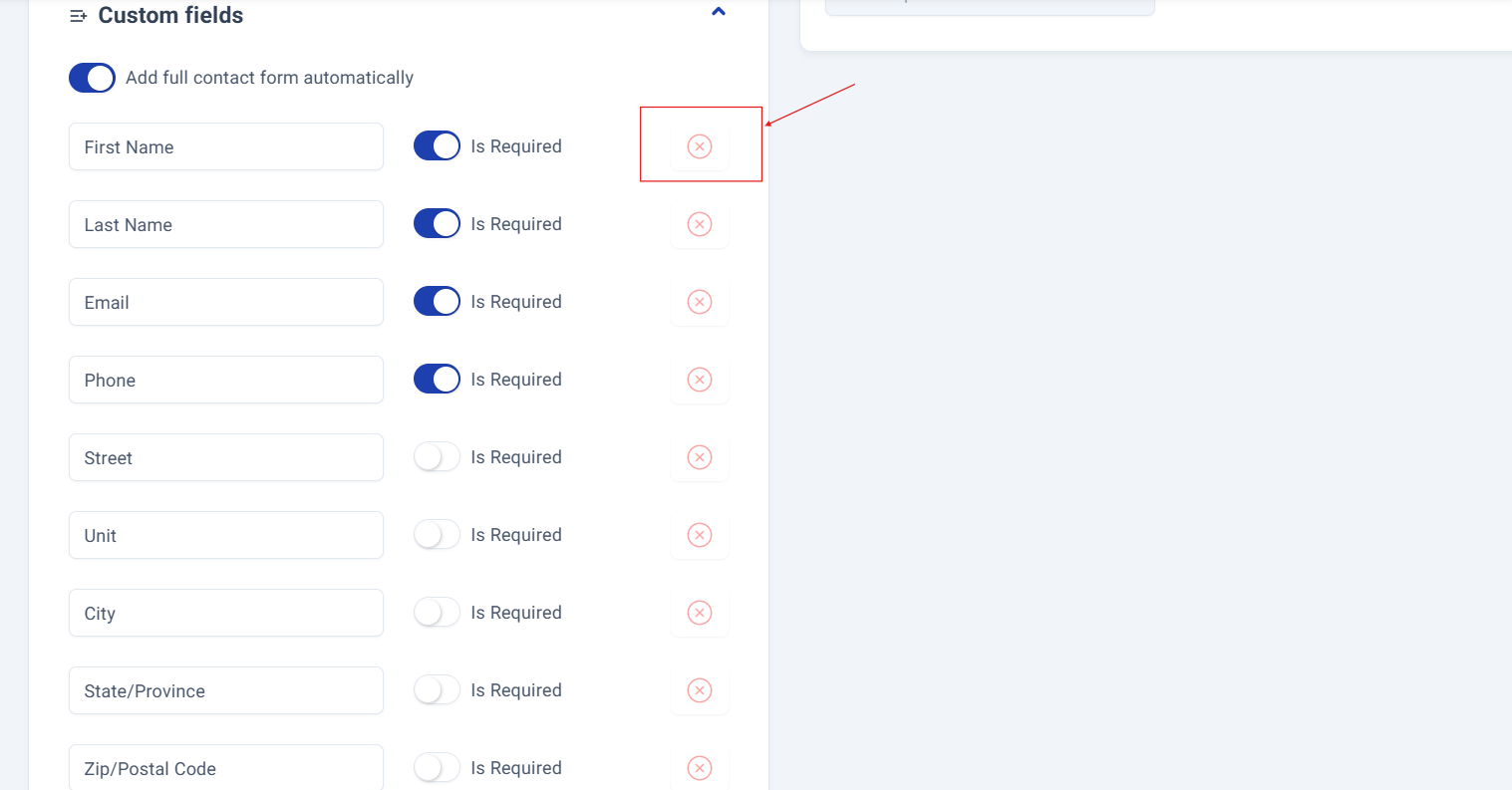
Enter all the information you need while easily removing any unnecessary fields with a single click on the button next to the "Is required" option, you'll recognize it by the red X symbol.
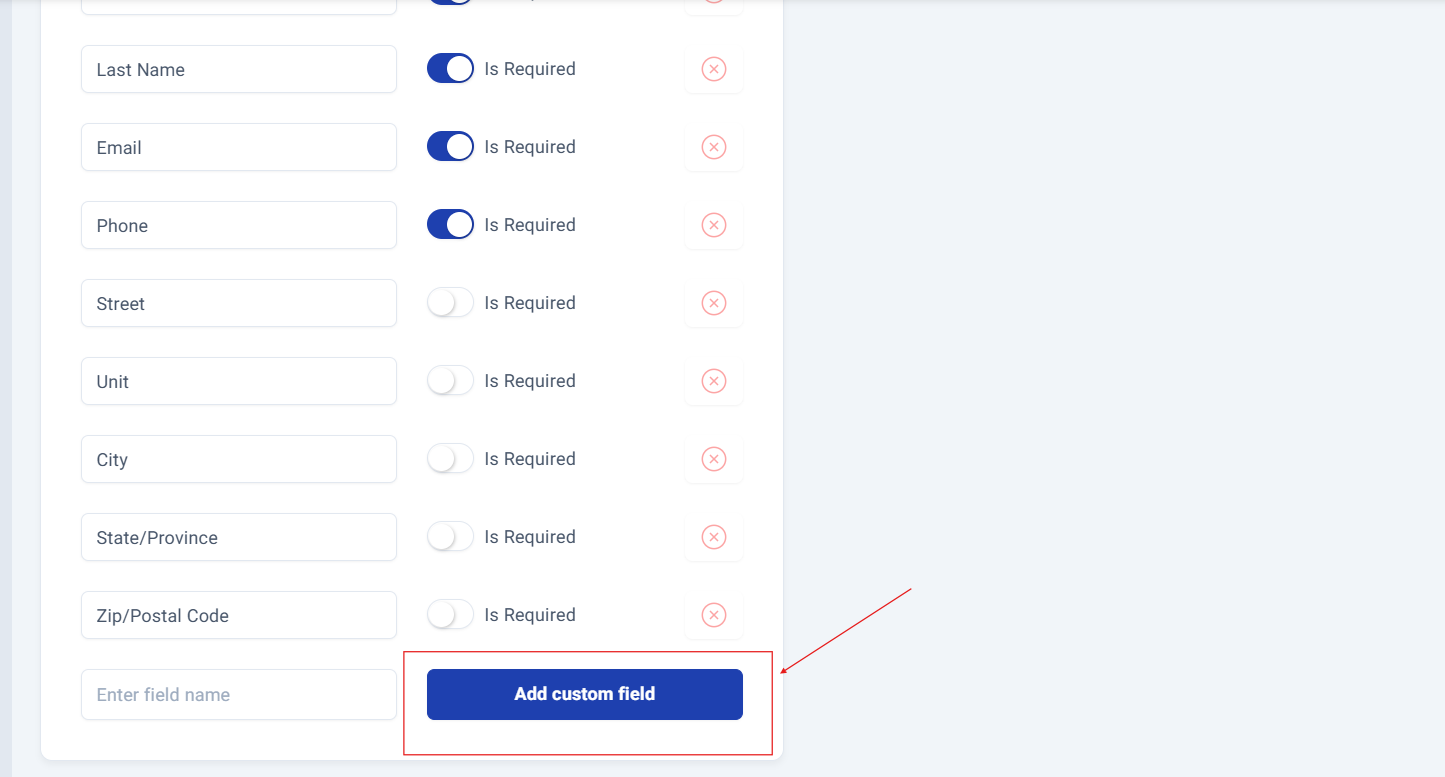
Need additional custom fields? No problem! Simply click the blue "Add Custom Field" button at the bottom of the form to expand your data collection capabilities.
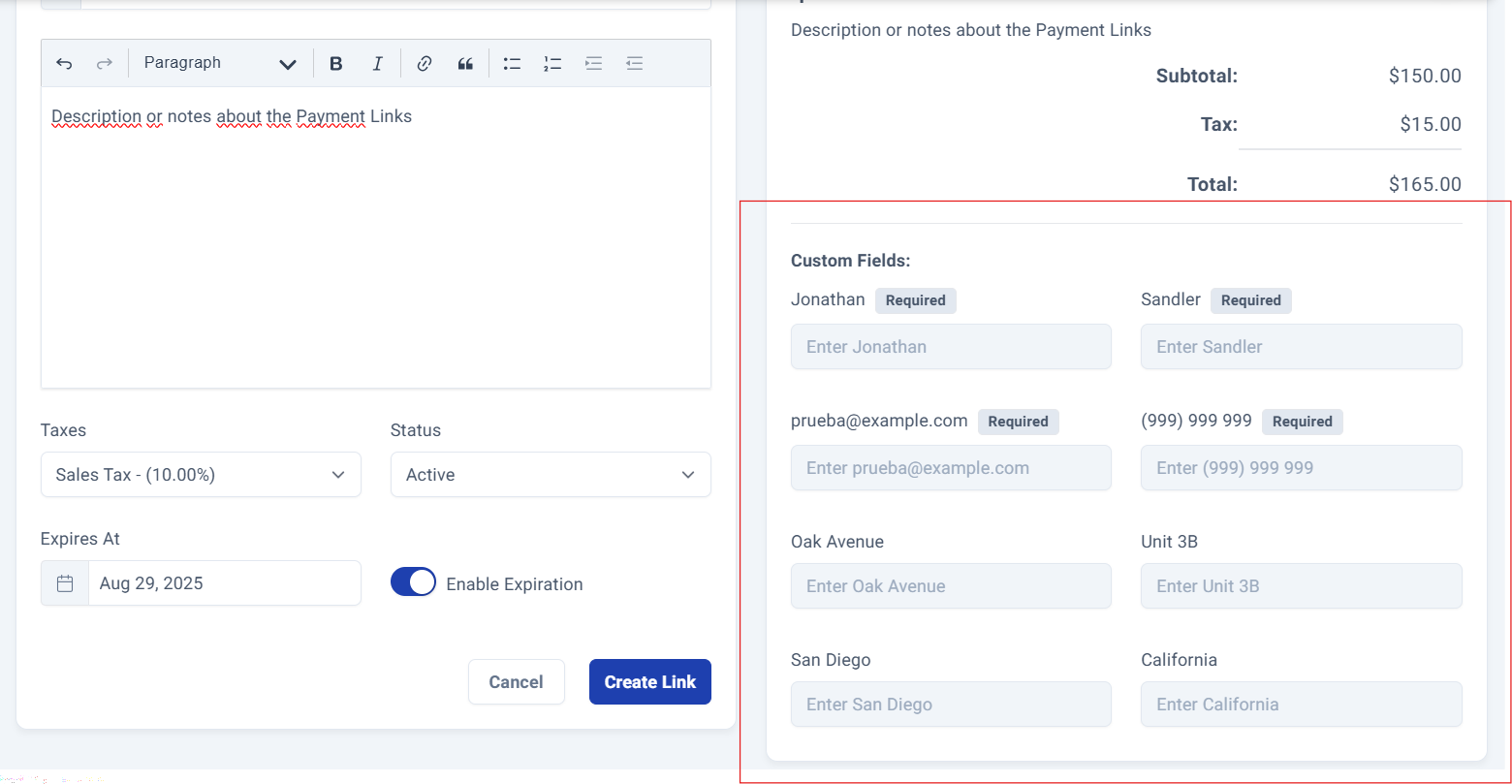
This information will automatically appear in the summary.
Share to Customer.
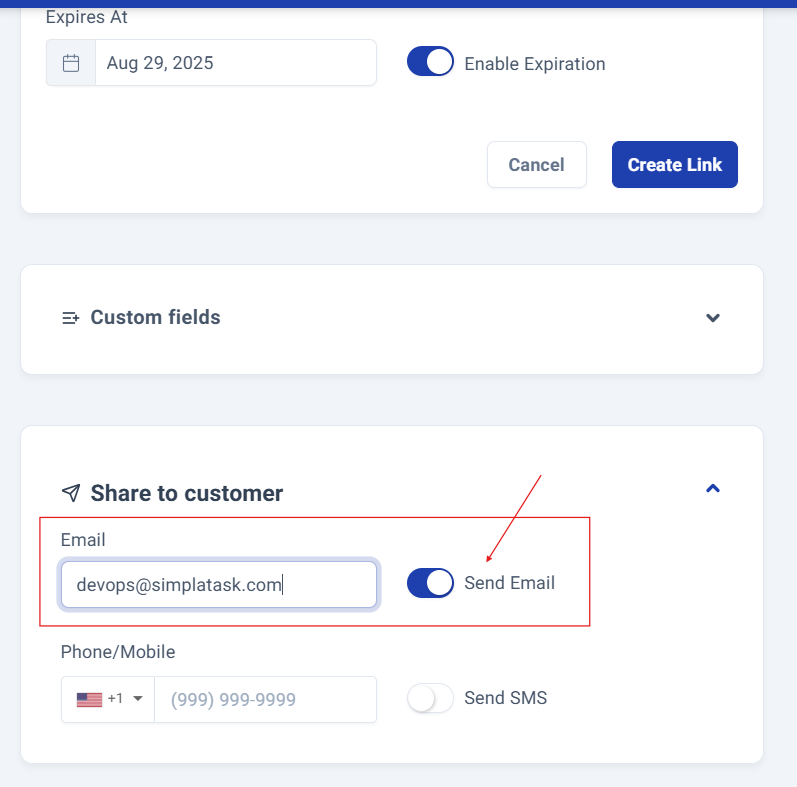
Step 10: Enabling the email option.
If you want to send the payment link to an email, enter the email address in the corresponding field and activate the option. This information will automatically appear in the summary.
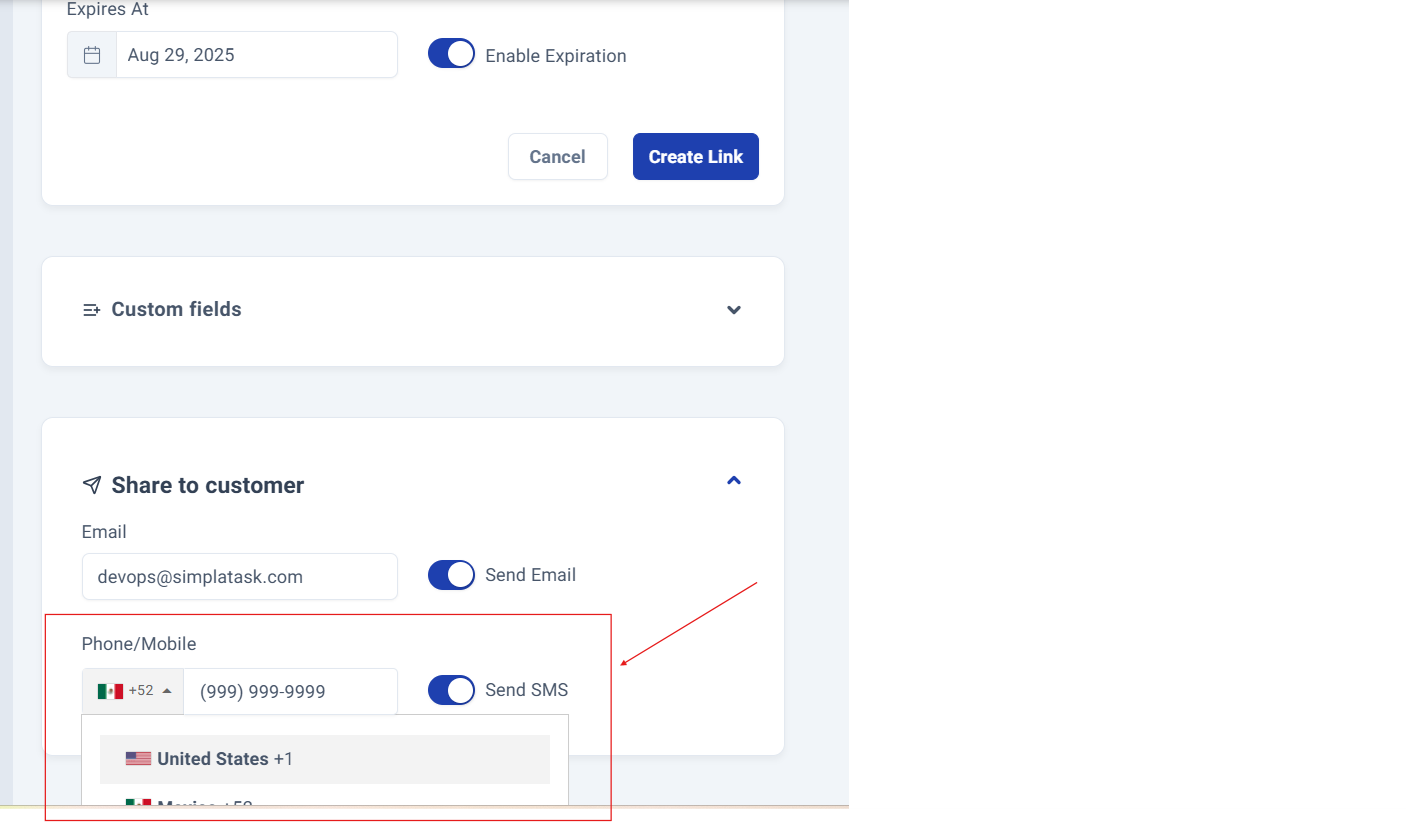
Step 11: Enabling the phone number option.
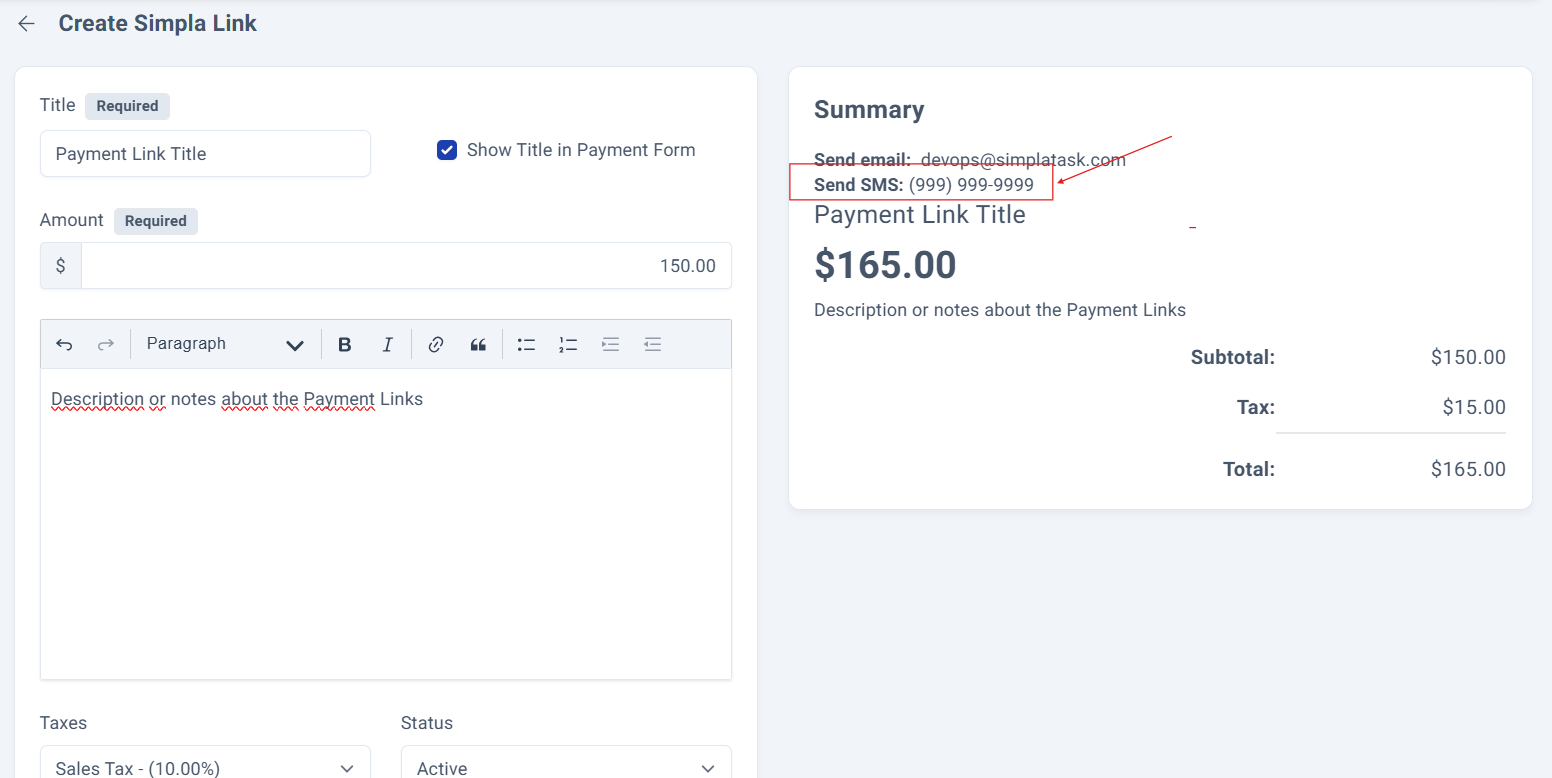
If you want to send the payment link to a phone number, you can select the international area code, enter the number in the corresponding field, and activate the option to send it.
This information will automatically appear on the summary.
Final Review and Saving
Step 12: Creating the payment link.
Finally, click on the "Create Link" button to save your created payment link.
A window will appear with the generated link and de option to copy it.
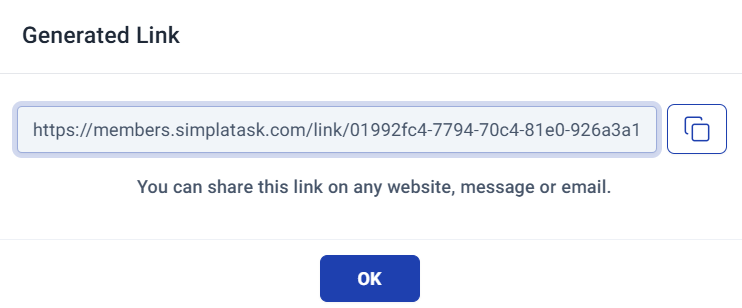
When you click the OK button, it will automatically send you to the payment links dashboard.
Process Complete!
You have successfully created your Simpla Link. The payment link will be tracked in your SimplaTask dashboard.
Was this article helpful?
That’s Great!
Thank you for your feedback
Sorry! We couldn't be helpful
Thank you for your feedback
Feedback sent
We appreciate your effort and will try to fix the article