Table of Contents
How to Import Customers
SimplaTask simplifies the way you create and manage customers, ensuring a fast and efficient process. This guide describes the step-by-step process for importing a customer list from an Excel file (.xlsx) to the SimplaTask platform. The process is simple and intuitive, allowing you to bulk upload customer information in just a few steps.
If you need help updating a customer, click here!
If you need help deleting a customer, click here!
If you need help creating customers, click here!
If you need help managing customer wallet, click here!
Before You Start:
Before starting the import process, ensure you have:
• An Excel file (.xlsx) with customer information.
• Access to the Customers module in the platform.
• Administrator or customer management permissions.
How to Access the Customer Dashboard
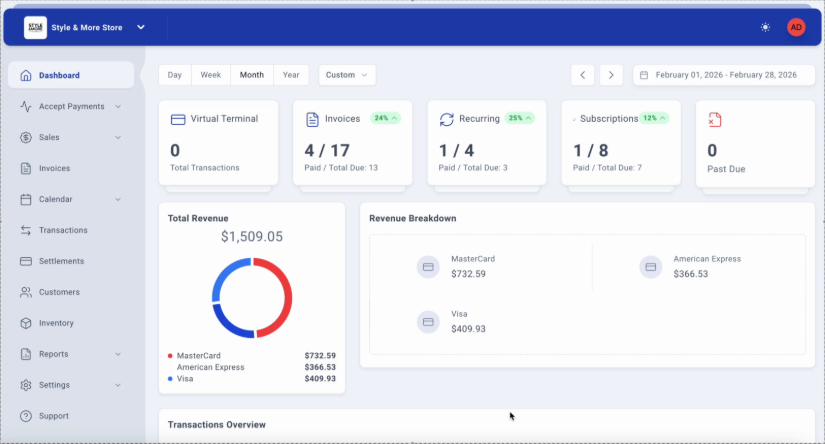
Step 1: Access the Dashboard
Log in to the SimplaTask platform. You will be automatically directed to the main Dashboard, where you can view a summary of your business metrics, including transactions, invoices, recurring payments, and subscriptions.
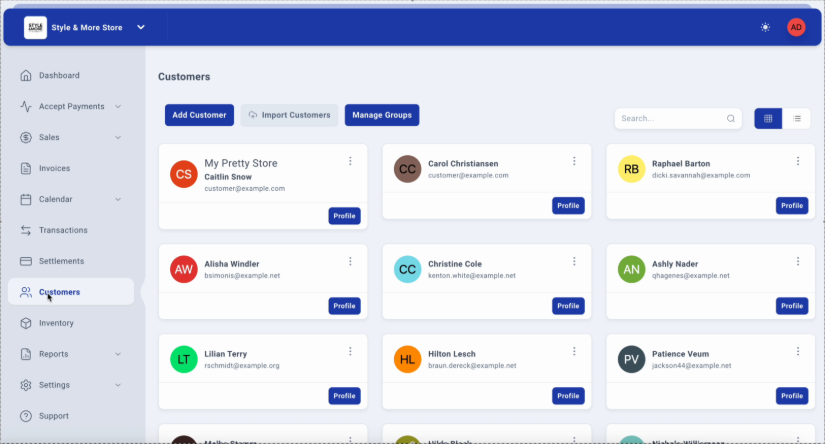
Step 2: Navigate to the Customers Module
In the left sidebar menu, locate and click on the "Customers" option. This will take you to the customer management view, where you can view existing customers in the system.
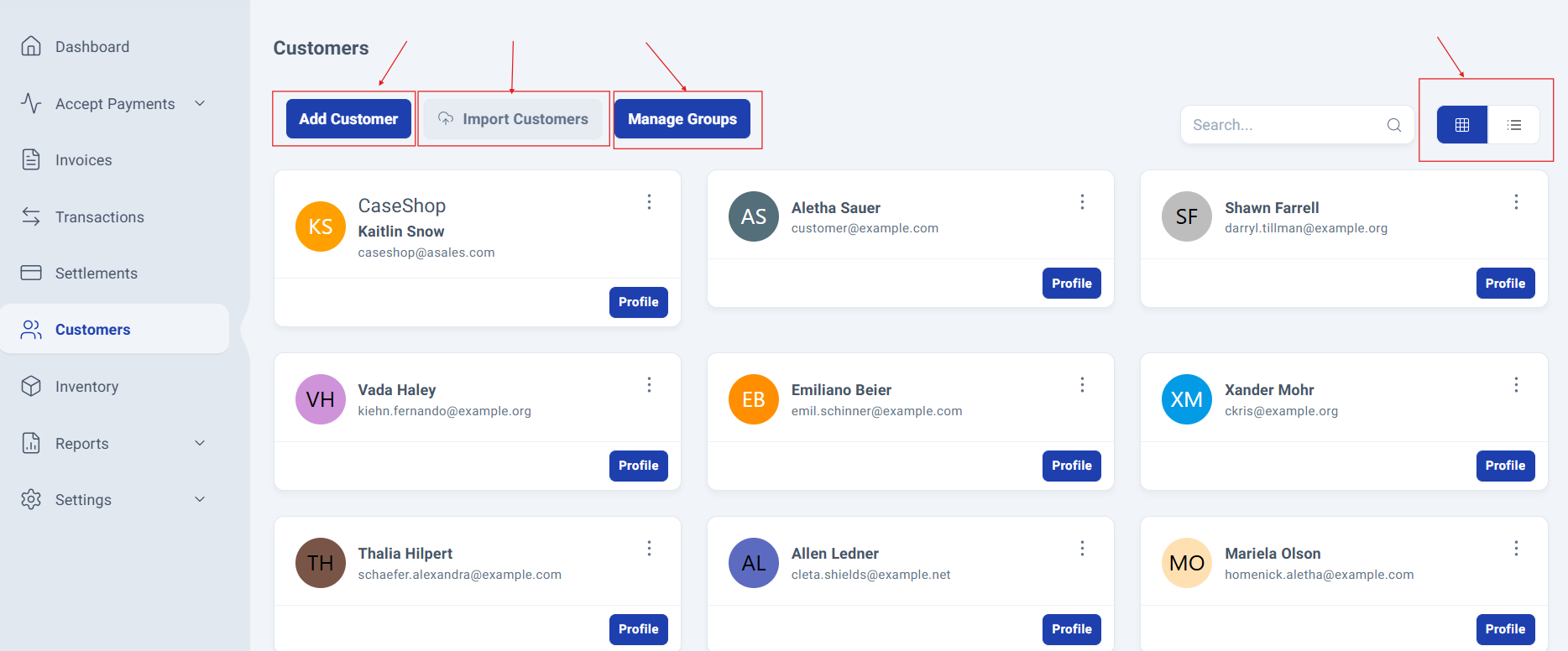
Step 3: Access the Customer Management Panel.
The Customer Management Panel will be displayed, giving you quick access to the following options:
Add Customer
Import Customers
Manage Groups
You’ll also see all previously added customers, with two available viewing modes: Grid (default) and List.
Customer Import Process
Step 4: Start the Import Process
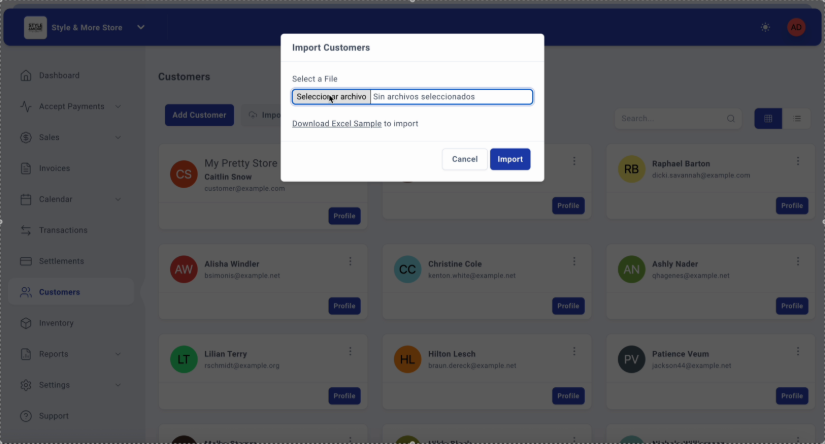
At the top of the Customers page, locate the "Import Customers" button and click on it. A modal dialog box titled "Import Customers" will open, allowing you to select the file to import.
Step 5: Select the Excel File
In the dialog box, click the "Select File" button. Your operating system's file explorer will open. Navigate to the location where your Excel file with customer data is stored.
Note: If you don't have a sample file, you can click on the "Download Excel Sample" link to download a template with the correct format.
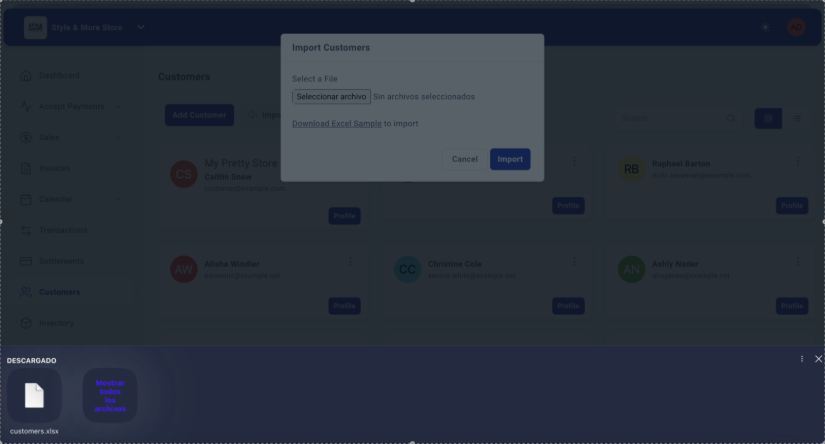
Step 6: Confirm File Selection
Once you have selected your Excel file (for example, "customers.xlsx"), the file name will appear in the selection field. Verify that the correct file has been selected before proceeding.
When ready, click the "Import" button to start the import process.
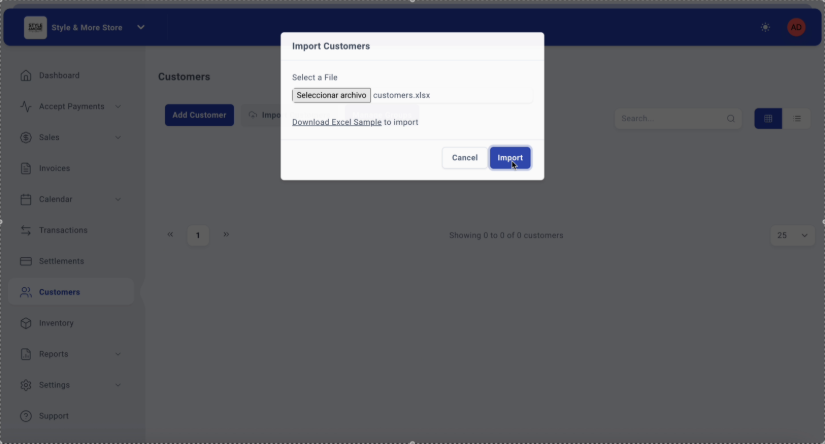
Step 7: Verify Successful Import
The system will process the file and display a confirmation notification at the top of the screen indicating "Customers has been Import Successfully!" This notification confirms that customers have been successfully imported into the system.
The dialog box will close automatically and you will be able to see the success message for a few seconds before it disappears.
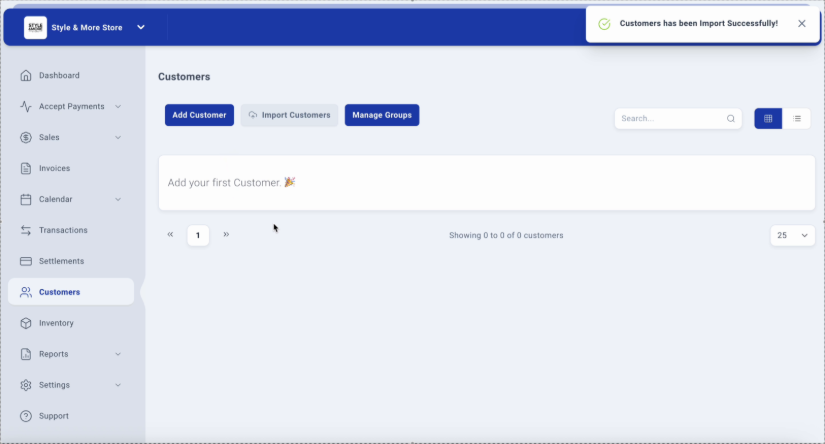
Step 8: Return to Dashboard
After completing the import, you can continue working on the platform. If you want to check general metrics or perform other operations, click on "Dashboard" in the sidebar menu to return to the main view.
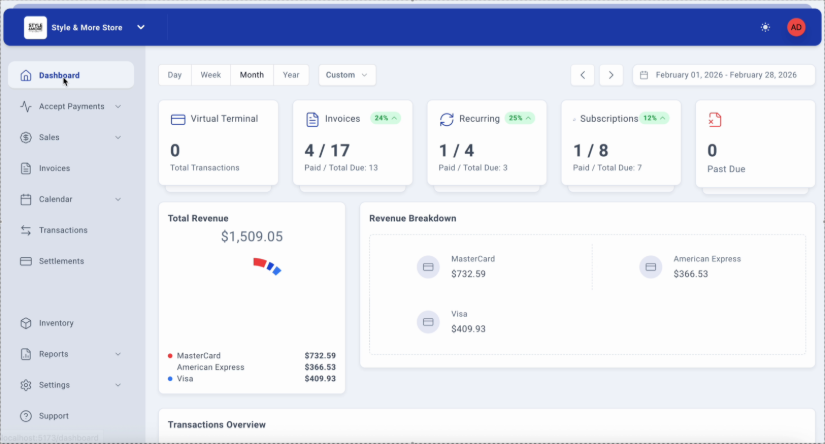
Troubleshooting
File Not Importing
If the system does not accept your file, verify that:
• The file has an .xlsx extension
• The format matches the provided template
• Required fields are complete in all rows
Duplicate Data
The system automatically detects duplicate records based on email address. If you attempt to import customers with existing email addresses, the system will skip them and continue with the remaining records.
Slow Import Process
For files with a large number of records (more than 1,000 customers), the process may take a few minutes. Please do not close the browser window during the import.
Best Practices
- Validate your data: Before importing, review that all email addresses are valid and unique.
- Perform tests: Import a small test file first to verify the format.
- Maintain backups: Save a copy of your original file before importing.
- Import during off-peak hours: For large files, consider performing the import during times when the system has less load.
Process Complete!
The SimplaTask customer import functionality allows you to add multiple customers to your system efficiently. By following these steps, you can keep your customer database up-to-date and organized.
Was this article helpful?
That’s Great!
Thank you for your feedback
Sorry! We couldn't be helpful
Thank you for your feedback
Feedback sent
We appreciate your effort and will try to fix the article