Table of Contents
How To Add Payment Methods
SimplaTask streamlines your billing management with an intuitive interface that makes updating your information quick and effortless. This guide provides everything you need to manage your billing details from initial setup to ongoing updates.
If you need assistance with updating billing information , click here!
Prerequisites:
Access Requirements: You must have Manager, Admin, or Owner-level permissions to add payment methods and card details.
Accessing Your Billing Dashboard
Step 1: Navigate to Billing.
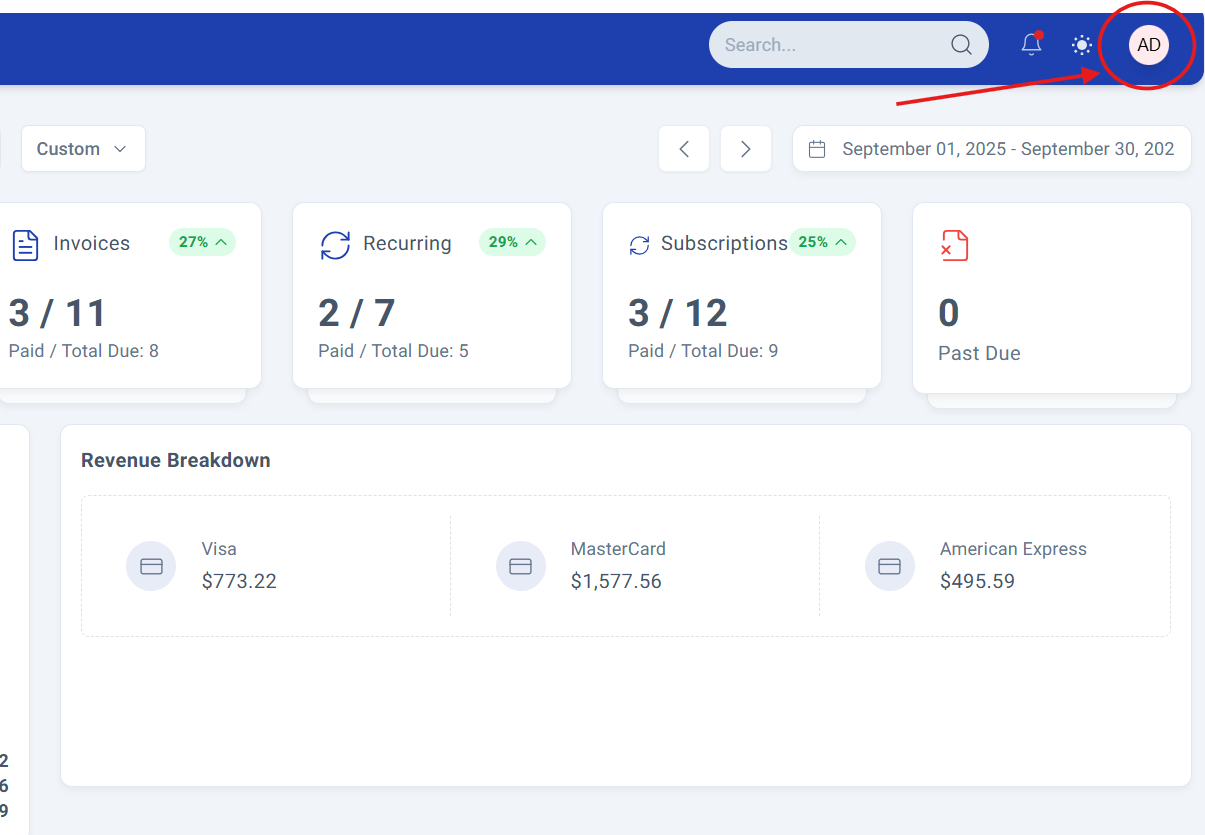
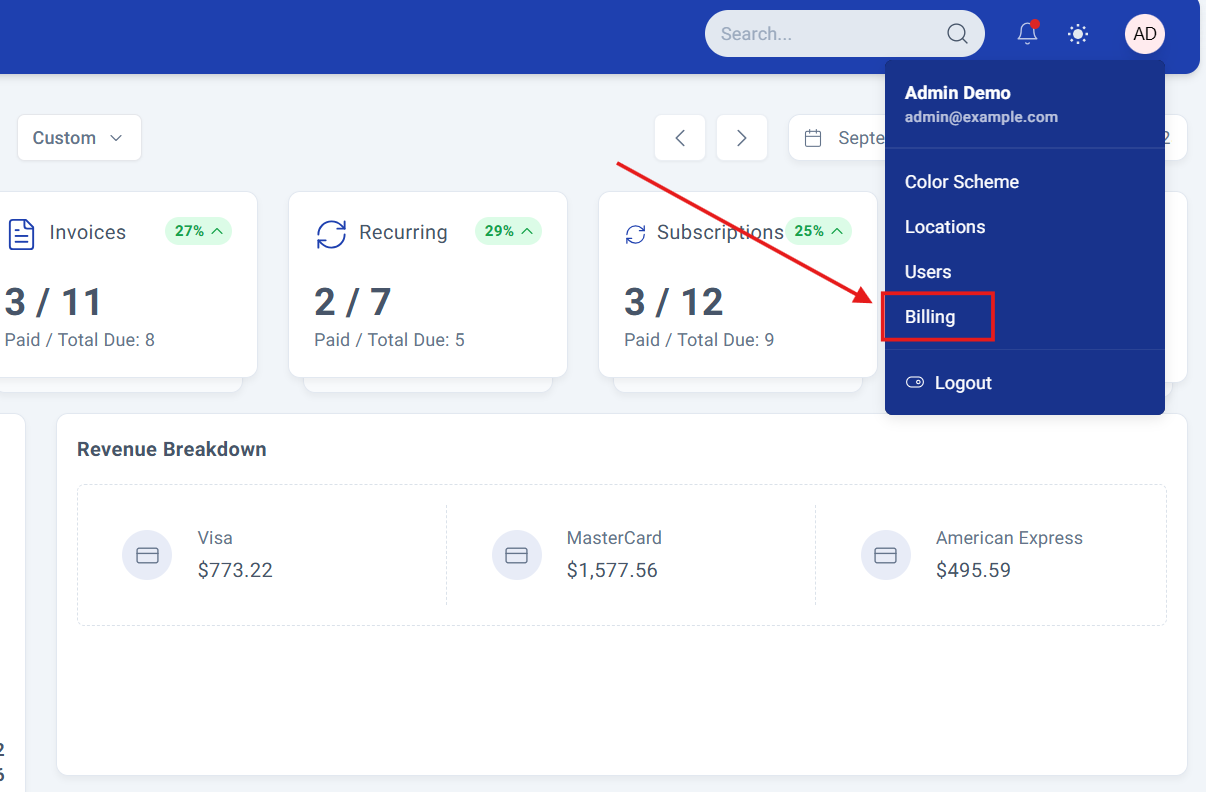
From your main dashboard, click your profile dropdown in the upper right corner and select "Billing" from the menu options.
Step 2: Understanding Your Dashboard.
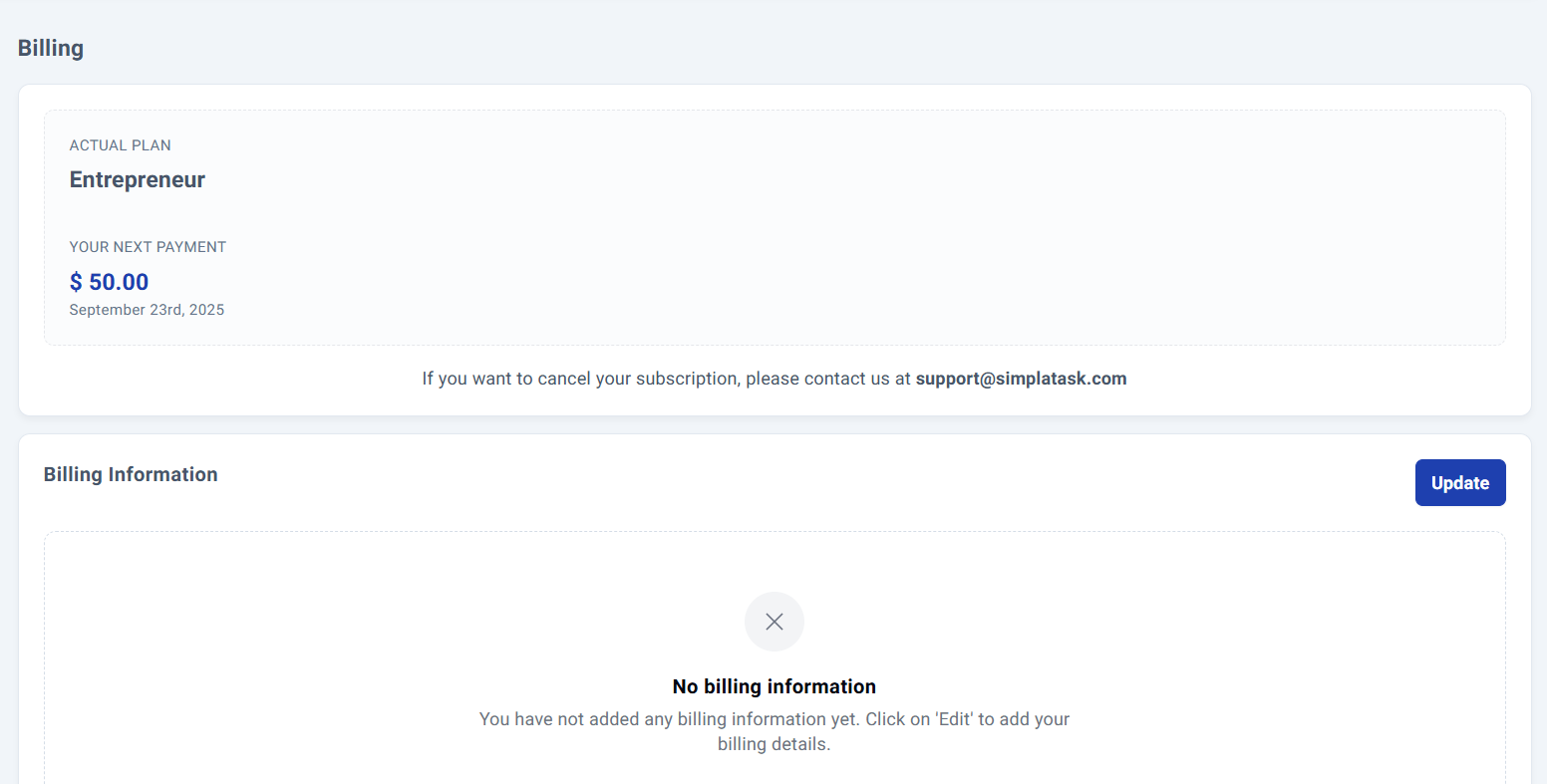
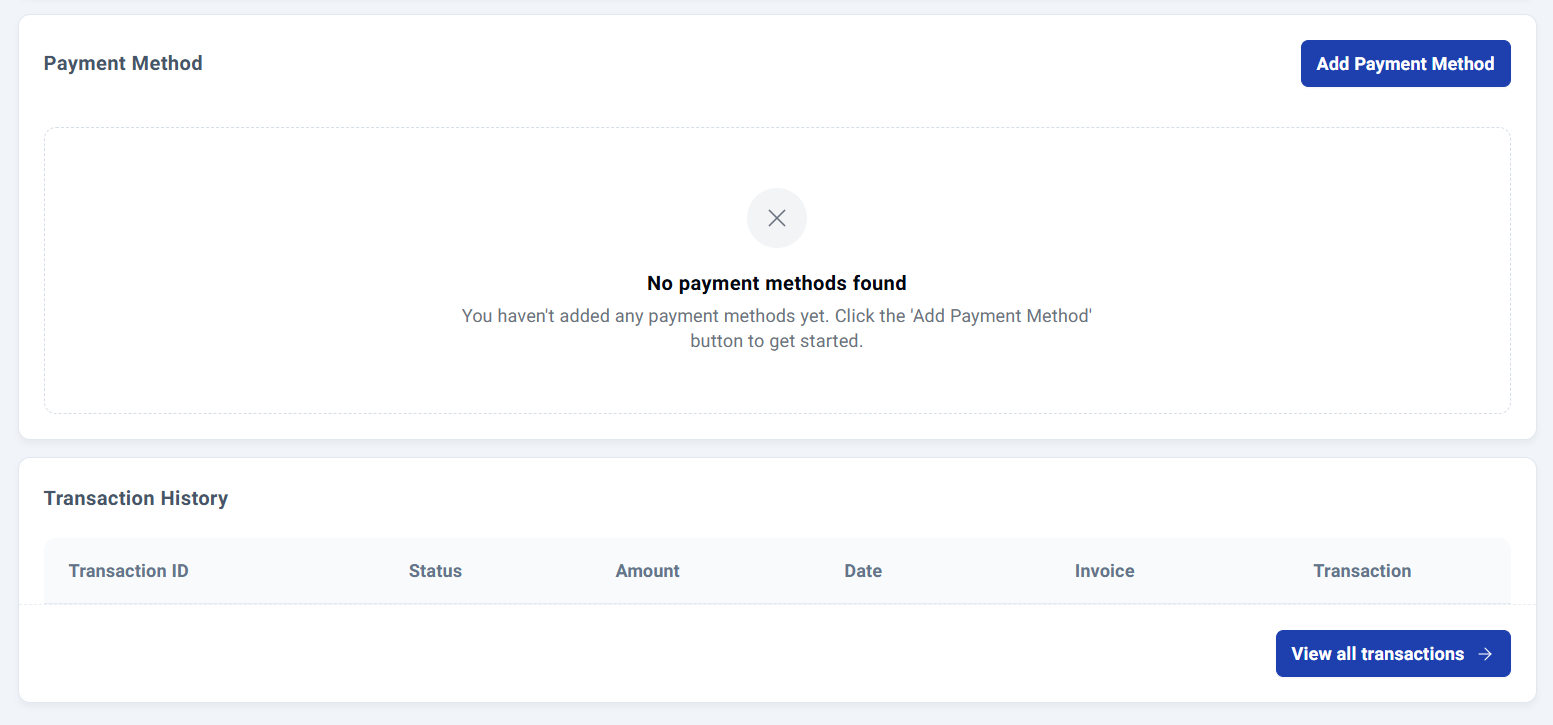
Your billing dashboard provides a comprehensive overview of your current plan, billing information, payment methods, and recent transaction history. For new accounts, you'll see empty sections ready for your information.
Setting Up Payment Methods.
Step 3: Add Your Card Details.
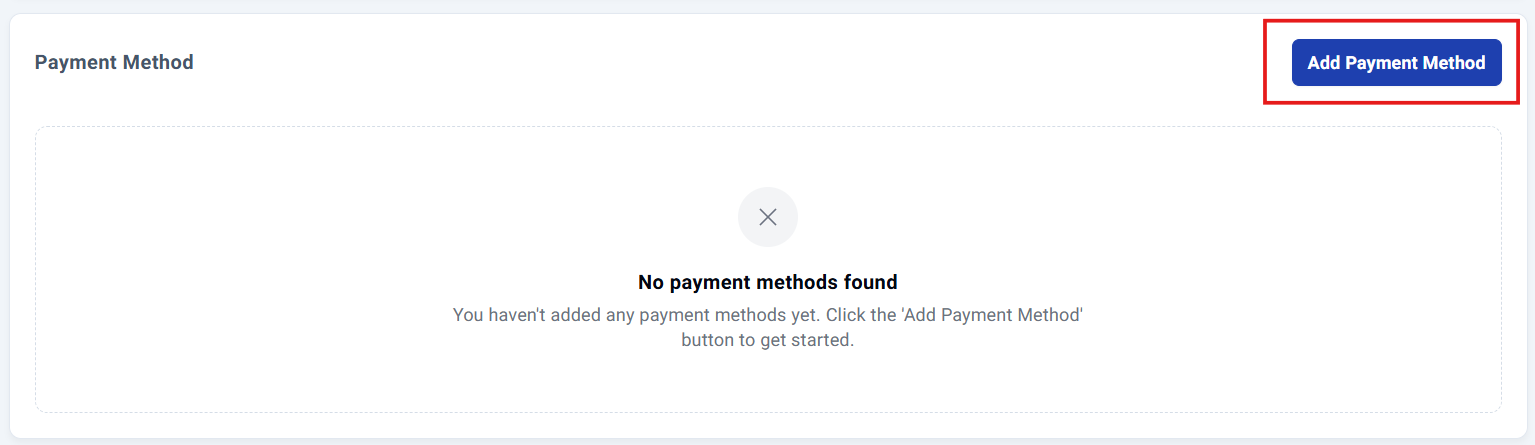
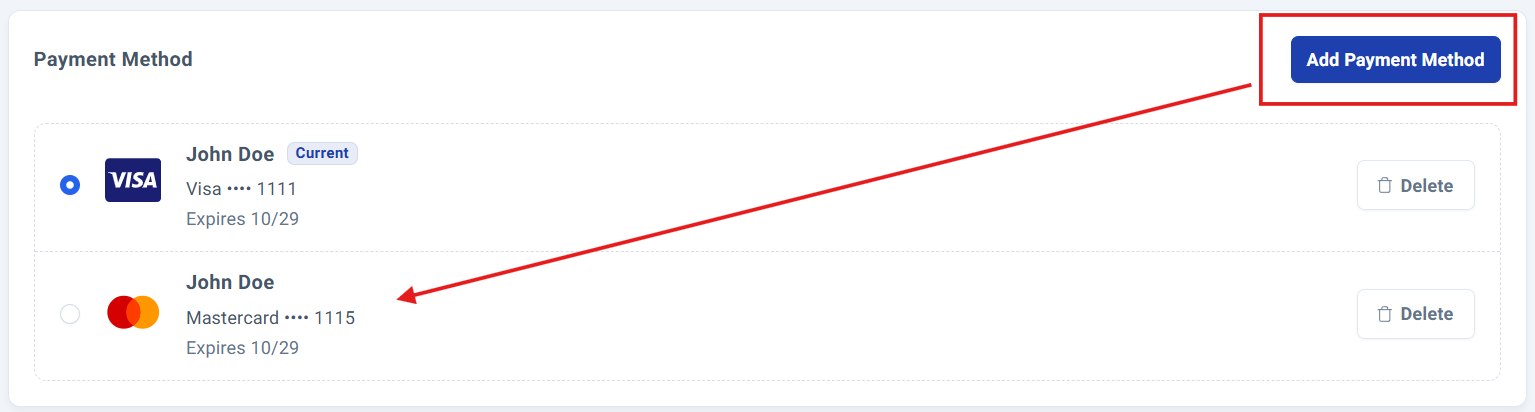
Click the "Add Payment Method" button in the payment method section to open the data entry form.
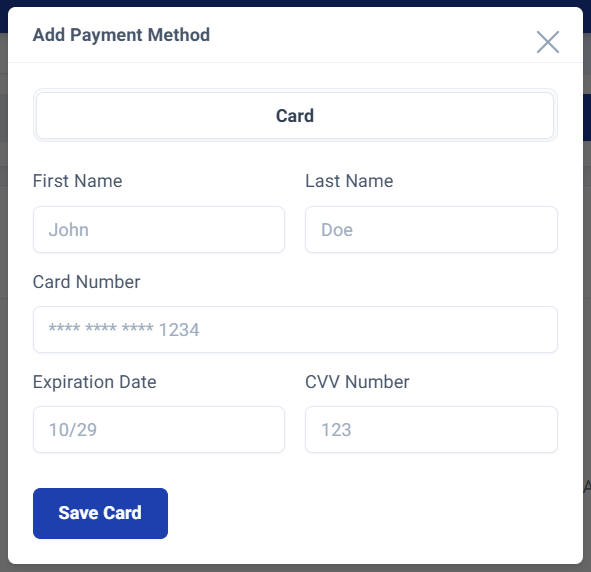
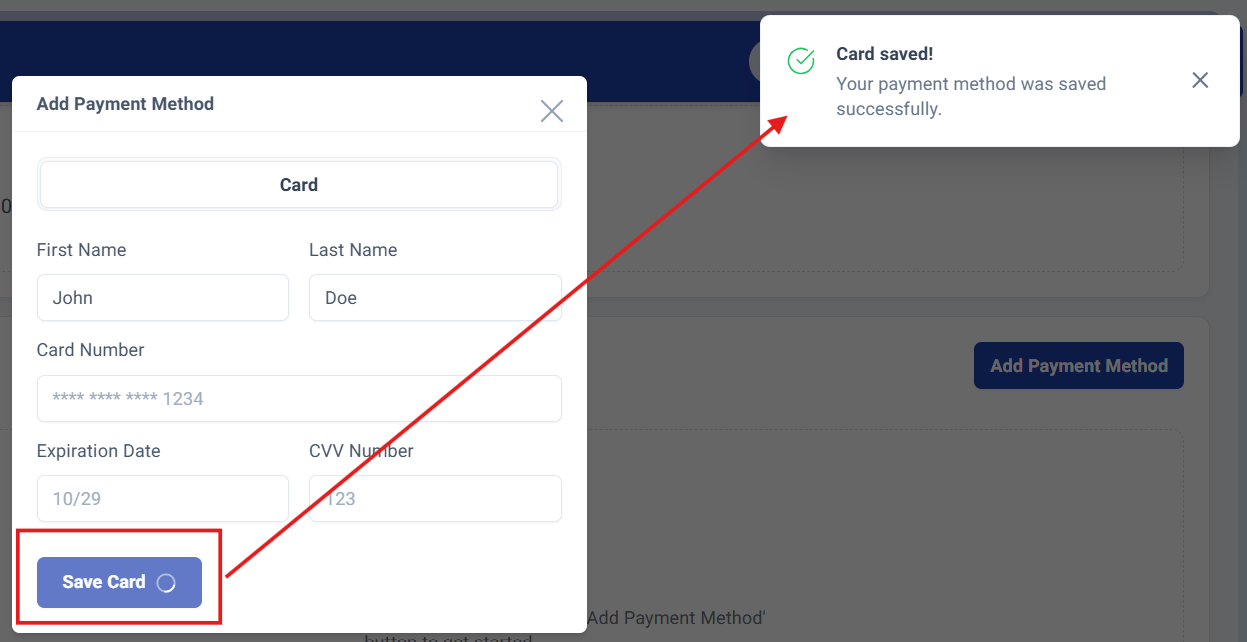
Complete all required fields and click "Save Card" to store your information securely.
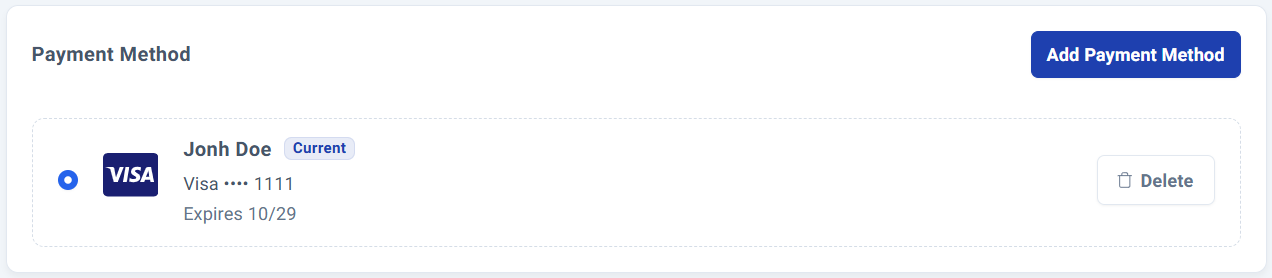
Your newly saved card details will immediately appear in the dashboard.
Step 4: Adding new payment methods.
Adding new payment methods is simple, just follow the same steps outlined above. Each card you register will appear in your dashboard, with your active payment method clearly marked as "Current".
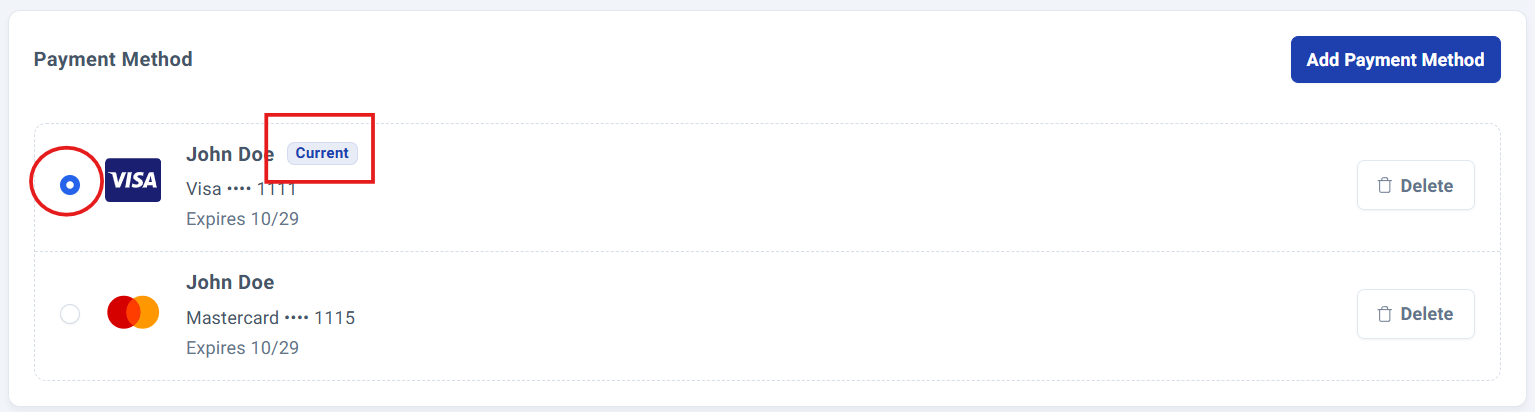
Step 5: Switching between payment methods.
Switch between payment methods effortlessly by clicking the selection circle on the left side of any card. Your chosen method will automatically be used for all future transactions.
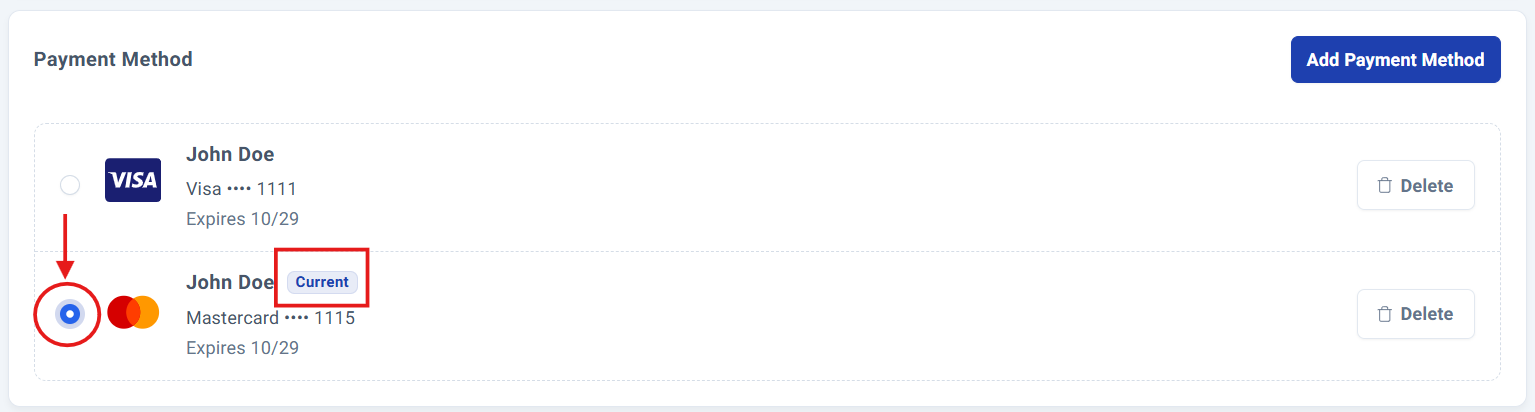
Removing Outdated Payment Methods.
Step 6: Remove Your Card Details.
Remove outdated payment methods with a single click on the trash icon.
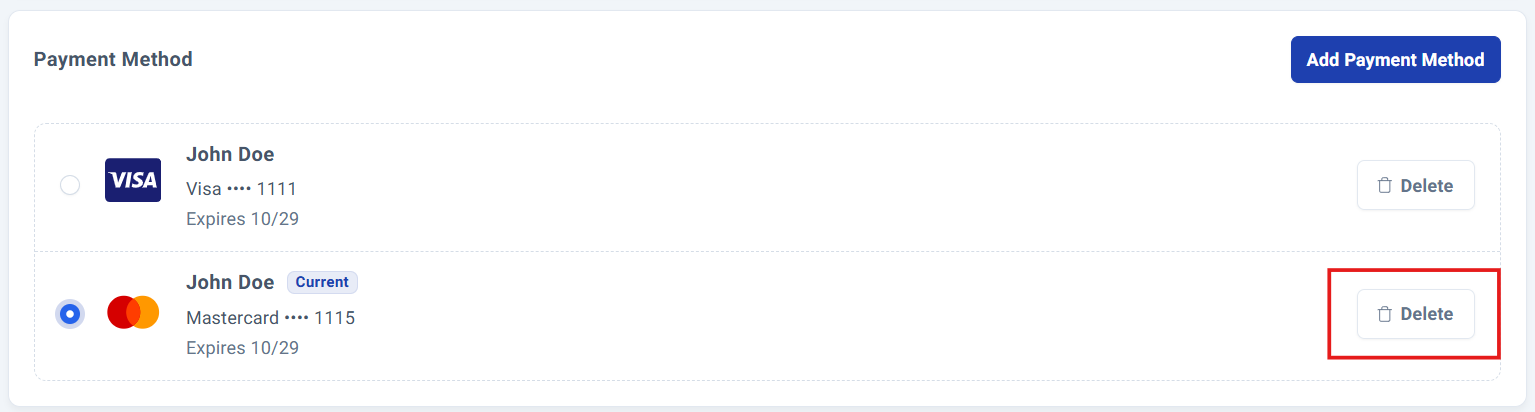
The system will prompt you to confirm your decision before permanently removing the method from your account.
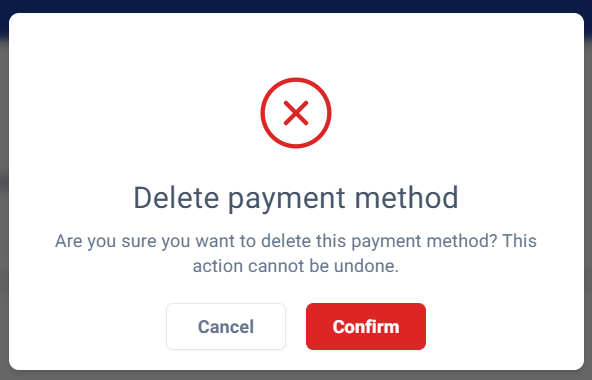

NOTE: You can add and remove payment methods as needed to keep your account current.
Transaction History.
Transaction history section.
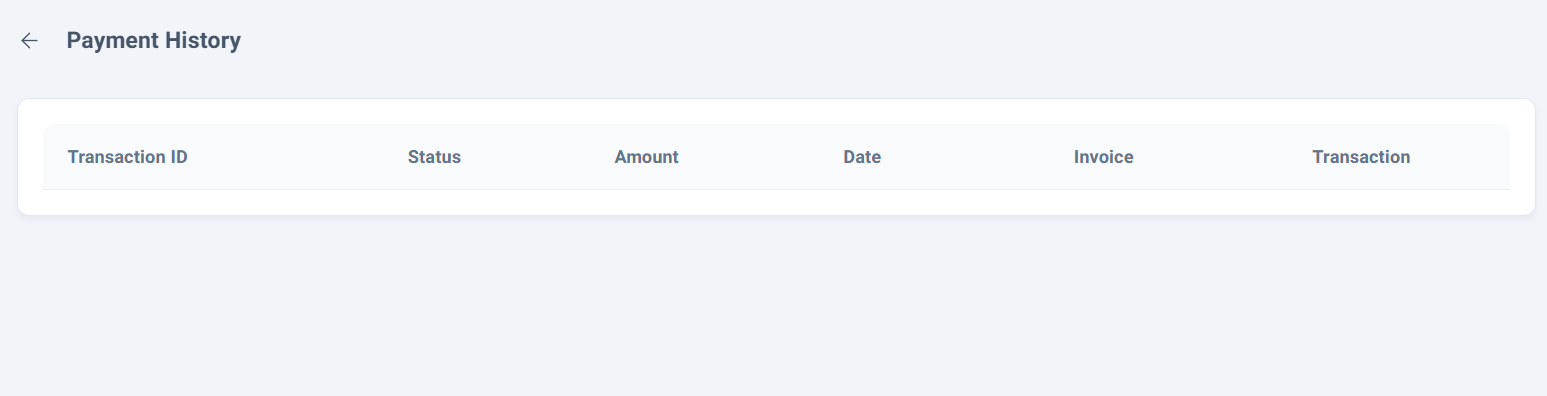
Your billing dashboard includes a comprehensive transaction history section at the bottom, providing instant access to payment status, amounts, dates, invoices, and transaction descriptions.

The dashboard displays your 10 most recent transactions by default. For complete payment history, simply click "View All Transactions" to access your full transaction record.

Process Complete!
Your payment methods has been successfully setted up and is now active in your account. All future transactions will use your card details selected.
For additional support with billing or payment questions, contact our customer success team.
Was this article helpful?
That’s Great!
Thank you for your feedback
Sorry! We couldn't be helpful
Thank you for your feedback
Feedback sent
We appreciate your effort and will try to fix the article