Table of Contents
How To Update Billing Information
SimplaTask streamlines your billing management with an intuitive interface that makes updating your information quick and effortless. This guide provides everything you need to manage your billing details from initial setup to ongoing updates.
If you need assistance with payment methods , click here!
Prerequisites:
Access Requirements: You must have Manager, Admin, or Owner-level permissions to modify billing information.
Accessing Your Billing Dashboard
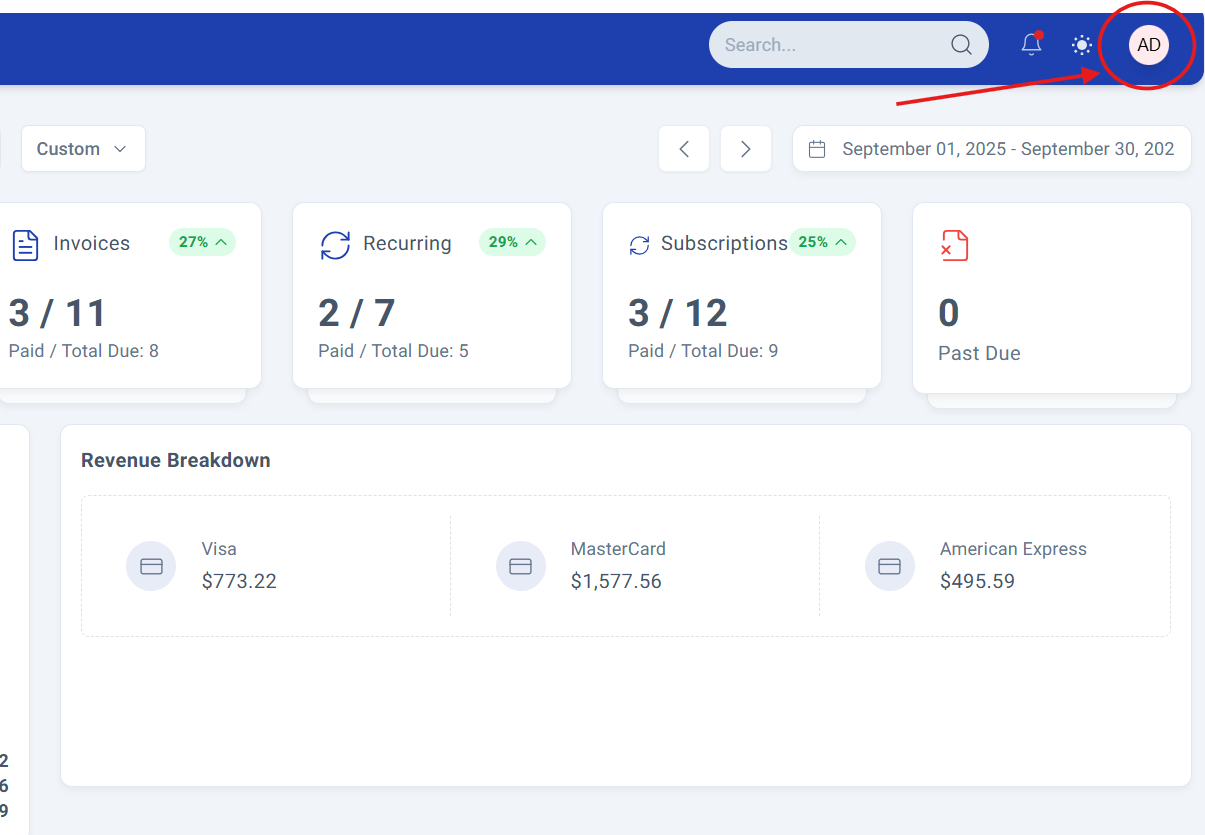
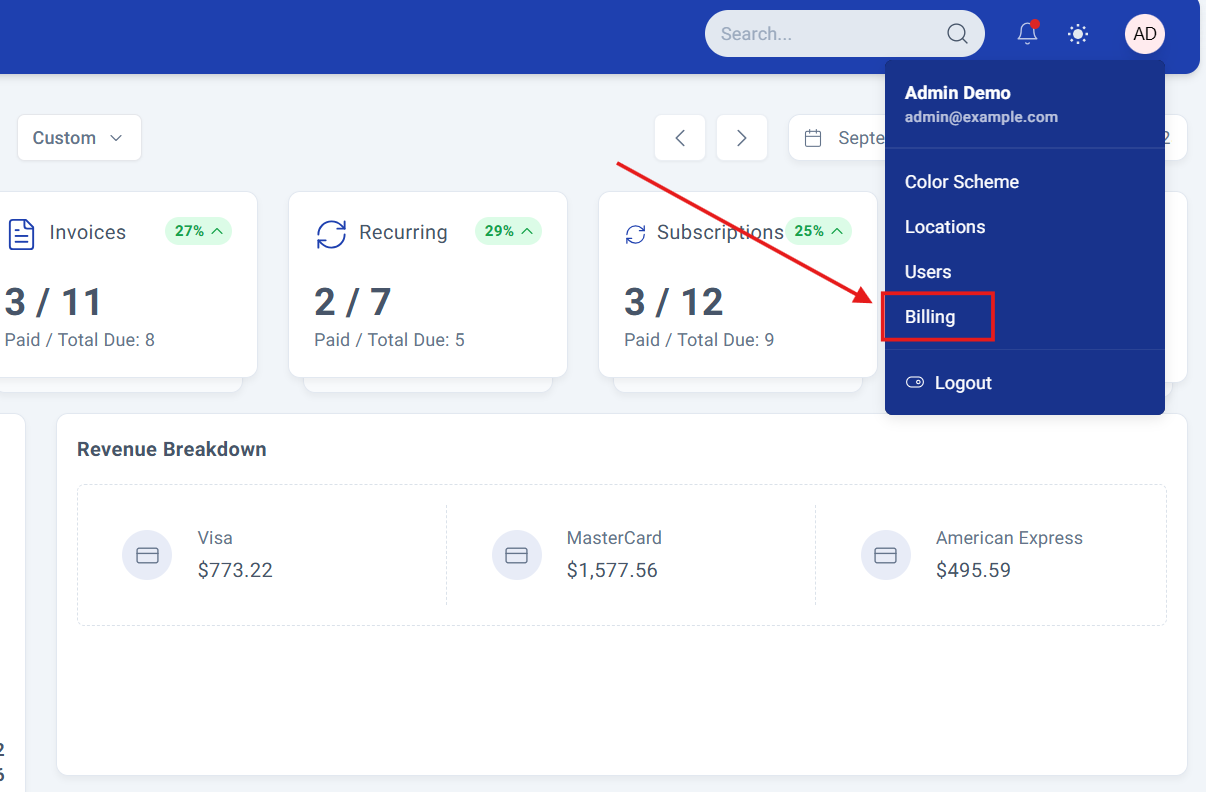
Step 1: Navigate to Billing.
From your main dashboard, click your profile dropdown in the upper right corner and select "Billing" from the menu options.
Step 2: Understanding Your Dashboard.
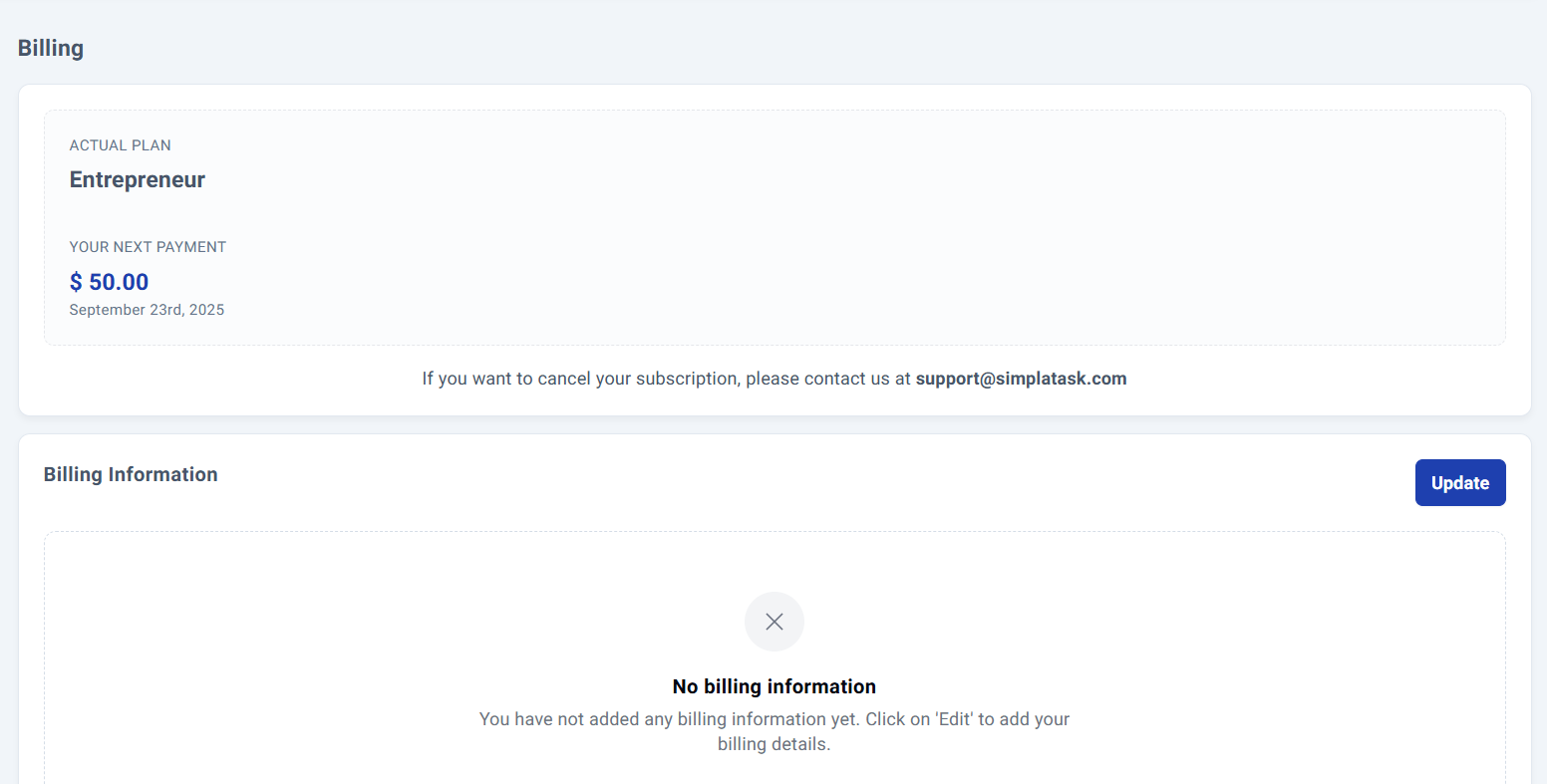
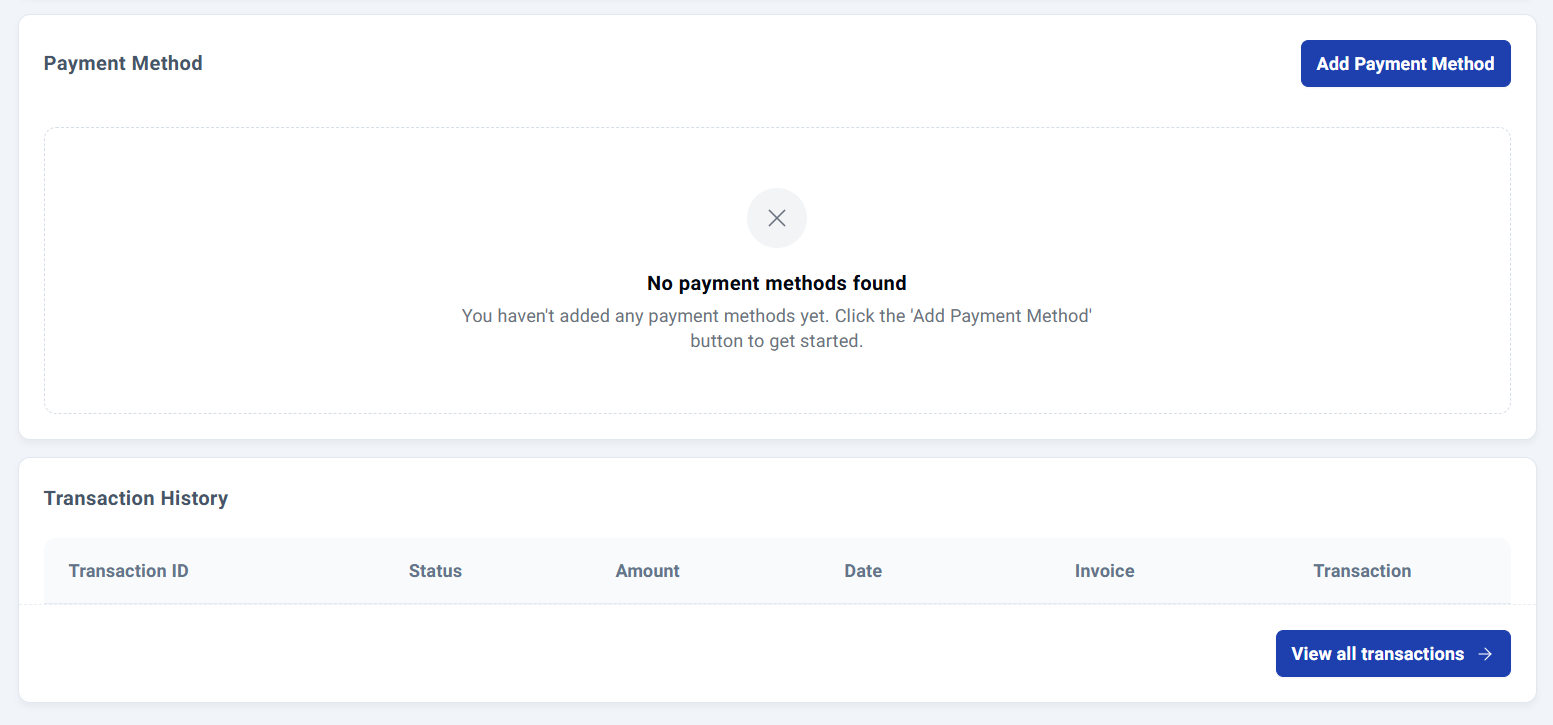
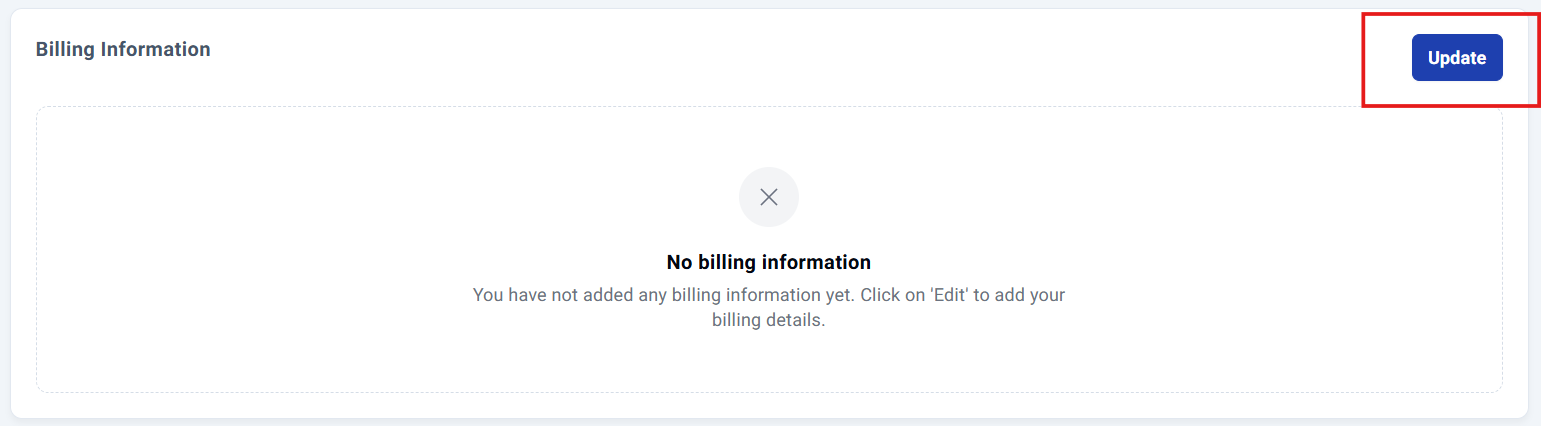
Your billing dashboard provides a comprehensive overview of your current plan, billing information, payment methods and recent transaction history. For new accounts, you'll see empty sections ready for your information.
Setting Up Billing Information.
Step 3: Add Your Details.
Click the "Update" button in the billing information section to open the data entry form.
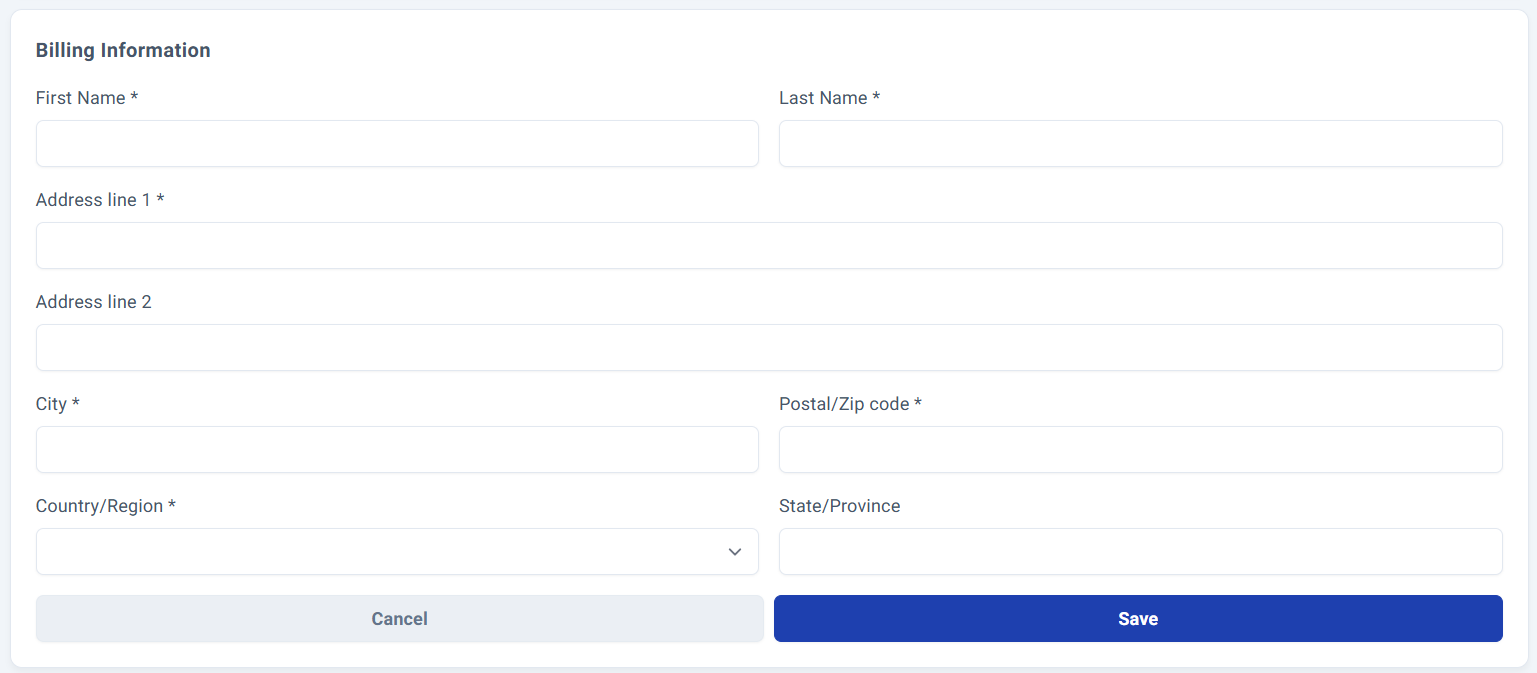
Complete all required fields and click "Save" to store your information securely.
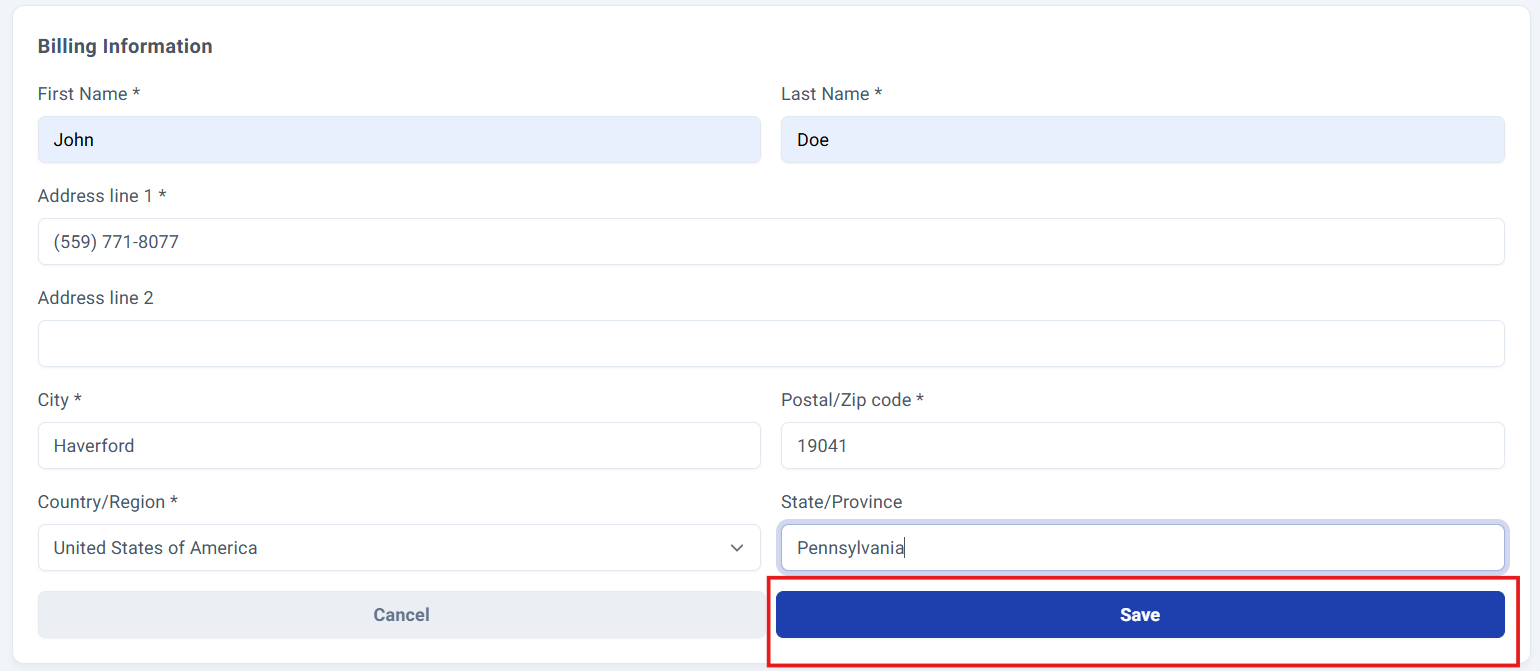
Your newly saved billing details will immediately appear in the dashboard.

Updating Existing Information.
Step 4: Modify Your Details.
To update existing billing information, click the "Update" button to access the editable form.

Your current information will be pre-populated, allowing you to modify only the fields that need changes.
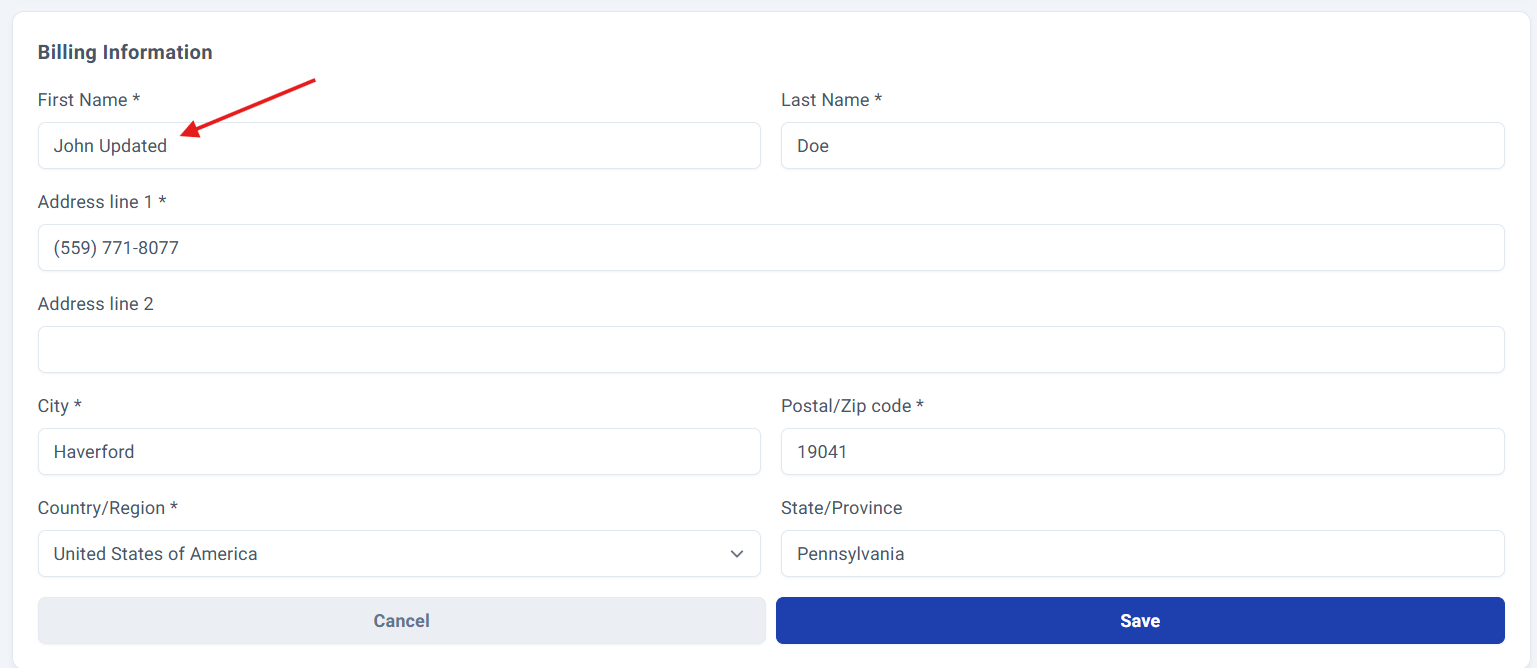
Click "Save" to confirm your updates and store the new information.

Transaction History.
Transaction history section.
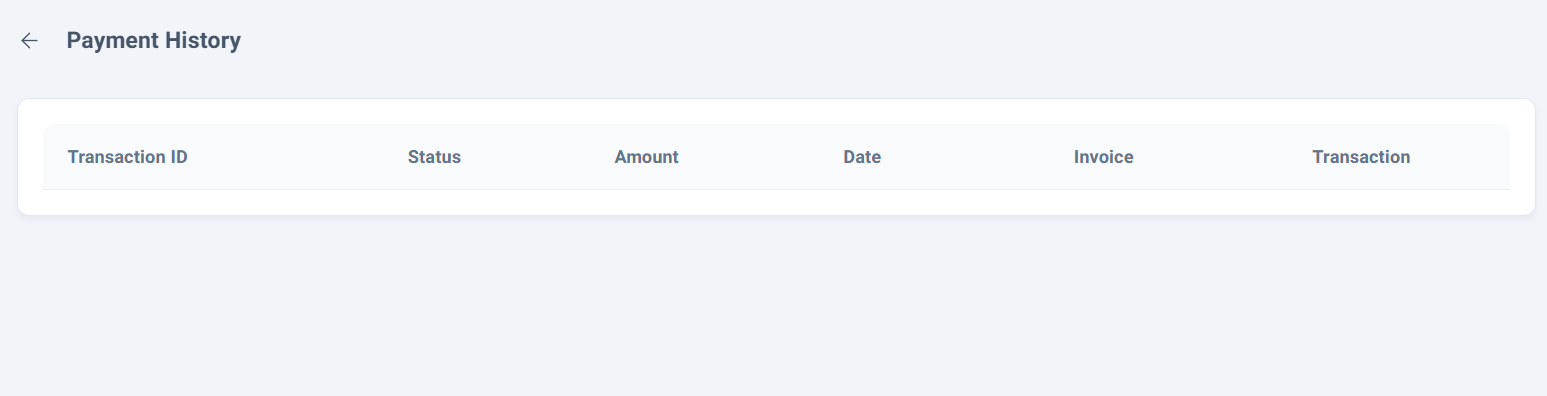
Your billing dashboard includes a comprehensive transaction history section at the bottom, providing instant access to payment status, amounts, dates, invoices, and transaction descriptions.

The dashboard displays your 10 most recent transactions by default. For complete payment history, simply click "View All Transactions" to access your full transaction record.

Process Complete!
Your billing information has been successfully updated and is now active in your account. All future transactions will use your updated details.
For additional support with billing or payment questions, contact our customer success team.
Was this article helpful?
That’s Great!
Thank you for your feedback
Sorry! We couldn't be helpful
Thank you for your feedback
Feedback sent
We appreciate your effort and will try to fix the article