Table of Contents
How to Create a Subscription Invoice
SimplaTask streamlines the invoicing process, allowing you to create and send professional invoices to your customers efficiently. This comprehensive guide will walk you through creating a subscription invoice from start to finish.
If you need help creating an One Time Invoice, click here!
If you need help creating a Recurring Invoice, click here!
If you need help creating an Installment Invoice, click here!
If you need help viewing a Details Invoice, click here!
If you need help updating an Invoice, click here!
If you need help sharing an Invoice, click here!
Before You Start:
Before you begin, ensure the following requirements are met:
- Permissions: You need Manager, Admin, or Owner-level access to create invoices.
- Customer Setup: New customers must be added to your ServiceCore account before invoicing.
- Service Catalog: All services and surcharges must be pre-configured in your ServiceCore account.
- Automatic Delivery: Completed invoices are automatically sent to customers.
- Dashboard Tracking: Invoice reminders and status updates appear on your SimplaTask dashboard.
Invoice Creation Process
Step 1: Initiate Invoice Creation.
Navigate to your invoice management section and click the "+Create Invoice" button located in the upper-right corner of the existing invoices list.

Step 2: Access the Invoice Builder.
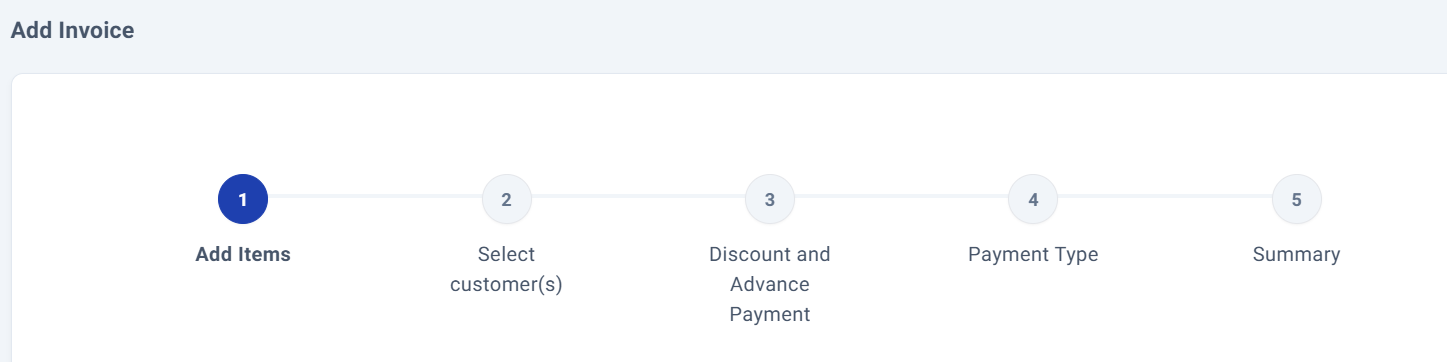
The invoice creation interface opens, displaying a progress indicator at the top showing your current position in the multi-step process.
Adding Items to Your Invoice
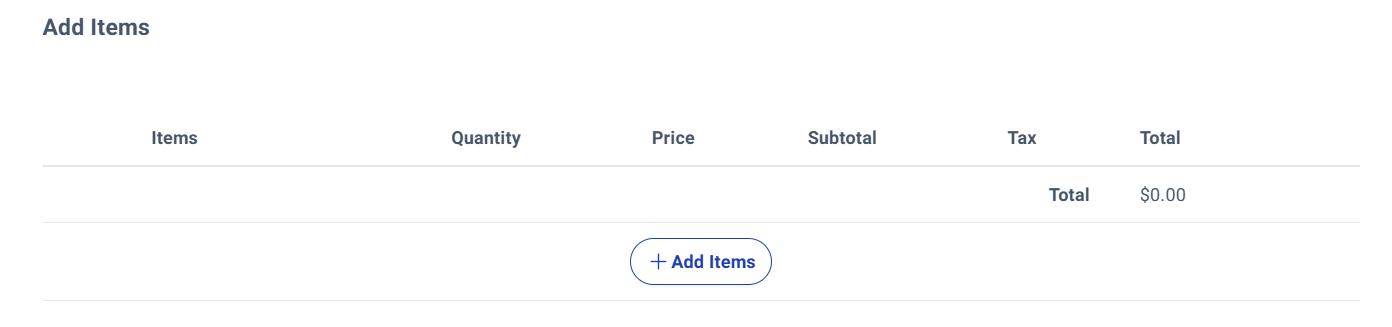
Step 3: Open the Item Catalog.
Click the "+Add Items" button to access your product and service catalog.
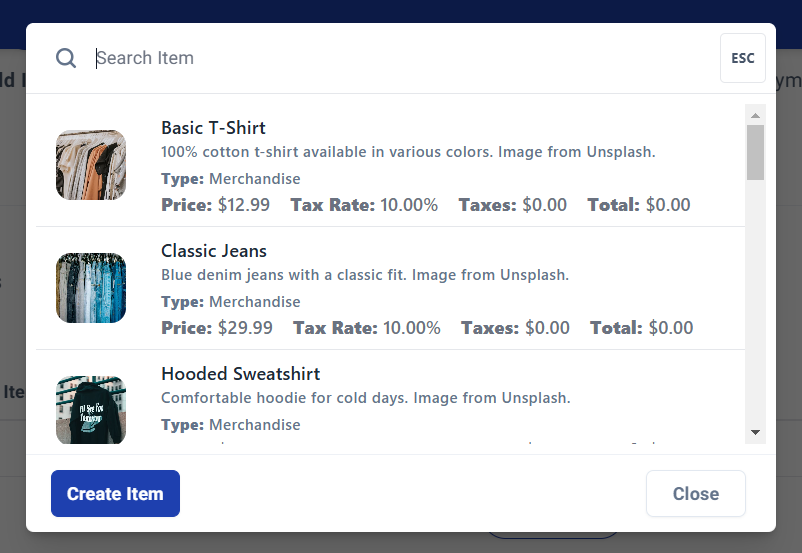
Step 4: Select Products/Services.
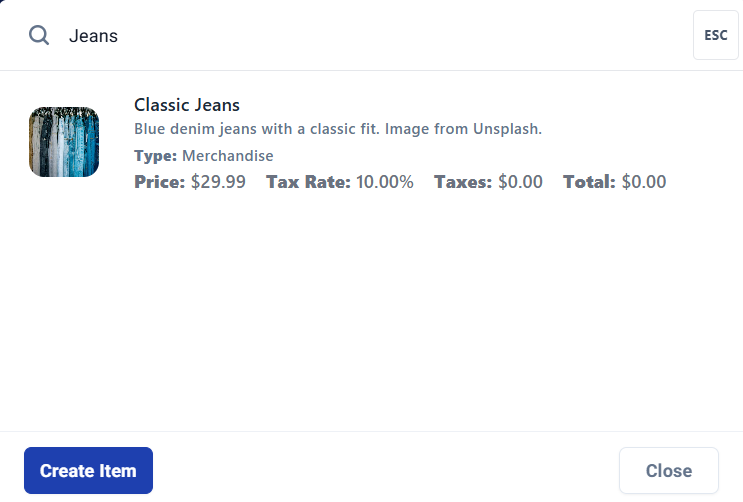
Browse the catalog and click on items to add them to your invoice. Use the search function at the top of the catalog to quickly locate specific items by keyword.
Step 5: Finalize Item Selection.
Select multiple items as needed, they'll be added automatically. When finished, click "Close" to return to the main invoice screen.
Step 6: Configure Item Details.
Review your selected items and configure the following for each:
- Quantity
- Unit price
- Tax settings
The system automatically calculates subtotals and the grand total.
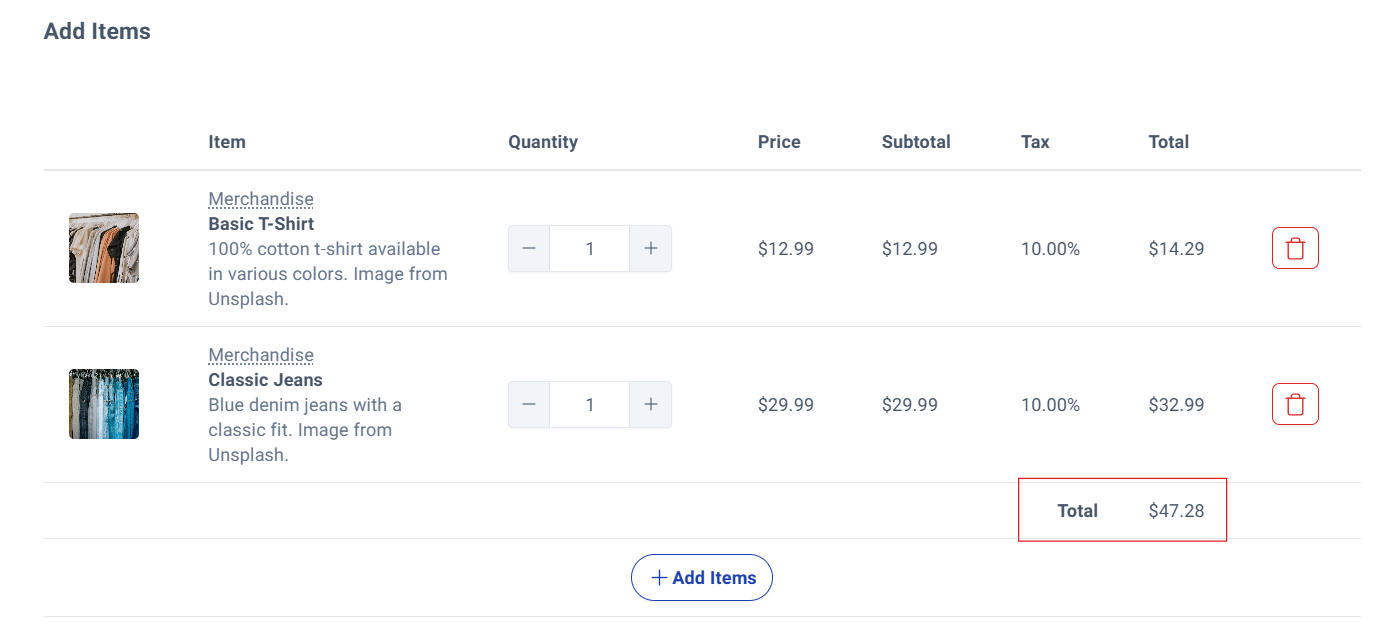
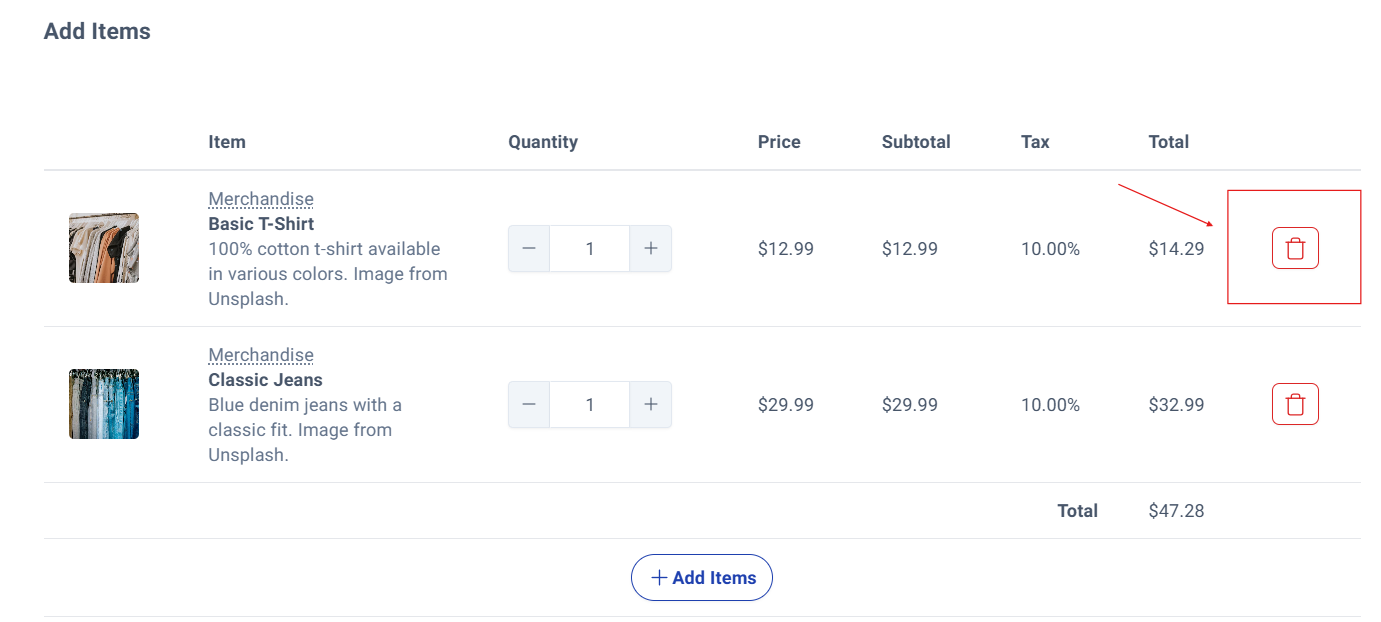
Remove unwanted items using the red trash icon.
Invoice Customization Options
Step 7: Add Invoice Notes and Terms.
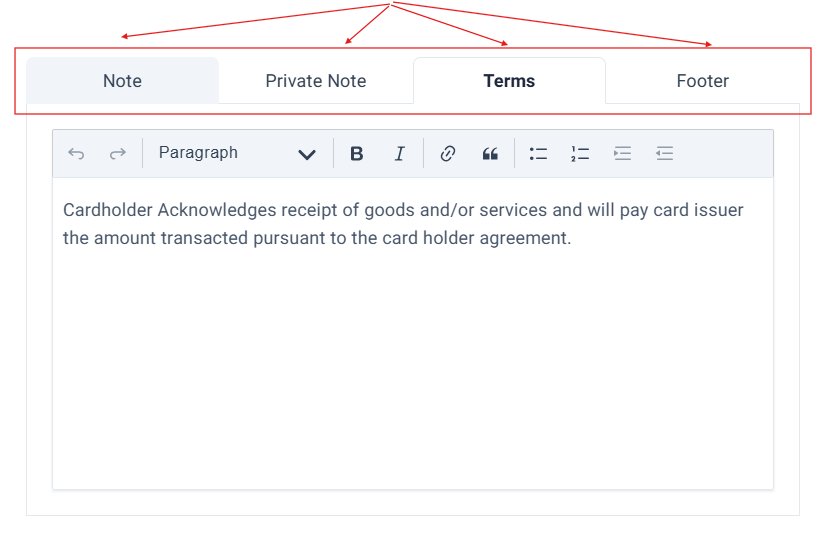
Customize your invoice with additional information using these four options:
- Note: Add customer-visible notes that appear on the invoice
- Private Note: Include internal notes visible only to your organization
- Terms: Specify payment terms and transaction conditions
- Footer: Add custom text at the bottom of the invoice
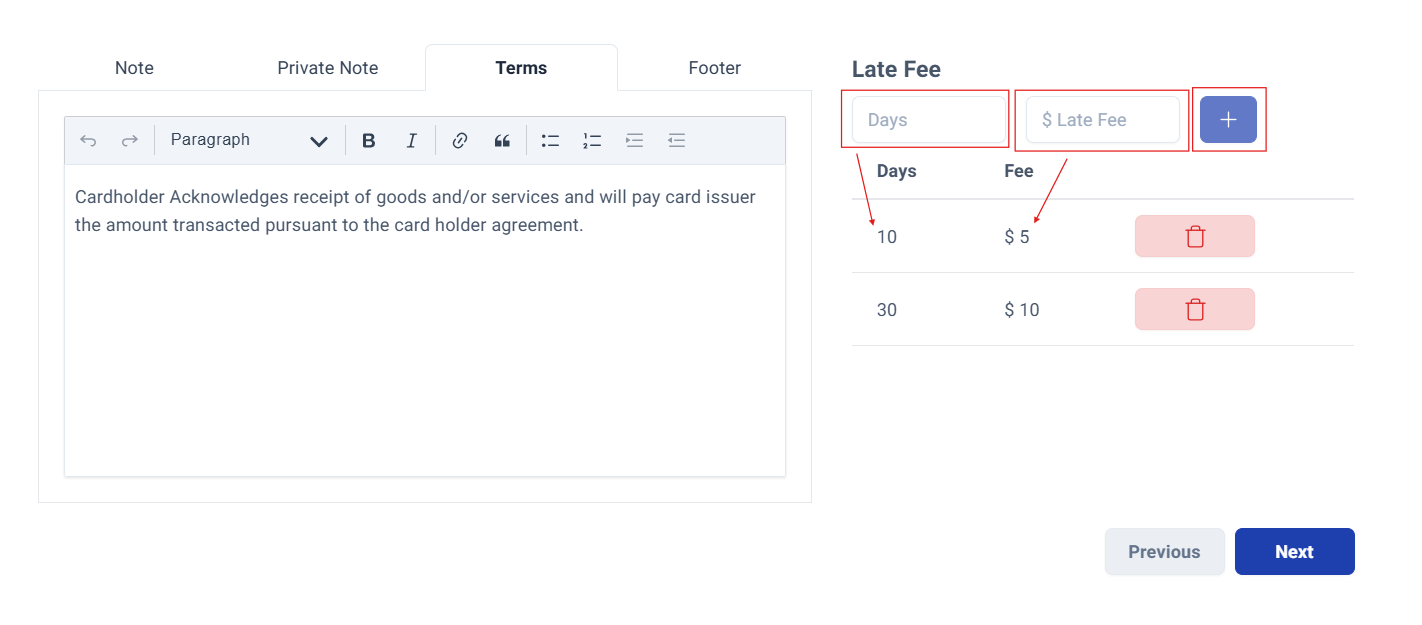
Step 8: Configure Late Payment Fees (Optional).
Set up automatic late payment penalties by specifying:
- Number of days after due date.
- Fee amount or percentage.
- Additional charges as needed.
Step 9: Proceed to Customer Selection.
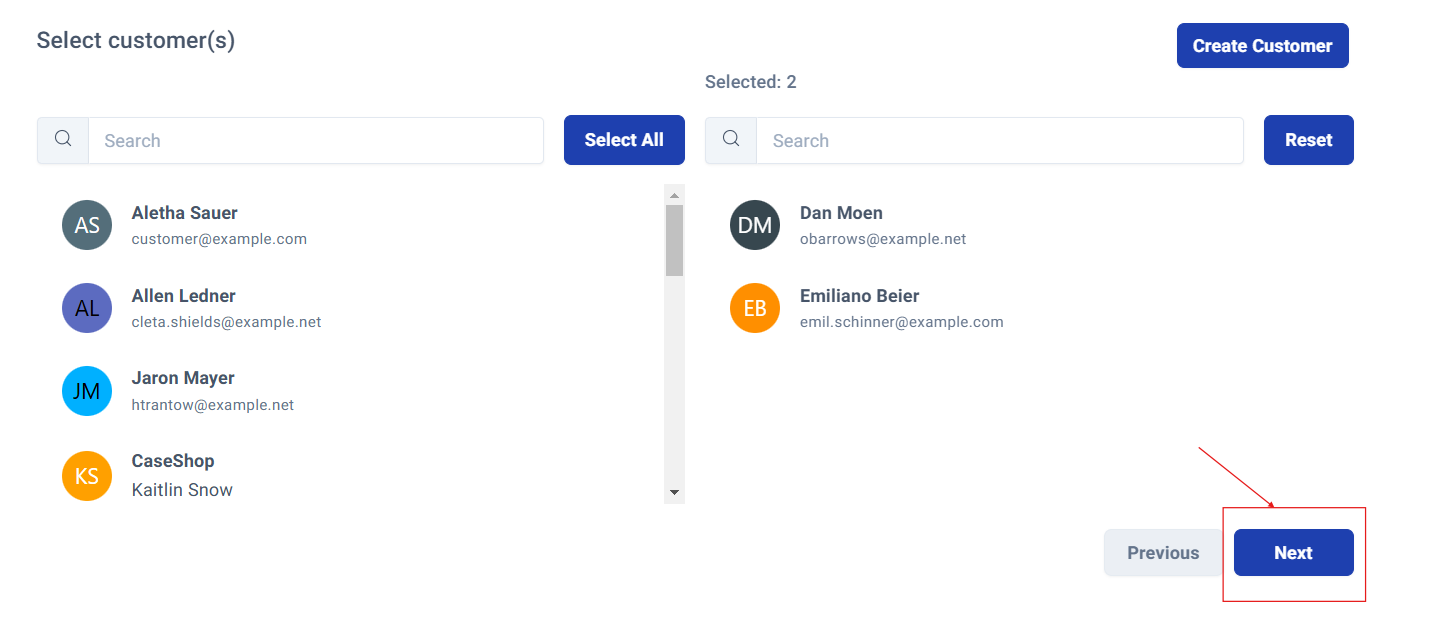
Click "Next" in the bottom-right corner to advance to the customer selection phase.
Customer Selection
Step 10: Choose Billing Recipients.
Select your billing approach from two options:
- Customers: Bill individual customers
- Groups: Bill customer groups

Step 11: Select Individual Customers.
When choosing the Customers option, select one or more recipients from your customer database.
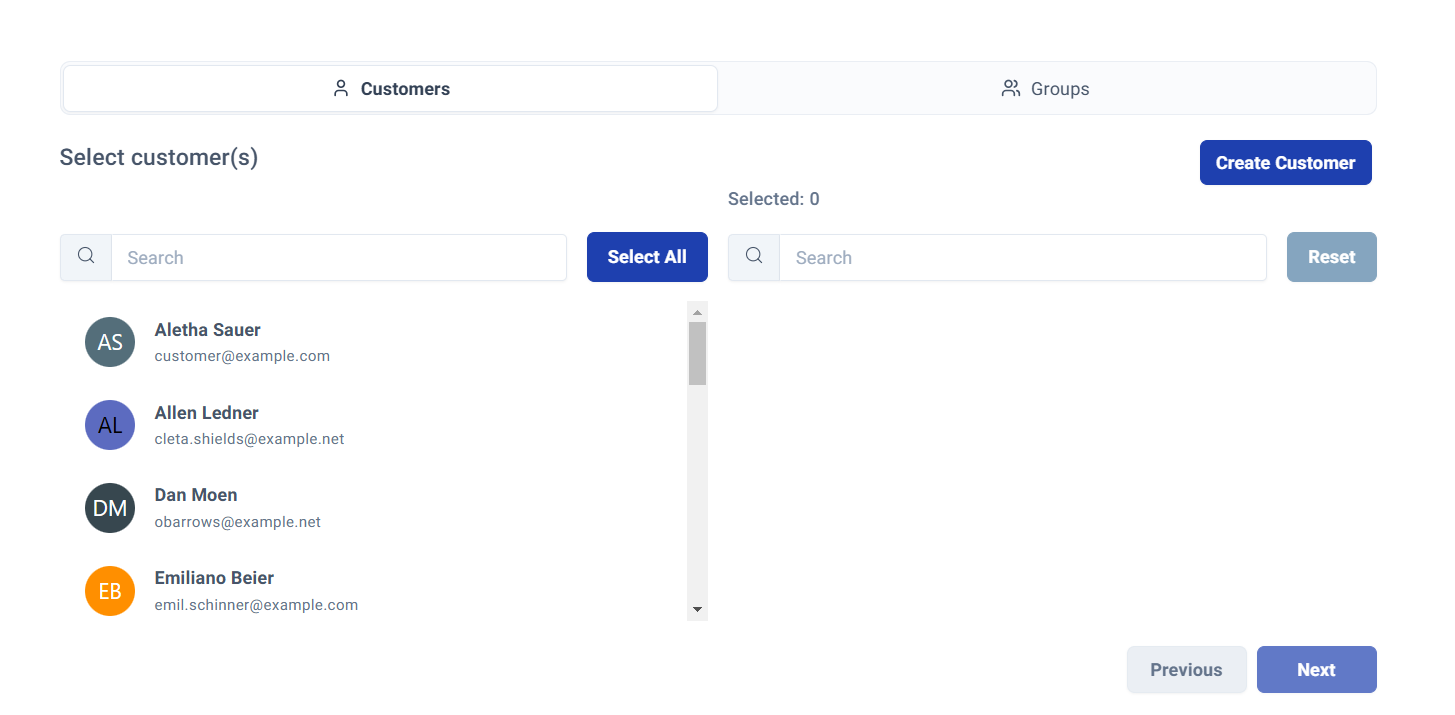
Selected customers appear in the right-hand panel with quantity indicators.
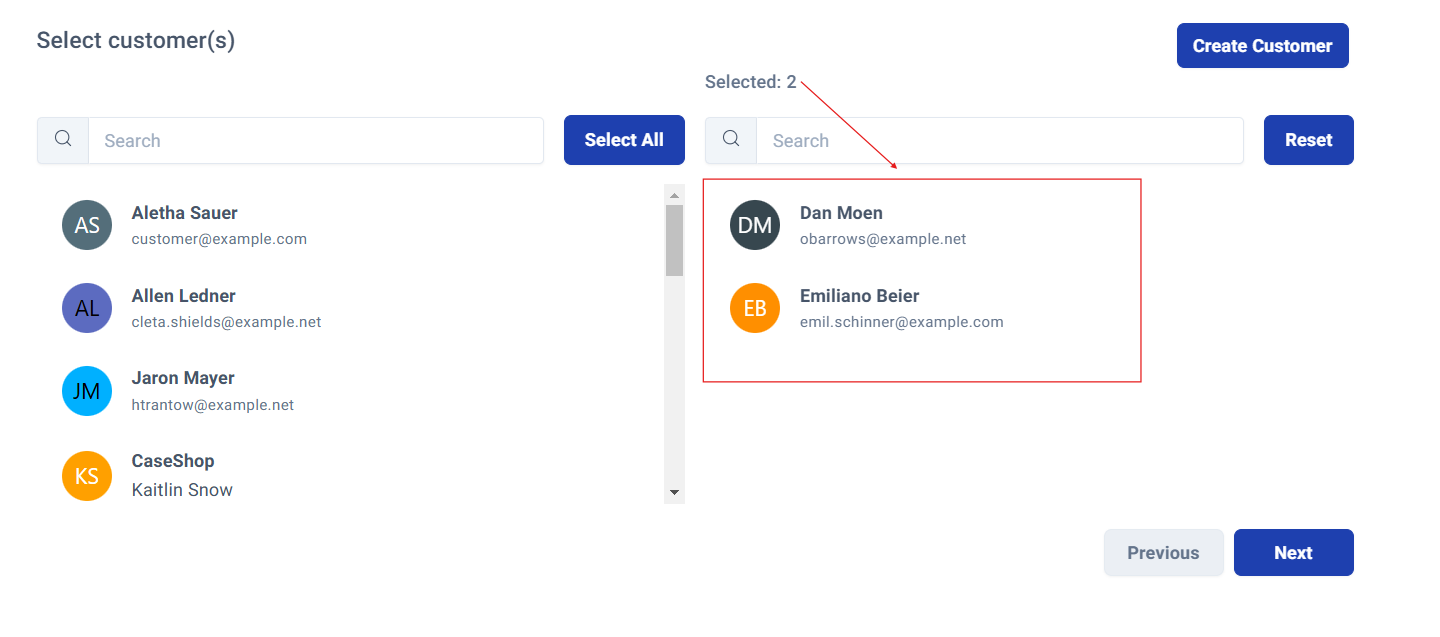
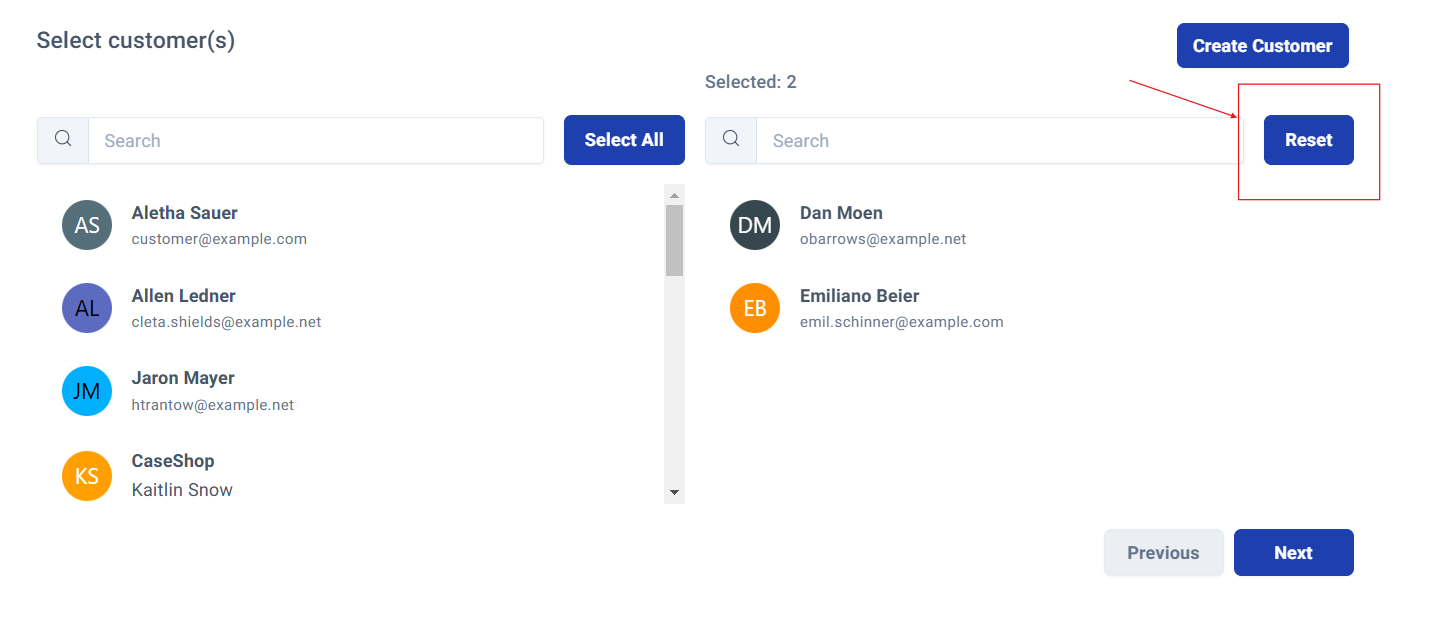
Step 12: Review and Modify Selection.
Use the "Reset" button to clear your selection and start over if needed.
Once satisfied with your customer selection, click "Next" to continue.
Payment Adjustments and Additional Charges
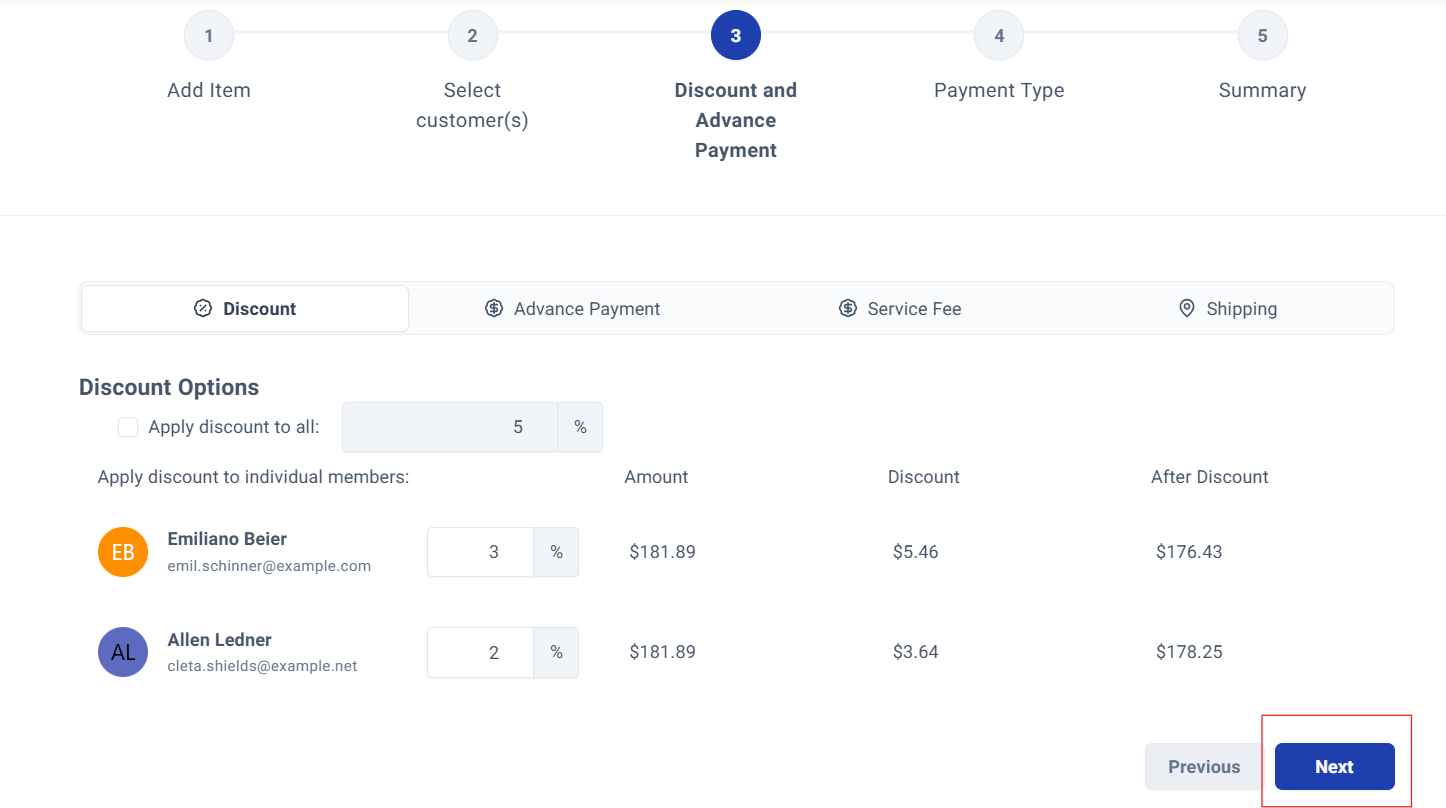
Step 13: Configure Financial Adjustments.
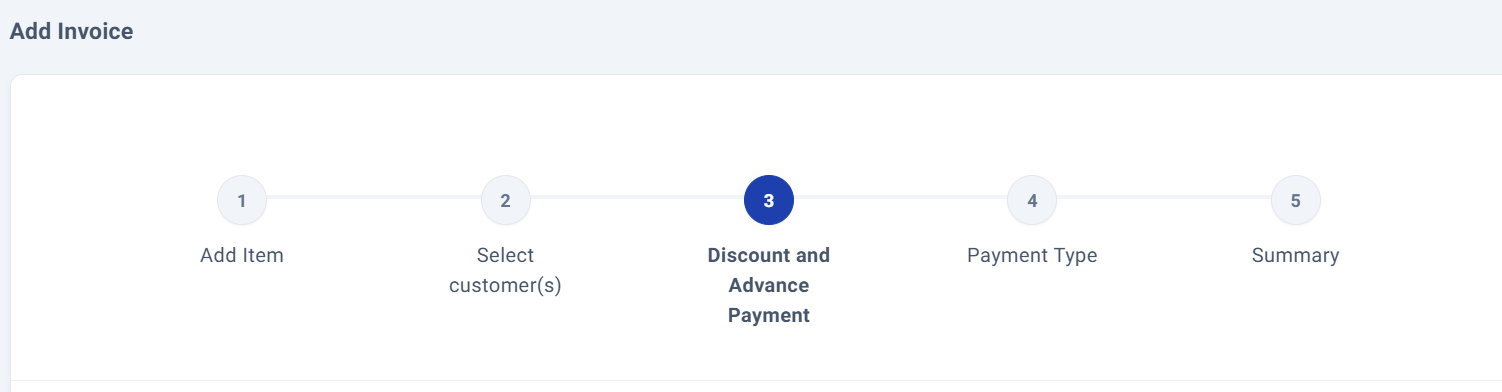
Fine-tune your invoice with these four adjustment options:
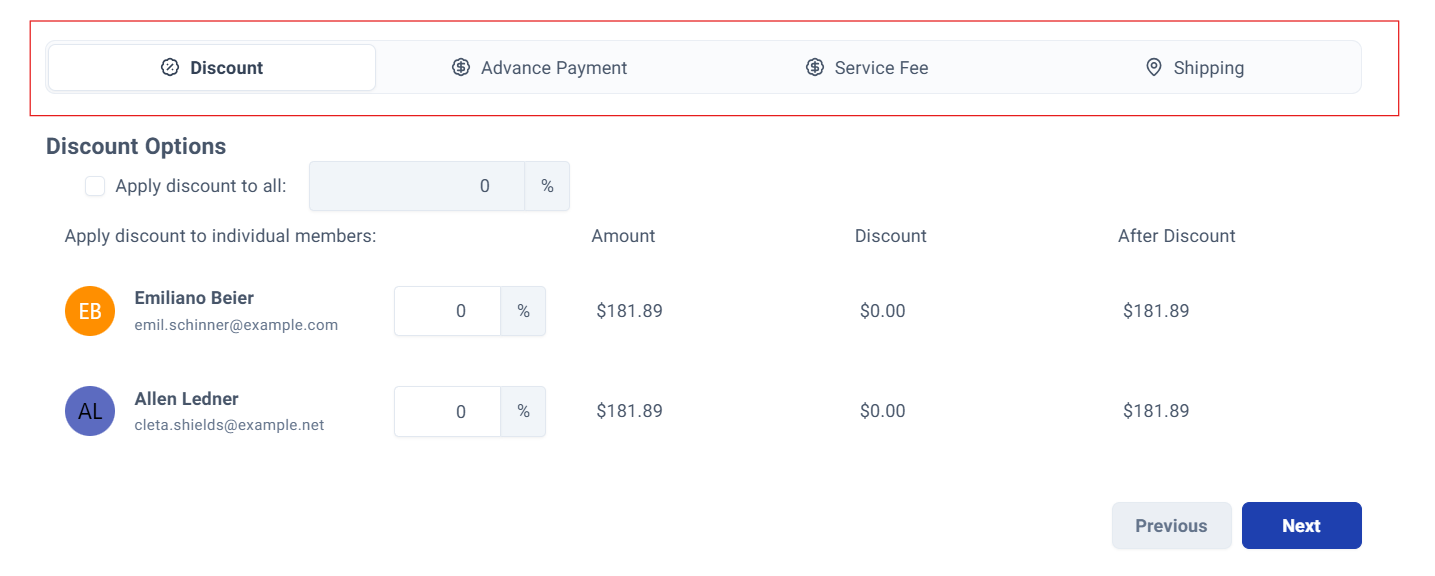
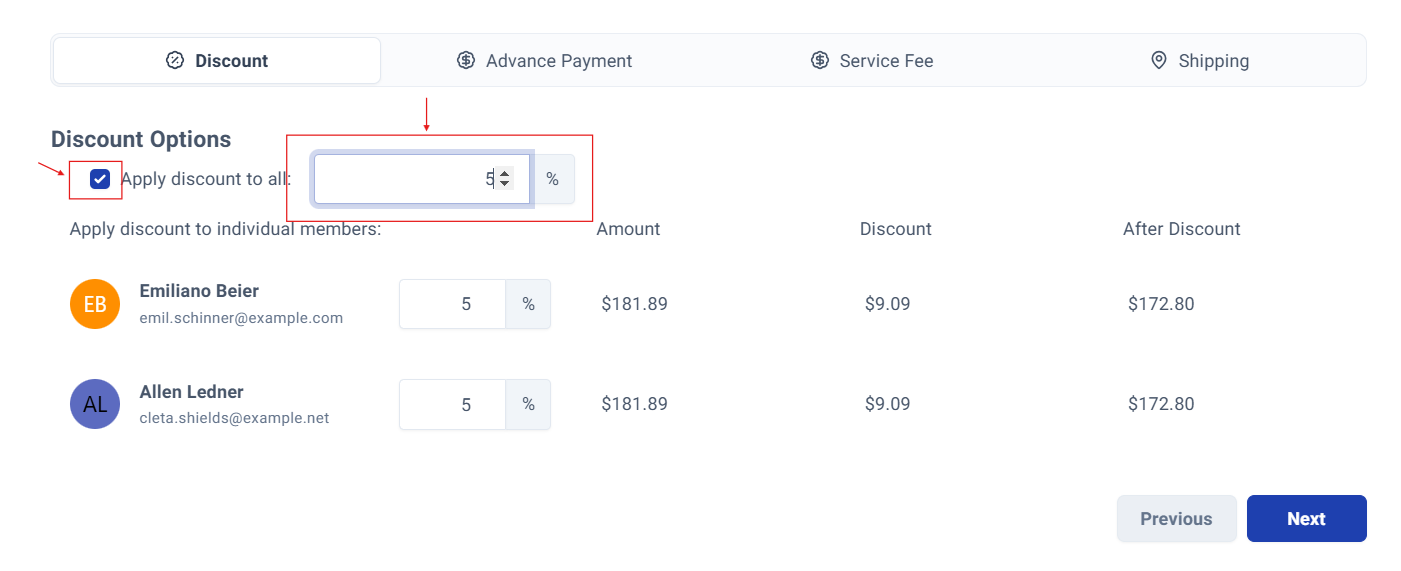
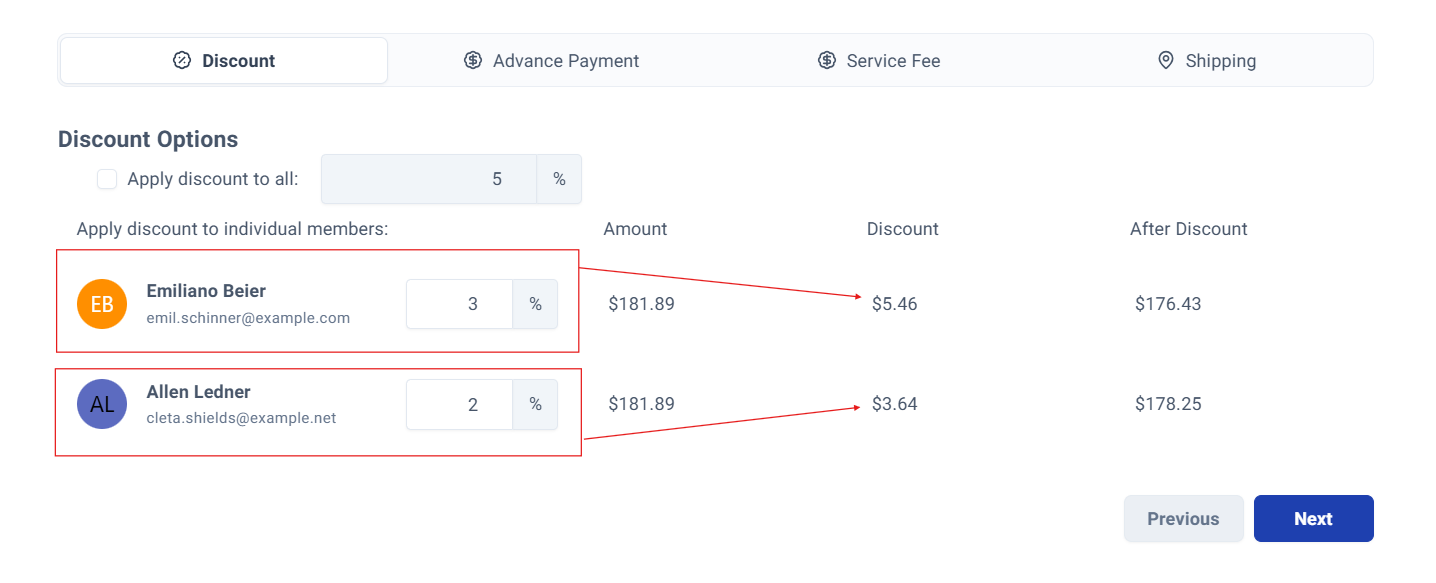
Discount Options
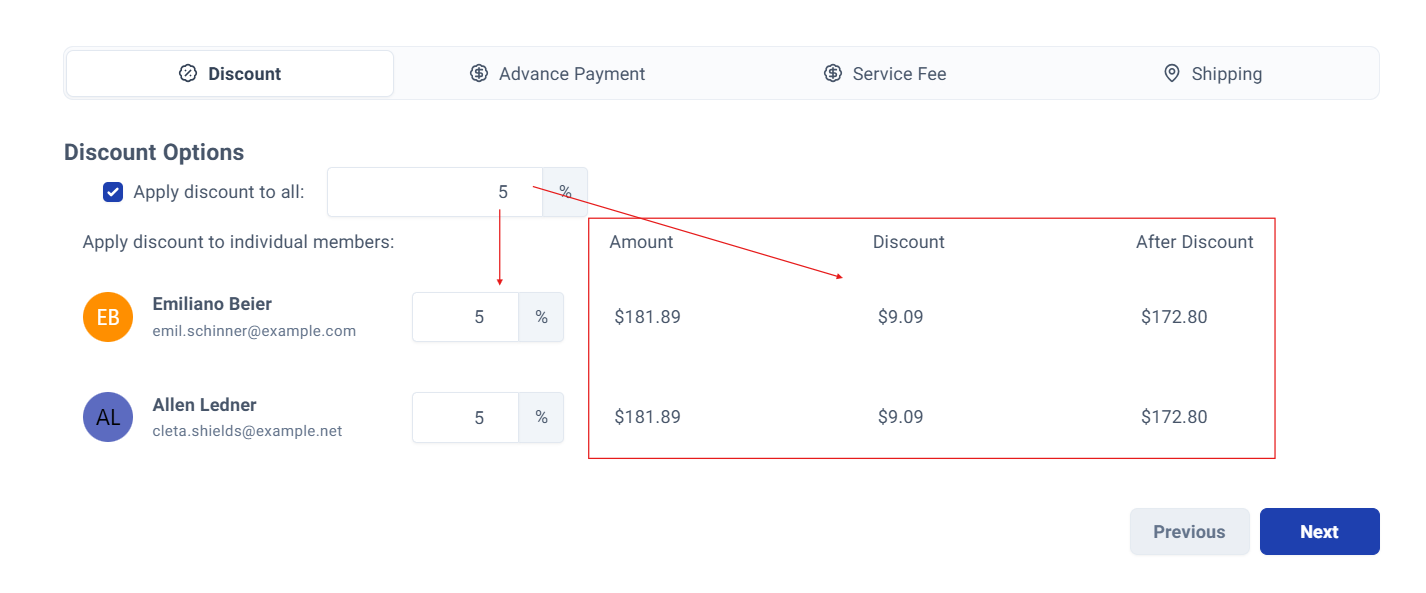
- Universal Discount: Apply a single discount to the entire invoice total
- Individual Discounts: Set specific discount amounts for each customer
All calculations update automatically when discounts are applied.
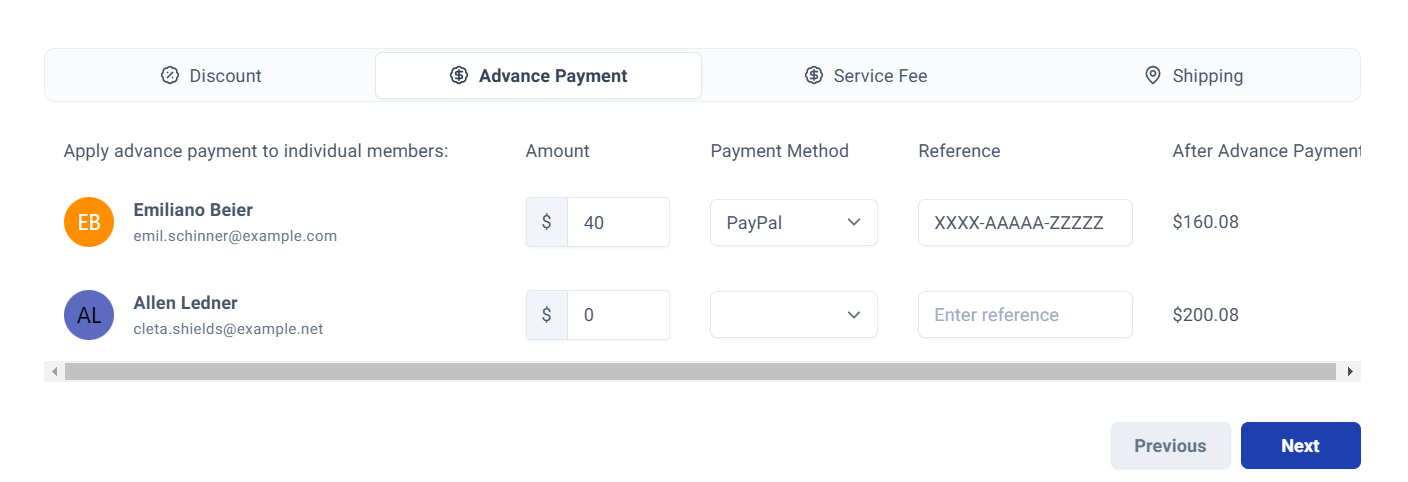
Advance Payment
Record pre-payments by entering:
- Payment amount
- Payment method
- Reference number
The system automatically calculates the remaining balance.
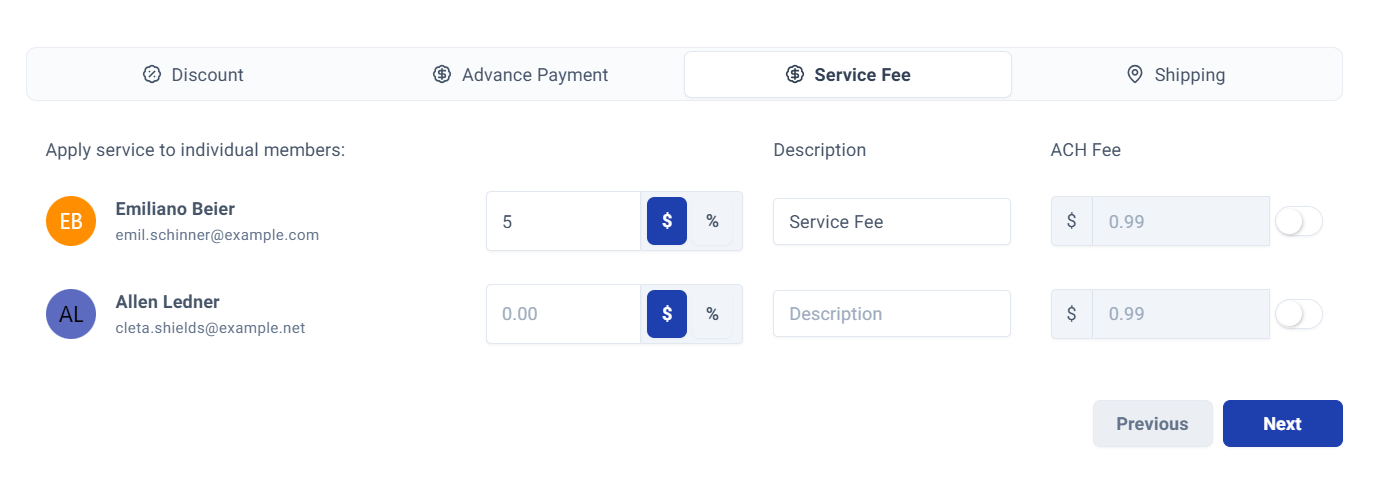
Service Fees
Add service charges with:
- Fee amount per customer
- Fee description
- Optional ACH processing fee modifications
Shipping Information
Click "Edit" to add comprehensive shipping details:
- Delivery address
- Shipping costs
- Tracking URL
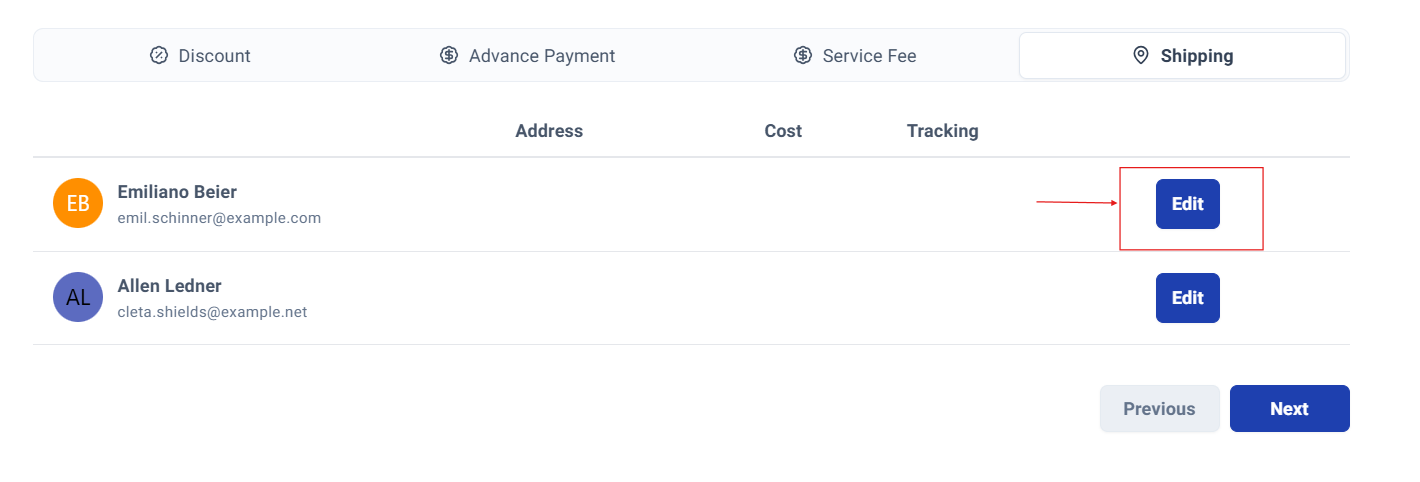
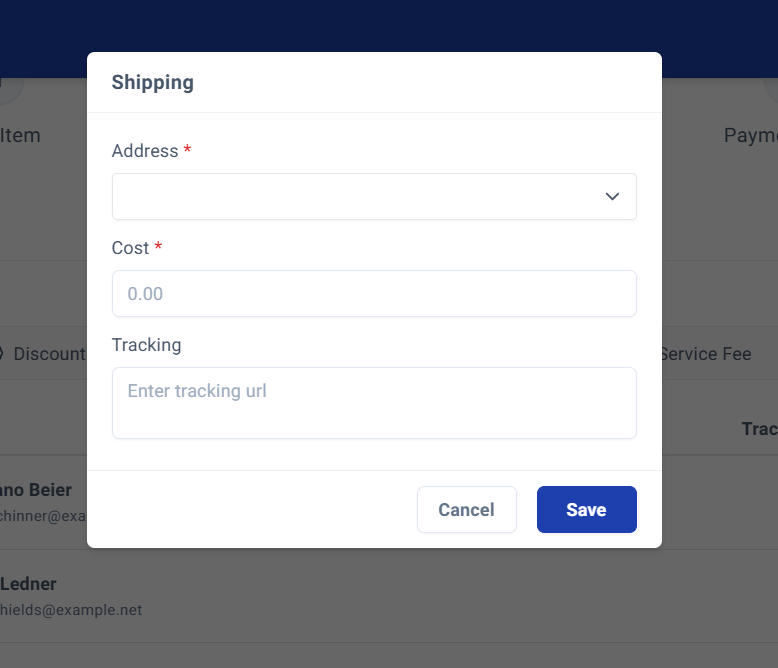
Save your shipping information and proceed by clicking "Next".
Payment Configuration
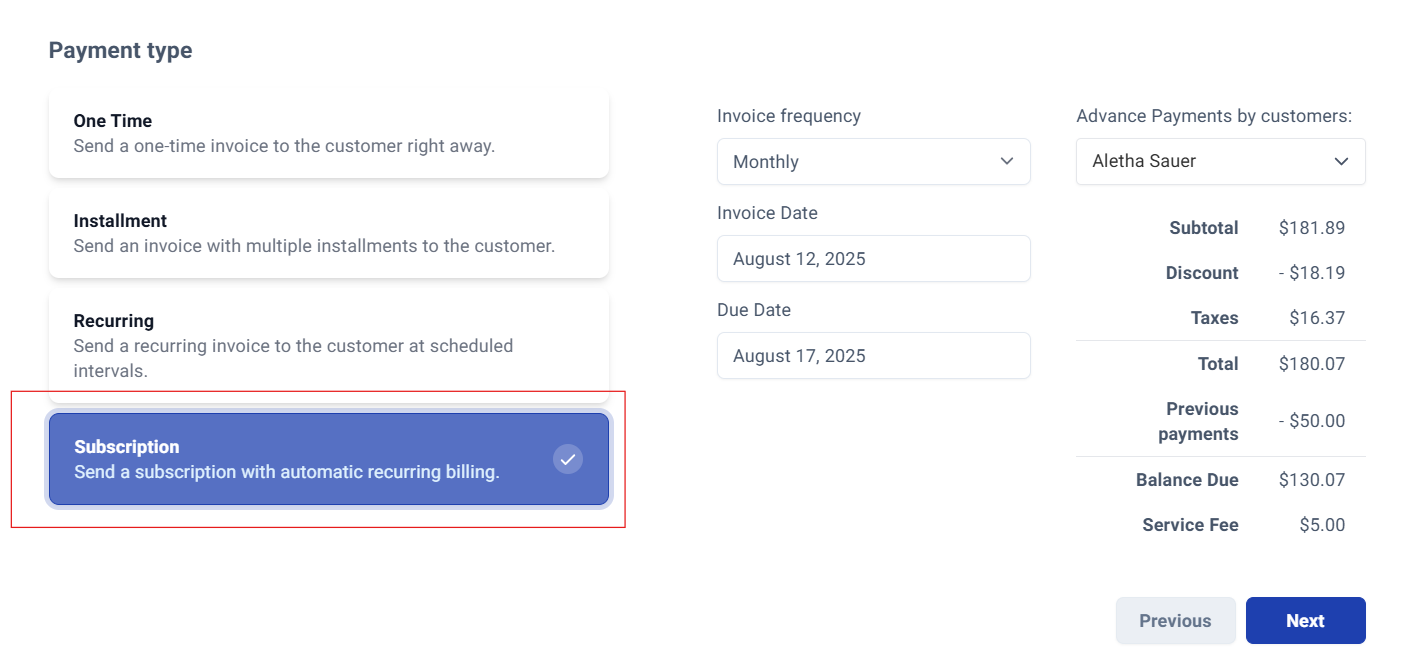
Step 14: Set Payment Type and Schedule.
For subscription invoice, select "Subscription" as your payment type.
Step 15: Configure Important Dates.
Set the following dates for your invoice:
- Invoice frequency: Frequency in which the invoice will be sent.
- Invoice Date: The date the invoice is issued.
- Due Date: When payment is required.
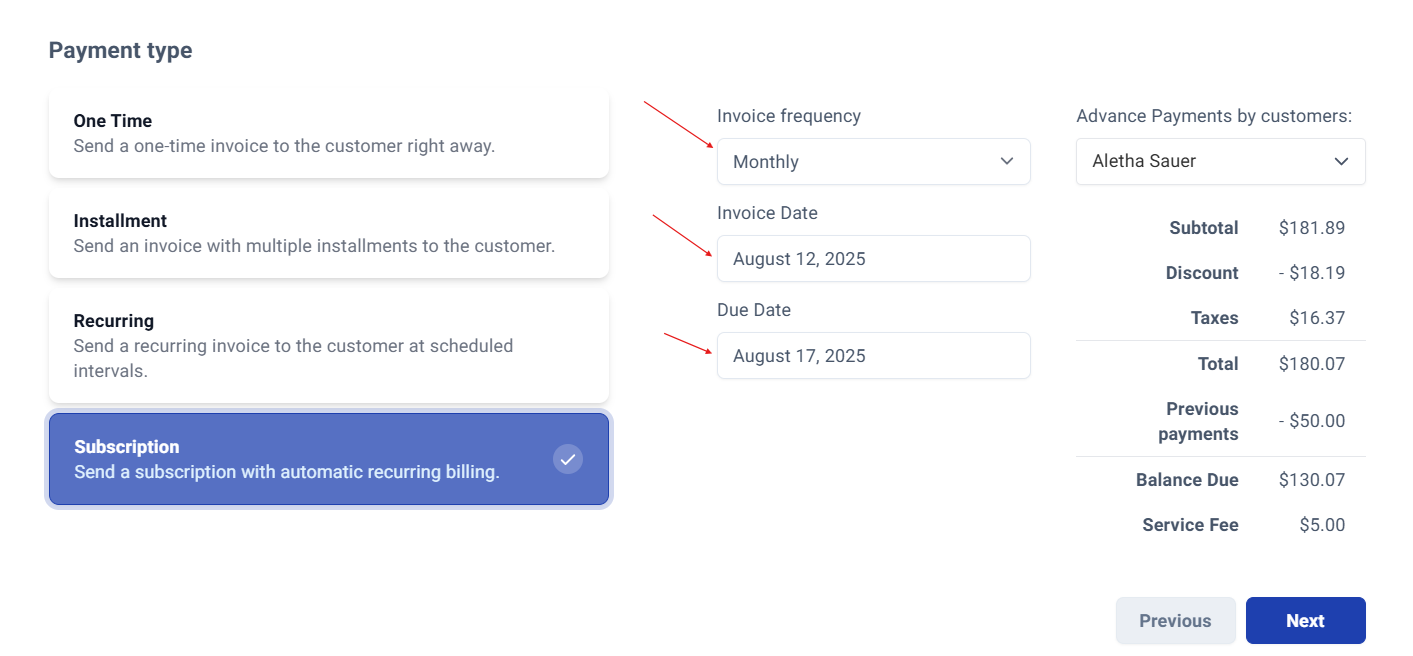
Step 16: Review Financial Summary.
The system displays a comprehensive breakdown for each customer, including:
- Applied discounts
- Tax calculations
- Previous payments
- Outstanding balance
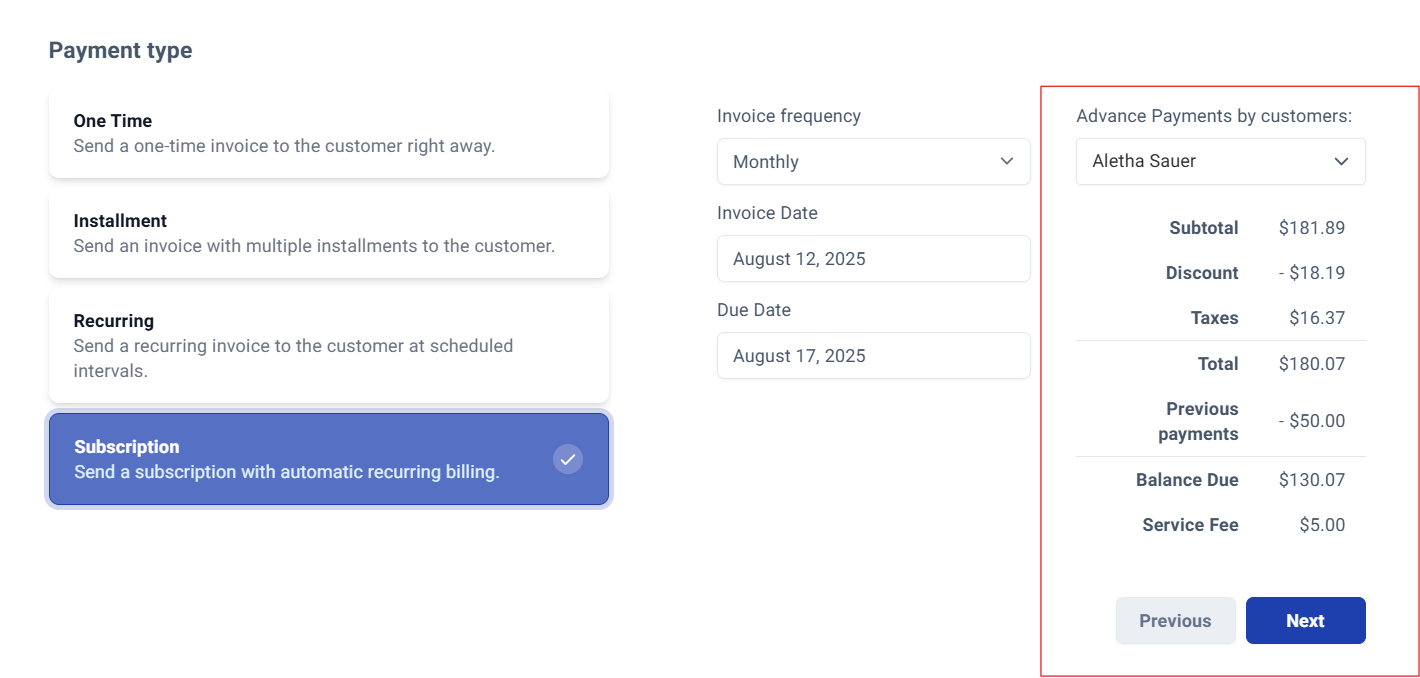
Click "Next" to proceed to the final review stage.
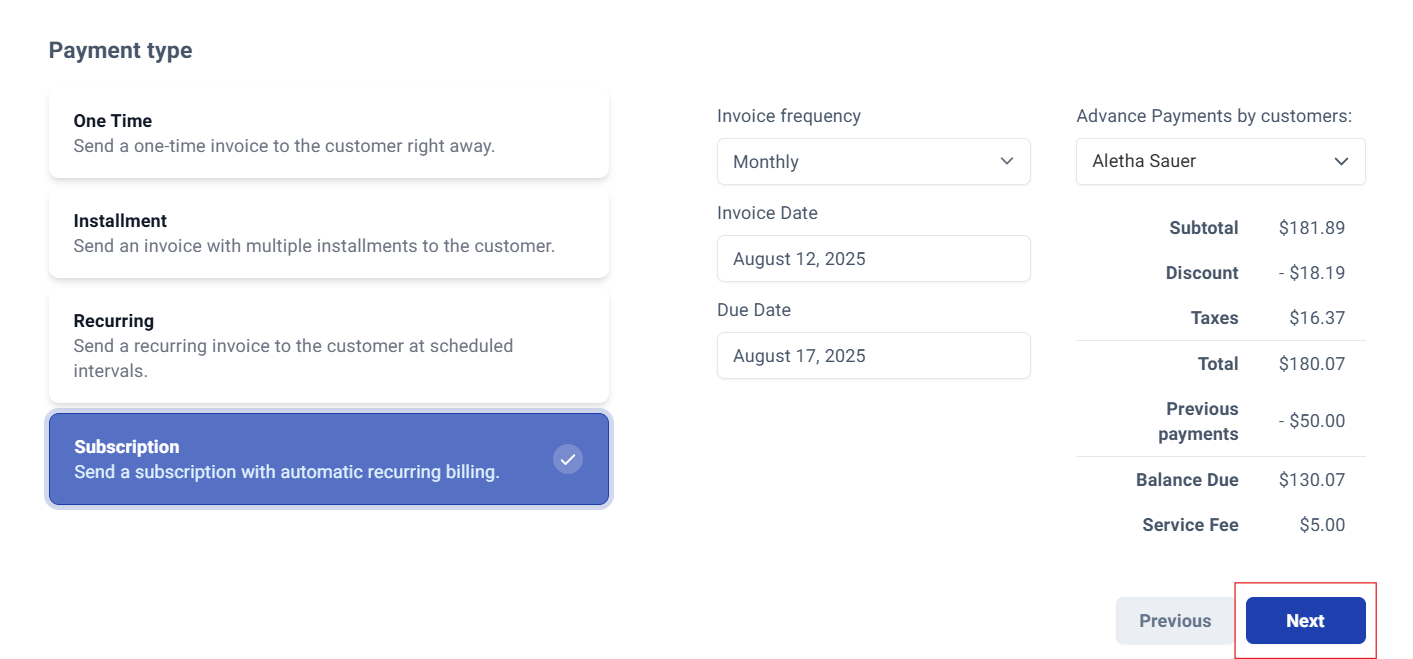
Final Review and Delivery
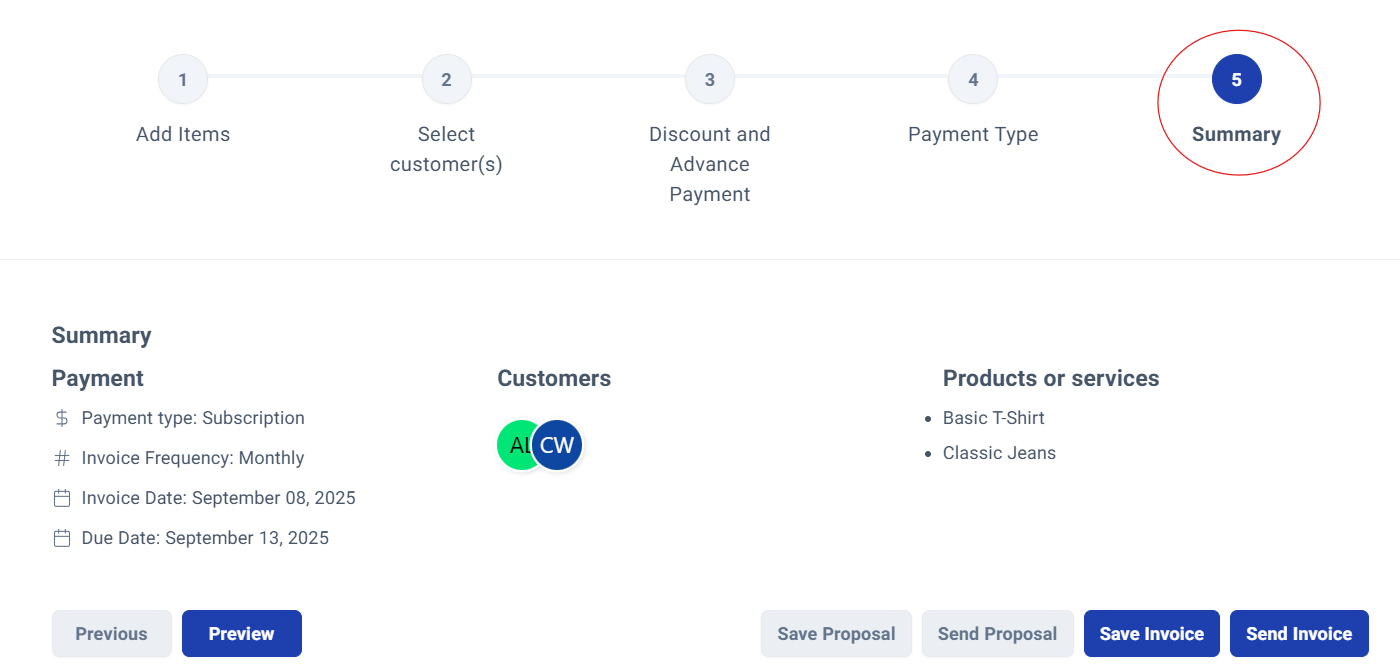
Step 17: Complete Invoice Review.
The final summary screen provides a comprehensive overview of your invoice, including:
- Payment type and frequency
- Invoice and due dates
- Selected customers
- Complete product/service listing
- All financial calculations and adjustments
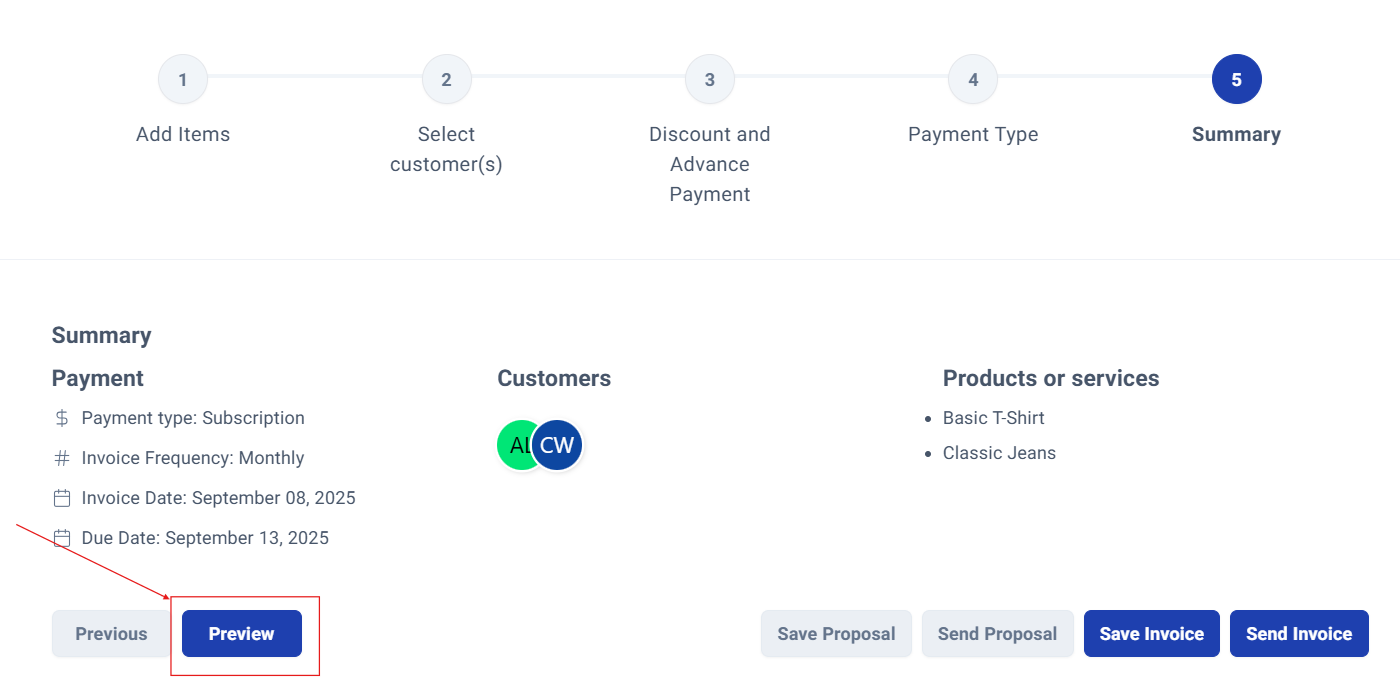
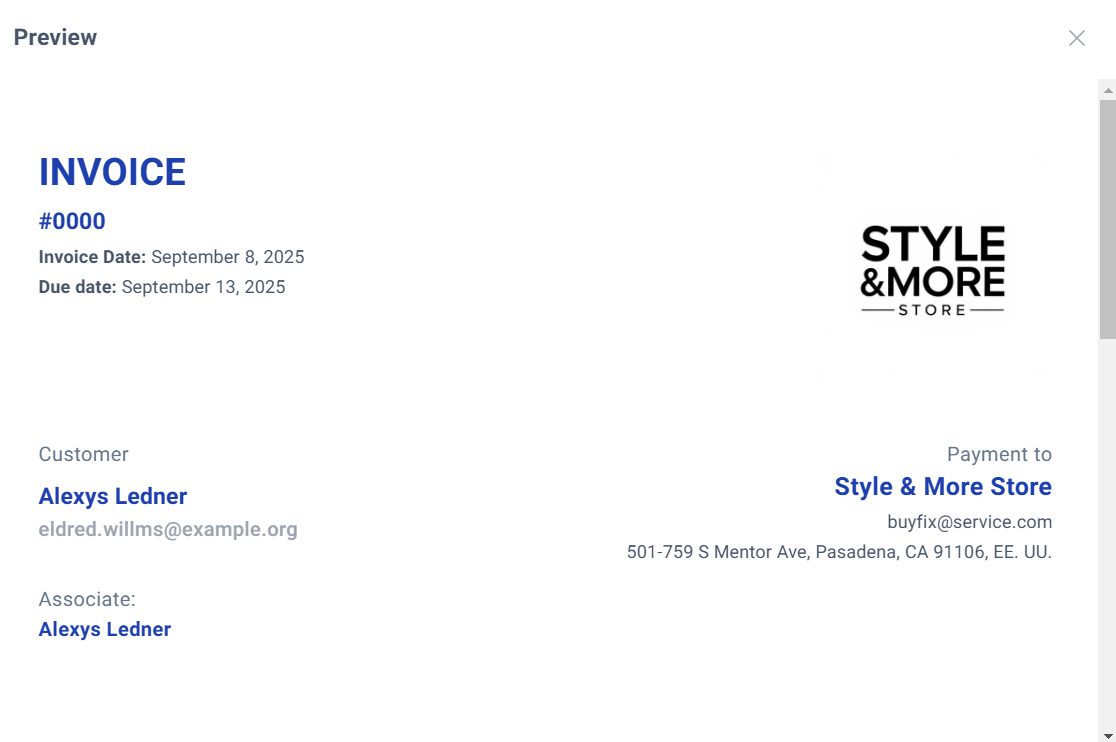
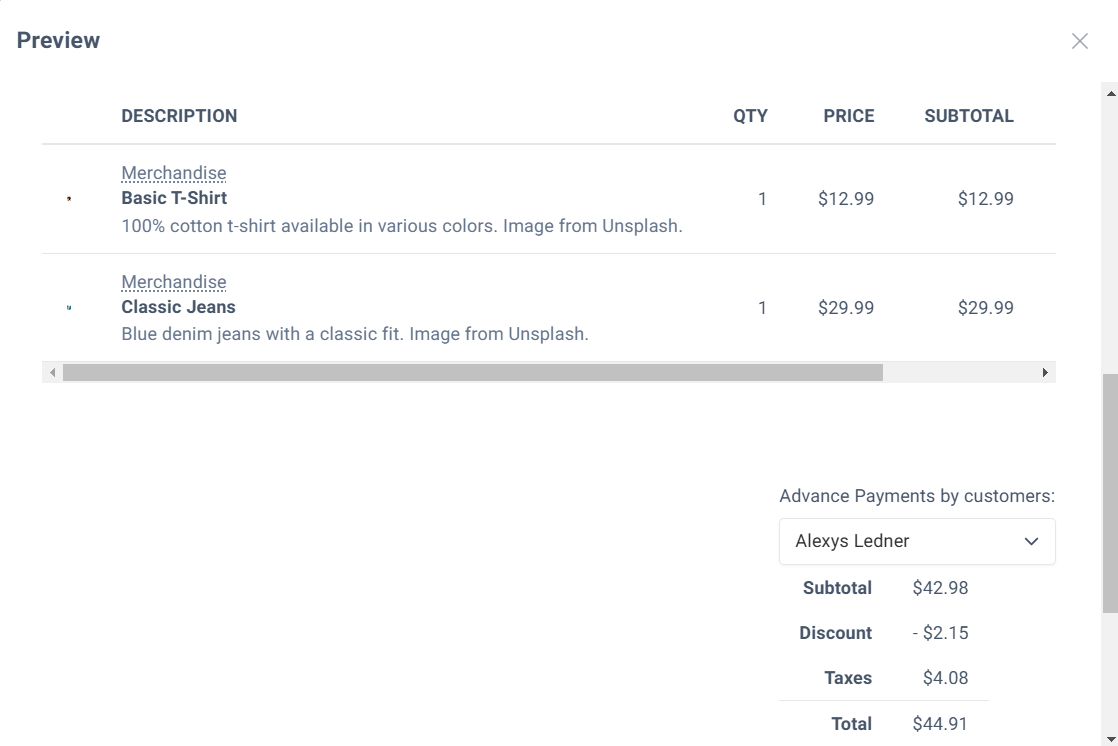
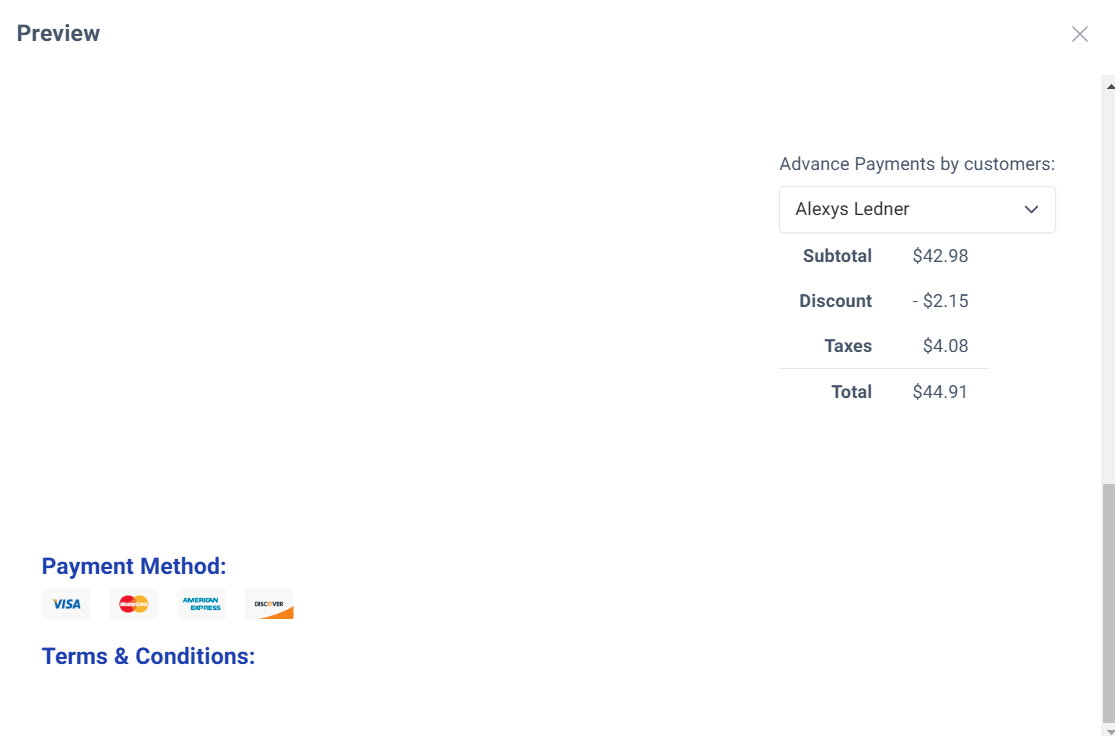
Step 18: Preview Your Invoice (Optional).
Click "Preview" in the bottom-left corner to view exactly how your invoice will appear to customers. This opens a new window displaying the formatted invoice.
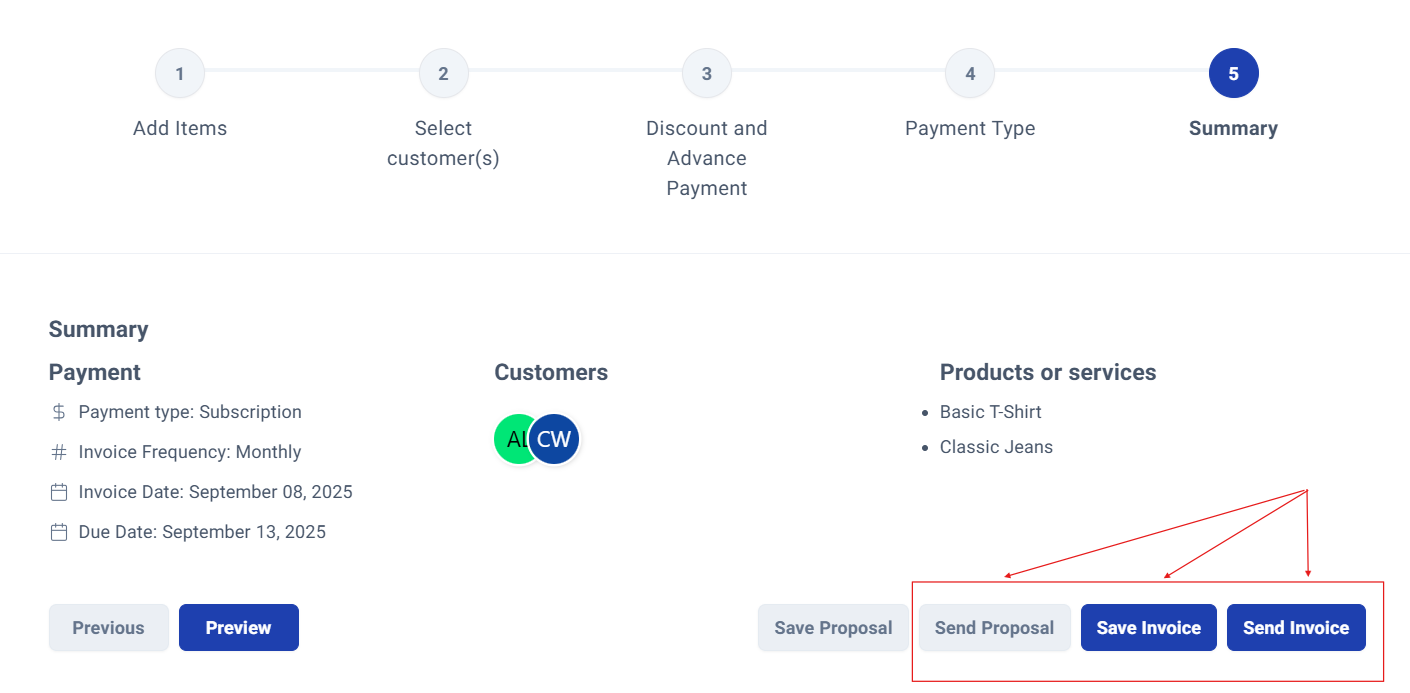
Step 19: Choose Your Next Action.
Complete your invoice process by selecting one of three options:
- Send Proposal: Send as a preliminary proposal for customer approval
- Save Invoice: Save as a draft for later completion and sending
- Send Invoice: Immediately deliver the finalized invoice to your customer(s)
Process Complete!
You have successfully created your subscription invoice. The invoice will be tracked in your SimplaTask dashboard, and you'll receive notifications about payment status and any required follow-up actions.
Was this article helpful?
That’s Great!
Thank you for your feedback
Sorry! We couldn't be helpful
Thank you for your feedback
Feedback sent
We appreciate your effort and will try to fix the article